
HTML provides many elements that help developers organize content and build user-friendly webpages. Some tags are used every day, while others are less common but still useful to understand. One of these lesser-known elements is the <menu> tag.
Many beginners come across the <menu> element and assume it works exactly like a website navigation menu. While the name may suggest that, the <menu> tag actually has a different purpose in HTML.
In this beginner-friendly guide, you’ll learn what the HTML <menu> tag is, how it works, when it should be used, how it differs from the <nav> element, and why understanding it can improve your HTML knowledge.
This article focuses on clear explanations rather than lots of code so that anyone learning HTML can easily follow along.
What is the HTML <menu> Tag?
The <menu> tag is an HTML element used to represent a list of commands, actions, or menu options.
In simple terms, it groups together items that users can interact with.
Think of it as a collection of available actions.
For example:
- Save
- Edit
- Delete
- Share
These actions can be organized inside a menu.
Although the <menu> element exists in HTML, it is not commonly used for website navigation today. Most websites use the <nav> element for navigation menus instead.
Basic Syntax of the <menu> Tag
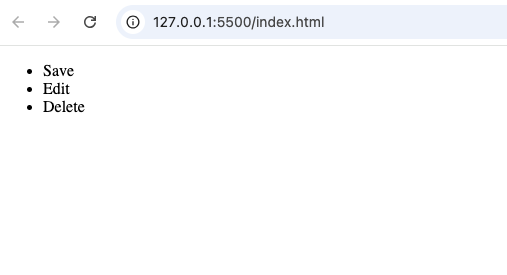
A simple menu structure looks like this:
<menu>
  <li>Save</li>
  <li>Edit</li>
  <li>Delete</li>
</menu>
This creates a list of menu options.
The menu acts as a container that holds related commands.
Why Was the <menu> Tag Created?
The <menu> element was introduced to provide a semantic way of grouping commands and actions.
Before semantic HTML became popular, developers often used generic containers like:
<div>or standard lists such as:
<ul>
The <menu> tag was designed to make it clearer that the list represents available actions rather than ordinary content.
Understanding the Purpose of <menu>
Many beginners misunderstand the purpose of this element.
The <menu> tag is not primarily intended for:
- Website navigation
- Main menus
- Site navigation bars
Instead, it is intended for:
- Action lists
- Command groups
- Toolbars
- Context menus
Think of it as a menu of actions rather than a menu of pages.
How the <menu> Tag Works
The <menu> element acts similarly to an unordered list.
It contains menu items that represent available commands.
For example:
<menu>

  <li>Download</li>

  <li>Print</li>

  <li>Share</li>

</menu>
The browser displays the items much like a regular list.
The difference is semantic meaning.
The HTML code communicates that these items represent commands or actions.
Difference Between <menu> and <ul>
This is one of the most common beginner questions.
At first glance, they seem similar.
Let’s compare them.
<menu> | <ul> |
|---|---|
| Represents commands or actions | Represents general lists |
| Semantic action grouping | Generic list grouping |
| Less commonly used | Extremely common |
| Intended for menus of actions | Used for almost any list |
If you’re creating a normal list of information, <ul> is usually the better choice.
If you’re grouping commands, <menu> may be appropriate.
Difference Between <menu> and <nav>
This is another common source of confusion.
Many beginners assume the <menu> tag creates website navigation.
In reality, the <nav> element is usually the correct choice for navigation links.
Let’s compare them.
<menu> | <nav> |
|---|---|
| Groups commands | Groups navigation links |
| Focuses on actions | Focuses on moving around a website |
| Less common in websites | Very common in websites |
| Used for interactive options | Used for navigation menus |
Example navigation items:
- Home
- About
- Contact
- Services
These belong inside a <nav> element, not a <menu> element.
Real-World Example of a Menu
Imagine a photo editing application.
The application may include actions such as:
- Open Image
- Save Image
- Export Image
- Delete Image
These commands form a menu.
This is closer to the original purpose of the <menu> element.
Common Uses of the <menu> Tag
Although not extremely popular in modern websites, there are still situations where it can be useful.
1. Action Menus
A menu can group actions users may perform.
Examples:
- Save
- Download
- Share
2. Toolbar Commands
Applications often include command toolbars.
Examples:
- Copy
- Paste
- Undo
- Redo
These can be represented as menu actions.
3. Context Menus
Some web applications display special menus when users right-click or perform certain actions.
These menus may contain commands such as:
- Rename
- Delete
- Move
- Duplicate
Why the <menu> Tag Is Less Common Today
The <menu> element has an interesting history.
Over time, developers found other approaches more practical.
Many websites now use:
<nav><ul><div>
combined with CSS and JavaScript.
As a result, the <menu> element is not as widely used as some other HTML tags.
However, understanding it is still useful because it is part of HTML.
Browser Support for <menu>
The <menu> element is supported by modern browsers including:
- Chrome
- Firefox
- Safari
- Edge
- Opera
However, browser behavior may vary depending on how advanced menu features are implemented.
For simple usage, browser support is generally reliable.
HTML5 and the <menu> Element
HTML5 expanded semantic HTML and introduced many elements that improve webpage structure.
Examples include:
The <menu> element continued to exist as a semantic way of grouping commands.
Although it never became as popular as some other elements, it remains part of HTML.
Accessibility Benefits
Semantic HTML helps assistive technologies understand webpage content.
When used correctly, the <menu> element can communicate that a group of items represents actions or commands.
This can improve clarity for screen readers and accessibility tools.
However, developers should still test accessibility carefully when creating interactive menus.
SEO and the <menu> Tag
The <menu> element does not directly improve search engine rankings.
However, semantic HTML generally helps create cleaner and more understandable page structures.
Good HTML structure contributes to:
- Better readability
- Easier maintenance
- Improved accessibility
Understanding Menu Items
A menu usually contains items that trigger actions.
Examples include:
- Save
- Upload
- Download
- Share
- Edit
- Delete
Each item represents something the user can do.
This differs from informational content.
Menu Tag vs Modern UI Components
Modern websites often create advanced menus using:
- CSS
- JavaScript
- Frameworks
These menus may include:
- Dropdown menus
- Mega menus
- Side menus
- Mobile menus
Even though these interfaces are called “menus,” they are not always built using the HTML <menu> element.
Instead, developers often use combinations of:
<nav><ul><div>- Buttons
for greater flexibility.
Practical Example: File Management System
Imagine creating a file manager application.
A selected file may display actions such as:
- Open
- Rename
- Download
- Delete
These actions naturally fit the concept of a menu.
The <menu> element can help group them together semantically.
Common Beginner Mistakes
Here are some mistakes beginners often make when learning about the <menu> element.
1. Using <menu> for Website Navigation
Most navigation systems should use:
<nav>instead of:
<menu>
The <nav> element was specifically designed for navigation links.
2. Assuming It Creates a Styled Menu
The <menu> tag does not automatically create a fancy menu design.
CSS is still needed for styling.
3. Confusing Commands with Content
Menu items should represent actions.
They should not simply contain unrelated information.
4. Overusing the <menu> Element
Not every list of items needs to be a menu.
Sometimes a standard unordered list is more appropriate.
Best Practices for Using <menu>
If you decide to use the <menu> element, keep these tips in mind.
Use It for Actions
The menu should contain commands or actions rather than general content.
Keep Items Organized
Group related actions together.
This makes menus easier to understand.
Use Clear Labels
Users should immediately understand what each action does.
Examples:
- Download File
- Save Changes
- Delete Item
Combine with Accessibility Features
Ensure keyboard navigation and screen-reader support when building interactive menus.
Focus on User Experience
Menus should help users complete tasks quickly and easily.
When Should Beginners Use <menu>?
For most beginner HTML projects, you may not need the <menu> element immediately.
Projects such as:
- Personal portfolios
- Blogs
- Landing pages
- Small business websites
typically rely more on:
However, learning about <menu> helps you understand the broader HTML ecosystem and prepares you for more advanced projects.
Practice Project Ideas
Here are a few beginner-friendly projects where you can experiment with the <menu> element.
File Manager Interface
Create a menu containing:
- Open
- Rename
- Delete
- Download
Photo Gallery Controls
Add actions such as:
- View
- Share
- Save
- Delete
Note-Taking App
Create action menus for:
- Edit Note
- Duplicate Note
- Archive Note
Task Manager
Include commands such as:
- Mark Complete
- Edit Task
- Delete Task
These projects help demonstrate the purpose of action-based menus.
Why Learning Lesser-Known HTML Tags Matters
Some HTML tags are used daily, while others appear less often.
Learning elements like <menu> helps you:
- Understand semantic HTML better
- Read other developers’ code more easily
- Build stronger HTML knowledge
- Prepare for larger projects
Even if you rarely use the element, understanding its purpose improves your overall web development skills.
The HTML <menu> tag is a semantic element designed to group commands and actions. While it is not commonly used for website navigation today, it still serves an important purpose in HTML by representing collections of user actions.
For most websites, the <nav> element remains the preferred choice for navigation menus. However, the <menu> element can be useful when organizing commands such as save, edit, delete, print, or share actions.
As a beginner, learning the <menu> tag expands your understanding of HTML and helps you appreciate how semantic elements are designed to communicate meaning. The more HTML elements you learn, the easier it becomes to create organized, accessible, and professional webpages.
ivermectin common concerns
ivermectin common concerns
Ketqua.net 7 is just awesome. I have a great pleasure using this page and getting the results I need fast. Definitely check them out at this link: ketqua.net 7
Yo, saw a bunch of people talking about ‘rongbachkim.com’. Looks like a popular spot. Anyone using it? Give it a look: rongbachkim.com
Time to see if Xổ Số Bạc Liêu is feeling generous today! Always exciting to check the numbers. More info: xosobaclieu
amoxicillin antibiotic interactions
amoxicillin antibiotic interactions
Alcohol and Blood Pressure Effects
Alcohol and Blood Pressure Effects
the drug sildenafil
the drug sildenafil
tadalafil concentration over time
tadalafil concentration over time
tadalafil sildenafil comparison guide
tadalafil sildenafil comparison guide