
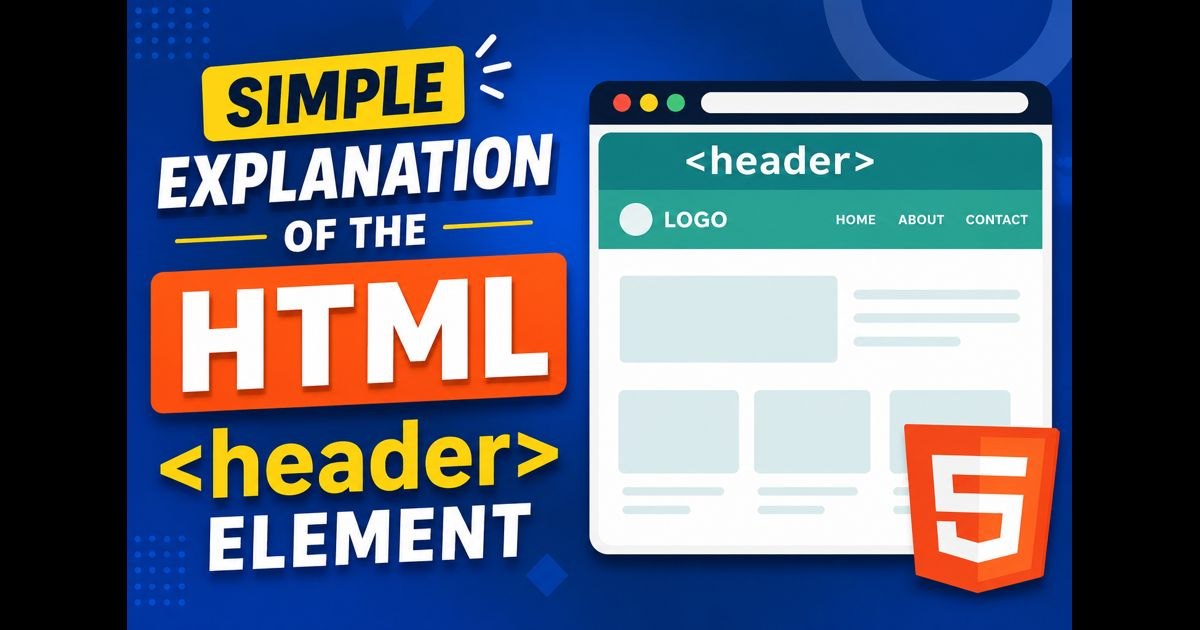
When learning HTML, one of the first structure tags you may come across is the <header> element. It is an important part of modern web design because it helps organize the top section of a webpage or section. Even though the name sounds simple, many beginners still confuse it with headings like <h1> or <h2>.
In this article, you will learn what the HTML <header> element is, why it matters, how to use it correctly, and common mistakes beginners should avoid. Everything is explained in simple words so you can understand it easily even if you are new to web development.
What is the HTML <header> Element?
The HTML <header> element is used to create the introductory section of a webpage or a section of content.
It usually contains things like:
- Website logo
- Navigation menu
- Page title
- Search bar
- Introductory text
- Author information
Think of it as the top area that introduces the content below it.
For example, when you visit most websites, the top part often contains the website name and navigation links like Home, About, Blog, and Contact. That area is commonly placed inside a <header> element.
Simple Syntax of the <header> Element
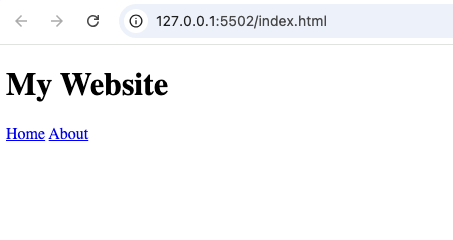
<header>
  <h1>My Website</h1>
  <nav>
    <a href="#">Home</a>
    <a href="#">About</a>
  </nav>
</header>
The code above creates a basic webpage header with a title and navigation links.
Why the <header> Element is Important
Before HTML5 introduced semantic elements, developers mainly used <div> tags for everything. That made webpages harder to understand.
The <header> element improves structure and readability.
Here are some reasons why it is important:
1. Better Organization
The <header> tag clearly tells browsers and developers that this section is the top introductory area.
Instead of writing:
<div class="top-section">
You can simply write:
<header>
This makes your code cleaner and easier to read.
2. Improves Accessibility
Screen readers used by visually impaired users can better understand your webpage structure when semantic tags like <header> are used.
This helps make websites more accessible to everyone.
3. Helps Search Engines Understand Your Website
Search engines like Google use webpage structure to understand content better.
Using proper semantic elements such as <header> can improve how your content is interpreted.
Difference Between <header> and <head>
Many beginners confuse these two tags because their names look similar.
They are completely different.
<header> | <head> |
|---|---|
| Visible on the webpage | Not visible on the webpage |
| Used for page introduction | Stores metadata |
Placed inside <body> | Placed before <body> |
| Contains logos, menus, titles | Contains title, links, styles |
Example of <head>
<head>
  <title>My Website</title>
</head>
Example of <header>
<header>
  <h1>Welcome to My Website</h1>
</header>
The <head> section works behind the scenes, while the <header> section appears on the webpage.
Difference Between <header> and Heading Tags
Another common mistake is confusing <header> with heading tags like:
<h1><h2><h3>
The <header> element is a container.
Heading tags are titles.
Example
<header>
  <h1>My Blog</h1>
</header>
In this example:
<header>organizes the section<h1>displays the main title
They work together but serve different purposes.
Where Can You Use the <header> Element?
The <header> element can be used in different places on a webpage.
1. Website Header
This is the most common use.
<header>
  <h1>Tech Blog</h1>
  <nav>
    <a href="#">Home</a>
    <a href="#">Articles</a>
    <a href="#">Contact</a>
  </nav>
</header>
This creates the top section of the entire website.
2. Article Header
You can also use <header> inside articles.
<article>
  <header>
    <h2>How to Learn HTML</h2>
    <p>Published May 2026</p>
  </header>

  <p>HTML is the foundation of web development...</p>
</article>
Here, the header introduces the article content.
3. Section Header
Headers can also introduce individual sections.
<section>
  <header>
    <h2>About Us</h2>
  </header>

  <p>We teach web development...</p>
</section>
This keeps sections organized and structured properly.
Common Content Found Inside a <header>
The <header> element can contain many types of content.
Some common examples include:
- Logos
- Navigation links
- Titles
- Introductory paragraphs
- Search forms
- Icons
- Social media links
- Author details
Example:
<header>
  <img src="logo.png" alt="Website Logo">

  <h1>My Online Store</h1>

  <nav>
    <a href="#">Home</a>
    <a href="#">Shop</a>
    <a href="#">Contact</a>
  </nav>
</header>
Can a Webpage Have Multiple <header> Elements?
Yes.
A webpage can have more than one <header> element.
This surprises many beginners.
You can use:
- One main header for the website
- Additional headers for articles or sections
Example:
<body>

<header>
  <h1>News Website</h1>
</header>

<article>
  <header>
    <h2>Sports Update</h2>
  </header>

  <p>Latest football news...</p>
</article>

</body>
Both headers are correct because they belong to different sections.
What Should NOT Be Inside a <header>?
Although the <header> element is flexible, some content does not belong there.
Avoid placing:
- Entire main article text
- Large unrelated content
- Footer information
- Random advertisements
The header should mainly contain introductory or navigational content.
Styling the <header> Element with CSS
The <header> element can be styled using CSS just like other HTML elements.
Example:
<header>
  <h1>My Website</h1>
</header>
header {
background-color: blue;
color: white;
padding: 20px;
}This adds:
- Background color
- Text color
- Spacing
You can also style menus, logos, and buttons inside the header.
Real-Life Example of a Website Header
Imagine a simple online store.
The top section may include:
- Store logo
- Search bar
- Navigation menu
- Cart icon
Example structure:
<header>
  <img src="logo.png" alt="Store Logo">

  <nav>
    <a href="#">Home</a>
    <a href="#">Products</a>
    <a href="#">About</a>
    <a href="#">Contact</a>
  </nav>

  <input type="text" placeholder="Search">
</header>
This creates a professional-looking top section.
Benefits of Using Semantic HTML Elements
The <header> element is part of semantic HTML.
Semantic elements describe their meaning clearly.
Examples include:
<header><footer><article><section><nav>
Benefits include:
- Cleaner code
- Easier maintenance
- Better accessibility
- Improved SEO
- Better teamwork among developers
Common Beginner Mistakes
Here are mistakes beginners often make when using the <header> element.
1. Using <header> Instead of <head>
Wrong:
<header>
  <title>My Website</title>
</header>
Correct:
<head>
  <title>My Website</title>
</head>
Remember:
<head>stores metadata<header>displays visible content
2. Putting Too Much Content Inside <header>
The header should introduce content, not contain the entire webpage.
Keep it clean and organized.
3. Forgetting Navigation
Headers often include navigation menus.
While not required, navigation is commonly placed there.
Example:
<header>
  <h1>My Blog</h1>

  <nav>
    <a href="#">Home</a>
    <a href="#">Blog</a>
  </nav>
</header>
HTML5 and the <header> Element
The <header> element became officially supported with HTML5.
Before HTML5, developers mostly used <div> elements.
Old method:
<div id="header">
Modern method:
<header>
The modern version is easier to understand and more professional.
Browser Support for <header>
The good news is that the <header> element is supported by all modern browsers including:
- Google Chrome
- Firefox
- Safari
- Microsoft Edge
- Opera
You can safely use it in modern websites.
Example of a Complete Simple Header
Here is a beginner-friendly example.
<!DOCTYPE html>
<html>

<head>
  <title>Simple Header Example</title>
</head>

<body>

<header>
  <h1>Learning HTML</h1>

  <nav>
    <a href="#">Home</a>
    <a href="#">Tutorials</a>
    <a href="#">Contact</a>
  </nav>
</header>

<p>Welcome to my HTML tutorial website.</p>

</body>
</html>
This example includes:
- Website title
- Navigation links
- Main page content
It is simple but follows proper HTML structure.
When Should You Use the <header> Element?
Use the <header> element whenever you need an introductory section for:
- Entire webpages
- Articles
- Sections
- Blog posts
- Cards
- Content blocks
If the content introduces something, a <header> element may be appropriate.
<header> vs <nav>
Sometimes beginners wonder if they should use <header> or <nav>.
The answer is often both.
<header>organizes introductory content<nav>specifically contains navigation links
Example:
<header>
  <h1>My Website</h1>

  <nav>
    <a href="#">Home</a>
    <a href="#">Services</a>
  </nav>
</header>
The navigation menu sits inside the header.
Best Practices for Using <header>
Here are some good habits to follow.
Keep It Organized
Do not overcrowd the header.
Use Semantic Tags
Combine <header> with:
<nav><section><article>
Add Clear Titles
Use headings like <h1> or <h2> inside headers.
Make Navigation Easy
If possible, place important navigation links in the header.
The HTML <header> element is one of the most useful semantic elements in modern web development. It helps organize the top part of webpages and sections in a clean and meaningful way.
Instead of relying only on generic <div> tags, using <header> improves readability, accessibility, and webpage structure.
As a beginner, understanding how to use the <header> element properly will help you build websites that look more professional and follow modern HTML standards.
The more you practice using semantic HTML elements like <header>, the easier web development becomes.
READ MORE