
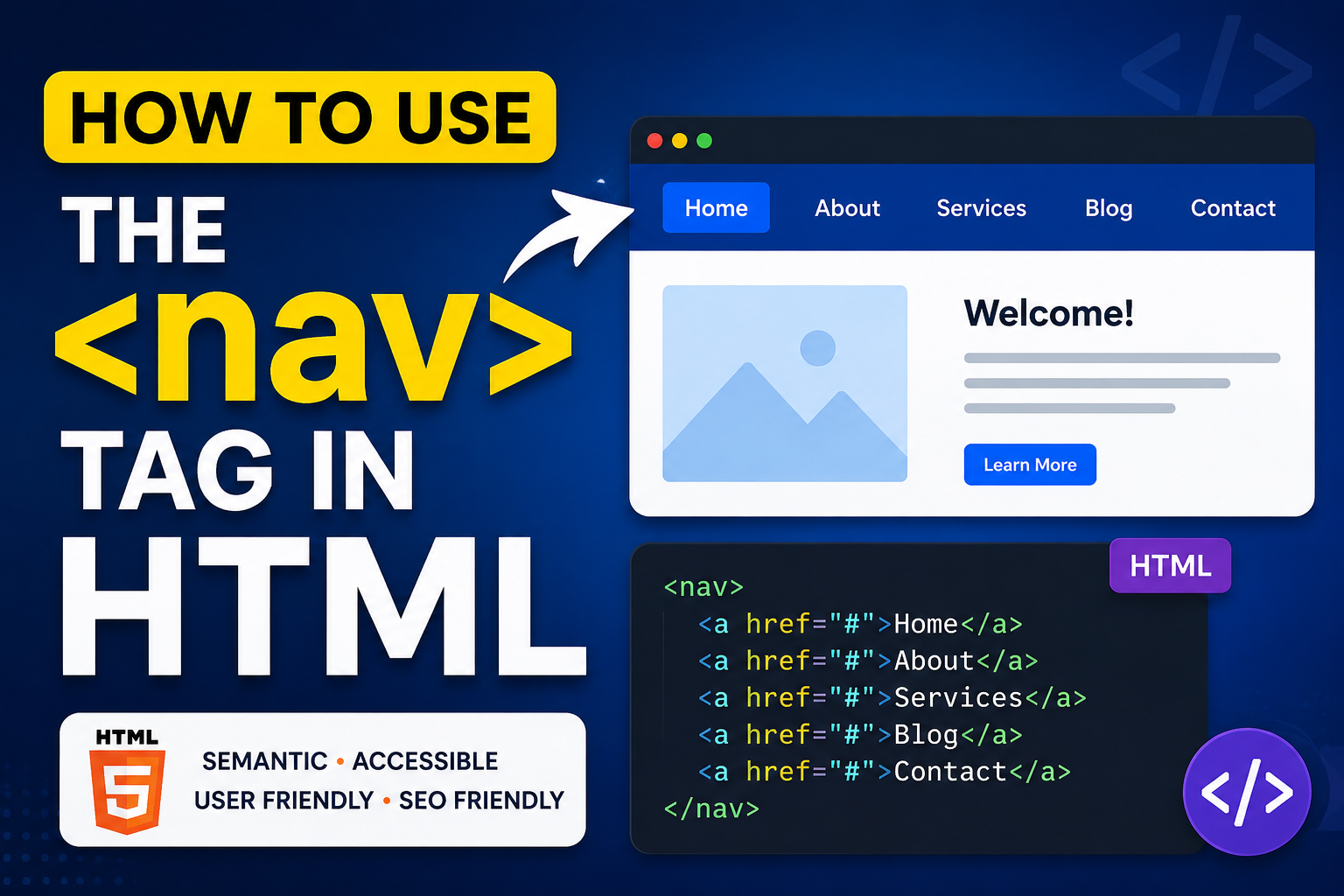
When building a website, one of the most important things you must think about is navigation. Visitors should be able to move from one page to another easily without confusion. That is where the HTML <nav> tag becomes very useful.
The <nav> element helps developers organize navigation links properly so users and browsers can clearly understand the navigation area of a webpage.
In this beginner-friendly guide, you will learn what the HTML <nav> tag is, why it is important, how to use it correctly, common mistakes beginners make, and best practices for creating better website navigation.
This explanation focuses mainly on simple words and practical understanding instead of too much code.
What is the HTML <nav> Tag?
The HTML <nav> tag is a semantic element used to define a section of navigation links on a webpage.
In simple terms, it tells browsers and visitors:
“This area contains navigation menus or important links.”
Most websites use navigation menus at the top of the page, on the sidebar, or sometimes at the bottom. These menus usually contain links like:
- Home
- About
- Services
- Blog
- Contact
The <nav> element helps organize those links properly.
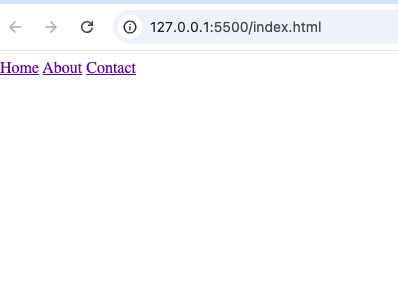
Simple Syntax of the <nav> Tag
<nav>
  <a href="#">Home</a>
  <a href="#">About</a>
  <a href="#">Contact</a>
</nav>
This creates a simple navigation section with three links.
Why the <nav> Tag is Important
Many beginners wonder why they should use <nav> instead of a normal <div> element.
The answer is structure and meaning.
The <nav> element gives meaning to the content inside it.
Here are some important reasons why the <nav> tag matters.
1. It Improves Website Structure
The <nav> tag clearly identifies navigation areas on a webpage.
Without semantic elements, developers used generic <div> tags for everything.
Old method:
<div class="menu">Modern method:
<nav>
The second option is cleaner and easier to understand.
2. Better Accessibility
Screen readers used by visually impaired users can detect the <nav> element and quickly identify navigation sections.
This helps users move through websites more easily.
Accessibility is an important part of modern web design.
3. Helps Search Engines Understand Your Website
Search engines like Google analyze webpage structure.
Using semantic elements like <nav> helps search engines better understand your content and website layout.
4. Makes Code Easier to Read
When another developer looks at your HTML code, they can immediately recognize the navigation section.
This improves teamwork and maintenance.
Where is the <nav> Tag Usually Used?
The <nav> element can appear in different places on a webpage.
1. Main Website Navigation
This is the most common use.
Example:
<nav>
  <a href="#">Home</a>
  <a href="#">Blog</a>
  <a href="#">Services</a>
  <a href="#">Contact</a>
</nav>
This usually appears at the top of a website.
2. Sidebar Navigation
Some websites place navigation links on the side.
Example:
<nav>
  <a href="#">Dashboard</a>
  <a href="#">Settings</a>
  <a href="#">Profile</a>
</nav>
This is common in admin panels and dashboards.
3. Footer Navigation
Some websites also place navigation links inside the footer.
Example:
<footer>
  <nav>
    <a href="#">Privacy Policy</a>
    <a href="#">Terms</a>
  </nav>
</footer>
This helps visitors access important pages quickly.
Difference Between <nav> and <header>
Beginners sometimes confuse these two elements.
They are related but different.
<nav> | <header> |
|---|---|
| Used for navigation links | Used for introductory content |
| Focuses on menus | Focuses on page introduction |
| Usually contains links | May contain logos, titles, menus |
Example:
<header>
  <h1>My Website</h1>

  <nav>
    <a href="#">Home</a>
    <a href="#">About</a>
  </nav>
</header>
In this example:
<header>organizes the top section<nav>specifically contains navigation links
What Can Be Inside a <nav> Element?
The <nav> element mainly contains navigation links.
Common content includes:
- Menu links
- Lists of links
- Buttons
- Icons
- Breadcrumb navigation
Example:
<nav>
  <ul>
    <li><a href="#">Home</a></li>
    <li><a href="#">Services</a></li>
    <li><a href="#">Contact</a></li>
  </ul>
</nav>
Using lists inside navigation menus is very common because it keeps the structure organized.
Should Every Link Be Inside <nav>?
No.
This is a very important thing beginners should understand.
The <nav> tag is mainly for major navigation sections.
Not every single link on a webpage belongs inside a <nav> element.
For example:
- Main menus belong inside
<nav> - Sidebar menus belong inside
<nav> - Footer navigation belongs inside
<nav>
But random links inside paragraphs usually do not need a <nav> container.
Can a Webpage Have Multiple <nav> Elements?
Yes.
A webpage can contain multiple <nav> elements if there are multiple navigation sections.
Example:
<header>
  <nav>
    <a href="#">Home</a>
    <a href="#">Blog</a>
  </nav>
</header>

<aside>
  <nav>
    <a href="#">Categories</a>
    <a href="#">Archives</a>
  </nav>
</aside>
This is perfectly correct.
Common Types of Navigation Menus
There are many styles of navigation menus used in websites.
1. Horizontal Navigation
This is the classic top menu.
Example:
Home | About | Services | Contact
Most websites use this design.
2. Vertical Navigation
Links are arranged vertically.
Example:
- Home
- Dashboard
- Settings
- Logout
This style is common in sidebars.
3. Dropdown Navigation
Dropdown menus reveal extra links when users hover or click.
Example:
Services ▼
- Web Design
- SEO
- Marketing
4. Mobile Navigation
Mobile websites often use hamburger menus.
Example:
☰
When clicked, the menu expands.
Why Semantic HTML Matters
The <nav> element is part of semantic HTML.
Semantic HTML means using tags that clearly describe their purpose.
Examples include:
<header><footer><article><section><nav>
Benefits include:
- Cleaner code
- Easier maintenance
- Better SEO
- Better accessibility
- More professional websites
Styling the <nav> Element with CSS
The <nav> element can be styled with CSS to create beautiful menus.
Example:
<nav>
  <a href="#">Home</a>
  <a href="#">About</a>
</nav>
nav {
background-color: black;
padding: 15px;
}
nav a {
color: white;
margin-right: 10px;
}This adds:
- Background color
- Spacing
- Text color
CSS helps make navigation menus visually attractive.
Real-Life Example of a Website Navigation
Imagine an online store.
The navigation menu may contain:
- Home
- Shop
- Categories
- Cart
- Contact
Example structure:
<nav>
  <a href="#">Home</a>
  <a href="#">Shop</a>
  <a href="#">Categories</a>
  <a href="#">Cart</a>
  <a href="#">Contact</a>
</nav>
Common Beginner Mistakes
Let us look at mistakes many beginners make when using the <nav> element.
1. Using <nav> for Every Group of Links
Not every link belongs inside <nav>.
Use it only for important navigation sections.
2. Forgetting Accessibility
Navigation should be clear and easy to use.
Avoid cluttered menus with too many confusing links.
3. Not Organizing Links Properly
Using unordered lists often makes menus cleaner and easier to style.
Example:
<nav>
  <ul>
    <li><a href="#">Home</a></li>
    <li><a href="#">Blog</a></li>
  </ul>
</nav>
4. Making Navigation Too Complicated
Simple navigation is usually better.
Visitors should quickly understand where each link leads.
HTML5 and the <nav> Element
The <nav> element was introduced in HTML5.
Before HTML5, developers mostly used:
<div class="navigation">Now developers can use:
<nav>
This modern approach improves structure and readability.
Browser Support for <nav>
The <nav> element is supported in all modern browsers including:
- Chrome
- Firefox
- Safari
- Edge
- Opera
You can safely use it in modern web development.
Example of a Complete Navigation Structure
Here is a beginner-friendly webpage example.
<!DOCTYPE html>
<html>

<head>
  <title>Navigation Example</title>
</head>

<body>

<header>
  <h1>My Website</h1>

  <nav>
    <a href="#">Home</a>
    <a href="#">Blog</a>
    <a href="#">About</a>
    <a href="#">Contact</a>
  </nav>
</header>

<p>Welcome to my website.</p>

</body>
</html>
This example includes:
- Website title
- Navigation menu
- Main content
It follows proper HTML structure.
Best Practices for Using the <nav> Tag
Here are some helpful tips.
Keep Navigation Simple
Avoid too many links.
Simple menus improve user experience.
Use Clear Link Names
Visitors should easily understand where links lead.
Good examples:
- Home
- Contact
- Services
Bad examples:
- Click Here
- Link1
Make Navigation Consistent
Keep menus similar across all pages.
This helps visitors feel comfortable using your website.
Combine <nav> with Other Semantic Elements
Use <nav> together with:
<header><footer><section>
This creates better webpage structure.
Use Mobile-Friendly Navigation
Modern websites should work well on phones and tablets.
Responsive menus are important today.
Navigation and User Experience
Good navigation improves user experience greatly.
Visitors can:
- Find pages quickly
- Explore content easily
- Stay longer on your website
Poor navigation can frustrate users and increase bounce rates.
SEO Benefits of Good Navigation
Search engines use website navigation to understand page relationships.
Well-structured navigation can help:
- Improve indexing
- Spread link authority
- Improve crawlability
Simple navigation helps both users and search engines.
The HTML <nav> tag is one of the most useful semantic elements in modern web development. It helps organize navigation menus clearly and professionally.
Instead of relying on generic <div> tags, using <nav> makes your website structure easier to understand for developers, browsers, screen readers, and search engines.
As a beginner, learning how to use the <nav> element properly is an important step toward building modern, accessible, and user-friendly websites.
The more you practice using semantic HTML elements like <nav>, the easier it becomes to create clean and professional webpages.
If you are looking for a reliable spot with a great community, this is it. I have had a blast playing here. Go check phokttph