
When building a webpage, every section has a purpose. Some parts introduce the content, some contain the main information, and some help users navigate the website. At the very bottom of many webpages, you will usually find an area that contains copyright information, contact details, links, or social media icons. This bottom section is commonly created using the HTML <footer> tag.
The <footer> element is one of the most useful semantic HTML tags in modern web development. It helps developers organize webpage endings clearly and professionally.
In this beginner-friendly guide, you will learn what the HTML <footer> tag does, why it matters, where it should be used, common beginner mistakes, and how it improves webpage structure.
This article focuses mostly on easy explanations instead of too much code so you can understand everything clearly.
What is the HTML <footer> Tag?
The HTML <footer> tag is a semantic element used to define the footer section of a webpage or a section.
In simple words, it represents the bottom area that contains supporting or ending information.
The footer often includes things like:
- Copyright text
- Contact information
- Social media links
- Navigation links
- Author details
- Legal information
- Privacy policy links
- Terms and conditions
Think of the footer as the closing section of a webpage.
Simple Syntax of the <footer> Tag
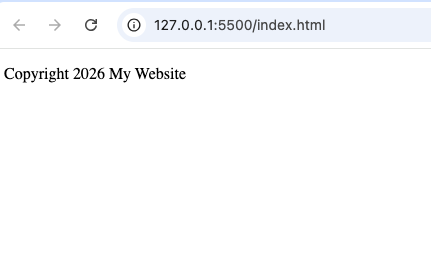
<footer>
  <p>Copyright 2026 My Website</p>
</footer>
This creates a simple footer containing copyright information.
Why the <footer> Tag is Important
Many beginners ask:
“Why not just use a <div> element?”
The answer is semantic meaning.
The <footer> element tells browsers and developers:
“This is the ending or supporting section of the webpage.”
Here are some important reasons why the <footer> tag matters.
1. Improves Webpage Structure
The <footer> element clearly separates the ending section from the main content.
Old method:
<div class="footer">Modern method:
<footer>
The semantic version is cleaner and easier to understand.
2. Better Accessibility
Screen readers can identify footer areas quickly when semantic HTML is used.
This improves navigation for visually impaired users.
3. Easier for Developers to Read
Developers can instantly recognize footer sections when reading the code.
This improves teamwork and maintenance.
4. Better Semantic HTML
The <footer> element helps create organized and professional webpage structure.
What Kind of Content Goes Inside <footer>?
The <footer> tag usually contains information related to the webpage or section.
Common footer content includes:
- Copyright notices
- Contact details
- Author information
- Sitemap links
- Navigation menus
- Social media icons
- Privacy policy links
- Terms of service
Example:
<footer>
  <p>Follow us on social media.</p>
</footer>
The footer provides additional information to visitors.
Where is the <footer> Tag Commonly Used?
The <footer> element can appear in different places on a webpage.
1. Website Footer
This is the most common use.
Example:
<footer>
  <p>Copyright 2026</p>
</footer>
This footer belongs to the entire webpage.
2. Article Footer
An <article> element can also contain its own footer.
Example:
<article>

  <h2>Learn HTML</h2>

  <footer>
    <p>Written by John</p>
  </footer>

</article>
The footer belongs only to the article.
3. Section Footer
A <section> element can contain a footer too.
Example:
<section>

  <h2>Services</h2>

  <footer>
    <p>Updated May 2026</p>
  </footer>

</section>
This footer belongs to that specific section.
Difference Between <footer> and <header>
Beginners sometimes confuse these two semantic elements.
They are opposites in many ways.
<footer> | <header> |
|---|---|
| Represents ending content | Represents introductory content |
| Usually appears at the bottom | Usually appears at the top |
| Contains supporting information | Contains titles, logos, navigation |
Example:
<header>
  <h1>My Website</h1>
</header>

<footer>
  <p>Copyright 2026</p>
</footer>
The header introduces the page.
The footer closes the page.
Difference Between <footer> and <div>
This is another common beginner question.
<footer> | <div> |
|---|---|
| Semantic element | Generic container |
| Has meaningful purpose | No special meaning |
| Used for ending/support content | Used mainly for layout |
Use <footer> when the content represents a footer area.
Use <div> mainly for layout or styling.
Can a Page Have Multiple <footer> Elements?
Yes.
A webpage can contain multiple <footer> elements.
For example:
- One main webpage footer
- Additional footers inside articles or sections
Example:
<footer>
  <p>Main Website Footer</p>
</footer>

<article>

  <footer>
    <p>Article Footer</p>
  </footer>

</article>
This is completely valid.
Real-Life Example of a Website Footer
Imagine an online store website.
The footer may contain:
- Customer service links
- Contact details
- Payment methods
- Social media icons
- Legal information
Example:
<footer>

  <p>Email: support@example.com</p>

  <p>Privacy Policy</p>

</footer>
This helps users access important information easily.
HTML5 and the <footer> Tag
The <footer> element became officially supported with HTML5.
Before HTML5, developers mostly used:
<div id="footer">Modern HTML encourages:
<footer>
This improves webpage structure and readability.
Browser Support for <footer>
The <footer> element works in all modern browsers including:
- Chrome
- Firefox
- Safari
- Edge
- Opera
You can safely use it in modern websites.
Combining <footer> with Other Semantic Elements
The <footer> element works well with:
<header><main><section><article><aside>
Example:
<article>

  <header>
    <h2>HTML Tutorial</h2>
  </header>

  <p>HTML helps build webpages.</p>

  <footer>
    <p>Published May 2026</p>
  </footer>

</article>
This creates a properly organized article structure.
Styling the <footer> Element with CSS
The <footer> element can be styled using CSS like any other HTML element.
Example:
<footer>
  <p>Footer Area</p>
</footer>
footer {
  background-color: black;
  color: white;
  padding: 20px;
}
This adds:
- Background color
- Text color
- Spacing
Most websites style footers differently from the main content.
Common Beginner Mistakes
Here are mistakes beginners often make when using <footer>.
1. Using <footer> for Main Content
The footer should contain supporting or ending information, not the primary webpage content.
2. Replacing Every <div> with <footer>
Not every bottom section needs a footer.
Use <footer> only for meaningful footer content.
3. Forgetting Accessibility
Footers should remain organized and easy to navigate.
Avoid overcrowding them with too many links.
4. Placing Important Main Content in the Footer
Critical content should appear in the main content area, not hidden inside the footer.
Accessibility Benefits of <footer>
Accessibility tools rely on semantic HTML structure.
Using <footer> properly helps:
- Identify ending content areas
- Improve screen reader navigation
- Organize webpage structure clearly
Modern web development strongly encourages accessible design.
SEO Benefits of <footer>
The <footer> element itself does not directly improve search rankings, but semantic structure helps search engines understand webpages better.
Well-organized footers improve:
- Website structure
- Navigation clarity
- User experience
Semantic HTML supports better SEO practices overall.
Example of a Full Webpage Structure
Here is a beginner-friendly webpage example using <footer> properly.
<!DOCTYPE html>
<html>

<head>
  <title>Footer Example</title>
</head>

<body>

<header>
  <h1>My Website</h1>
</header>

<main>
  <p>Welcome to my website.</p>
</main>

<footer>

  <p>Copyright 2026 My Website</p>

  <p>Contact: info@example.com</p>

</footer>

</body>
</html>
This example includes:
- Header
- Main content
- Footer
It follows modern semantic HTML structure.
Best Practices for Using <footer>
Here are some useful tips.
Keep the Footer Organized
Do not overcrowd the footer with too much information.
Add Useful Links
Footers commonly include:
- Privacy Policy
- Contact Page
- About Page
Make Contact Information Easy to Find
If appropriate, place contact details in the footer.
Combine with Semantic HTML
Use <footer> together with:
<header><main><article><section>
This creates cleaner webpage organization.
Focus on User Experience
The footer should help users find useful supporting information quickly.
Real-World Websites That Use <footer>
Almost every modern website uses the <footer> element.
Examples include:
- Blogs
- News websites
- Online stores
- Educational websites
- Business websites
Common footer content includes:
- Copyright text
- Navigation links
- Contact information
- Social media icons
Why Semantic HTML Matters
The <footer> element is part of semantic HTML.
Semantic HTML improves:
- Accessibility
- Readability
- SEO structure
- Website maintenance
- Professional coding practices
Examples of semantic HTML elements include:
These elements help developers build better-organized websites.
The HTML <footer> tag is one of the most useful semantic elements in modern web development. It helps organize ending and supporting webpage content clearly and professionally.
Instead of relying only on generic <div> elements, using <footer> improves webpage structure, accessibility, readability, and semantic organization.
As a beginner, understanding how the <footer> element works is an important step toward building professional websites that follow modern HTML standards.
The more you practice using semantic HTML elements like <footer>, the easier it becomes to create clean, organized, and user-friendly webpages.
Great customer support and a very friendly community feel. It makes the whole gaming experience much more enjoyable. Love using indwin7login.