Modern websites often need a way to display important information without sending users to another page. For example, a website may need to show a login form, a warning message, a confirmation prompt, or additional details without interrupting the user’s experience. One HTML element designed specifically for this purpose is the <dialog> tag.
The HTML <dialog> element allows developers to create dialog boxes, popups, and modal windows directly in HTML. Before this element was introduced, developers often relied on complex JavaScript libraries and custom CSS solutions to build popups. Today, the <dialog> element provides a cleaner and more semantic way to create them.
In this beginner-friendly guide, you will learn what a dialog box is, how the HTML <dialog> element works, where it is used, and how to create simple dialog boxes for practice projects.
This article focuses mainly on clear explanations with only a few simple code examples so you can understand the concept easily.
What is a Dialog Box?
A dialog box is a small window that appears on top of a webpage to communicate with users.
It is commonly used to:
- Display important messages
- Ask for confirmation
- Show forms
- Provide additional information
- Collect user input
- Display notifications
Unlike a normal webpage section, a dialog box appears above the main content and attracts the user’s attention.
You have probably seen dialog boxes when:
- Logging into websites
- Confirming a purchase
- Resetting a password
- Viewing a popup notification
- Reading terms and conditions
What is the HTML <dialog> Element?
The HTML <dialog> element is a semantic tag used to create dialog boxes and popup windows.
In simple terms, it creates a container that can appear above the rest of the webpage.
The content inside the dialog remains hidden until the dialog is opened.
Once opened, users can interact with it directly.
Basic Syntax of the <dialog> Tag
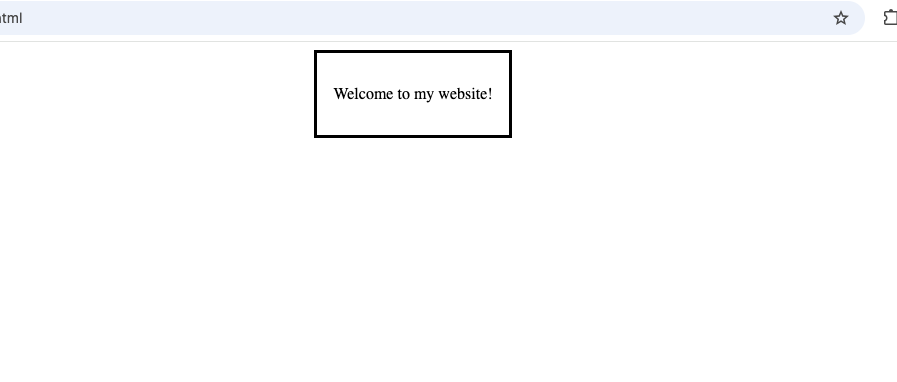
Here is a simple example:
<dialog open>
  <p>Welcome to my website!</p>
</dialog>
In this example:
<dialog>creates the dialog box- The
openattribute makes it visible immediately - The paragraph displays a message inside the box
Without the open attribute, the dialog remains hidden.
Why the <dialog> Element is Important
Many beginners wonder why HTML introduced a special dialog element.
The answer is simple.
Dialog boxes are extremely common in modern web design.
Instead of building custom popup systems from scratch, developers can use the built-in <dialog> element.
Benefits include:
Understanding How a Dialog Box Works
Think of a dialog box as a temporary window.
Normally, users interact with the webpage.
When something important happens, the dialog appears.
Examples:
- “Are you sure you want to delete this item?”
- “Your form has been submitted successfully.”
- “Please log in to continue.”
After users respond, the dialog closes and they return to the main page.
Common Uses of Dialog Boxes
Dialog boxes appear on almost every modern website.
Let’s look at some common examples.
1. Login Forms
Many websites display login forms inside dialog boxes.
Instead of moving users to another page, the login form appears instantly.
This creates a smoother experience.
Examples include:
- Online stores
- Social media platforms
- Learning websites
- Membership portals
2. Confirmation Messages
Dialog boxes are often used to ask users to confirm actions.
For example:
- Delete a file
- Remove an item
- Cancel a subscription
- Submit an order
These confirmations help prevent mistakes.
3. Success Notifications
After completing an action, websites often display confirmation messages.
Examples:
- Account created successfully
- Payment completed
- Password updated
- Message sent
A dialog box helps highlight these important updates.
4. Terms and Conditions
Many websites display legal notices or agreements inside dialog windows.
This allows users to review information before continuing.
5. Additional Information
Sometimes websites need to display more information without leaving the current page.
Dialog boxes work well for:
- Product details
- Instructions
- Help information
- FAQs
Difference Between a Dialog Box and a Regular Section
Beginners often wonder why not simply use a <div> element.
Here is the difference:
| Dialog Box | Regular Section |
|---|---|
| Appears above content | Appears within page layout |
| Temporarily gains attention | Part of normal content |
| Often opened and closed | Usually always visible |
| Used for interactions | Used for structure |
A dialog box is designed specifically for temporary interactions.
The open Attribute
One important feature of the <dialog> element is the open attribute.
Example:
<dialog open>
  <p>Hello!</p>
</dialog>
The open attribute tells the browser to display the dialog immediately.
Without it, the dialog remains hidden until opened through JavaScript.
Dialog Boxes and JavaScript
Although the <dialog> element is an HTML tag, it becomes much more useful when combined with JavaScript.
JavaScript can:
- Open a dialog
- Close a dialog
- Respond to user actions
- Display dynamic content
For example:
- Clicking a button opens a dialog
- Clicking close hides it
This creates interactive user experiences.
Modal Dialogs Explained
You may hear developers talk about modal dialogs.
A modal dialog requires users to interact with it before returning to the main page.
Examples include:
- Payment confirmation
- Security warnings
- Login prompts
Modal dialogs focus user attention on a specific task.
Non-Modal Dialogs
Not all dialog boxes are modal.
Some allow users to continue interacting with the page while the dialog remains open.
These are called non-modal dialogs.
Examples:
- Chat windows
- Help panels
- Notifications
Both styles can be useful depending on the project.
Real-World Example: Online Shopping
Imagine an online store.
A customer clicks:
“Add to Cart”
Instead of loading a new page, a dialog appears saying:
“Item Added Successfully”
The customer can then choose:
- Continue Shopping
- View Cart
This creates a faster and smoother shopping experience.
Real-World Example: Contact Forms
A website visitor submits a contact form.
Instead of redirecting them, a dialog box appears with:
“Thank you for contacting us.”
This provides immediate feedback.
Accessibility Benefits of the <dialog> Element
Accessibility is one reason HTML introduced the dialog tag.
Screen readers can recognize dialog boxes more effectively than custom popup solutions.
Benefits include:
- Better navigation
- Improved usability
- Clear interaction areas
- Enhanced accessibility support
Using semantic HTML helps create websites that work for everyone.
Browser Support for <dialog>
The <dialog> element is supported by all major modern browsers including:
- Chrome
- Firefox
- Safari
- Edge
- Opera
Modern browser support makes it practical for real-world projects.
HTML5 and the <dialog> Element
The <dialog> element became part of modern HTML standards to simplify popup creation.
Before its introduction, developers often used:
<div class="popup">combined with:
- Complex CSS
- JavaScript libraries
- Custom frameworks
The <dialog> element provides a cleaner alternative.
Styling Dialog Boxes with CSS
Dialog boxes can be styled just like other HTML elements.
Developers commonly customize:
- Background colors
- Borders
- Shadows
- Padding
- Width
- Typography
A well-designed dialog box looks professional and easy to use.
Designing Good Dialog Boxes
A good dialog box should:
- Be easy to read
- Focus on one task
- Contain clear buttons
- Avoid unnecessary information
Simple designs often work best.
Common Beginner Mistakes
Here are some mistakes beginners often make.
1. Overusing Dialog Boxes
Not every message needs a popup.
Too many dialogs can annoy users.
Only use them when they add value.
2. Displaying Too Much Content
Dialog boxes should stay focused.
Large blocks of text can overwhelm users.
3. Hiding Important Information
Essential information should not be difficult to find.
Use dialogs for temporary interactions rather than core content.
4. Forgetting Mobile Users
Dialog boxes should work well on:
- Phones
- Tablets
- Desktop computers
Always consider responsive design.
Practice Project Ideas Using Dialog Boxes
Here are some beginner-friendly projects.
Login Popup
Create a login form inside a dialog box.
Users click a login button to open it.
Contact Confirmation
Display a success message after a contact form submission.
Product Information Popup
Show extra product details without leaving the page.
Newsletter Signup
Open a dialog encouraging visitors to subscribe.
Terms and Conditions Window
Display important policies before account registration.
Dialog Boxes vs Alerts
Beginners often compare dialog boxes with browser alerts.
| Dialog Box | Browser Alert |
|---|---|
| Customizable | Limited design |
| Styled with CSS | Browser controlled |
| Flexible content | Simple text only |
| Better user experience | More basic |
Modern websites generally prefer dialog boxes because they provide greater control.
Why Modern Websites Use Dialog Boxes
Dialog boxes help improve user experience because they:
- Reduce page navigation
- Keep users focused
- Provide immediate feedback
- Create smoother interactions
They are especially useful in web applications where users frequently perform actions.
SEO Considerations
Dialog boxes themselves do not directly improve search rankings.
However, they can improve:
- User experience
- Navigation efficiency
- Engagement
These factors can contribute to better overall website performance.
Best Practices for Using the <dialog> Element
Follow these tips when creating dialog boxes.
Keep Content Focused
Each dialog should have a clear purpose.
Use Clear Buttons
Users should immediately understand their options.
Avoid Excessive Popups
Too many dialogs can become frustrating.
Make Closing Easy
Always provide a clear way to close the dialog.
Test on Different Devices
Ensure dialogs work well across various screen sizes.
The HTML <dialog> element provides a simple and modern way to create dialog boxes, popups, and modal windows directly in a webpage. Instead of building complicated custom solutions, developers can use this semantic HTML element to create cleaner and more accessible user interfaces.
Whether you’re building login forms, confirmation messages, product popups, or notification windows, the <dialog> tag offers a flexible solution that improves user experience.
As a beginner, learning how dialog boxes work will help you build more interactive and professional websites. Once you combine the <dialog> element with CSS and JavaScript, you’ll be able to create many of the popup features found on modern websites today.
7 thoughts on “How to Create a Dialog Box in HTML”