
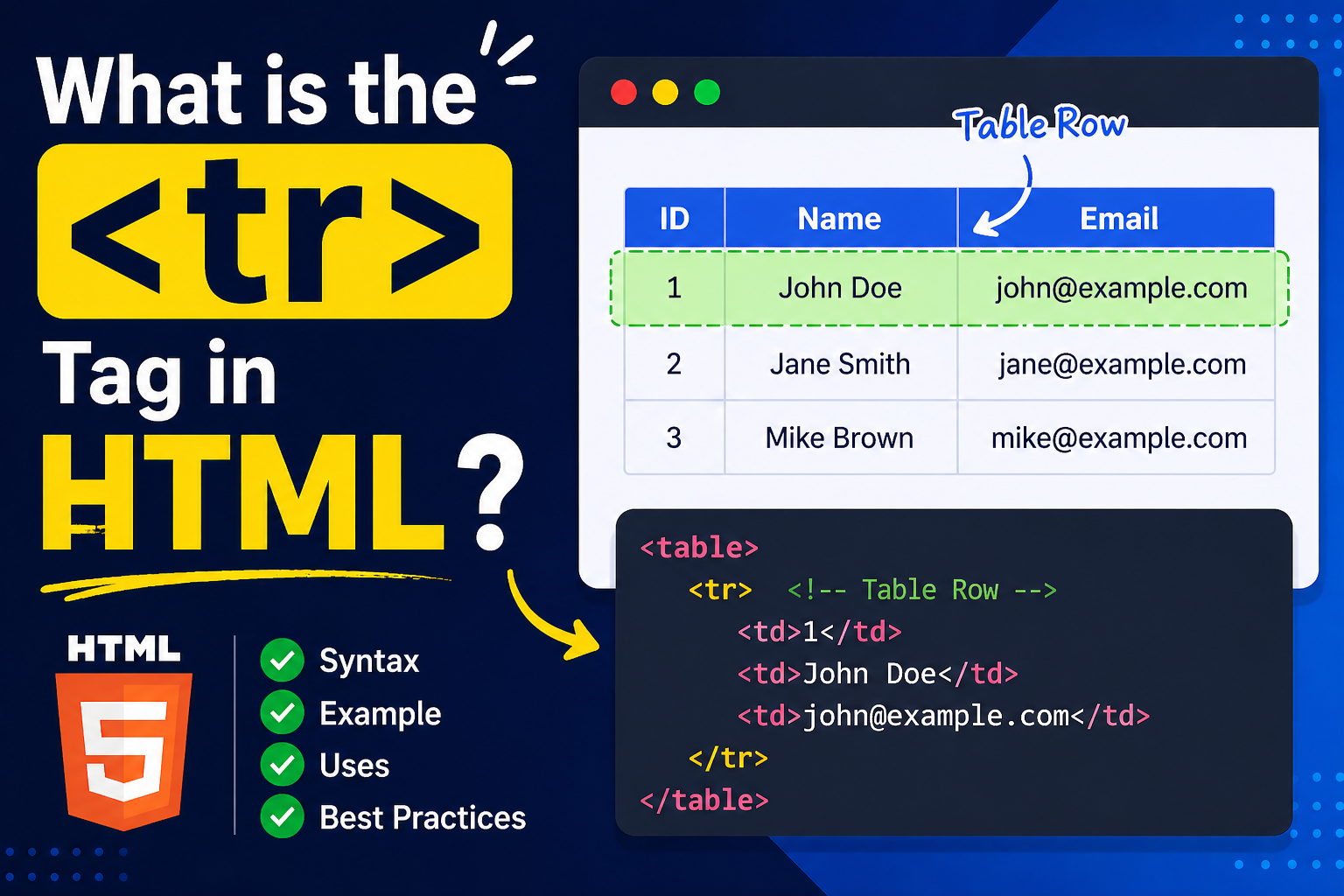
The <tr> tag in HTML is used to define a row inside a table. It stands for table row, and it is one of the core elements used when creating tables in web pages.
Tables in HTML are made up of rows and columns. The <tr> tag is responsible for creating each horizontal row, while other tags like <td> and <th> define the cells inside that row.
If you want to display data in a structured format like a list, schedule, or comparison table, the <tr> tag plays a key role.
Basic Structure of a Table
To understand the <tr> tag properly, you need to see how it fits inside a table.
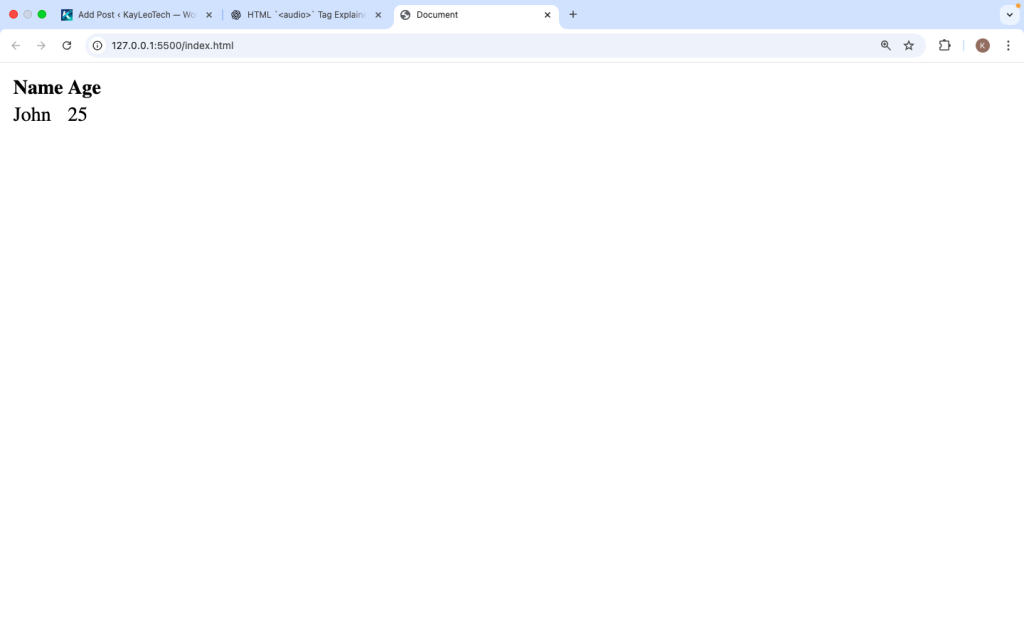
Here is a simple table structure:
<table>
  <tr>
    <th>Name</th>
    <th>Age</th>
  </tr>
  <tr>
    <td>John</td>
    <td>25</td>
  </tr>
</table>
Explanation:
<table>: Creates the table<tr>: Creates a row<th>: Table header cell<td>: Table data cell
Each <tr> represents one row in the table.
How the <tr> Tag Works
The <tr> tag groups table cells into a row. Inside a <tr>, you can place:
<td>(table data cells)<th>(table header cells)
Each row can have multiple cells depending on how many columns you want.
Example with Multiple Rows
<table border="1">
  <tr>
    <th>Product</th>
    <th>Price</th>
  </tr>
  <tr>
    <td>Laptop</td>
    <td>$800</td>
  </tr>
  <tr>
    <td>Phone</td>
    <td>$500</td>
  </tr>
</table>
This example creates:
- One header row
- Two data rows
Each row is created using <tr>.
<tr> with Table Headers
The first row in a table is often used for headings:
<tr>
<th>Name</th>
<th>Email</th>
</tr>
Using <th> inside <tr> makes the content bold and centered by default.
<tr> with Table Data
For regular data, use <td> inside <tr>:
<tr>
<td>kayleotech</td>
<td>info@kayleotech.com</td>
</tr>
This creates a normal row with data.
Difference Between <tr>, <td>, and <th>
| Tag | Meaning | Purpose |
|---|---|---|
<tr> | Table Row | Defines a row |
<td> | Table Data | Defines a data cell |
<th> | Table Header | Defines a header cell |
The <tr> tag is the container for cells.
Using Multiple <tr> Tags
Each row in a table needs its own <tr> tag.
<table>
<tr>
<td>Row 1</td>
</tr>
<tr>
<td>Row 2</td>
</tr>
<tr>
<td>Row 3</td>
</tr>
</table>
This creates three rows stacked vertically.
Table Sections with <tr>
Tables can be divided into sections:
<thead>– header section<tbody>– body section<tfoot>– footer section
Each section still uses <tr>.
Example:
<table>
<thead>
<tr>
<th>Name</th>
<th>Score</th>
</tr>
</thead>
<tbody>
<tr>
<td>John</td>
<td>90</td>
</tr>
</tbody>
<tfoot>
<tr>
<td>Total</td>
<td>90</td>
</tr>
</tfoot>
</table>
This makes your table more organized.
Styling <tr> with CSS
You can style rows using CSS.
Example:
<style>
tr {
background-color: #f2f2f2;
}
</style>
This gives all rows a light background.
Alternating Row Colors
You can style even and odd rows:
<style>
tr:nth-child(even) {
  background-color: #f9f9f9;
}
</style>
This improves readability.
Adding Hover Effects
<style>
tr:hover {
  background-color: #ddd;
}
</style>
When users move their mouse over a row, it highlights.
Common Attributes of <tr>
The <tr> tag supports global HTML attributes like:
classidstyle
Example:
<tr class=”highlight”>
<td>Example</td>
</tr>
You can then style .highlight in CSS.
Accessibility and <tr>
Using <tr> correctly helps screen readers understand table structure.
For better accessibility:
- Use
<th>for headers - Keep rows consistent
- Avoid empty rows
This makes your table easier to read for all users.
Best Practices for Using <tr>
1. Keep Rows Consistent
Each row should have the same number of cells.
2. Use <thead>, <tbody>, <tfoot>
This improves structure and readability.
3. Avoid Nested Tables
Do not place tables inside <tr> unless necessary.
4. Use CSS Instead of Old Attributes
Avoid using outdated attributes like bgcolor.
5. Keep Data Clear
Each row should represent one record or item.
Common Mistakes to Avoid
- Forgetting to wrap cells inside
<tr> - Using
<td>directly inside<table> - Uneven number of cells in rows
- Overcomplicated table structure
Avoid these mistakes to keep your code clean.
Real-Life Example
Here is a practical example of a student table:
<table border=”1″>
<tr>
<th>Student</th>
<th>Grade</th>
</tr>
<tr>
<td>Jane</td>
<td>A</td>
</tr>
<tr>
<td>Mark</td>
<td>B</td>
</tr>
</table>
Each student is represented by one <tr> row.
<tr> in Responsive Design
Tables can be hard to view on small screens. You can improve this by:
<table style="width:100%; overflow-x:auto; display:block;">
Or wrap the table in a scroll container.
Browser Support
The <tr> tag is supported in all browsers:
- Chrome
- Firefox
- Safari
- Edge
It has been supported since early HTML versions.
Why <tr> is Important
The <tr> tag is important because it:
- Organizes table data into rows
- Works with
<td>and<th> - Helps browsers display tables correctly
- Improves readability and structure
Without <tr>, tables would not work properly.
The <tr> tag is a simple but essential part of HTML tables. It defines rows and helps structure data in a clear and organized way. Every table you create depends on <tr> to arrange content properly.
By combining <tr> with <td> and <th>, you can build tables for many purposes like schedules, pricing lists, reports, and more.
Using best practices like consistent rows, proper structure, and CSS styling will make your tables look clean and professional.
In modern web development, understanding the <tr> tag is a basic but important skill. Once you master it, you can create well-structured tables that are easy to read and maintain.