
The <textarea> tag in HTML is used to create a multi-line text input field on a web page. Unlike the <input> tag, which is mostly used for single-line inputs like names or emails, the <textarea> allows users to type longer text such as messages, comments, feedback, or descriptions.
If you’ve ever filled out a contact form or left a comment on a blog, you’ve most likely used a <textarea> field without even realizing it.
This article will explain everything you need to know about the <textarea> tag in a simple and clear way. You’ll learn how it works, how to use it, its attributes, styling tips, and best practices.
Basic Syntax of <textarea>
Here is the simplest way to write a <textarea> tag:
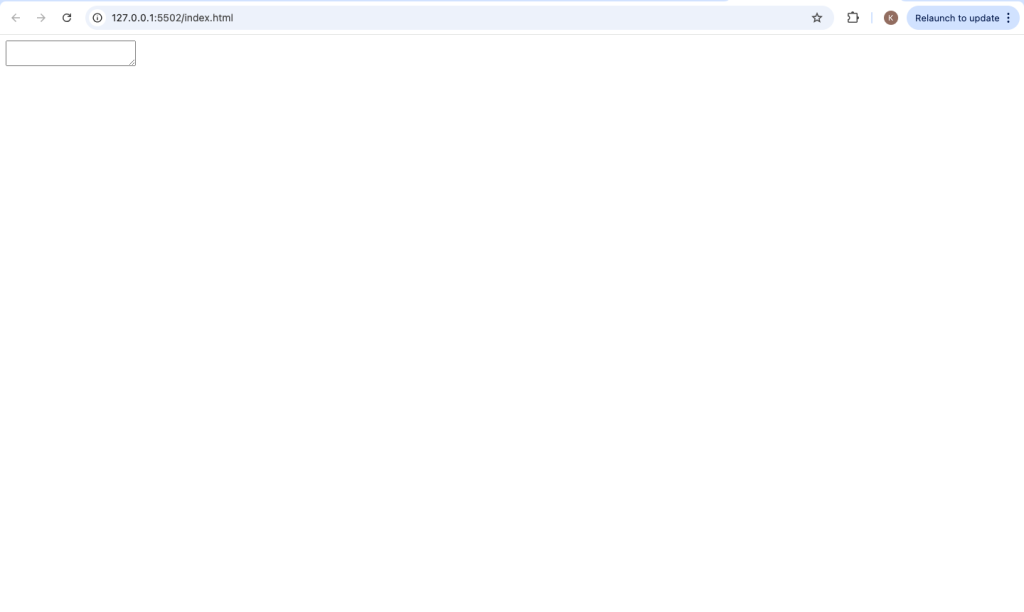
<textarea></textarea>This creates an empty multi-line text box on your web page.
Adding Content Inside <textarea>
You can place default text inside the <textarea> like this:
<textarea>Type your message here...</textarea>
This text will appear inside the box when the page loads. Users can delete or edit it.
Setting Rows and Columns
The size of a <textarea> is controlled using the rows and cols attributes.
rows= number of visible text linescols= width (in characters)
Example:
<textarea rows="5" cols="40"></textarea>This creates a textarea that is 5 lines tall and 40 characters wide.
<form>
  <label for="message">Message:</label><br>
  <textarea id="message" name="message" rows="6" cols="50"></textarea><br><br>
  <input type="submit" value="Send">
</form>
Explanation:
labeldescribes the fieldidconnects the label to the textareanameis used when submitting the formrowsandcolsdefine size
Important Attributes of <textarea>
1. name
This is used to identify the textarea when the form is submitted.
<textarea name="feedback"></textarea>2. placeholder
This shows a hint inside the textarea.
<textarea placeholder="Enter your comment..."></textarea>3. required
Makes the textarea mandatory before submitting the form.
<textarea required></textarea>4. readonly
Prevents users from editing the text.
<textarea readonly>This cannot be edited</textarea>5. disabled
Disables the textarea completely.
<textarea disabled></textarea>6. maxlength
Limits the number of characters.
<textarea maxlength="200"></textarea>7. wrap
Controls how text wraps inside the textarea.
<textarea wrap="soft"></textarea>Options:
soft(default)hard
Styling <textarea> with CSS
You can style <textarea> just like any other HTML element.
Example:
<style>
textarea {
  width: 100%;
  height: 150px;
  padding: 10px;
  border: 2px solid #333;
  border-radius: 5px;
  font-size: 16px;
}
</style>
This makes the textarea:
- Full width
- Comfortable padding
- Rounded edges
Controlling Resize Behavior
By default, users can resize a textarea. You can control this using CSS:
textarea {
  resize: none;
}
Other values:
both(default)horizontalvertical
Difference Between <input> and <textarea>
| Feature | <input> | <textarea> |
|---|---|---|
| Text length | Single-line | Multi-line |
| Closing tag | Self-closing | Has opening & closing |
| Use case | Short inputs | Long messages |
Example: Contact Form with <textarea>
<!DOCTYPE html>
<html>
<head>
  <title>Contact Form</title>
</head>
<body>

<h2>Contact Us</h2>

<form>
  <label for="name">Name:</label><br>
  <input type="text" id="name" name="name"><br><br>

  <label for="message">Message:</label><br>
  <textarea id="message" name="message" rows="5" cols="40" placeholder="Write your message here..."></textarea><br><br>

  <input type="submit" value="Submit">
</form>

</body>
</html>
This example shows how <textarea> fits into real-world usage.
Common Use Cases of <textarea>
- Contact forms
- Comment sections
- Feedback forms
- Blog posts editors
- Chat applications
- Notes or descriptions
Accessibility Tips
To make your textarea user-friendly:
- Always use a
<label> - Add
placeholderfor guidance - Use proper
idandname - Ensure enough size for typing
Example:
<label for="comment">Your Comment:</label>
<textarea id="comment" name="comment" rows="4"></textarea>
Default Behavior of <textarea>
- Text inside it keeps line breaks
- Spaces and formatting are preserved
- It expands when user types more lines (scroll appears)
Using JavaScript with <textarea>
You can access or change textarea content using JavaScript.
Example:
<textarea id="myText"></textarea>

<script>
let textValue = document.getElementById("myText").value;
console.log(textValue);
</script>
Tips for Better Usage
- Keep the textarea large enough for users
- Use
maxlengthto prevent too much input - Add clear instructions
- Style it for better design
- Combine with validation
Common Mistakes to Avoid
- Forgetting the closing tag
❌<textarea>
✅<textarea></textarea> - Using
valueattribute<textarea>does NOT usevalue❌<textarea value="text"></textarea>
✅<textarea>text</textarea> - Not setting
namein forms
Withoutname, data won’t be submitted
Browser Support
The <textarea> tag is supported in all modern browsers including:
- Chrome
- Firefox
- Edge
- Safari
It is a standard HTML element, so you don’t need any special setup.
Advanced Example
<textarea
  name="review"
  rows="6"
  cols="50"
  placeholder="Write your review..."
  maxlength="300"
  required>
</textarea>
This includes:
- Placeholder text
- Character limit
- Required validation
Why <textarea> is Important
The <textarea> tag is essential for user interaction on websites. It allows users to communicate, give feedback, and input detailed information.
Without it, forms would be limited to short responses only.
The <textarea> tag is a powerful and simple HTML element used for multi-line text input. It is widely used in forms for collecting messages, comments, and other long-form content.
To recap:
- It allows multi-line text input
- It uses opening and closing tags
- It supports many useful attributes
- It can be styled with CSS
- It works seamlessly with forms and JavaScript
Once you understand how to use <textarea>, you can build more interactive and user-friendly web pages.