
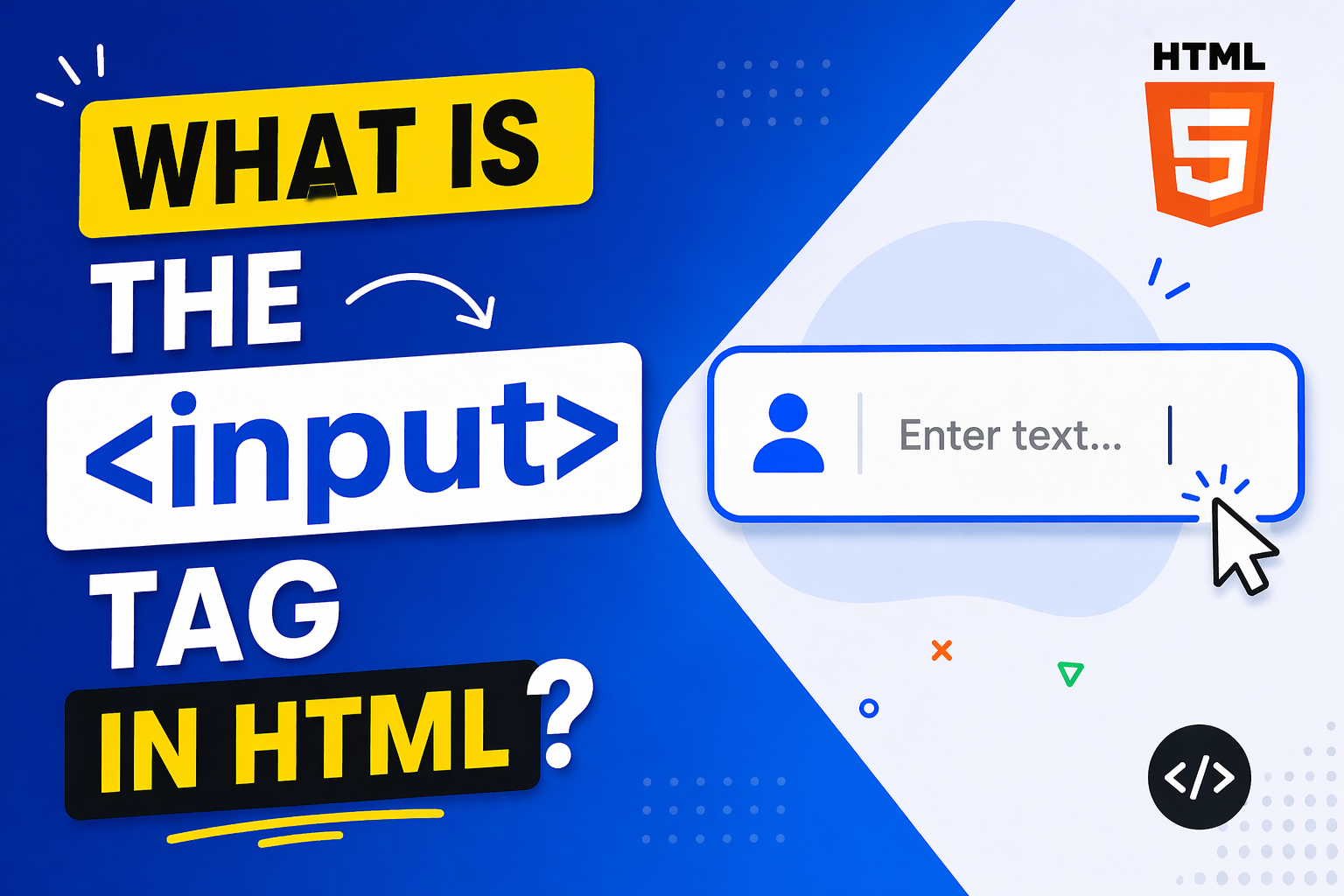
The <input> tag is one of the most important elements in HTML. It is used to create interactive fields where users can enter data inside a web form. Anytime you type your name, email, password, or select an option on a website, you are most likely using an <input> element behind the scenes.
In simple terms, the <input> tag allows a website to collect information from users. It is a self-closing tag, which means it does not need a closing tag like </input>.
Basic Syntax of the <input> Tag
Here is the simplest way to use the <input> tag:
<input type="text">
Why the <input> Tag is Important
Without the <input> tag, websites would not be able to collect user data. It is used in:
- Login forms
- Registration forms
- Search bars
- Contact forms
- Checkout pages
Anytime a website needs input from a user, this tag is used.
The type Attribute
The most important attribute of the <input> tag is the type attribute. It defines what kind of input field will be displayed.
1. Text Input
<input type="text" placeholder="Enter your name">This is used for general text input.
2. Password Input
<input type="password" placeholder="Enter your password">
This hides the characters typed by the user.
3. Email Input
<input type="email" placeholder="Enter your email">
This checks if the user enters a valid email format.
4. Number Input
<input type="number" min="1" max="100">
Used when only numbers are allowed.
5. Date Input
<input type="date">
Allows users to pick a date from a calendar.
6. Checkbox
<input type="checkbox"> I agree
Used for multiple selections.
7. Radio Button
<input type="radio" name="gender"> Male
<input type="radio" name="gender"> Female
Used when only one option can be selected.
8. File Upload
<input type="file">
Allows users to upload files.
9. Submit Button
<input type="submit" value="Submit">
Used to submit a form.
10. Button
<input type="button" value="Click Me">
Triggers actions using JavaScript.
Common Attributes of <input>
Besides type, there are many useful attributes.
name
<input type="text" name="username">This identifies the input when sending data to the server.
placeholder
<input type="text" placeholder="Enter your name">Displays a hint inside the input box.
value
<input type="text" value="John">
Sets a default value.
required
<input type="text" required>
Makes the field mandatory.
disabled
<input type="text" disabled>
Disables the input field.
readonly
<input type="text" value="Fixed text" readonly>
Prevents editing but allows viewing.
maxlength
<input type="text" maxlength="10">
Limits the number of characters.
Example: Simple Form Using <input>
Here is a full example:
<form>
  <label>Name:</label>
  <input type="text" name="name" placeholder="Enter your name" required>

  <br><br>

  <label>Email:</label>
  <input type="email" name="email" placeholder="Enter your email" required>

  <br><br>

  <label>Password:</label>
  <input type="password" name="password" required>

  <br><br>

  <input type="submit" value="Register">
</form>
This creates a simple registration form.
How <input> Works with <form>
The <input> tag is usually placed inside a <form> element. When the form is submitted, all input data is sent to a server.
Example:
<form action="submit.php" method="POST">
  <input type="text" name="username">
  <input type="submit">
</form>actiontells where to send the datamethoddefines how the data is sent
Input Validation
HTML provides built-in validation for some input types.
Example:
<input type="email" required>
If the user enters an invalid email, the browser will show an error.
Another example:
<input type="number" min="1" max="10">
This ensures the value stays between 1 and 10.
Styling the <input> Tag with CSS
You can style input fields to make them look better.
<input type="text" class="input-box">
.input-box {
  padding: 10px;
  border: 1px solid #ccc;
  border-radius: 5px;
}
This makes the input field more modern and clean.
Accessibility Tips
To make your inputs user-friendly:
- Always use
<label>with inputs - Use clear placeholder text
- Group related inputs properly
- Use
requiredonly when necessary
Example:
<label for="name">Name:</label>
<input type="text" id="name" name="name">
This improves usability and accessibility.
Common Mistakes to Avoid
- Forgetting the
nameattribute
Without it, data will not be sent to the server. - Using wrong input types
Example: usingtextinstead ofemail. - Not using labels
This makes forms harder to use. - Overusing placeholders instead of labels
Placeholders disappear when typing.
When to Use <input> vs <textarea>
- Use
<input>for short text (name, email) - Use
<textarea>for long text (messages, comments)
Example:
<textarea rows="5" cols="30"></textarea>
Advanced Input Types
Modern HTML supports more types:
color→ color pickerrange→ slidertel→ phone numberurl→ website link
Example:
<input type="color">
<input type="range" min="0" max="100">
The <input> tag is a core part of HTML and web development. It allows websites to interact with users and collect important data. From simple text fields to advanced controls like date pickers and file uploads, the <input> element is very flexible.
If you are learning HTML, mastering the <input> tag is a must. Once you understand how it works with forms, attributes, and validation, you can build powerful and interactive websites.
Keep practicing by creating different types of forms, and you will quickly become comfortable using it.
Wow, marvelous blog structure! How long have you ever been running a blog for?
you made blogging glance easy. The total glance of your site is excellent, as smartly as the content!
I am impressed by the overall quality of the games. It is clear they put a lot of effort into the user experience. Check out krwinum now.