
Buttons are one of the most important interactive elements on any website. They guide users to take action click, submit, download, or navigate. A hover effect button adds visual feedback when users move their mouse over it, making the interface feel responsive, modern, and alive.
In this guide, you’ll learn how to make a hover effect button using only HTML and CSS, starting from the basics and gradually improving it. The techniques explained here are evergreen, meaning they will stay relevant regardless of trends or frameworks.
This article is written so readers can read, follow, visualize, and learn, even if they are new to web development.
What Is a Hover Effect Button?
A hover effect button changes its appearance when a user places their mouse cursor over it. This change could be:
- A color transition
- A size or shadow change
- A border animation
- A background movement
- A text color shift
Hover effects provide visual feedback, letting users know that the button is interactive and clickable.
Why Hover Effects Matter in Web Design
Hover effects are not just decoration. They serve real purposes:
- Improve user experience by giving instant feedback
- Make buttons feel interactive and responsive
- Guide user attention to important actions
- Add polish and professionalism to a website
A simple button without feedback feels static. A button with a hover effect feels alive.
Tools You Need (Very Minimal)
To follow this tutorial, you only need:
- A code editor (VS Code, Sublime Text, or any editor)
- A modern web browser (Chrome, Firefox, Edge)
No libraries, frameworks, or JavaScript are required.
Step 1: Creating the Basic HTML Button
Every hover effect button starts with simple HTML. You can use either a <button> element or an <a> (anchor) tag styled as a button.
A common and beginner-friendly choice is the <button> element.
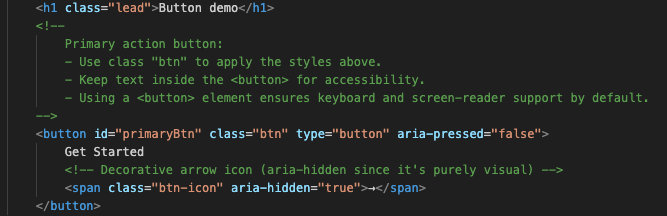
At this stage:
- The button exists
- It’s clickable
- But it looks plain and unstyled
This is normal. HTML handles structure, not appearance.
Step 2: Understanding Button States
Before adding hover effects, it’s important to understand button states in CSS.
Common button states include:
- Default state (normal appearance)
- Hover state (when mouse is over it)
- Active state (when clicked)
- Focus state (when selected via keyboard)
In this tutorial, we focus mainly on the hover state, which is controlled using the :hover pseudo-class in CSS.

At this point:
- The button looks good
- But it still feels static
Hover effects come next.
Even this basic effect is widely used and will never go out of style.
Step 5: Making the Hover Effect Smooth With Transitions
Without transitions, hover effects change instantly, which can feel abrupt. CSS transitions make the change smooth and pleasant.
You can apply transitions to:
- Background color
- Text color
- Border
- Box shadow
- Transform effects
Adding a transition makes your button feel modern and professional.
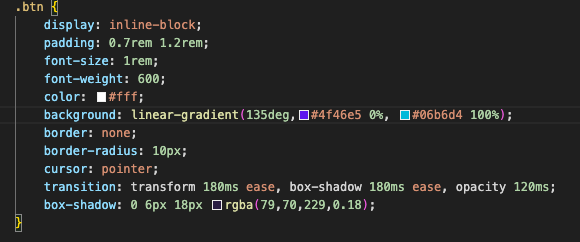
This single improvement dramatically enhances user experience.
Step 6: Creating a Hover Effect With Border Animation
Another popular hover effect involves animating the border.
Instead of changing the background color:
- The border becomes visible
- The background becomes transparent
- The text color changes
This style is commonly used in modern landing pages and portfolios.
This effect works well when you want subtle elegance rather than bold colors.
Step 7: Adding a Hover Shadow Effect
Shadows create depth. When a button lifts slightly on hover, it feels clickable and tactile.
This effect usually combines:
box-shadow- A slight upward movement using
transform: translateY()

This hover effect mimics real-world interaction and works especially well for call-to-action buttons.
Step 8: Using Transform Effects on Hover
CSS transform allows you to:
- Scale buttons slightly
- Move them up or sideways
- Rotate elements subtly
A small scale or movement on hover adds life without being distracting.

Step 9: Creating a Hover Effect With Pseudo-Elements
For more advanced hover effects, CSS pseudo-elements like ::before and ::after are powerful tools.
They allow you to:
- Add animated overlays
- Create sliding background effects
- Animate lines or shapes
These elements exist purely in CSS and don’t clutter your HTML.
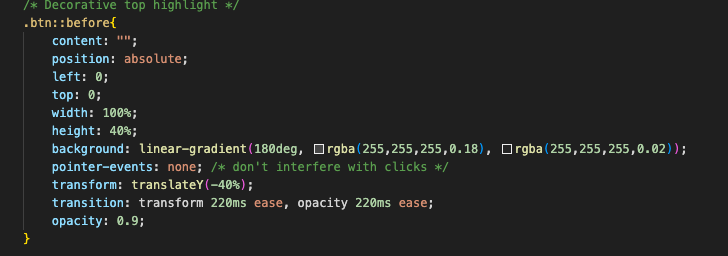
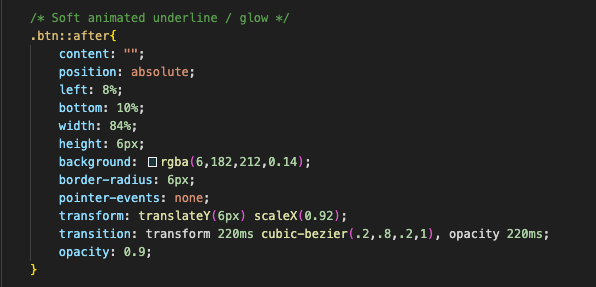
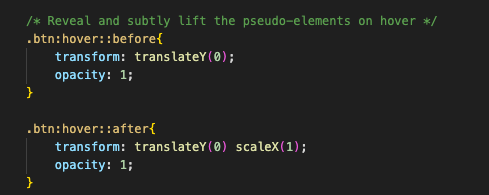
This technique is excellent for eye-catching buttons while keeping code clean.
Step 10: Making the Button Accessible
A valuable hover effect button should also be accessible.
Important accessibility tips:
- Ensure enough contrast between text and background
- Make hover effects visible but not required for understanding
- Add focus styles for keyboard users
- Avoid hover-only information

Accessibility improves usability for everyone, not just users with disabilities.
Step 11: Testing the Hover Button Across Browsers
Always test your hover effect button in:
- Chrome
- Firefox
- Edge
- Mobile view (even though hover behaves differently)
Hover effects should not break layouts or hide important content on touch devices.
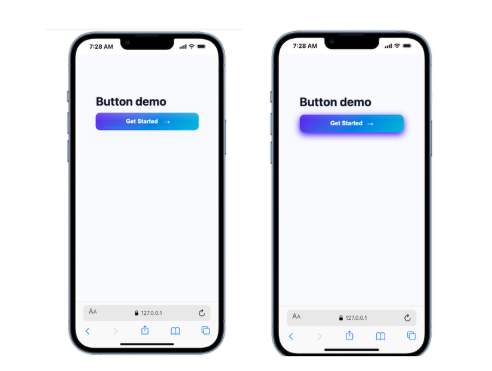
On mobile, hover effects usually don’t activate, so buttons must still look clickable without them.
Common Mistakes to Avoid
Many beginners make these mistakes:
- Overusing animations
- Making hover effects too slow
- Using low-contrast colors
- Relying only on hover for important information
- Forgetting transitions
Avoiding these mistakes instantly improves button quality.
Why Hover Effect Buttons Are Evergreen
Hover effects are evergreen because:
- They rely on core CSS features
- They don’t depend on frameworks
- They work across decades of browsers
- They improve usability, not just aesthetics
Even as design trends change, hover feedback will always matter.
How to Use Hover Buttons in Real Projects
Hover effect buttons are perfect for:
- Navigation menus
- Call-to-action sections
- Forms
- Landing pages
- Portfolio websites
- SaaS dashboards
They subtly guide users toward action without forcing attention.
Learning how to make a hover effect button with HTML and CSS is a foundational web development skill. It teaches you how structure, styling, and interaction work together.
By mastering simple hover effects first, you build confidence to create more advanced UI interactions later without relying on heavy frameworks or JavaScript.
The techniques in this article are timeless. Once learned, you can reuse them across countless projects and adapt them to your own design style.
A good hover effect doesn’t shout it responds. And that response makes all the difference.