
Adding a favicon to your website might seem like a small detail, but it is an essential element of web design and branding. Favicons improve user experience, make your website look professional, and help visitors easily identify your site in browser tabs, bookmarks, and history lists.
In this guide, we’ll explain what a favicon is, why it matters, and how to add one to your website step by step.
What is a Favicon?
A favicon, short for “favorite icon,” is the small image displayed in a browser tab next to your website’s title. It also appears in bookmarks, browser history, and sometimes on mobile devices when users save your site as a shortcut.
Why Favicons Matter:
- Brand recognition: Users instantly recognize your site among multiple open tabs.
- Professional appearance: Sites without favicons can appear incomplete or untrustworthy.
- User experience: Easier navigation for visitors who have multiple tabs open.

Step 1: Create Your Favicon Image
Before adding a favicon to your website, you need to design or prepare your favicon image.
Tips for creating a favicon:
- Keep it simple and recognizable — a single letter or logo works best.
- Use high-contrast colors for visibility at small sizes.
- Ensure your image is square, ideally 64×64 pixels or larger, so it can scale down without losing clarity.
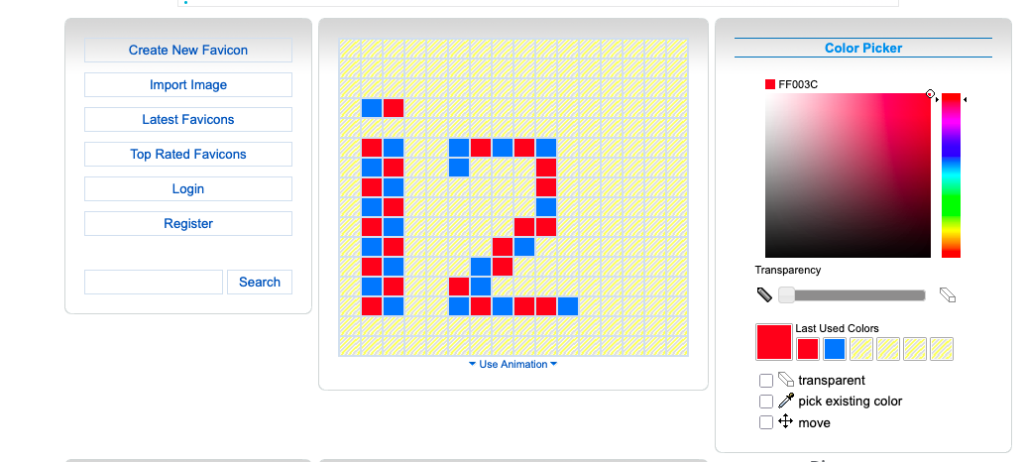
You can create a favicon using:
- Online favicon generators (e.g., favicon.io, realfavicongenerator.net)
- Graphic design tools like Photoshop, Canva, or Illustrator
Once your favicon is ready, save it as:
.ico (recommended for maximum browser support)
.png (transparent background preferred)
.svg (vector format for scalability)
Step 2: Save Your Favicon in the Website Folder
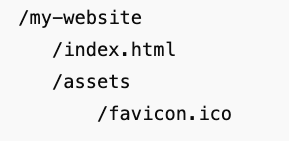
After creating your favicon, you need to place it in your website’s directory so your site can access it.
Steps:
- Open your website’s root folder (where your
index.htmlor main HTML file is located). - Create a folder called
imagesorassets(optional but recommended for organization). - Save your favicon file in that folder.
Example directory structure:
Step 3: Add Favicon to Your Website Using HTML
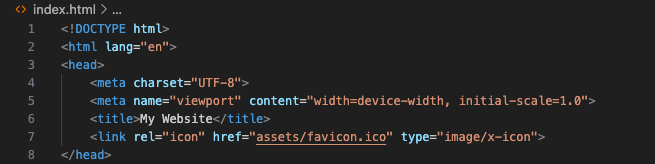
The most common way to add a favicon is by using the <link> tag in your website’s <head> section.

Step-by-step instructions:
- Open your HTML file (e.g.,
index.html) in a code editor. - Locate the
<head>section. - Paste the
<link>tag pointing to your favicon file.
Step 4: Alternative Favicon Formats
While .ico is most compatible, modern browsers support PNG and SVG favicons as well.
Example using png

Example using svg

Tip: It’s good practice to include multiple formats for better compatibility:

Step 5: Add Favicon for Apple Devices and Android
For mobile devices, favicons are often referred to as “apple-touch-icons”. Adding them ensures your favicon appears correctly when users save your website to their home screen.
Example:
<link rel=”apple-touch-icon sizes=”180×180″ href=”assets/apple-touch-icon.png”>
<link rel=”icon” type=”image/png” sizes=”32×32″ href=”assets/favicon-32×32.png”>
<link rel=”icon” type=”image/png” sizes=”16×16″ href=”assets/favicon-16×16.png”>
Tip: You can use Real Favicon Generator to automatically generate all required favicon sizes for desktop, Android, and iOS.
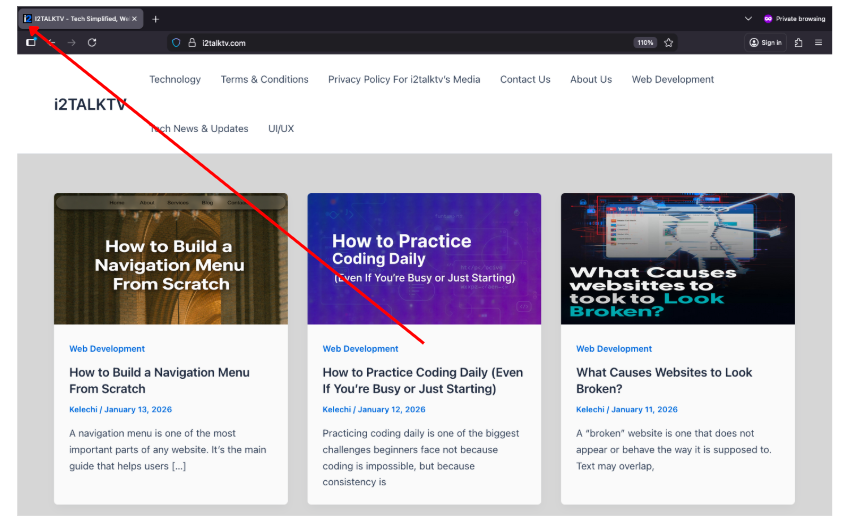
Step 7: Test Your Favicon Across Devices
To ensure your favicon displays correctly:
- Open your website in different browsers (Chrome, Firefox, Safari, Edge).
- Check your favicon in bookmarks and history.
- Test on mobile devices if you added touch icons
Step 8: Troubleshooting Common Favicon Issues
Sometimes favicons don’t show up as expected. Here’s how to fix common problems:
- Favicon not showing:
- Ensure your file path in the
<link>tag is correct. - Clear browser cache.
- Ensure your file path in the
- Favicon blurry:
- Use a high-resolution image (32×32 or 64×64 pixels).
- Prefer PNG or SVG formats for clarity.
- Mobile favicon not visible:
- Include the
apple-touch-icontag. - Check image dimensions and format.
- Include the
- Browser-specific issues:
- Use multiple favicon formats (
.ico,.png,.svg) for full compatibility.
- Use multiple favicon formats (
Step 9: Tips for a Professional Favicon
- Keep it simple: Don’t include too much detail; it will be small.
- Use your logo or initial letter: Helps brand recognition.
- Test at small sizes: Ensure it’s recognizable at 16×16 pixels.
- Include multiple sizes: Improves appearance on high-resolution devices.

Step 10: Summary
Adding a favicon is quick, easy, and essential for your website’s professionalism.
Quick Recap:
- Design your favicon image.
- Save it in your website folder.
- Add the
<link rel="icon">tag to your HTML<head>. - Include alternative formats (PNG, SVG) for compatibility.
- Add apple-touch-icons for mobile devices.
- Clear browser cache to see the changes.
- Test across browsers and devices.
By following these steps, your website will look more professional, trustworthy, and user-friendly, while improving brand recognition across all platforms.
Why a Favicon is Essential for Your Website
While a favicon may seem like a small and minor detail, it plays a critical role in branding, usability, and overall user experience. Many beginners underestimate its importance, but adding a favicon can make a significant difference in how visitors perceive your website. Here’s why a favicon is essential:
1. Enhances Brand Recognition
A favicon is one of the first visual elements your visitors notice when they open a browser tab. Even a tiny icon can leave a lasting impression. When users have multiple tabs open, a well-designed favicon makes it easier for them to recognize and locate your website quickly. This instant recognition is especially important for businesses, blogs, or personal brands that rely on repeat visitors.
Think of it as your website’s mini-logo. Just as logos help people identify a brand offline, favicons help users identify your site online. Without a favicon, your site may appear generic or incomplete, which can reduce its perceived professionalism.
2. Improves User Experience
User experience is a crucial factor in retaining visitors on your website. A favicon contributes to this in subtle but meaningful ways:
- Browser tabs: Users with multiple tabs open can find your site faster if it has a unique favicon.
- Bookmarks: When someone bookmarks your site, the favicon makes the saved link visually stand out in their list of bookmarks.
- History lists: A favicon helps users quickly identify your site when they revisit it through their browser history.
In all these scenarios, a favicon simplifies navigation and helps users interact with your website more efficiently.
3. Adds Professionalism and Trust
Websites without favicons often appear incomplete or unprofessional, even if the content is excellent. A small icon can signal to visitors that you care about details and user experience, which in turn builds trust.
For businesses, this trust factor is crucial. Visitors are more likely to stay on a site, share it, or return if it looks polished and well-maintained. Conversely, websites without a favicon can feel neglected, leading to lower engagement rates.
4. Supports Mobile Users and App-Like Features
In the mobile-first world, favicons are not just for desktop browsers. They become shortcut icons when users save your website to their phone’s home screen. In this context, the favicon acts like an app icon, giving your site a more integrated and professional appearance on mobile devices.
By including properly sized favicons (like Apple Touch Icons or Android icons), your website can provide a consistent brand experience across all devices.
5. Small Effort, Big Impact
Adding a favicon is quick, easy, and low effort, yet it provides several benefits:
- Enhances branding and recognition
- Improves usability and navigation
- Increases professionalism and credibility
- Supports mobile-friendly design
Considering how little time it takes to create and implement a favicon, it’s one of the most cost-effective ways to improve your website. Skipping this step may seem insignificant, but even small details can shape how users perceive your site.
In short, a favicon is much more than a decorative icon. It is a powerful tool for branding, trust, and user experience. By investing just a few minutes to create and implement a favicon, you ensure your website appears professional, memorable, and user-friendly.
Every website, no matter how small or new, should include a favicon. It’s a small touch that delivers a big impact, helping your site stand out in crowded browsers, bookmarks, and mobile screens.