
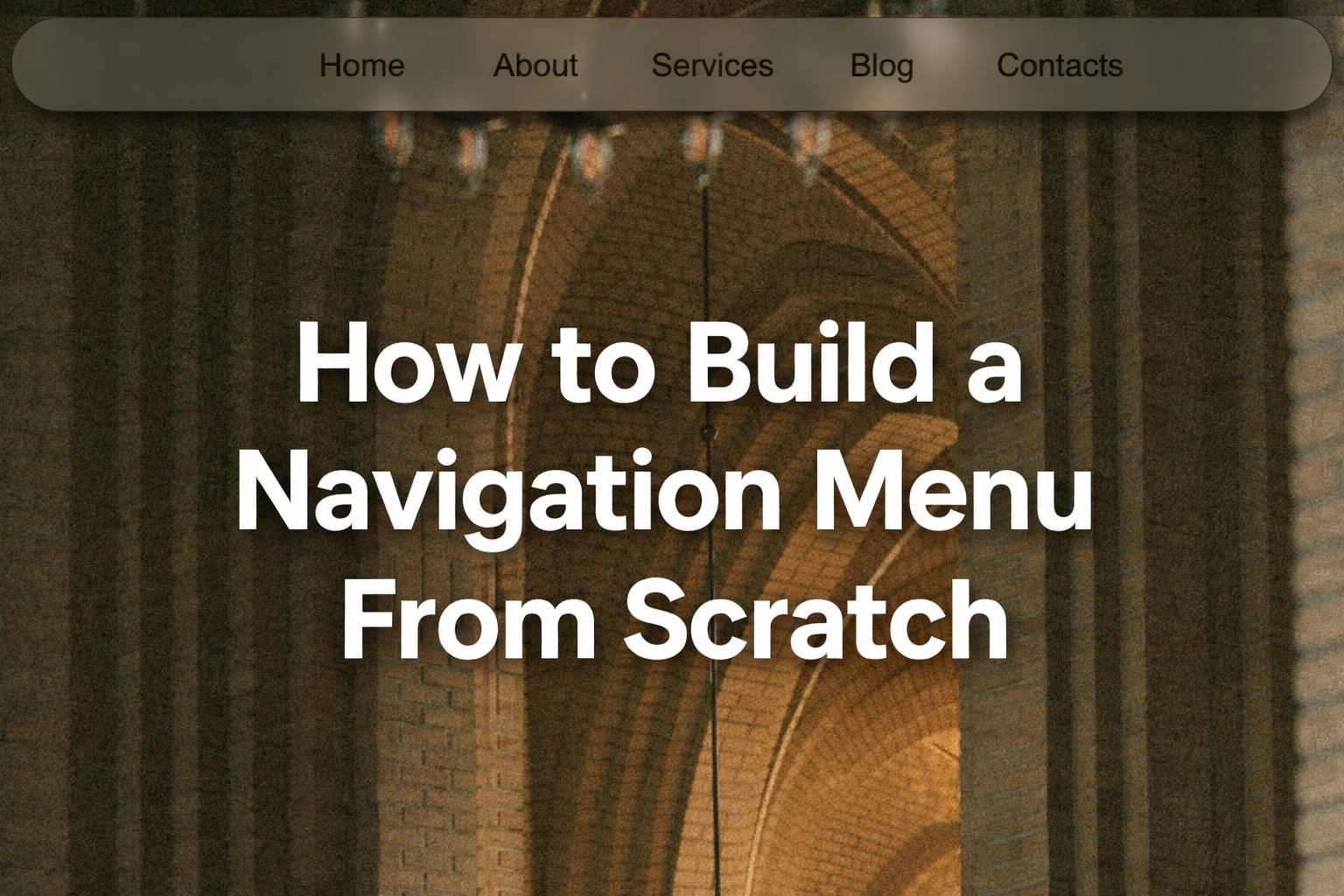
A navigation menu is one of the most important parts of any website. It’s the main guide that helps users move from one section of your site to another. No matter how good your content or design is, if users can’t easily find their way around, they’ll leave.
In this guide, you’ll learn how to build a navigation menu from scratch, using simple and clean concepts that work for almost any website. This article focuses on understanding how navigation menus work, how to structure them properly, and how to make them usable, accessible, and visually clear.
Everything here is evergreen, meaning the principles will remain useful even as tools and trends evolve.
What Is a Navigation Menu?
A navigation menu is a group of links that allow users to move between pages or sections of a website. These links are usually placed at the top of the page, but they can also appear on the side or bottom depending on the layout.
A good navigation menu answers three questions instantly:
- Where am I?
- What can I find here?
- Where can I go next?
When a navigation menu is done well, users don’t even notice it. They simply move through the website naturally.
Why Building a Navigation Menu From Scratch Matters
Many beginners rely entirely on templates or frameworks, which is fine—but understanding how a navigation menu works under the hood gives you full control.
When you build it yourself, you can:
- Customize it for any layout
- Fix layout or alignment issues confidently
- Make it responsive for all screen sizes
- Improve accessibility and usability
- Understand how navigation affects user experience
Learning this once helps you on every future project.
Step 1: Planning the Navigation Structure
Before writing any code, you need to decide what links your menu will contain.
Ask yourself:
- What are the most important pages?
- What should users see first?
- Should some links be grouped together?
For most websites, a simple navigation menu includes:
- Home
- About
- Services or Features
- Blog or Resources
- Contact
Keep it simple. Too many links overwhelm users.

Step 2: Writing the Basic HTML Structure
Navigation menus start with clean, semantic HTML. This helps search engines, screen readers, and browsers understand your site.
At the core, a navigation menu is just a list of links.
You’ll usually use:
- A
<nav>element to wrap the menu - An unordered list
<ul> - List items
<li> - Anchor tags
<a>
This structure is universal and future-proof.
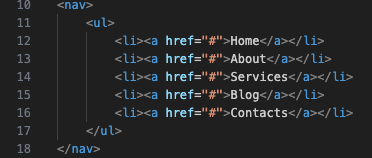
Why this matters:
- It improves accessibility
- It keeps your markup readable
- It’s easy to style with CSS
Avoid using random <div> elements for navigation when proper semantic tags exist.
Step 3: Styling the Navigation Menu With CSS
By default, lists display vertically with bullet points. CSS is what transforms them into a horizontal navigation menu.
Common styling steps include:
- Removing default list styles
- Aligning items horizontally
- Adding spacing between links
- Styling text and hover states
Your goal is clarity, not decoration. Users should instantly recognize clickable links.
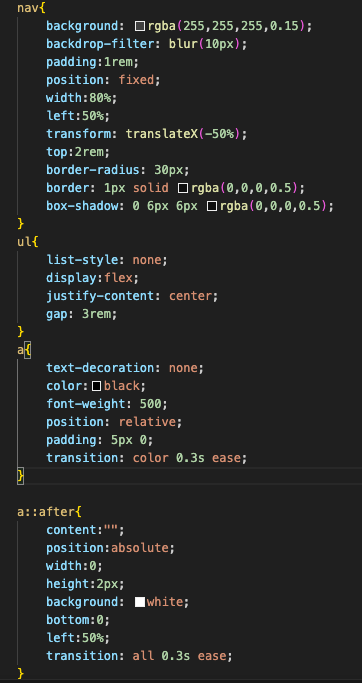
Things to focus on:
- Font size that’s easy to read
- Enough padding so links are easy to tap
- Clear hover or active states
Good navigation design prioritizes usability over fancy effects.
Step 4: Aligning and Positioning the Menu
Navigation menus are often placed:
- At the top of the page (most common)
- Centered horizontally
- Spread across the width of the screen
Modern layouts typically use Flexbox to handle alignment cleanly.
Flexbox allows you to:
- Align items horizontally or vertically
- Control spacing easily
- Adjust layout for different screen sizes
Flexbox is widely supported and will remain relevant for years, making it a great choice for evergreen projects.
Step 5: Adding Hover and Active States
Users expect visual feedback when they interact with navigation links.
Hover states help users know:
- Which link they’re about to click
- That the menu is interactive
Active states show:
- Which page the user is currently on
These small details dramatically improve user experience.


Use subtle color changes, underlines, or background highlights. Avoid extreme animations that distract users.
Step 6: Making the Navigation Menu Responsive
A navigation menu that works only on desktop is not enough. Most users browse on mobile devices.
Responsive navigation means:
- The menu adapts to smaller screens
- Links remain easy to tap
- Content doesn’t overflow or break
Common approaches include:
- Stacking links vertically on small screens
- Hiding the menu behind a toggle button
- Using media queries to adjust layout
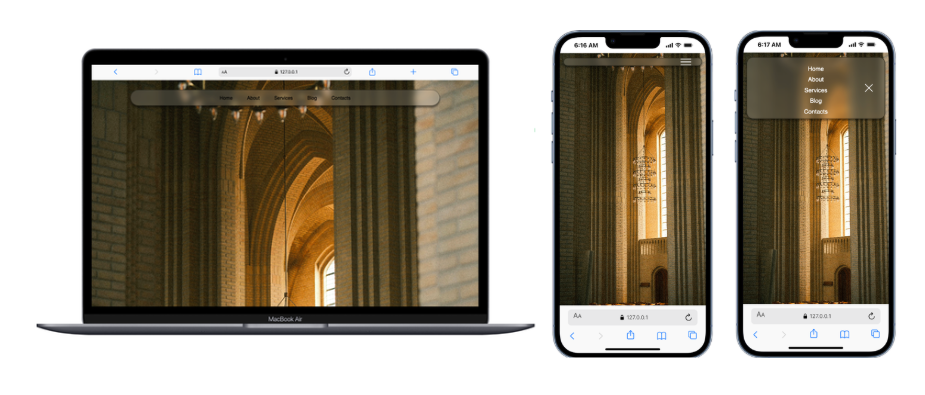
The key principle is usability. Mobile users should access the same content without frustration.
Step 7: Adding Simple JavaScript for Interaction
Some navigation menus require basic interaction, such as:
- Toggling a mobile menu
- Opening and closing dropdowns
JavaScript helps control these behaviors.
You don’t need complex frameworks. Simple logic is often enough:
- Detect button clicks
- Toggle CSS classes
- Show or hide menu items
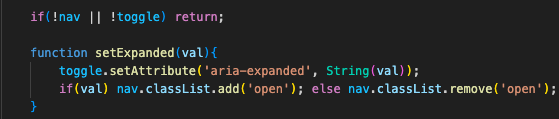
Keeping JavaScript minimal ensures:
- Faster performance
- Easier maintenance
- Fewer bugs over time
Step 8: Accessibility Considerations
An evergreen(Long-lasting) navigation menu must be usable by everyone, including users who rely on assistive technologies.
Accessibility best practices include:
- Using semantic HTML (
<nav>,<ul>,<a>) - Ensuring links are keyboard accessible
- Providing enough contrast between text and background
- Making clickable areas large enough
Accessible navigation improves:
- User trust
- SEO performance
- Overall site quality
Accessibility is not optional it’s part of good design.
Step 10: Testing the Navigation Menu
Before publishing, test your navigation menu thoroughly.
Check:
- Desktop and mobile layouts
- Different browsers
- Keyboard navigation
- Link accuracy
- Hover and active states
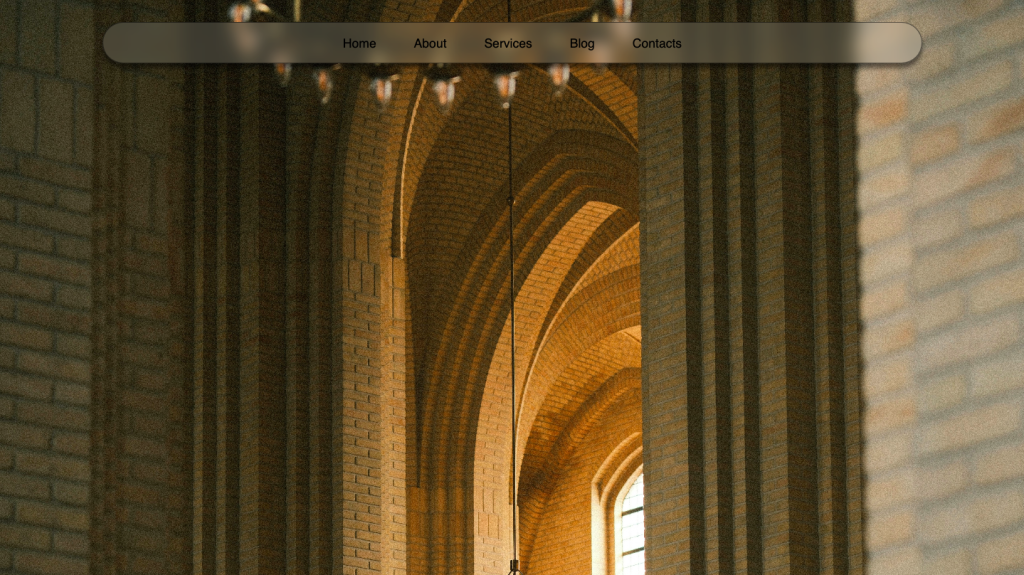
Testing ensures your menu works reliably for all users.
Common Mistakes to Avoid
Many beginners make the same navigation mistakes:
- Too many links
- Poor contrast or unreadable text
- Small clickable areas
- Overcomplicated animations
- Ignoring mobile users
Avoiding these mistakes instantly improves your website’s professionalism.
Why Navigation Menus Matter More Than You Think
Navigation menus shape how users experience your entire website. They influence:
- Time spent on site
- Bounce rate
- User satisfaction
- Conversion rates
A well built navigation menu silently guides users, while a poor one drives them away.
Building a navigation menu from scratch is a fundamental web development skill that pays off on every project. By understanding the structure, styling, responsiveness, and accessibility behind navigation menus, you gain control over how users experience your website.
The techniques in this guide are evergreen because they rely on core web standards, not temporary trends or tools. Once you master them, you can build navigation menus for blogs, portfolios, business websites, and web apps with confidence.
A good navigation menu doesn’t shout it guides. And when done right, it makes everything else on your website easier to use.