
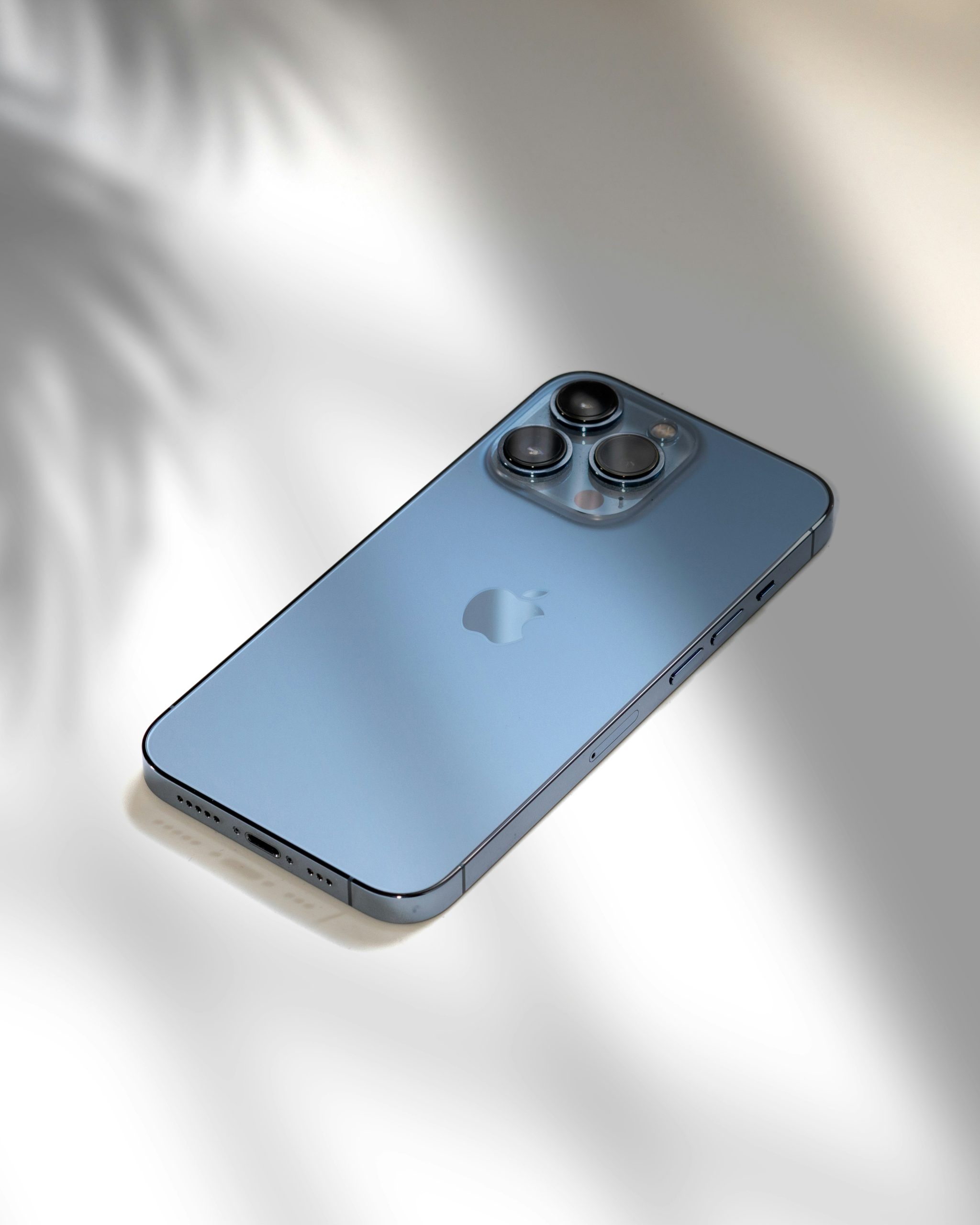
Smartphones have become very personal devices. From banking apps to private chats and work tools, many of us keep sensitive information on our iPhones. Sometimes, you may want to hide certain apps without deleting them completely. The good news is that Apple allows you to hide apps in several safe ways without losing data or uninstalling anything.
In this detailed guide, you’ll learn why hiding apps is important, different ways to hide apps on iPhone, and step-by-step instructions you can follow easily—even if you’re a beginner.
Why Hiding Apps on iPhone Is Important
Before jumping into the steps, let’s understand why people hide apps in the first place.
1.
Privacy Protection
Some apps contain personal or sensitive information:
- Banking and finance apps
- Private messaging apps
- Photo vault or notes apps
If someone borrows your phone or you leave it unlocked, hiding apps adds an extra layer of privacy.
2.
Prevent Accidental Access
Kids, friends, or colleagues might accidentally open apps they shouldn’t. Hiding apps reduces the risk of:
- Accidental purchases
- Deleting important data
- Changing settings
3.
Declutter Your Home Screen
Too many apps can make your iPhone feel messy. Hiding apps helps you:
- Keep your Home Screen clean
- Focus on important apps only
- Improve productivity
4.
Avoid Distractions
Social media and gaming apps can be distracting. Hiding them:
- Reduces temptation
- Helps with focus and screen-time control
Important Note Before You Start
Hiding apps does not delete your data. Your apps remain installed and can be accessed anytime using search or settings.
Method 1: Hide Apps Using the App Library (Recommended)
Apple introduced App Library to help organize and hide apps automatically.
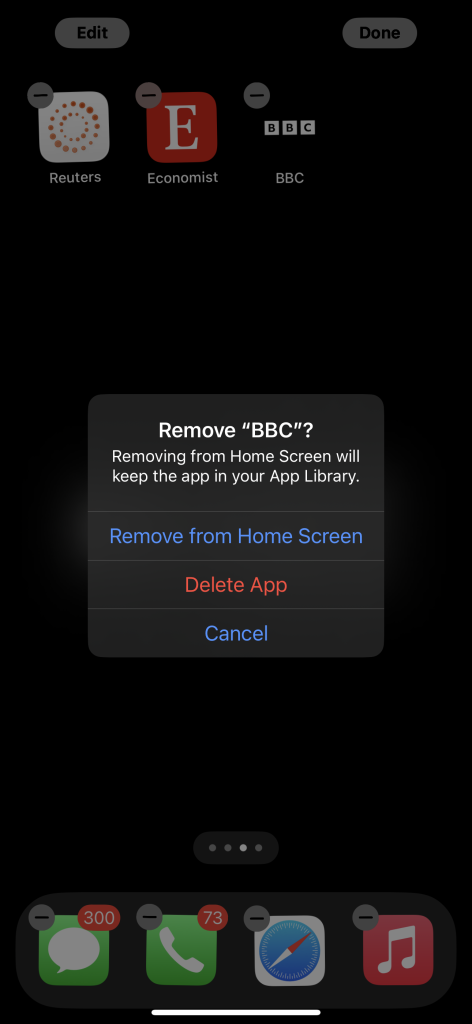
Steps to Hide Apps Using App Library
- Go to your Home Screen
- Long-press the app you want to hide
- Tap Remove App
- Select Remove from Home Screen
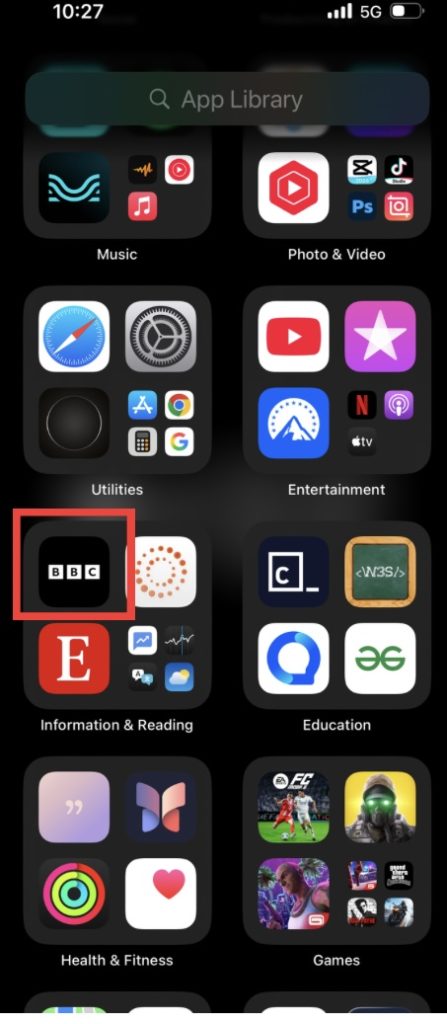
How to Access Hidden Apps
- Swipe left past your last Home Screen
- Use the App Library search bar
- Tap the app to open it
Method 2: Hide Apps Inside a Folder
This is a simple and effective method for beginners.
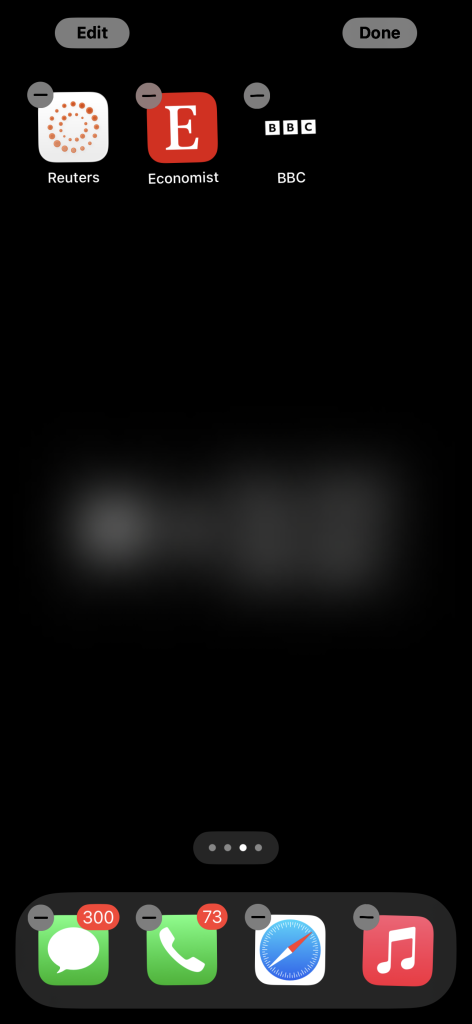
Steps to Hide Apps in a Folder
- Long-press an app
- Drag it onto another app to create a folder
- Rename the folder (e.g., “Utilities” or “Extras”)
- Drag the app to the second or third page inside the folder
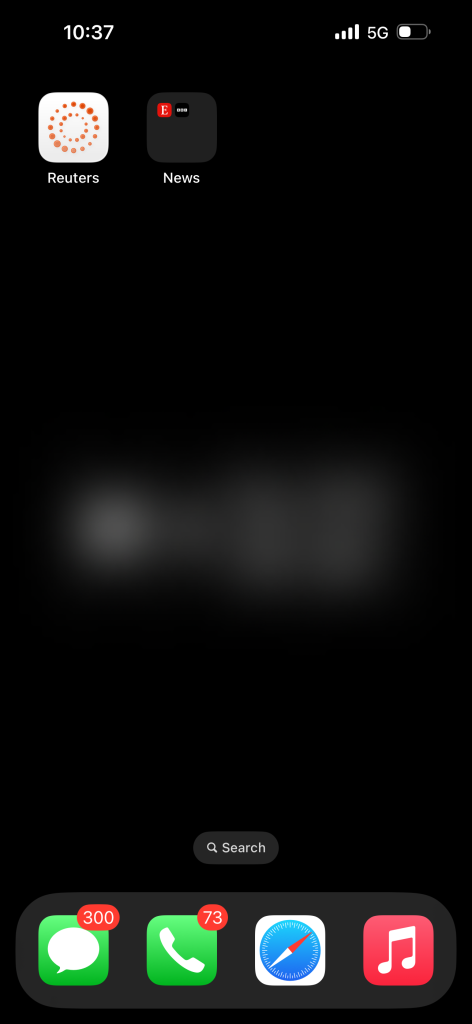
Method 3: Hide Apps Using Screen Time Restrictions
This method is more powerful and works well for sensitive apps.
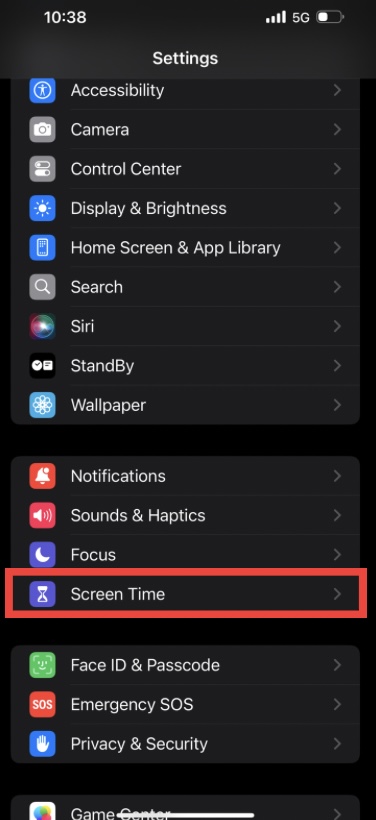
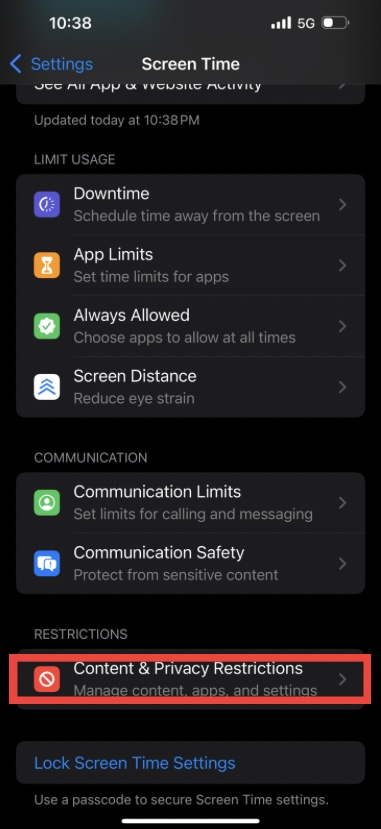
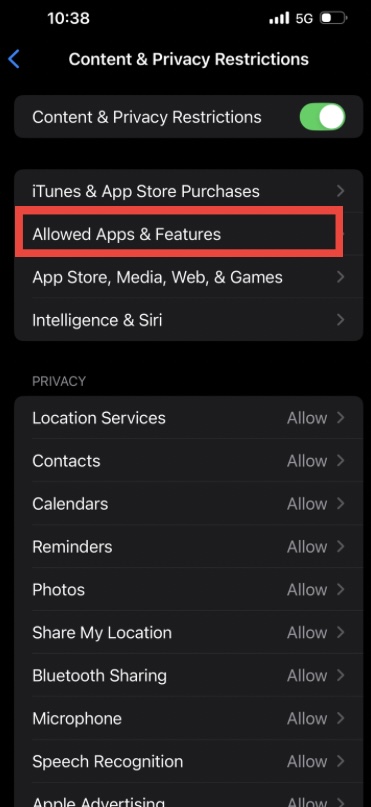
Steps to Hide Apps with Screen Time
- Open Settings
- Tap Screen Time
- Select Content & Privacy Restrictions
- Turn it ON
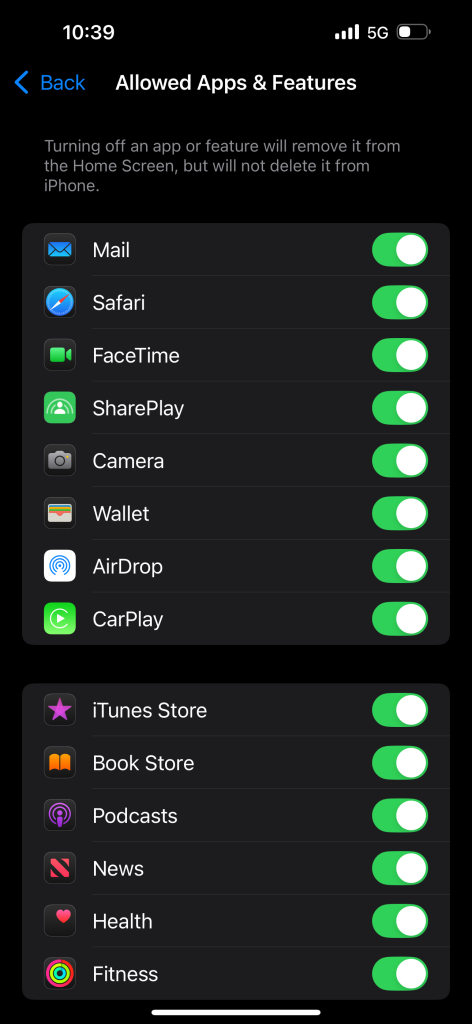
- Tap Allowed Apps
- Toggle off the apps you want to hide
Method 4: Hide Apps by Removing Them from Siri & Search
This prevents apps from appearing when someone searches your phone.
Steps
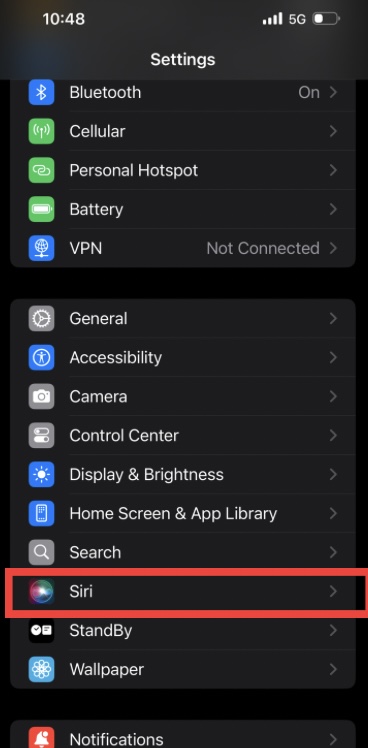
- Open Settings
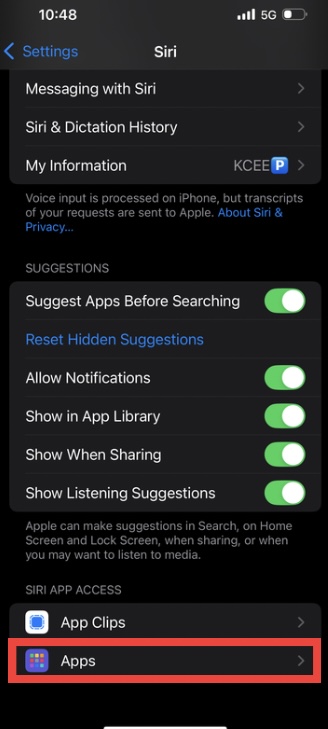
- Tap Siri & Search
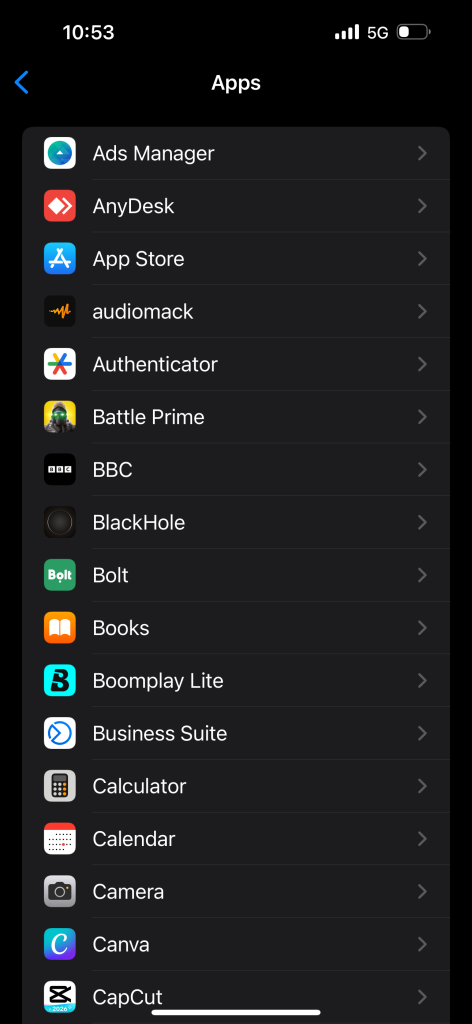
- Scroll and select the app
- Turn off:
- Show App in Search
- Show on Home Screen
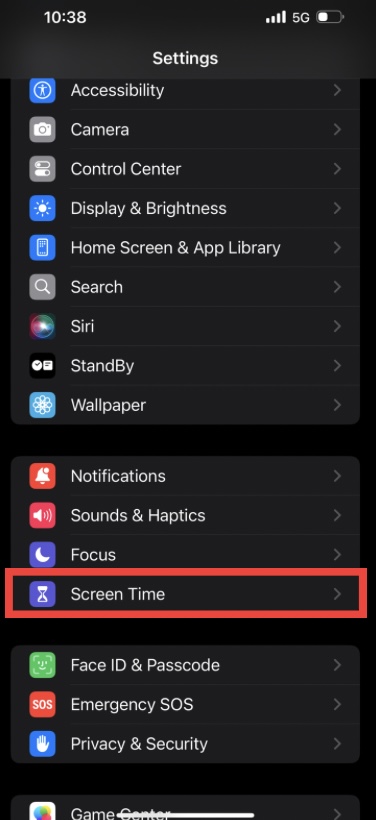
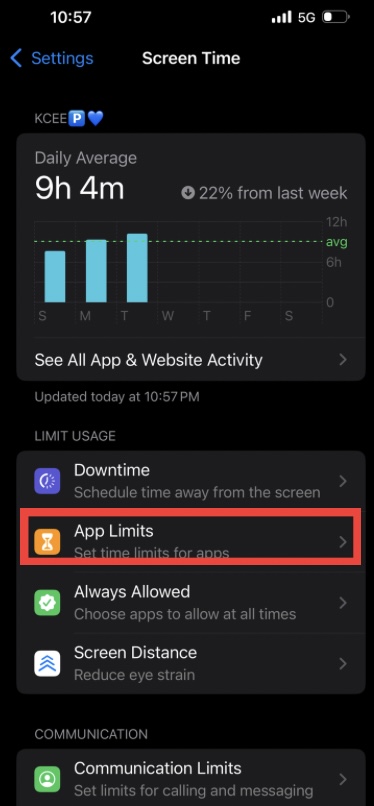
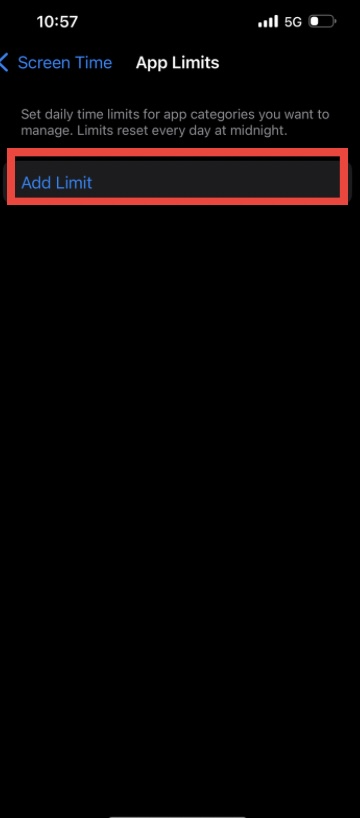
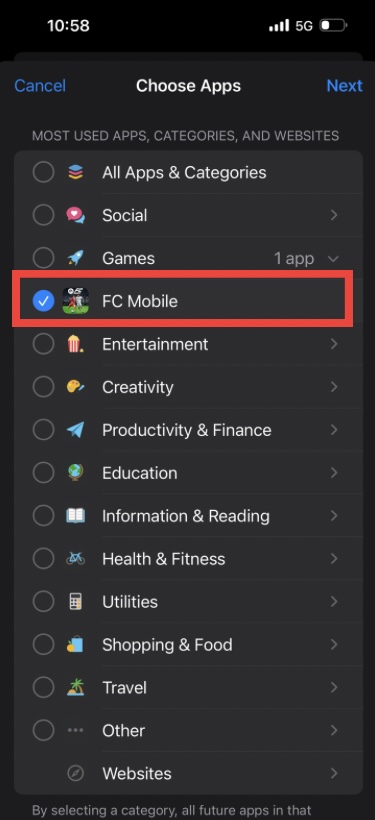
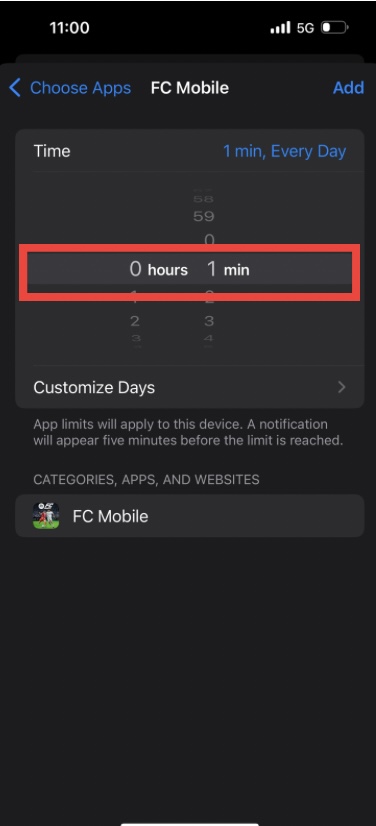
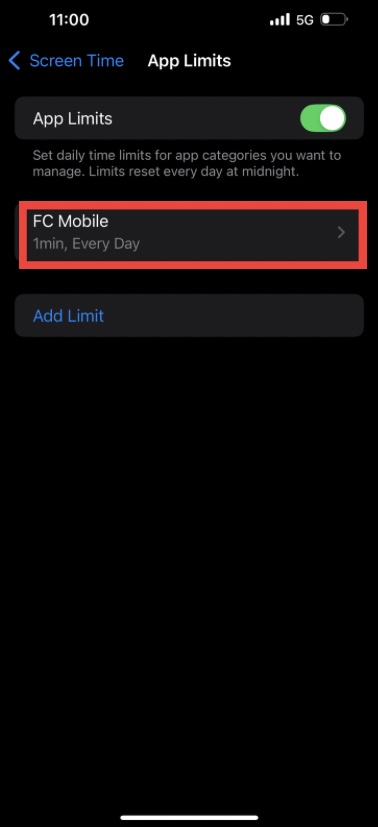
Method 5: Hide Apps Using Screen Time App Limits
You can limit an app to 0 minutes, making it unusable and hidden.
Steps
- Go to Settings
- Tap Screen Time
- Select App Limits
- Add limit → Choose app
- Set limit to 1 minute
- Enable Block at End of Limit
Can Hidden Apps Be Found?
Yes but only by:
- Searching App Library
- Going to Settings
- Entering Screen Time passcode (if set)
For extra security, always:
- Set a Screen Time passcode
- Use Face ID / Passcode lock
Will Hiding Apps Delete Data?
No. All app data remains safe:
- Messages stay intact
- Login sessions remain
- Settings are preserved
Best Method for Maximum Privacy
For best results, combine:
- Remove from Home Screen
- Disable Siri & Search
- Screen Time restrictions
This creates a strong privacy setup without third-party apps.
Hiding apps on iPhone without deleting them is a smart privacy move, especially in today’s digital world. Whether you want to protect personal data, reduce distractions, or keep your Home Screen clean, iOS provides safe and reliable tools to do so.