
Modern websites often hide extra information until users need it. Instead of showing large blocks of text all at once, developers use expandable sections that users can open and close easily. One HTML element that helps make this possible is the <summary> tag.
The HTML <summary> element works together with the <details> tag to create expandable content sections. Even though the <summary> tag is small, it plays a very important role in making webpages interactive, organized, and user-friendly.
You may have already seen this feature on websites without knowing the name of the tag behind it. It is commonly used for:
- Frequently Asked Questions (FAQs)
- Product details
- Hidden instructions
- Tutorial explanations
- Notes and warnings
- Expandable menus
In this beginner-friendly guide, you will learn what the HTML <summary> tag is, how it works, where it should be used, common mistakes to avoid, and why it matters in modern web development.
This article focuses mainly on simple explanations instead of too much code so you can understand everything clearly.
What is the HTML <summary> Tag?
The HTML <summary> tag is used to create a visible heading or label for a <details> element.
In simple words, it creates the clickable title users press to show or hide hidden content.
The <summary> element acts like a button for expandable sections.
When users click the summary text:
- The hidden content opens
- Clicking again closes the content
Without the <summary> element, users may not know what the expandable section is about.
Simple Syntax of the <summary> Tag
<details>

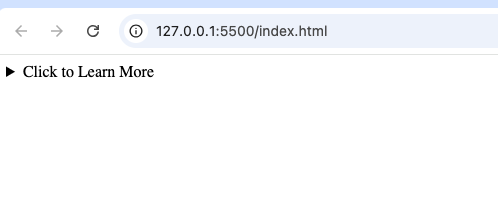
  <summary>Click to Learn More</summary>

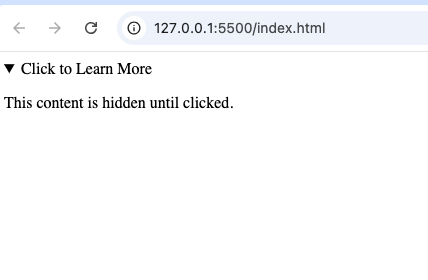
  <p>This content is hidden until clicked.</p>

</details>
In this example:
<details>creates the expandable area<summary>creates the clickable heading- The paragraph becomes visible after clicking
Why the <summary> Tag is Important
Some beginners think the <summary> element is optional, but it is actually very important.
Here are some reasons why it matters.
1. Creates Clickable Expandable Headings
The <summary> element provides the clickable text users interact with.
Without it, the expandable section becomes unclear.
Example:
<summary>Read More</summary>This tells users they can open more content.
2. Improves User Experience
The <summary> tag helps users quickly understand what information is hidden.
Instead of showing everything immediately, webpages stay cleaner and easier to navigate.
3. Helps Organize Information
Long webpages become easier to manage when information is grouped into expandable sections.
The <summary> element acts as the title for each group.
4. No JavaScript Needed
One of the best things about <summary> and <details> is that they work without JavaScript.
This makes them beginner-friendly and lightweight.
How the <summary> Tag Works
The <summary> element always works inside a <details> element.
The structure usually looks like this:
<details>

  <summary>Question</summary>

  <p>Answer</p>

</details>
The summary text remains visible.
The rest of the content stays hidden until clicked.
What Happens When Users Click the <summary>?
When users click the summary text:
- The
<details>section expands - Hidden content becomes visible
Clicking again collapses the content.
Example:
Closed state:
▶ Learn HTML
Opened state:
▼ Learn HTML
HTML is used to structure webpages.
This creates a simple dropdown effect.
Difference Between <summary> and <details>
Beginners often confuse these two elements.
Here is the difference.
<summary> | <details> |
|---|---|
| Creates clickable heading | Creates expandable container |
| Visible at all times | Contains hidden content |
| Acts like a label/button | Controls opening and closing |
Example:
<details>

  <summary>More Info</summary>

  <p>Extra content here.</p>

</details>
The <summary> is the clickable title.
The <details> holds the full expandable section.
Where is the <summary> Tag Commonly Used?
The <summary> element is useful in many real-world situations.
1. FAQ Sections
This is one of the most popular uses.
Example:
<details>

  <summary>What is HTML?</summary>

  <p>HTML structures webpages.</p>

</details>
Users click the question to reveal the answer.
2. Product Information
Online stores often hide extra product details.
Example:
<details>

  <summary>Product Specifications</summary>

  <p>Battery life: 10 hours.</p>

</details>
This keeps product pages cleaner.
3. Tutorials
Tutorial websites sometimes hide advanced explanations.
Example:
<details>

  <summary>Advanced Tips</summary>

  <p>Use semantic HTML elements.</p>

</details>
This helps beginners focus on the basics first.
4. Notes and Warnings
The <summary> tag is useful for optional notes.
Example:
<details>

  <summary>Important Note</summary>

  <p>Always save your files.</p>

</details>
Can the <summary> Tag Be Styled?
Yes.
The <summary> element can be styled with CSS like other HTML elements.
Example:
<summary>Read More</summary>summary {
font-weight: bold;
cursor: pointer;
}This makes the summary text look more interactive.
Why the Arrow Appears Automatically
Most browsers automatically display a small arrow or triangle beside the <summary> text.
Example:
▶ Learn More
When opened:
▼ Learn More
This visual indicator helps users understand that the section is expandable.
Can You Put Other Elements Inside <summary>?
Yes.
The <summary> tag can contain:
- Text
- Icons
- Headings
- Images
- Inline elements
Example:
<summary>
  HTML Tips
</summary>
However, keep the content simple and readable.
Accessibility Benefits of <summary>
Accessibility is one of the biggest advantages of semantic HTML.
The <summary> element helps screen readers understand interactive expandable sections properly.
This improves navigation for users with disabilities.
Modern websites should always consider accessibility.
HTML5 and the <summary> Tag
The <summary> element became officially supported with HTML5.
Before HTML5, developers often needed JavaScript to create expandable dropdown sections.
Now HTML provides a simpler built-in solution.
Old method:
- JavaScript toggle scripts
- Complex coding
Modern method:
<summary>This makes development easier.
Browser Support for <summary>
The <summary> element works in all modern browsers including:
- Chrome
- Firefox
- Safari
- Edge
- Opera
Most users can access it without problems.
Difference Between <summary> and Buttons
Some beginners compare the <summary> tag with normal buttons.
<summary> | <button> |
|---|---|
Opens <details> sections | Performs general actions |
| Built for expandable content | Used for forms and interactions |
| Semantic expandable label | Generic interactive control |
Use <summary> specifically for expandable sections.
Real-Life Example of <summary>
Imagine a help center webpage.
Instead of showing all answers immediately, the page displays questions only.
Users click a question to reveal the answer.
Example:
How do I reset my password?
Click the reset password link.
<details>

  <summary>How do I reset my password?</summary>

  <p>Click the reset password link.</p>

</details>
This creates a cleaner and more organized page.
Common Beginner Mistakes
Here are mistakes beginners often make when using <summary>.
1. Using <summary> Outside <details>
The <summary> element should normally appear inside a <details> element.
Incorrect:
<summary>Example</summary>Correct:
<details>

  <summary>Example</summary>

</details>
2. Making Summary Text Unclear
The summary text should clearly explain what users will open.
Bad example:
- “Click Here”
Better example:
- “Read HTML Tips”
3. Overusing Expandable Sections
Too many dropdown sections can make webpages confusing.
Use them wisely.
4. Hiding Important Information
Critical information should not always be hidden.
Users should easily find essential content.
Combining <summary> with Other Semantic Elements
The <summary> element works well with:
<section><article><aside><main>
Example:
<section>

  <h2>FAQ</h2>

  <details>

    <summary>What is CSS?</summary>

    <p>CSS styles webpages.</p>

  </details>

</section>
This creates organized FAQ sections.
Why Expandable Content is Popular
Expandable content is widely used because it helps:
- Save space
- Improve readability
- Reduce clutter
- Improve mobile viewing
- Organize information better
The <summary> element plays a major role in this system.
Best Practices for Using <summary>
Here are some useful tips.
Keep Summary Text Short and Clear
Users should immediately understand what the hidden content contains.
Use Expandable Sections Wisely
Do not hide too much content unnecessarily.
Focus on User Experience
Expandable content should help users, not confuse them.
Combine with Semantic HTML
Use <summary> together with semantic elements like:
This creates better webpage organization.
Keep the Design Simple
Simple expandable sections are usually easier to use.
SEO and the <summary> Tag
Search engines can still read content inside expandable sections.
This means hidden content may still support SEO when used properly.
Semantic structure also improves webpage organization.
Real-World Websites That Use Expandable Sections
Many modern websites use expandable sections created with <summary> and <details>.
Examples include:
- FAQ pages
- Product pages
- Documentation websites
- Tutorial sites
- Help centers
Users are already familiar with this interaction style.
Why Semantic HTML Matters
The <summary> element is part of semantic HTML.
Semantic HTML improves:
- Accessibility
- Readability
- SEO structure
- User experience
- Website organization
Examples of semantic elements include:
These elements help developers create modern and professional websites.
The HTML <summary> tag is a simple but powerful element that helps create interactive expandable content sections. It works together with the <details> element to provide clean, organized, and user-friendly webpages.
Instead of showing too much information at once, the <summary> element helps users control what they want to see.
As a beginner, understanding how to use the <summary> element properly will help you create modern websites that are easier to navigate and more enjoyable to use.
The more you practice using semantic HTML elements like <summary>, the easier it becomes to build clean, interactive, and professional webpages.
terbinafine mechanism biochemical overview
terbinafine mechanism biochemical overview
acular ketorolac moa
acular ketorolac moa
toradol for pain
toradol for pain
toradol short term restrictions
toradol short term restrictions
vardenafil 5 mg tablet summary
vardenafil 5 mg tablet summary
avanafil mechanism
avanafil mechanism
vardenafil health contraindications
vardenafil health contraindications
Sildenafil Onset Delay Resource
Sildenafil Onset Delay Resource