
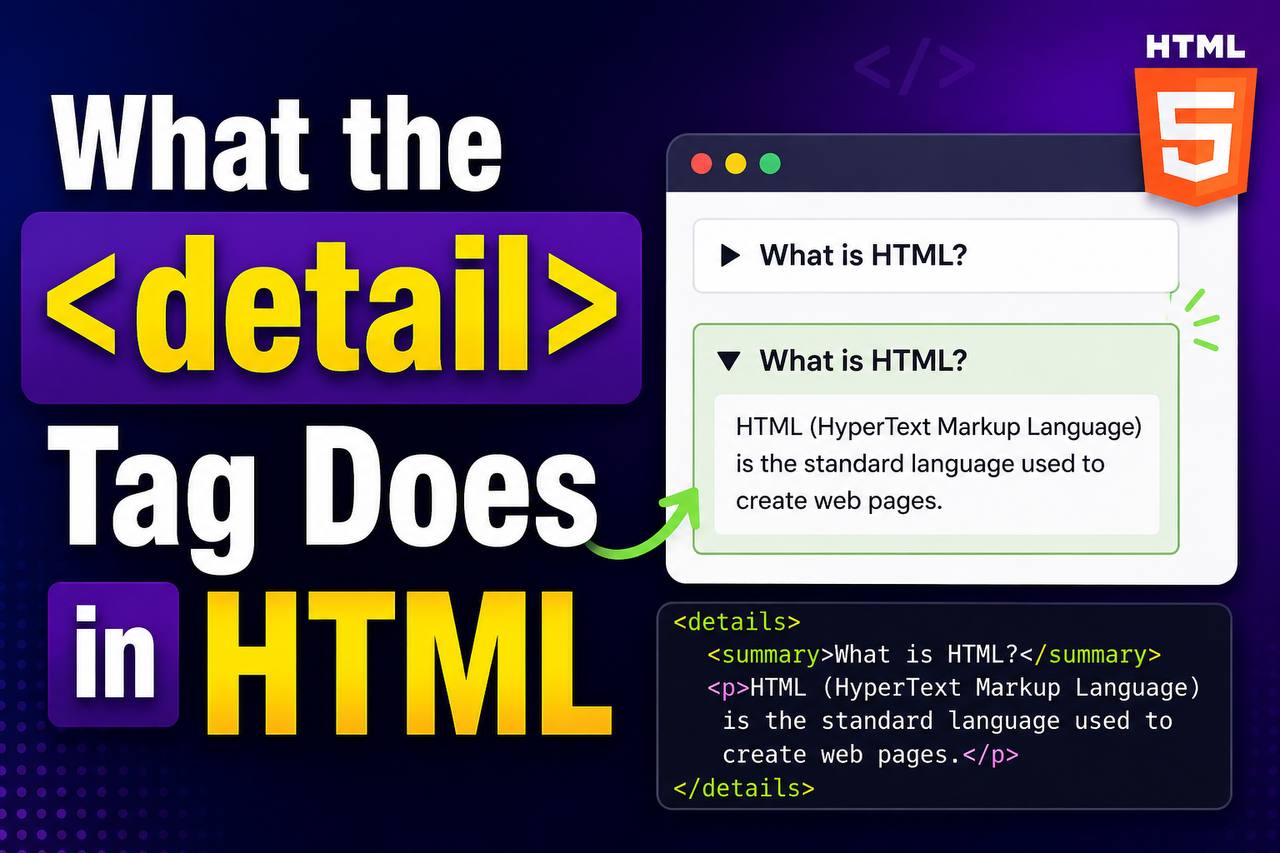
Modern websites are becoming more interactive and user-friendly every year. Instead of showing large amounts of information all at once, developers often hide extra content until users want to see it. One HTML element that helps make this possible is the <details> tag.
The HTML <details> element allows developers to create expandable and collapsible sections on a webpage without using complicated JavaScript. It is simple, useful, and beginner-friendly.
You may have already seen the <details> tag in action without realizing it. It is commonly used for:
- Frequently Asked Questions (FAQs)
- Product details
- Tutorials
- Hidden notes
- Expandable instructions
- Extra information sections
In this beginner-friendly guide, you will learn what the HTML <details> tag does, why it is important, where it should be used, common beginner mistakes, and how it improves user experience.
This article focuses mainly on clear explanations instead of too much code so you can understand everything easily.
What is the HTML <details> Tag?
The HTML <details> tag is a semantic element used to create a section of content that users can expand or collapse.
In simple words, it hides content until the user clicks to reveal it.
Think of it like a dropdown information box.
When closed, users see only a small heading or label.
When clicked, the hidden content appears.
This helps webpages stay cleaner and more organized.
Simple Syntax of the <details> Tag
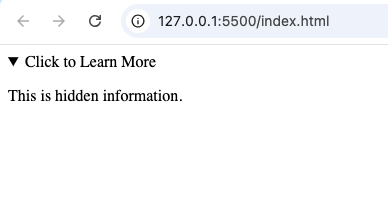
<details>
  <summary>Click to Learn More</summary>

  <p>This is hidden information.</p>
</details>
In this example:
<details>creates the expandable container<summary>creates the clickable heading- The paragraph remains hidden until clicked

Why the <details> Tag is Important
Many beginners wonder:
“Why not just use JavaScript for dropdown content?”
The answer is simplicity and built-in functionality.
The <details> element works automatically in modern browsers without extra scripting.
Here are some important reasons why it matters.
1. Keeps Webpages Clean
Long webpages can become messy when too much information appears at once.
The <details> element helps hide extra content until needed.
This creates cleaner layouts and improves readability.
2. Improves User Experience
Visitors can choose which information they want to view.
Instead of scrolling through huge blocks of text, users expand only the sections they need.
3. No JavaScript Required
One of the best things about <details> is that it works without JavaScript.
This makes it beginner-friendly and lightweight.
4. Better Organization
The <details> element helps organize information into manageable sections.
This is especially useful for:
- FAQs
- Documentation
- Tutorials
- Product pages
How the <details> Tag Works
The <details> element has two main parts:
| Element | Purpose |
|---|---|
<details> | Creates expandable content |
<summary> | Creates clickable title |
The <summary> element acts like a button users click to open or close the content.
What Happens When Users Click It?
When users click the summary text:
- The hidden content becomes visible
- Clicking again hides the content
This creates a toggle effect.
Example:
Closed state:
▶ Learn More
Opened state:
▼ Learn More
Additional information appears here.
What Kind of Content Can Go Inside <details>?
The <details> element can contain many types of content including:
- Paragraphs
- Lists
- Images
- Tables
- Videos
- Forms
- Links
Example:
<details>
  <summary>HTML Tips</summary>

  <p>Practice coding daily.</p>
</details>
You are not limited to plain text.
Common Uses of the <details> Tag
The <details> element is useful in many real-world situations.
1. Frequently Asked Questions (FAQs)
This is one of the most common uses.
Example:
<details>
  <summary>What is HTML?</summary>

  <p>HTML is the language used to structure webpages.</p>
</details>
Users click the question to reveal the answer.
2. Product Information
Online stores often hide technical details until needed.
Example:
<details>
  <summary>Product Specifications</summary>

  <p>Battery life: 10 hours.</p>
</details>
3. Tutorials and Instructions
Developers sometimes hide advanced explanations to keep tutorials simpler.
Example:
<details>
  <summary>Advanced HTML Tips</summary>

  <p>Use semantic elements for better structure.</p>
</details>
4. Notes and Extra Information
The <details> tag works well for optional notes.
Example:
<details>
  <summary>Important Note</summary>

  <p>Always save your work regularly.</p>
</details>
Difference Between <details> and <div>
Beginners often compare these elements.
<details> | <div> |
|---|---|
| Expandable container | Generic container |
| Interactive by default | No built-in interaction |
| Semantic element | No special meaning |
| Can collapse content | Cannot collapse content alone |
Use <details> for hidden expandable content.
Use <div> mainly for layout or styling.
Difference Between <details> and Accordions
Many beginners think <details> and accordions are exactly the same.
They are similar but not identical.
<details> | Accordion |
|---|---|
| Built into HTML | Often created with JavaScript |
| Simple functionality | More customizable |
| Easier for beginners | More advanced |
The <details> tag is a simple built-in solution for expandable content.
The <summary> Element
The <summary> tag is very important because it creates the clickable heading.
Without <summary>, the details section may not behave correctly.
Example:
<details>
  <summary>Read More</summary>

  <p>Extra content here.</p>
</details>
The text “Read More” becomes clickable.
Can the <details> Element Start Open?
Yes.
The <details> element can be opened automatically using the open attribute.
Example:
<details open>
  <summary>More Information</summary>

  <p>This content is visible immediately.</p>
</details>
Without the open attribute, the content stays hidden initially.
Browser Support for <details>
The <details> element works in all modern browsers including:
- Chrome
- Firefox
- Safari
- Edge
- Opera
Most users can view it without problems.
HTML5 and the <details> Element
The <details> tag became officially supported with HTML5.
Before HTML5, developers usually needed JavaScript to create expandable sections.
Now HTML provides a simpler built-in solution.
Old method:
- JavaScript dropdown scripts
- Complex code
Modern method:
<details>This reduces complexity.
Accessibility Benefits of <details>
Accessibility is one of the biggest advantages of semantic HTML.
The <details> element helps screen readers understand expandable content properly.
This improves navigation for users with disabilities.
Modern websites should always consider accessibility.
SEO Benefits of <details>
Search engines can still read content inside <details> elements.
The content is usually indexable even when collapsed.
This means:
- Hidden content can still support SEO
- Pages remain cleaner for users
Semantic structure improves webpage organization overall.
Styling the <details> Element with CSS
The <details> element can be styled using CSS.
Example:
<details>
  <summary>Click Here</summary>
</details>
details {
padding: 10px;
background-color: lightgray;
}This changes the appearance of the expandable section.
Real-Life Example of <details>
Imagine a tutorial website.
Each lesson may contain:
- Main explanation
- Optional advanced tips
- Hidden examples
The advanced information can be placed inside <details> sections.
This keeps the page cleaner and easier to read.
Common Beginner Mistakes
Here are mistakes beginners often make when using <details>.
1. Forgetting the <summary> Element
Without <summary>, users may not understand what to click.
Always include a summary heading.
2. Hiding Important Main Content
Do not hide extremely important information unnecessarily.
Users should not struggle to find critical content.
3. Overusing Expandable Sections
Too many expandable boxes can make webpages confusing.
Use them wisely.
4. Using <details> for Navigation Menus
The <details> tag is meant for expandable information, not full website navigation systems.
Combining <details> with Other Semantic Elements
The <details> element works well with:
<section><article><aside><main>
Example:
<section>

  <h2>HTML FAQ</h2>

  <details>
    <summary>What is HTML?</summary>

    <p>HTML structures webpages.</p>
  </details>

</section>
This creates organized FAQ sections.
Best Practices for Using <details>
Here are some helpful tips.
Keep Summary Text Clear
Users should immediately understand what will open.
Good example:
- “Read More About HTML”
Bad example:
“Click Here”
Keep Hidden Content Relevant
The hidden information should relate directly to the summary heading.
Do Not Hide Everything
Too much hidden content can frustrate users.
Balance visibility carefully.
Use <details> for Better User Experience
Expandable content should help users, not confuse them.
Focus on Simplicity
The <details> element is most effective when used cleanly and simply.
Real-World Websites That Use Expandable Sections
Many websites use expandable content similar to <details>.
Examples include:
- FAQ pages
- Product pages
- Documentation websites
- Tutorials
- Help centers
Users are already familiar with this interaction style.
Why Semantic HTML Matters
The <details> element is part of semantic HTML.
Semantic HTML improves:
- Accessibility
- Readability
- SEO structure
- User experience
- Professional coding practices
Examples of semantic HTML elements include:
These elements help create organized and understandable webpages.
The HTML <details> tag is one of the simplest yet most useful semantic elements in modern web development. It allows developers to create expandable content sections without complicated JavaScript.
Instead of showing large amounts of information all at once, the <details> element helps organize webpages into cleaner, easier-to-read sections.
As a beginner, learning how to use the <details> element properly will help you create more interactive and user-friendly websites.
The more you practice using semantic HTML elements like <details>, the easier it becomes to build organized, modern, and professional webpages.