
When working with video and audio in HTML, you may want to add captions, subtitles, or other text information to improve user experience. That’s where the <track> tag comes in.
The <track> tag is used alongside media elements like <video> and <audio> to provide timed text such as subtitles or captions. It helps make your content more accessible and easier to understand.
This guide explains everything you need to know about the <track> tag in a simple and clear way.
What is the <track> Tag?
The <track> tag is used to define text tracks for media elements.
These text tracks can include:
- Subtitles
- Captions
- Descriptions
- Chapters
- Metadata
Simple meaning:
The <track> tag = adds text support to media (like subtitles)
What is the <track> Tag?
The <track> tag is used to define text tracks for media elements.
These text tracks can include:
- Subtitles
- Captions
- Descriptions
- Chapters
- Metadata
Simple meaning:
The <track> tag = adds text support to media (like subtitles)
Where is the <track> Tag Used?
The <track> tag is only used inside:
<video><audio>
It does not work on its own.
Basic Syntax
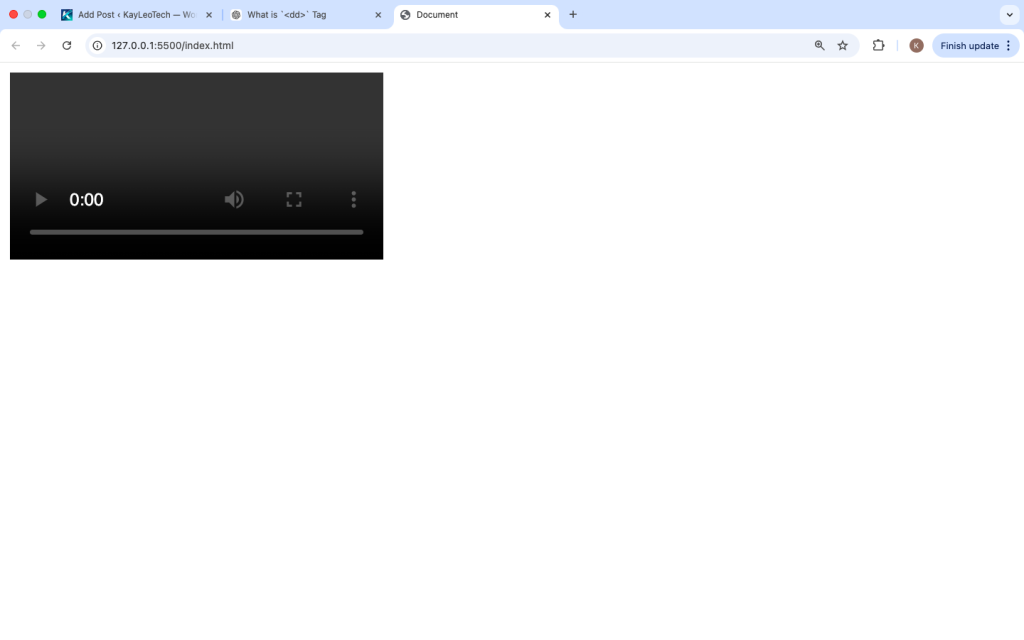
Here is a simple example of using the <track> tag:
<video controls>
<source src=”movie.mp4″ type=”video/mp4″>
<track src=”subtitles.vtt” kind=”subtitles” srclang=”en” label=”English”>
</video>
How the <track> Tag Works
The <track> tag links a text file (usually .vtt) to a video or audio file.
- The browser reads the track file
- It displays text at the right time
- Users can turn it on or off
Supported File Format: WebVTT
The <track> tag uses WebVTT (.vtt) files.
Example of a .vtt file:
WEBVTT
00:00:01.000 –> 00:00:04.000
Welcome to this video.
00:00:05.000 –> 00:00:08.000
This is a subtitle example.
Attributes of the <track> Tag
The <track> tag has several important attributes.
1. src
Defines the path to the .vtt file.
<track src="subtitles.vtt">
2. kind
Defines the type of text track.
Common values:
subtitles→ translated textcaptions→ includes sound effectsdescriptions→ describes visual contentchapters→ navigation pointsmetadata→ hidden data
<track kind="subtitles">
3. srclang
Defines the language of the track.
<track srclang="en">
4. label
Gives a name for users to select.
<track label="English">
5. default
Makes the track active by default.
<track default>
Full Example
<video controls width="500">
  <source src="movie.mp4" type="video/mp4">

  <track src="english.vtt" kind="subtitles" srclang="en" label="English" default>
  <track src="french.vtt" kind="subtitles" srclang="fr" label="French">

  Your browser does not support video.
</video>
Multiple Tracks
You can add multiple <track> elements to support different languages or types.
<track src=”english.vtt” kind=”subtitles” srclang=”en” label=”English”>
<track src=”spanish.vtt” kind=”subtitles” srclang=”es” label=”Spanish”>
This allows users to switch between languages.
Subtitles vs Captions
These are often confused.
- Subtitles → translation of speech
- Captions → include sounds like [music], [applause]
Example:
Subtitles vs Captions
These are often confused.
- Subtitles → translation of speech
- Captions → include sounds like [music], [applause]
Example:
<track kind="captions">
Using <track> with Audio
Although less common, <track> can also work with audio.
<audio controls>
<source src=”podcast.mp3″ type=”audio/mpeg”>
<track src=”captions.vtt” kind=”captions” srclang=”en”>
</audio>
Accessibility Benefits
The <track> tag is very important for accessibility.
It helps:
- People who are deaf or hard of hearing
- Users who don’t understand the language
- People in noisy environments
Adding subtitles makes your content usable for more people.
SEO Benefits
While search engines may not fully index .vtt files, captions can still help:
- Improve engagement
- Increase watch time
- Provide better user experience
Common Mistakes to Avoid
1. Using Wrong File Format
❌ Wrong:
<track src="subtitles.txt">
✔ Correct:
<track src="subtitles.vtt">
2. Missing kind Attribute
Always define the type of track.
3. Forgetting srclang
Without it, browsers may not show the track properly.
4. Not Adding label
Users need labels to choose tracks.
Styling Subtitles
Browsers control subtitle display, but you can use CSS for limited styling with ::cue.
<style>
  video::cue {
    color: yellow;
    font-size: 16px;
  }
</style>
Real-Life Use Cases
1. YouTube-like Videos
Adding subtitles for global users.
2. Online Courses
Providing captions for learning.
3. Movies and Streaming
Multiple language tracks.
4. Podcasts
Adding captions for accessibility.
Advanced Example
<!DOCTYPE html>
<html>
<head>
  <title>Track Tag Example</title>
</head>
<body>

<h2>Video with Subtitles</h2>

<video controls width="600">
  <source src="video.mp4" type="video/mp4">

  <track src="subs-en.vtt" kind="subtitles" srclang="en" label="English" default>
  <track src="subs-es.vtt" kind="subtitles" srclang="es" label="Spanish">

  Your browser does not support this video.
</video>

</body>
</html>
When Should You Use <track>?
Use it when:
✔ You want subtitles or captions
✔ You need multiple languages
✔ You want better accessibility
✔ You are working with video or audio
Avoid it when:
✘ You don’t have subtitle files
✘ You don’t need text support
Browser Support
The <track> tag is supported in modern browsers:
- Chrome
- Firefox
- Safari
- Edge
Best Practices
- Always use
.vttfiles - Provide at least one subtitle track
- Use clear labels
- Add
defaultwhen needed - Test your tracks in different browsers
Why the <track> Tag Matters
The web is used by people from different backgrounds and abilities.
The <track> tag helps make content:
- More inclusive
- Easier to understand
- More professional
It is a small addition that makes a big difference.
<track> vs Hardcoded Subtitles
<track>→ flexible and toggleable- Hardcoded → always visible, not flexible
Using <track> is better for user control.
The <track> tag is a powerful feature for adding subtitles, captions, and other text tracks to media.
It improves accessibility, supports multiple languages, and enhances user experience. Whether you are building a simple website or a full media platform, understanding the <track> tag will help you create better and more inclusive content.
As you continue learning HTML, mastering tags like <track> will make your projects more complete and user-friendly.