
The <source> tag is an important part of working with media in HTML. It helps browsers choose the right file to play, especially when dealing with videos, audio, and responsive images.
If you want your website to support different file formats and work across all browsers, the <source> tag is something you need to understand.
This guide explains everything in a simple, clear way. just what you need to know.
What is the <source> Tag?
The <source> tag is used to define multiple media resources for elements like:
<audio><video><picture>
It allows the browser to pick the best file it can support.
Simple meaning:
The <source> tag = gives options for media files
Basic Syntax
Here is how the <source> tag is used inside a <video> element:
<video controls>
<source src=”video.mp4″ type=”video/mp4″>
</video>
How the <source> Tag Works
The browser reads each <source> tag from top to bottom.
- If it supports the format → it plays it
- If not → it moves to the next
<source>
This ensures your media works across different browsers.
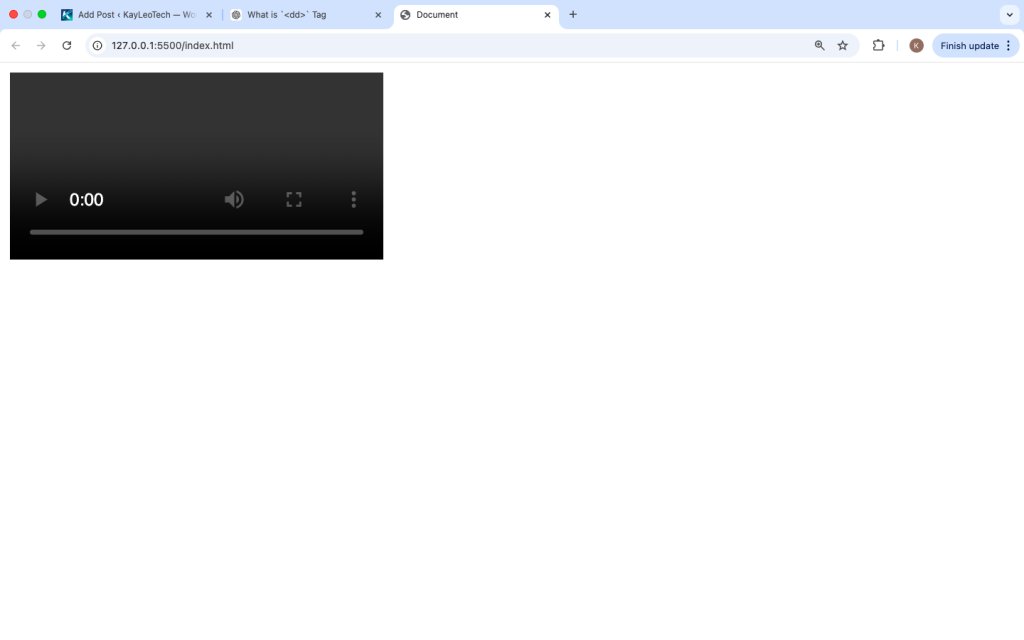
Using Multiple Video Formats
Different browsers support different video formats. You can provide multiple options.
<video controls>
  <source src="video.mp4" type="video/mp4">
  <source src="video.webm" type="video/webm">
  <source src="video.ogv" type="video/ogg">
  Your browser does not support the video tag.
</video>
Why this is useful:
- Chrome supports MP4 and WebM
- Firefox prefers WebM
- Older browsers may need OGG
Using <source> with Audio
The <source> tag works the same way with audio.
<audio controls>
  <source src="audio.mp3" type="audio/mpeg">
  <source src="audio.ogg" type="audio/ogg">
  Your browser does not support audio.
</audio>
Attributes of the <source> Tag
The <source> tag uses a few key attributes.
1. src (Source)
Defines the file location.
<source src="movie.mp4">
2. type
Defines the media type (MIME type).
<source src="movie.mp4" type="video/mp4">
This helps the browser decide faster.
3. media (for responsive images)
Used with <picture> to apply conditions.
<picture>
  <source media="(max-width: 600px)" srcset="small.jpg">
  <img src="large.jpg" alt="Example">
</picture>
4. srcset
Used for responsive images to provide different image sizes.
<source srcset="image-1x.jpg 1x, image-2x.jpg 2x">
Using <source> with <picture>
The <source> tag is very useful for responsive images.
<picture>
  <source media="(max-width: 600px)" srcset="mobile.jpg">
  <source media="(max-width: 1024px)" srcset="tablet.jpg">
  <img src="desktop.jpg" alt="Responsive Image">
</picture>
What happens:
- Small screens → mobile image
- Medium screens → tablet image
- Large screens → default image
Fallback Content
Always include fallback text or elements in case the browser does not support the media.
<video controls>
  <source src="video.mp4" type="video/mp4">
  Your browser does not support this video.
</video>
Difference Between <source> and src
You might wonder:
Why not just use src directly?
Without <source>:
<video src="video.mp4" controls></video>
With <source>:
<video controls>
<source src=”video.mp4″ type=”video/mp4″>
</video>
Key difference:
src→ single file<source>→ multiple options
Real-Life Use Cases
1. Cross-Browser Video Support
<video controls>
  <source src="video.mp4" type="video/mp4">
  <source src="video.webm" type="video/webm">
</video>
2. Music Player
<audio controls>
  <source src="song.mp3" type="audio/mpeg">
  <source src="song.ogg" type="audio/ogg">
</audio>
3. Responsive Images
<picture>
  <source media="(max-width: 768px)" srcset="small.jpg">
  <img src="large.jpg" alt="Image">
</picture>
Common Mistakes to Avoid
1. Using <source> Outside Supported Tags
❌ Wrong:
<source src="file.mp4">
✔ Correct:
<video>
  <source src="file.mp4">
</video>
2. Missing type Attribute
Always include type for better browser support.
3. Wrong File Paths
Make sure your src points to the correct file.
4. Forgetting Fallback Text
Always include fallback text for better user experience.
Browser Support
The <source> tag is supported in all modern browsers:
- Chrome
- Firefox
- Safari
- Edge
It works reliably across devices.
Accessibility Tips
- Always include
alttext for images - Use captions for videos if possible
- Provide fallback text
Best Practices
- Use multiple formats for videos and audio
- Always include
type - Place most supported format first
- Use
<picture>for responsive images - Keep file sizes optimized
Advanced Example
<!DOCTYPE html>
<html>
<head>
  <title>Source Tag Example</title>
</head>
<body>

<h2>Video Example</h2>

<video controls width="400">
  <source src="video.mp4" type="video/mp4">
  <source src="video.webm" type="video/webm">
  Your browser does not support video.
</video>

<h2>Responsive Image</h2>

<picture>
  <source media="(max-width: 600px)" srcset="small.jpg">
  <source media="(max-width: 1024px)" srcset="medium.jpg">
  <img src="large.jpg" alt="Example Image">
</picture>

</body>
</html>
When Should You Use <source>?
Use it when:
✔ You have multiple media formats
✔ You want cross-browser support
✔ You need responsive images
✔ You want better performance
Avoid it when:
✘ You only have one simple file
✘ You don’t need format fallback
Why the <source> Tag Matters
The web runs on many browsers and devices. Not all of them support the same formats.
The <source> tag solves this problem by giving options. It ensures:
- Better compatibility
- Better user experience
- More control over media
<source> vs <img>
<img>→ single image<source>→ multiple options inside<picture>
The <source> tag is a powerful tool for handling media in HTML. It allows you to provide multiple file options, making your website more flexible and reliable.
Whether you are working with videos, audio, or responsive images, using <source> ensures your content works smoothly across all browsers and devices.
As you continue learning HTML, understanding the <source> tag will help you build better, more professional websites.
Yo, has anyone tried bet81? I keeps seeing ads for them, and I was wondering if its any good. Let me know! I have checked the interface seems ok. Click to visit the site bet81.
Jogo de ouro .bet, nunca tinha ouvido falar antes! A interface é bem amigável e os jogos são divertidos. Vale a pena experimentar a sorte por aqui! Enjoy the fun games! jogo de ouro .bet.
Jili22net is my go-to lately. Simple, straightforward, and fun! It’s worth a whirl, trust me. Explore it here: jili22net