
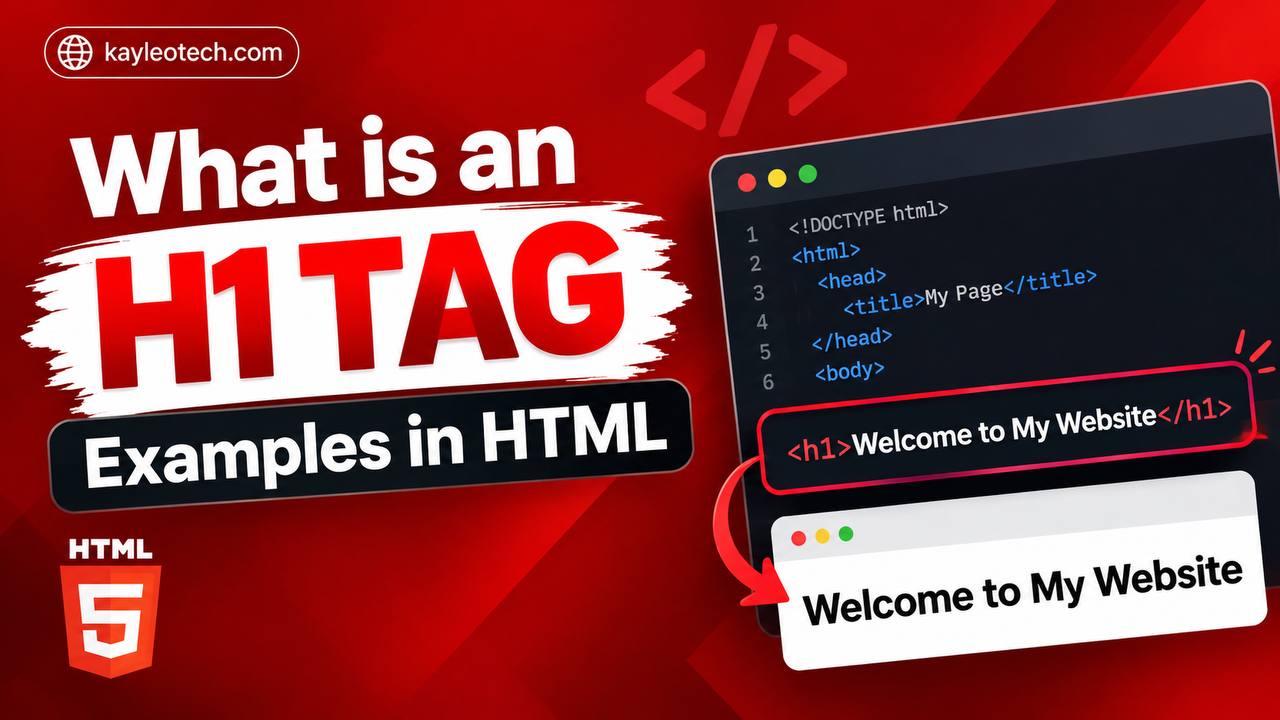
If you’re just beginning your journey into web development, one of the first HTML elements you’ll encounter is the <h1> tag. Although it may look like a simple heading element, the <h1> tag plays an essential role in organizing webpage content, improving accessibility, and helping search engines understand what a page is about.
Whether you’re creating a personal blog, a business website, a portfolio, or an online store, learning how to use the <h1> tag correctly is one of the most important HTML skills you can develop.
Many beginners think the <h1> element simply makes text larger. While it does appear larger by default, its true purpose goes much deeper. It tells browsers, screen readers, and search engines that the enclosed text is the most important heading on the page.
In this beginner-friendly guide, you’ll learn what the HTML <h1> tag is, why it matters, how it works, where to use it, common mistakes to avoid, and best practices for creating well-structured webpages.
This tutorial focuses mainly on clear explanations with only a few simple code examples, making it easy for beginners to understand.
What Is the HTML <h1> Tag?
The <h1> tag is the highest-level heading element in HTML. It is used to define the main heading or title of a webpage or a major section of content.
Think of the <h1> element as the title on the cover of a book. Before someone starts reading, the title immediately tells them what the book is about. In the same way, the <h1> heading tells visitors and search engines the primary topic of a webpage.
For example, if you have a webpage teaching HTML basics, the main heading might simply be “Learn HTML for Beginners.”
Basic Syntax of the <h1> Tag
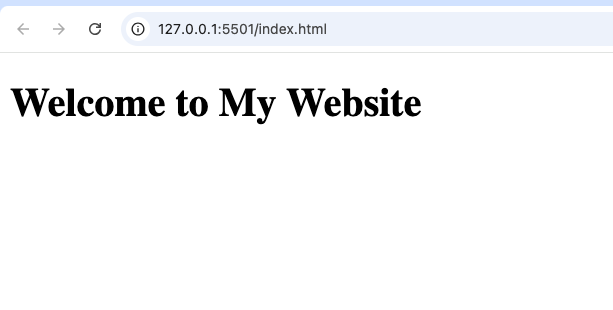
A simple <h1> element looks like this:
<h1>Welcome to My Website</h1>
Everything between the opening <h1> and closing </h1> tags becomes the page’s main heading.
Why Is the <h1> Tag Important?
The <h1> tag serves several important purposes beyond making text appear larger.
It helps:
- Organize webpage content
- Improve readability
- Support accessibility
- Strengthen search engine optimization (SEO)
- Create a clear content hierarchy
Using the <h1> element correctly makes your webpages easier for both people and search engines to understand.
Understanding Heading Levels
HTML provides six heading elements:
<h1><h2><h3><h4><h5><h6>
These headings work like an outline.
Imagine writing a school report:
- The report title is the
<h1>. - Major sections become
<h2>headings. - Smaller topics inside those sections use
<h3>. - Additional subtopics continue with
<h4>,<h5>, and<h6>.
This logical structure makes content much easier to follow.
The <h1> Tag Represents the Main Topic
Every webpage should have a clear subject.
The <h1> tag introduces that subject.
For example:
A cooking website may have:
Best Homemade Pizza Recipe
A travel blog might use:
Top Places to Visit in Paris
A technology tutorial could use:
Learn HTML from Scratch
Each heading clearly tells readers what the page covers.
How Browsers Display the <h1> Tag
By default, browsers display <h1> headings:
- Larger than normal text
- Bold
- On their own line
Although CSS can change its appearance, the semantic meaning of the <h1> element remains the same.
Its purpose is to identify the primary heading.
The Difference Between <h1> and Regular Text
Normal paragraphs explain information.
The <h1> heading introduces that information.
Without headings, webpages become difficult to scan.
Imagine opening a long article with hundreds of lines of text but no headings.
Finding information would be frustrating.
The <h1> tag immediately tells readers what the article is about.
Real-World Examples of <h1> Usage
You’ll find <h1> headings on nearly every website.
Examples include:
- News article titles
- Product names
- Blog post titles
- Homepage headlines
- Course lesson titles
- Documentation pages
Every page usually begins with one primary heading.
The Relationship Between <h1> and SEO
Search engines analyze headings to understand webpage content.
A well-written <h1> helps indicate the page’s primary topic.
For example, if your article teaches HTML forms, your <h1> might read:
How to Create HTML Forms for Beginners
This tells both visitors and search engines exactly what to expect.
Although SEO involves many factors, properly structured headings remain an important part of good webpage organization.
Accessibility Benefits
People using screen readers often navigate webpages by headings.
A properly structured heading hierarchy allows them to understand page organization quickly.
The <h1> heading usually becomes the first major landmark they encounter.
Good accessibility improves the experience for everyone.
Where Should the <h1> Tag Be Placed?
In most webpages, the <h1> appears near the top of the main content.
Visitors expect to see the primary heading immediately after arriving on a page.
Placing it near the beginning helps establish context before presenting additional information.
Can a Webpage Have More Than One <h1>?
This question often confuses beginners.
Technically, HTML5 allows multiple <h1> elements in certain contexts.
However, for most beginner websites and general best practices, using one clear <h1> per page is the simplest and most effective approach.
A single primary heading helps maintain clarity and makes your content easier to understand.
Difference Between <h1> and <title>
Many beginners think these elements are the same.
They are not.
<h1> | <title> |
|---|---|
| Appears on the webpage | Appears in the browser tab |
| Visible to visitors | Usually not visible within the page |
| Main page heading | Browser and search result title |
Both are important but serve different purposes.
Difference Between <h1> and <h2>
The <h1> introduces the overall topic.
The <h2> divides that topic into major sections.
For example:
<h1>: Learn HTML
<h2>: HTML Basics
<h2>: HTML Forms
<h2>: HTML Tables
The page has one main topic and several major sections.
Why Content Structure Matters
Well-structured content helps readers:
- Find information faster
- Understand relationships between topics
- Navigate long articles more easily
Headings act like signposts guiding readers through your content.
Common Beginner Mistakes
Many beginners make small mistakes when using headings.
Here are some of the most common.
1. Using Multiple Main Headings
Creating several unrelated <h1> headings on a simple page can confuse readers.
Choose one primary heading whenever possible.
2. Skipping Heading Levels
Some beginners jump from <h1> directly to <h4>.
Instead, maintain a logical order.
A consistent structure improves readability.
3. Using Headings Only for Appearance
Some people choose heading tags simply because they look larger.
Remember:
Headings describe document structure—not just text size.
Use CSS if you only want to change appearance.
4. Writing Vague Headings
Avoid unclear headings like:
“Welcome”
Instead, make headings descriptive.
For example:
“Learn HTML Basics for Beginners”
This tells readers exactly what the page covers.
Best Practices for Writing Good <h1> Headings
A strong <h1> should be:
- Clear
- Relevant
- Descriptive
- Concise
- Related to the page content
Readers should understand the topic immediately.
Examples of Effective <h1> Headings
Here are some examples:
- Beginner Guide to HTML
- Learn CSS Step by Step
- Introduction to JavaScript
- HTML Forms Explained
- Web Development Basics
Each heading clearly identifies the page topic.
Styling the <h1> Tag with CSS
Although browsers provide default styling, developers often customize headings using CSS.
Common adjustments include:
- Font size
- Color
- Font family
- Alignment
- Spacing
Even after changing its appearance, the <h1> still represents the page’s primary heading.
Practice Projects Using the <h1> Tag
Here are some beginner-friendly projects.
Personal Portfolio
Use your name or profession as the main heading.
Blog Homepage
Display the article title using <h1>.
Restaurant Website
Show the restaurant name at the top.
Photography Portfolio
Use a heading introducing your work.
Online Course
Display the lesson title as the primary heading.
Combining <h1> with Other HTML Elements
The <h1> tag works well alongside many semantic elements.
Examples include:
<header><main><section><article><nav><footer>
A common structure places the <h1> inside the page header or the main content area.
Why Every Beginner Should Learn the <h1> Tag
Learning headings early builds good habits.
You’ll understand:
- Content organization
- Semantic HTML
- Accessibility
- Document structure
- SEO fundamentals
These skills remain valuable throughout your web development journey.
Browser Support
The <h1> tag has been supported since the earliest versions of HTML.
It works in every modern browser, including:
- Google Chrome
- Mozilla Firefox
- Microsoft Edge
- Safari
- Opera
You can confidently use it in every HTML project.
Evergreen Tips for Using the <h1> Tag
To keep your webpages well-structured over time, remember these simple guidelines:
- Use one clear main heading whenever possible.
- Make your heading accurately describe the page.
- Keep it short and meaningful.
- Build a logical heading hierarchy using
<h2>through<h6>. - Never use headings only because you like their size.
- Use CSS for styling instead of misusing heading levels.
- Think about both your readers and accessibility when writing headings.
These practices will remain useful no matter how web design trends evolve.
The HTML <h1> tag is one of the most important elements you’ll learn as a beginner. It serves as the main heading of a webpage, helping visitors immediately understand the topic while also improving organization, accessibility, and search engine understanding.
Although it appears simple, the <h1> element plays a foundational role in creating professional, readable, and well-structured websites. Whether you’re building a personal portfolio, writing tutorials, creating blog posts, or designing business websites, using the <h1> tag correctly is a skill you’ll use throughout your web development career.
As you continue learning HTML, remember that good websites aren’t built only with attractive designs—they’re also built with clear structure. Mastering the <h1> tag is one of the first and most important steps toward creating webpages that are organized, accessible, and easy for everyone to understand.
Logging in is a breeze and the dashboard is very well organized. It makes managing my bets so much easier 617betloginentrar