
When working with images, videos, or diagrams on a webpage, you may want to add a clear explanation or caption. That’s where the <figcaption> tag comes in.
The <figcaption> tag is used to add a caption or description to content inside a <figure> element. It helps users understand what the media represents.
In this guide, you’ll learn what the <figcaption> tag is, how it works, and how to use it properly in a simple and clear way.
What is the <figcaption> Tag?
The <figcaption> tag is used to define a caption for a <figure> element.
It provides a short description or explanation for content like:
- Images
- Charts
- Diagrams
- Code snippets
- Videos
Simple meaning:
The <figcaption> tag = description for media content
Where is the <figcaption> Tag Used?
The <figcaption> tag is always used inside a <figure> element.
Basic structure:
<figure>
  <img src="image.jpg" alt="Example">
  <figcaption>This is an image caption</figcaption>
</figure>
How the <figcaption> Tag Works
Here’s how it works step by step:
<figure>groups media content<figcaption>explains that content- The caption appears above or below the media
This makes your content more meaningful and organized.
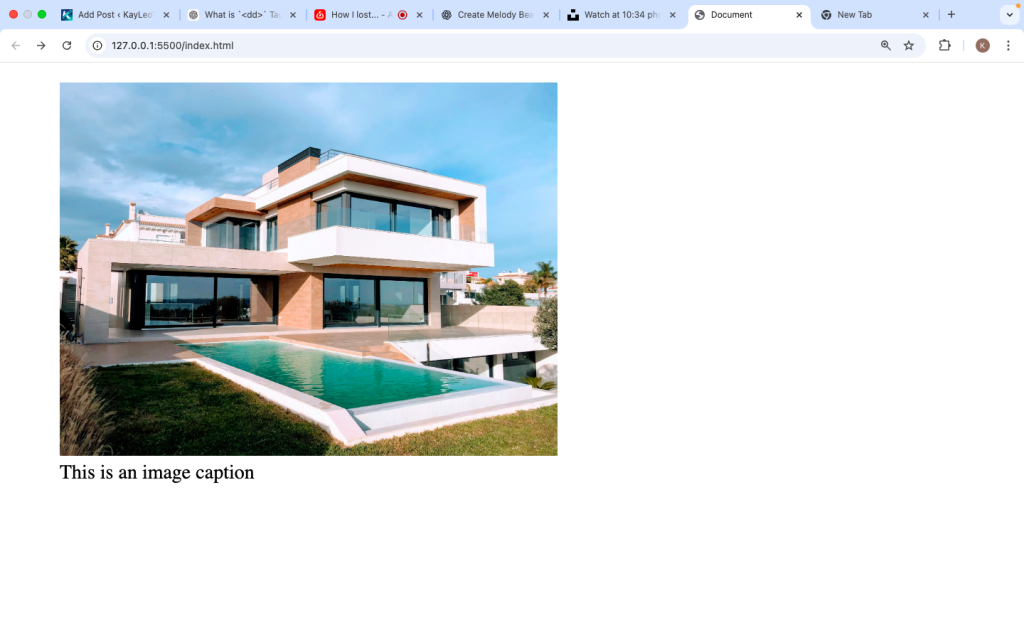
Basic Syntax
<figure>
  <img src="photo.jpg" alt="A beautiful view">
  <figcaption>A beautiful sunset view</figcaption>
</figure>
Position of <figcaption>
The <figcaption> tag can be placed:
Above the content:
<figure>
  <figcaption>Caption above</figcaption>
  <img src="image.jpg" alt="Example">
</figure>
Below the content (most common):
<figure>
  <img src="image.jpg" alt="Example">
  <figcaption>Caption below</figcaption>
</figure>
Why Use <figcaption>?
Using <figcaption> helps:
- Explain images clearly
- Improve accessibility
- Provide context
- Make content more structured
Real-Life Examples
1. Image with Caption
<figure>
  <img src="mountain.jpg" alt="Mountain">
  <figcaption>A beautiful mountain landscape</figcaption>
</figure>
2. Code Snippet with Caption
<figure>
  <pre>
    <code>
      console.log("Hello World");
    </code>
  </pre>
  <figcaption>Example of JavaScript output</figcaption>
</figure>
3. Video with Caption
<figure>
  <video controls>
    <source src="video.mp4" type="video/mp4">
  </video>
  <figcaption>Introduction video</figcaption>
</figure>
Styling <figcaption> with CSS
You can style captions to match your design.
<style>
figcaption {
font-size: 14px;
color: gray;
text-align: center;
}
</style>
Difference Between <figcaption> and alt
Many beginners confuse these two.
Example:
<img src="image.jpg" alt="A dog running">
alt→ for accessibility<figcaption>→ for visible description
Accessibility Benefits
The <figcaption> tag improves accessibility by:
- Giving context to media
- Helping screen readers understand content
- Making content clearer for all users
SEO Benefits
Search engines use captions to better understand images.
Benefits:
- Better content structure
- Improved search ranking
- More relevant image indexing
Common Mistakes to Avoid
Common Mistakes to Avoid
1. Using <figcaption> Without <figure>
❌ Wrong:
<figcaption>This is wrong</figcaption>
✔ Correct:
<figure>
  <figcaption>This is correct</figcaption>
</figure>
2. Adding Multiple <figcaption>
Only one <figcaption> is allowed per <figure>.
3. Writing Long Captions
Keep captions short and clear.
4. Forgetting alt Text
Always combine <figcaption> with alt.
Advanced Example
<!DOCTYPE html>
<html>
<head>
  <title>Figcaption Example</title>
  <style>
    figure {
      width: 300px;
      margin: auto;
    }

    img {
      width: 100%;
    }

    figcaption {
      text-align: center;
      font-style: italic;
      color: #555;
    }
  </style>
</head>
<body>

<figure>
  <img src="nature.jpg" alt="Nature Image">
  <figcaption>Peaceful nature view</figcaption>
</figure>

</body>
</html>
When Should You Use <figcaption>?
Use it when:
✔ You want to describe media
✔ You are using <figure>
✔ You need better structure
✔ You want to improve accessibility
Avoid it when:
✘ There is nothing to describe
✘ You are not using <figure>
<figcaption> vs <p>
You might think of using a <p> tag instead.
Example:
<p>This is a caption</p>
Why <figcaption> is better:
It improves structure
It is semantic
It is linked to the media
Browser Support
The <figcaption> tag is supported in all modern browsers:
- Chrome
- Firefox
- Safari
- Edge
Best Practices
- Always use
<figcaption>inside<figure> - Keep captions short
- Use meaningful descriptions
- Combine with
alttext - Style with CSS if needed
Why <figcaption> Matters
Modern web design is not just about looks—it’s about meaning and structure.
The <figcaption> tag:
- Makes content easier to understand
- Improves accessibility
- Adds professionalism to your pages
Real-Life Use Cases
- Blog images
- Tutorials
- Documentation
- Portfolio projects
- Educational websites
The <figcaption> tag is a simple but powerful way to add captions to media content in HTML. It works together with the <figure> tag to create structured, meaningful, and accessible content.
By using <figcaption>, you help users understand your visuals better and improve the overall quality of your website.
As you continue learning HTML, mastering tags like <figcaption> will make your web pages clearer, more organized, and more user-friendly.