
When building forms with HTML, you will sometimes want to prevent users from interacting with a particular field or button. Maybe a form should remain unavailable until a user completes another step. Perhaps a button should not be clickable until all required information has been entered. In situations like these, HTML provides a simple feature called the disabled attribute.
The disabled attribute is used to make certain form controls unavailable for interaction. When an element is disabled, users generally cannot click it, type into it, select it, or focus it using normal keyboard navigation
For beginners, the concept is quite simple: the disabled attribute tells the browser that a form control is currently unavailable.
You will commonly see it used with buttons, text fields, checkboxes, radio buttons, select menus, and other form-related elements.
This guide explains what the disabled attribute does, how it works, when to use it, how it differs from similar attributes, and how you can practice using it in real HTML projects.
What Is the disabled Attribute?
The disabled attribute is a Boolean HTML attribute that prevents a supported form control from being used by the user.
A Boolean attribute is an attribute that mainly works through its presence or absence.
For example, when disabled is present on a supported form control, the browser treats that control as disabled.
You do not normally need to write something such as disabled="true".
The presence of the attribute is what matters.
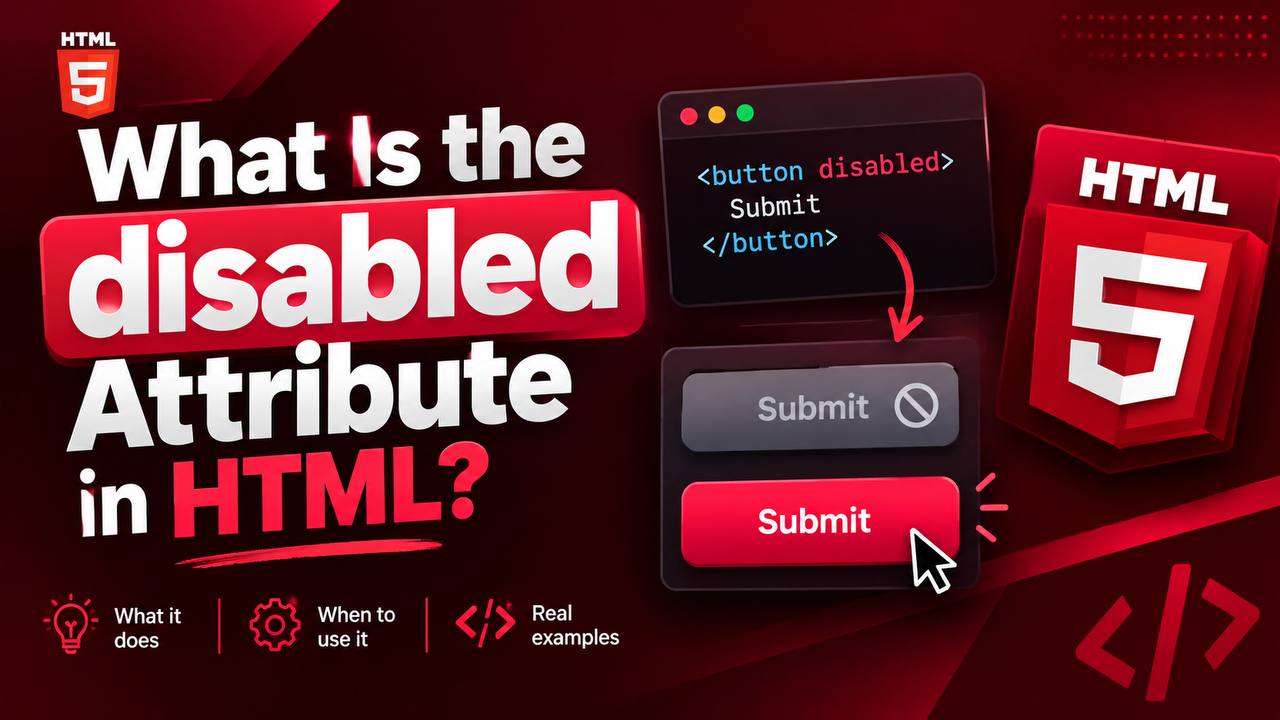
A simple example would look like this:
<button disabled>Submit</button>
The important part here is not the value. It is the fact that disabled is present.
The browser will display the button, but the user cannot normally click it.
What Happens When an Element Is Disabled?
When a supported form control is disabled, several things change.
First, the user cannot normally interact with the control.
For example, a disabled button cannot normally be clicked.
A disabled text input cannot normally receive user input.
A disabled select menu cannot normally be opened and changed by the user.
A disabled checkbox cannot normally be checked or unchecked.
Another important point is that a disabled form control is generally removed from the form’s normal submission and constraint-validation behavior.
This makes the disabled attribute more than just a visual feature.
It actually changes how the browser treats the control.
Which HTML Elements Support disabled?
The disabled attribute is mainly associated with form controls.
Common examples include:
<button><input><select><textarea><fieldset><optgroup><option>
These elements can have their behavior affected by the disabled attribute.
This is important because beginners sometimes try to put disabled on any HTML element.
For example, adding disabled to a normal <div> does not automatically make the <div> behave like a disabled form control.
The attribute has meaning where HTML defines it.
Using disabled on a Button
One of the easiest ways to understand the attribute is with a button.
Imagine you have a form with a button labeled “Create Account.”
If the user has not completed the necessary steps, you may want the button to remain unavailable.
A disabled button can communicate that the action cannot currently be performed.
For example:
<button disabled>Create Account</button>
The button is still part of the page, but the browser does not allow normal interaction with it.
This is very common in registration forms, checkout pages, login interfaces, and multi-step applications.
Using disabled on an Input
The attribute can also be used with input fields.
Imagine a form where one field should only become available after the user selects a particular option.
You could initially disable the field.
For example:
<input type="text" disabled>
The field can be displayed, but the user cannot normally type into it.
Later, JavaScript can remove the disabled state when the appropriate condition has been met.
This is one reason the disabled attribute is frequently used in interactive websites.
Using disabled on a Select Menu
The <select> element creates a dropdown menu.
You can disable the entire dropdown when the user should not currently make a selection.
For example:
<select disabled>
The dropdown remains visible, but the user cannot normally open it and choose an option.
This can be useful when one choice depends on another.
For example, imagine a form asking users to select a country and then a state or region.
The region dropdown could remain disabled until a country has been selected.
Using disabled on a Textarea
A <textarea> allows users to enter multiple lines of text.
You can disable it when users should be able to see the field but should not currently edit it.
For example:
<textarea disabled></textarea>
This could be useful in an application where information is temporarily unavailable for editing.
The Difference Between Disabled and Enabled
It helps to think about the two states as simple opposites.
An enabled form control is available for normal user interaction.
A disabled form control is currently unavailable.
For example, an enabled button might allow a user to submit a form.
A disabled button prevents that action.
This distinction is useful when designing interfaces because users need to understand which actions are currently available.
Why Would You Disable a Form Control?
There are many practical reasons.
One common reason is that an action depends on information that has not yet been provided.
For example, an online ordering form might disable the payment button until the required billing information is completed.
Another example is a registration form.
The “Create Account” button might remain disabled until the application determines that the necessary fields have been completed.
A website might also disable controls while an operation is taking place.
For example, after a user clicks a button to save information, the interface might temporarily disable the button to prevent repeated submissions.
The goal is usually to prevent an action that should not happen yet.
disabled Does Not Mean Hidden
This is an important concept for beginners.
A disabled element is not automatically hidden.
The element can still be visible on the webpage.
For example, a disabled button may appear faded or gray depending on the browser and the website’s CSS.
Users can still see the button.
They simply cannot normally interact with it.
This is different from hiding an element completely.
If you hide an element, the user may not see it at all.
If you disable an element, the user can usually see that the control exists but cannot currently use it.
disabled and CSS
The disabled state can also be styled with CSS.
Browsers commonly give disabled controls a different appearance, but developers can create their own design.
CSS provides the :disabled pseudo-class for selecting disabled form controls.
This allows you to create visual differences between enabled and disabled controls.
For example, a website might make an enabled button look active and make a disabled button appear faded.
This is helpful because users should be able to recognize that a control is unavailable.
However, visual styling should support the actual HTML behavior rather than replace it.
Simply making a button look gray does not disable it.
The HTML disabled attribute is what provides the disabled behavior.
Why You Should Not Just Use CSS to Disable Something
Imagine you create a button and make it look inactive using CSS.
It may appear disabled, but the browser still considers it an active button.
Users may still be able to click it.
This is why developers should not confuse appearance with functionality.
If a button truly needs to be unavailable, use the HTML disabled attribute.
CSS can then be used to communicate that state visually.
disabled and JavaScript
The disabled attribute becomes particularly useful when working with JavaScript.
JavaScript can check information entered by the user and then enable or disable controls when necessary.
Imagine a registration form.
At first, the submit button could be disabled.
As the user completes the required fields, JavaScript can determine that the form is ready.
The button can then become enabled.
This creates a more interactive experience.
The same idea can be used for:
- Checkout forms
- Login pages
- Search interfaces
- Multi-step forms
- File upload interfaces
- Account settings
- Online applications
HTML provides the disabled state, while JavaScript can control when that state changes.
What Happens to Disabled Form Controls During Form Submission?
This is one of the most important technical details about the disabled attribute.
A disabled form control is generally not submitted with the form.
Imagine a form containing a username field and another field that has been disabled.
When the form is submitted, the disabled field’s value is not included in the normal form data submission.
This behavior is different from simply preventing a user from editing the field.
It means developers need to think carefully before disabling a field that contains information they expect the server to receive.
For example, if a user sees an account ID inside a disabled input and you expect that ID to be submitted with the form, you should not assume the disabled field will provide it during submission.
disabled and Form Validation
Disabled controls are also generally excluded from constraint validation.
In simple terms, the browser does not treat a disabled form control like an active control that needs to satisfy normal HTML form validation requirements.
This can be useful when a field is temporarily irrelevant.
For example, imagine a form where users choose whether they want to provide additional information.
If the related fields are disabled, they do not need to participate in the normal validation process while disabled.
The Difference Between disabled and readonly
Beginners often confuse disabled with readonly.
They are not the same.
A readonly field can generally still be focused and its value can be submitted with the form.
A disabled field generally cannot receive normal user interaction and is not submitted with the form.
Think of it this way:
Readonly means:
“You can look at this value, but you cannot edit it.”
Disabled means:
“This control is currently unavailable.”
For example, an account number might be displayed as readonly when the user is allowed to view it and submit its existing value.
A temporarily unavailable field might instead be disabled.
Choosing the correct attribute is important.
The Difference Between disabled and required
The required attribute means that the user must provide a value before the form can normally be submitted.
The disabled attribute means the control is currently unavailable.
These attributes serve different purposes.
A field could normally be required while it is enabled.
However, if that field becomes disabled, it is not treated as an active form control for normal constraint validation.
This is another reason to understand what each HTML attribute actually does instead of using them interchangeably.
The Difference Between disabled and hidden
The hidden attribute is designed to hide content.
The disabled attribute is designed to make supported form controls unavailable.
These are completely different concepts.
A hidden element may not be visible to the user.
A disabled control is generally still visible but cannot be normally interacted with.
For example, a disabled button tells the user that an action exists but is currently unavailable.
A hidden button does not communicate the same thing because the user cannot see it.
Disabling an Entire Group with <fieldset>
HTML also allows developers to disable a group of related form controls using <fieldset>.
This can be useful for larger forms.
Imagine a form containing several fields related to payment information.
Instead of disabling every control individually, you can place the related controls inside a <fieldset> and disable the fieldset.
The controls inside it are generally treated as disabled as well, with a notable exception for controls inside the <legend> of that fieldset.
This can make large forms easier to manage.
Why Grouping Controls Can Be Useful
Consider a registration process with several stages.
Stage one might ask for personal information.
Stage two might ask for payment information.
If the user has not reached stage two, the payment section could remain disabled.
When the user completes stage one, JavaScript could enable the second section.
This makes the relationship between the controls much clearer.
Using disabled with Checkboxes
Checkboxes are another common example.
Imagine a form where users must first agree to certain conditions before another option becomes available.
A checkbox or related control can be disabled until the appropriate condition is met.
This can prevent users from interacting with options that are not currently relevant.
However, developers should make the reason for the disabled state clear.
A control that appears unavailable without explanation can confuse users.
Using disabled with Radio Buttons
Radio buttons can also be disabled.
Suppose a form offers several choices, but one option is temporarily unavailable.
That particular radio button can be disabled while the others remain active.
This allows the interface to communicate that the option exists but cannot currently be selected.
Using disabled with Options
Individual <option> elements inside a <select> can also be disabled.
This is useful when a dropdown contains some choices that users should not currently be able to select.
For example, a service selection menu might contain an option that is temporarily unavailable.
Rather than removing the option completely, the developer can show it as unavailable.
This can provide useful information to users.
Common Beginner Mistakes
There are several mistakes beginners should avoid.
Mistake 1: Thinking disabled Works on Every HTML Element
The attribute has specific HTML meanings.
Putting disabled on an ordinary <div> does not automatically turn that div into a disabled control.
Use it with elements that support the attribute.
Mistake 2: Using CSS Instead of the Attribute
Making an element gray does not disable it.
CSS controls appearance.
The disabled attribute controls the actual disabled state of supported form controls.
Mistake 3: Forgetting That Disabled Values Are Not Submitted
If a form needs to send a value to the server, remember that disabled controls are generally excluded from normal form submission.
This is a common source of unexpected behavior.
Mistake 4: Disabling Important Information Without Explanation
If users do not understand why a button or field is unavailable, they may think the website is broken.
Whenever possible, provide a clear explanation or visual indication.
Mistake 5: Disabling Controls Too Early
A form that contains too many disabled controls can become frustrating.
Only disable something when there is a meaningful reason.
Accessibility Considerations
Accessibility should always be considered when using disabled controls.
A disabled control communicates that the action is unavailable, but users may not always understand why.
For example, if a “Continue” button is disabled because required information is missing, the page should make the missing information easy to identify.
Good form design combines the disabled state with clear labels, instructions, validation messages, and appropriate visual feedback.
The goal is not simply to prevent interaction.
The goal is to help users understand what they need to do next.
Should You Use disabled on Navigation Links?
The disabled attribute is not a general-purpose way to disable links.
For example, an ordinary <a> element does not become a disabled link simply because you add the disabled attribute.
If you need a navigation item to be unavailable, the solution depends on the design and behavior you want.
This is an important reminder that HTML attributes should be used according to the elements and purposes for which they are defined.
A Simple Real-World Example
Imagine you are building a checkout page.
The page has three stages:
- Customer information
- Delivery information
- Payment
At the beginning, the payment controls may not be relevant.
You could keep those controls disabled until the earlier steps have been completed.
Once the user provides the necessary information, JavaScript can enable the appropriate controls.
This approach creates a clear progression without allowing users to interact with controls before they are ready.
Another Example: File Upload
Imagine an application where users first need to choose a file type.
The upload button could remain disabled until a valid file has been selected.
Once the application confirms that the file is acceptable, the upload button can become active.
This prevents users from attempting an action that cannot succeed yet.
Another Example: Search Filters
Imagine an online store with several filters.
Some filter options might depend on a previous selection.
For example, a user chooses a product category first.
The available brand or model controls can remain disabled until the category has been selected.
This keeps the interface organized and prevents confusing choices.
Best Practices for Using the disabled Attribute
When using disabled, keep these principles in mind.
Use it for genuinely unavailable controls
Do not disable controls simply because you can.
There should be a clear reason.
Explain unavailable actions when necessary
Users should understand what they need to do before the control becomes available.
Use CSS to communicate the state
The disabled appearance should be easy to recognize.
Remember form submission behavior
Do not expect disabled fields to submit their values normally.
Consider accessibility
Make sure users can understand the state and what action is required next.
Use the correct HTML element
Use disabled on elements that support it rather than trying to use it as a general-purpose attribute.
How to Practice the disabled Attribute
The best way to understand this attribute is to use it in small projects.
Start with a simple form containing a text input and a submit button.
Make the button disabled at first.
Then create another small project where a dropdown is disabled until another option is selected.
You can also create a registration form where JavaScript enables the submit button after the user completes the required information.
Other practice projects include:
- Login forms
- Checkout forms
- Contact forms
- Survey forms
- Booking forms
- Account settings pages
- Multi-step forms
You do not need a complicated project to understand the concept.
Start with one disabled button and gradually introduce more controls.
Why Learning disabled Matters
The disabled attribute may look like a small HTML feature, but it becomes very useful when you start building real forms.
It teaches you an important lesson about web development: HTML is not only about displaying content.
HTML also provides meaningful behavior and structure.
The disabled attribute allows the browser to understand that a particular form control is temporarily unavailable.
When combined with CSS and JavaScript, it becomes an important part of creating interactive user interfaces.
The HTML disabled attribute is used to make supported form controls unavailable for normal user interaction. It can be used with elements such as buttons, input fields, select menus, textareas, and other form-related controls.
Its purpose is simple: when a supported control is disabled, users cannot normally interact with it until it becomes enabled again.
However, there is more to the attribute than simply preventing clicks or typing. Disabled controls are generally excluded from normal form submission and constraint validation, which makes the attribute important when designing forms.
It is also important to understand the difference between disabled, readonly, required, and hidden. Each attribute has a different purpose.
As you practice HTML, try using disabled in small forms before moving on to JavaScript-powered projects. Once you understand how the attribute works on its own, you will be better prepared to control form elements dynamically with JavaScript.
Used correctly, the disabled attribute can make your forms clearer, safer, and easier for users to interact with.