
When learning HTML, most beginners focus on headings, paragraphs, images, links, forms, and lists. However, there are some HTML elements designed to display content in a special way. One of the most useful yet often overlooked elements is the <pre> tag.
The <pre> tag is short for preformatted text. It allows you to display text exactly as it appears in your HTML file, including spaces, line breaks, tabs, and indentation.
This might sound simple, but it is extremely useful for many real-world projects. Whether you’re displaying code examples, command-line outputs, configuration files, poems, or formatted text, the <pre> element helps preserve the original layout.
In this beginner-friendly tutorial, you’ll learn what the <pre> tag is, how it works, where it should be used, and several practical ways to use it in your own HTML practice projects.
This guide focuses on clear explanations rather than large amounts of code so that beginners can understand the concept easily.
What is the HTML <pre> Tag?
The <pre> tag is an HTML element used to display text exactly as it is written in the source code.
Normally, browsers ignore extra spaces and line breaks.
For example, if you write multiple spaces between words in a normal paragraph, the browser usually displays only one space.
The <pre> element behaves differently.
It preserves:
- Spaces
- Tabs
- Line breaks
- Indentation
This means the text appears exactly as written.
Basic Syntax of the <pre> Tag
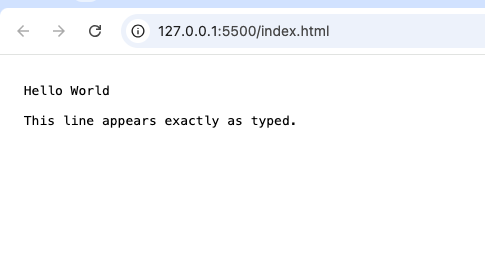
A simple example looks like this:
<pre>
Hello World

This line appears exactly as typed.
</pre>
The browser preserves all formatting inside the <pre> element.
Why the <pre> Tag is Important
Many beginners wonder why they should use <pre> when they can simply use normal paragraphs.
The answer is formatting.
Certain types of content depend heavily on spacing and alignment.
Examples include:
- Programming code
- Terminal output
- Configuration files
- ASCII art
- Poetry
- Structured text examples
Without preserved formatting, these types of content can become difficult to read.
How the <pre> Tag Works
Normally, HTML collapses extra whitespace.
For example:
<p>
Hello       World
</p>
The browser displays:
Hello World
However, inside a <pre> element:
<pre>
Hello       World
</pre>
Understanding Preformatted Text
The term preformatted simply means that the formatting already exists before the browser displays it.
The browser does not try to adjust:
- Spacing
- Alignment
- Indentation
- Line breaks
Everything appears exactly as typed.
Think of the <pre> tag as a way of saying:
“Display this text exactly as I wrote it.”
Common Uses of the <pre> Tag
The <pre> element is useful in many situations.
Let’s look at some practical examples.
1. Displaying Code Examples
One of the most common uses is showing programming code.
Tutorial websites often use <pre> because code relies heavily on indentation and formatting.
For example:
<pre>
function greet() {
    console.log("Hello");
}
</pre>
Without preserved spacing, the code would be harder to read.
2. Showing Command-Line Output
Many technical tutorials include terminal or command prompt output.
Examples:
- Linux commands
- Windows command prompt output
- Server logs
These outputs often rely on spacing and alignment.
The <pre> tag helps preserve that structure.
3. Displaying Configuration Files
Configuration files often contain:
- Indentation
- Structured formatting
- Precise spacing
Examples include:
- JSON files
- YAML files
- Server settings
- Software configurations
Using <pre> makes these files easier to display correctly.
4. Creating ASCII Art
ASCII art is artwork created using keyboard characters.
For example:
  /\
 /  \
/____\
Without preserved formatting, the design would break.
The <pre> tag keeps the artwork intact.
5. Displaying Poems and Song Lyrics
Poetry often relies on line breaks and spacing.
The <pre> tag can help preserve the original layout.
This allows readers to see the content exactly as intended.
Difference Between <pre> and <p>
Beginners often confuse these elements.
<pre> | <p> |
|---|
| Preserves spacing | Collapses extra spacing |
| Preserves line breaks | Requires separate paragraphs |
| Displays text exactly | Formats text normally |
| Useful for code and formatting | Useful for regular text |
The <p> element is best for standard writing.
The <pre> element is best when formatting matters.
Real-World Example: Coding Tutorials
Most programming tutorial websites use <pre> extensively.
Why?
Because programming code must maintain:
- Indentation
- Spacing
- Structure
If formatting changes, the code can become difficult to understand.
The <pre> tag solves this problem.
Real-World Example: Documentation Sites
Technical documentation often includes:
- Code snippets
- Configuration settings
- Command examples
These websites rely heavily on <pre> blocks.
Examples include developer guides and software manuals.
Understanding Default Appearance
Browsers usually display <pre> content using a monospace font.
A monospace font means every character takes up the same amount of space.
Examples include:
- Courier New
- Consolas
- Monaco
This makes formatted content easier to read.
The <pre> Tag and the <code> Tag
The <pre> element is often combined with the <code> element.
The difference is:
<pre> | <code> |
| Preserves formatting | Indicates computer code |
| Handles spacing | Identifies code content |
| Can contain code | Focuses on meaning |
Together they create well-formatted code examples.
Browser Support for <pre>
The <pre> element has excellent browser support.
It works in:
- Chrome
- Firefox
- Safari
- Edge
- Opera
Because it has been part of HTML for a very long time, it is widely supported.
Accessibility Benefits
The <pre> tag can improve readability for users who need formatted content.
However, it should be used carefully.
Large blocks of preformatted text can sometimes be difficult to navigate with assistive technologies.
Always make sure the content remains understandable.
SEO Considerations
The <pre> element itself does not directly affect SEO rankings.
However, properly formatted content improves user experience.
When visitors can easily understand code examples and instructions, they are more likely to stay on the page.
Practice Project Ideas Using <pre>
Here are some beginner-friendly projects.
Code Example Showcase
Create a webpage that displays:
- HTML examples
- CSS snippets
- JavaScript examples
Use <pre> blocks for formatting.
Terminal Output Viewer
Build a page that demonstrates command-line tutorials.
Display commands exactly as they would appear in a terminal.
Configuration File Library
Create a page that showcases sample configuration files.
Use <pre> to preserve structure.
ASCII Art Gallery
Build a fun project displaying text-based artwork.
The <pre> tag is perfect for this.
Programming Cheat Sheet
Create a study guide containing:
- Code examples
- Commands
- Syntax references
The <pre> element helps keep everything organized.
Common Beginner Mistakes
Here are mistakes beginners often make.
1. Using <pre> for Normal Paragraphs
The <pre> element is not intended for regular article content.
Use paragraphs for standard writing.
2. Ignoring Long Lines
Very long lines inside a <pre> block can cause horizontal scrolling.
Keep formatting readable.
3. Overusing Preformatted Text
Only use <pre> when formatting truly matters.
Not every text block needs preserved spacing.
4. Forgetting Readability
Even though formatting is preserved, content should still be easy to understand.
Clear organization is important.
Best Practices for Using <pre>
Follow these tips for better results.
Use It When Formatting Matters
Choose <pre> when spacing and alignment are important.
Combine It with <code> for Programming Examples
This creates more meaningful and organized code displays.
Keep Content Readable
Avoid overly large blocks of text.
Test on Different Screen Sizes
Make sure formatting remains readable on mobile devices.
Use CSS for Better Presentation
Styling can improve the appearance of preformatted content.
Why Every Beginner Should Learn the <pre> Tag
The <pre> element teaches an important lesson about HTML:
Not all content should be displayed the same way.
Some information depends on precise formatting.
Understanding when to preserve spacing helps you create more professional and useful webpages.
The <pre> tag may seem simple, but it is a valuable tool that appears frequently in technical websites and developer resources.
The HTML <pre> tag is one of the most useful elements for displaying text exactly as it is written. It preserves spaces, tabs, line breaks, and indentation, making it perfect for code examples, command-line output, configuration files, poetry, and other formatted content.
Although beginners may not use it every day, learning how the <pre> element works will help you build better tutorials, documentation pages, and practice projects.
As you continue learning HTML, you’ll discover that the <pre> tag is a simple yet powerful tool for presenting structured information clearly and accurately. Mastering it will give you another valuable skill for creating professional and easy-to-read webpages.