
When creating forms with HTML, you will often need to control what users can and cannot change. Sometimes you want a user to enter information freely, while in other situations, you may want to display information without allowing it to be edited.
This is where the HTML readonly attribute becomes useful.
The readonly attribute allows you to make certain form fields available for users to view but prevents them from changing the existing value. It is particularly useful when information needs to remain visible and selectable but should not be modified directly by the user.
For example, imagine a registration form that automatically displays a customer’s account number. You may want the customer to see the account number and copy it if necessary, but you do not want them to change it. A read-only input field can handle this situation.
In this article, you will learn what the readonly attribute does, where it can be used, how it differs from disabled, its benefits and limitations, common mistakes, accessibility considerations, and practical situations where it can be useful.
What Is the readonly Attribute?
The HTML readonly attribute tells the browser that the value inside a form control should not be editable by the user.
It is mainly used with form elements such as:
When an input is marked as read-only, users can usually click on it, select its text, and copy the value, but they cannot change the value through normal typing.
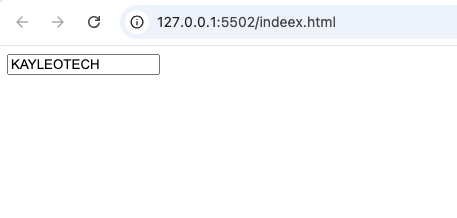
A simple example looks like this:
<input type="text" value="KAYLEOTECH" readonly>
The important part is readonly.
The browser displays the value, but the user cannot edit it.
How Does readonly Work?
The readonly attribute is a Boolean attribute.
This means you do not need to give it a value such as true or false.
Its presence is enough to activate the behavior.
For example:
<input type="text" readonly>
The presence of readonly tells the browser that the field should not be editable.
If you remove the attribute, the field becomes editable again.
This makes the attribute very simple for beginners to understand.
What Happens When a Field Is Read-Only?
A read-only field behaves differently from a normal input field.
A normal input allows the user to:
- Click inside it
- Type information
- Delete information
- Replace the existing value
A read-only input generally allows the user to:
- Click inside it
- Select the text
- Copy the text
- View the existing value
However, the user cannot normally type a new value into the field.
This makes readonly useful when information needs to remain available without allowing accidental changes.
Why Would You Make an Input Read-Only?
There are many situations where a website needs to show information without allowing users to modify it.
For example, imagine an online payment page that displays a transaction reference.
The reference might be generated automatically by the website. Users need to see it, and they might even need to copy it, but they should not be able to change it.
Another example is a profile page displaying a username that cannot be changed from that particular screen.
Instead of hiding the information completely, you can display it in a read-only field.
Common Uses of the readonly Attribute
The readonly attribute can be useful in many different types of websites and applications.
1. Displaying Automatically Generated Values
Web applications often generate information automatically.
This could include:
- Order numbers
- Invoice numbers
- Reference codes
- Customer IDs
- Tracking numbers
If users should be able to see and copy these values but not edit them, readonly is a useful option.
2. Showing Account Information
A website might display an account number or username in a form.
The information can remain visible while preventing accidental modification.
This is especially useful when a field looks like part of a form but is controlled by the system.
3. Showing Calculated Results
Some forms calculate values automatically.
For example, a website might calculate:
- Total price
- Tax
- Discount
- Balance
- Estimated cost
If the value is calculated by the application, allowing users to manually change it may not make sense.
A read-only field can communicate that the value is available for viewing but is not directly editable.
4. Copyable Information
Sometimes users need to copy information from a form field.
A read-only field is useful because the information remains selectable.
For example, a website might generate a special code that users need to copy into another application.
Using readonly allows the user to select and copy the code without accidentally changing it.
readonly Works Mainly With Form Controls
The readonly attribute is not something you can place on every HTML element.
It is primarily associated with form controls that accept user input, especially:
- Text inputs
- Textareas
For example, it is commonly used with text-based input fields.
It is not the same as making an entire webpage section read-only.
If you need to prevent users from editing an ordinary paragraph, for example, readonly is not the appropriate solution.
Using readonly With <textarea>
The readonly attribute can also be used with a <textarea>.
A textarea is normally used when users need to enter multiple lines of text.
For example, a website might display a message, description, or generated text that users are allowed to copy but not modify.
The concept remains the same.
The content can be viewed and selected, but normal user editing is prevented.
readonly Does Not Mean Hidden
One important thing to understand is that readonly does not hide the input.
The field remains visible.
Users can still see the value.
For example, if a field contains an order number, the order number remains displayed.
The attribute simply prevents normal editing.
This makes readonly very different from techniques that hide information.
readonly vs disabled
One of the most important differences beginners should learn is the difference between readonly and disabled.
They may appear similar because both can prevent users from changing a field, but they behave differently.
A read-only field:
- Remains available for interaction
- Can usually receive focus
- Allows users to select and copy its value
- Keeps its value available when the form is submitted
A disabled field:
- Cannot normally be edited
- Is generally removed from normal form interaction
- Usually cannot receive focus in the same way
- Is not submitted as a successful form control
This distinction(Differences) is extremely important when building HTML forms.
A Simple Way to Remember the Difference
Think about the two attributes like this:
readonly means:
“You can look at this information, but you cannot change it.”
disabled means:
“This form control is currently unavailable.”
This simple distinction will help you decide which attribute to use.
Why readonly Can Be Better Than disabled
Suppose a website displays an automatically generated customer reference inside a form.
The customer needs to copy the reference before submitting the form.
Using disabled could create problems because disabled controls are treated differently during form submission and interaction.
Using readonly communicates that the information is still part of the form but should not be changed by the user.
This is one reason developers often choose readonly for values that need to remain part of form data.
Can Users Select Text in a Read-Only Field?
Yes.
One of the useful features of a read-only field is that users can generally select its text.
This is especially helpful when the field contains:
- A reference number
- A generated code
- An email address
- An account identifier
- A URL
Users can select the value and copy it without being able to replace it.
This provides a better experience than simply displaying information that cannot be selected.
Can JavaScript Change a Read-Only Field?
Yes.
The readonly attribute mainly prevents normal user editing.
It does not mean that the value can never change.
JavaScript can change the value of a read-only field when the application needs to.
For example, imagine a form where selecting a product automatically changes the calculated total.
The total field could remain read-only for the user while JavaScript updates the value when necessary.
This makes readonly particularly useful in dynamic web applications.
Can CSS Style a Read-Only Field?
Yes.
CSS can be used to make read-only fields visually different from normal editable fields.
For example, a developer might use:
- A different background
- A different border
- A different text color
- A subtle visual indicator
This helps users understand that the field cannot be edited.
However, visual styling should not be the only way of communicating this behavior. The actual HTML should also use the appropriate attribute.
Accessibility and the readonly Attribute
Accessibility should always be considered when building forms.
A read-only field still contains useful information, so it should be presented clearly.
Using the correct HTML attribute helps browsers and assistive technologies understand the intended behavior of the form control.
Developers should also make sure that labels are properly associated with their form fields.
For example, if a field displays a customer reference, the user should be able to understand what the value represents.
Good labels and clear instructions make read-only fields easier to understand.
Does readonly Improve SEO?
The readonly attribute is primarily a form-control feature. It is not an SEO ranking tool.
Adding readonly to an input does not automatically improve a webpage’s search ranking.
Its purpose is to control user interaction.
For SEO, developers should instead focus on things such as:
- Useful content
- Good page structure
- Descriptive headings
- Semantic HTML
- Fast performance
- Mobile-friendly design
- Helpful user experience
Use readonly because it is appropriate for the form, not because of SEO.
Common Beginner Mistakes With readonly
Understanding the attribute is easy, but beginners can still make mistakes.
Mistake 1: Using readonly When Information Should Be Disabled
If a form control should be completely unavailable, disabled may be more appropriate.
Always think about whether the user should still be able to interact with and copy the value.
Mistake 2: Thinking readonly Means Completely Unchangeable
The attribute prevents normal user editing, but scripts can still modify the field.
Therefore, it should not be treated as a security mechanism.
Mistake 3: Using It on the Wrong Element
readonly is designed for appropriate form controls.
You cannot simply place it on every HTML element and expect the element to become non-editable.
Mistake 4: Forgetting to Explain Read-Only Fields
If a field cannot be edited, users should be able to understand why.
Clear labels and appropriate visual design can prevent confusion.
Is readonly a Security Feature?
No.
This is a very important point.
The readonly attribute controls the normal behavior of the form in the user’s browser. It does not provide strong security.
A technically knowledgeable user can modify webpage code, use browser developer tools, or send their own request to a server.
Therefore, sensitive information and important values should always be validated on the server.
Never depend on readonly to protect prices, permissions, account information, or other security-sensitive data.
Practical Project Ideas for Using readonly
If you are learning HTML, you can practice the attribute in simple projects.
Project 1: Invoice Generator
Create a form where the invoice number is automatically generated and displayed in a read-only field.
Project 2: Simple Checkout Page
Display a calculated total that users can see but cannot manually edit.
Project 3: Profile Page
Show information such as a username or account ID in a read-only field.
Project 4: Reference Code Generator
Create a small project that generates a code and displays it in a read-only input so the user can copy it.
Project 5: Registration Form
Display automatically generated information while allowing users to edit only the fields they are supposed to control.
These projects can help you understand why readonly is useful beyond a simple HTML example.
Best Practices for Using readonly
When using the readonly attribute, keep a few principles in mind.
First, use it when the user needs to see information but should not manually edit it.
Second, do not use it as a replacement for security controls.
Third, clearly label read-only fields so users understand what they are viewing.
Fourth, remember the difference between readonly and disabled.
Finally, combine the attribute with good form design so the entire experience remains clear.
A Simple Real-World Example
Imagine an online shopping website.
A customer chooses three products.
The website automatically calculates the total price.
The total is displayed in a form field, but the customer should not manually change the number.
In this situation, a read-only field can be appropriate.
The customer can see the total, but the website remains responsible for calculating the correct amount.
This example demonstrates the main idea behind `readonly:
The information is visible and useful, but direct editing is not allowed.
The HTML readonly attribute is a simple but useful feature for controlling form fields. It allows developers to display information that users can view and often copy while preventing them from changing the value through normal typing.
It is particularly useful for automatically generated values, calculated results, account information, reference numbers, and other data that should remain unchanged from the user’s perspective.
The most important thing to remember is that readonly is not the same as disabled. A read-only field remains part of the form and can still be interacted with in useful ways, while a disabled field is generally treated as unavailable.
As you continue learning HTML, practice using readonly in small forms and real-world projects. Once you understand when users should be allowed to view, edit, or completely interact with a field, choosing between normal inputs, readonly, and disabled becomes much easier.
Learning small HTML features like this may seem simple, but they are the details that help turn basic forms into well-organized and user-friendly web interfaces.