The web has evolved far beyond simple pages filled with text and images. Today, websites can display animations, games, interactive charts, drawing tools, and many other visual experiences directly in the browser. One of the technologies that makes this possible is the HTML <canvas> element.
When beginners first hear about the <canvas> tag, they often assume it is difficult to understand because it is associated with graphics and programming. In reality, the basic idea behind the <canvas> element is quite simple.
Think of a canvas as a blank digital drawing board inside a webpage. Just as an artist uses a physical canvas to create artwork, web developers use the HTML <canvas> element to create graphics and visual content directly in the browser.
In this beginner-friendly guide, you’ll learn what the <canvas> element is, why it is useful, where it is commonly used, and how it fits into modern web development. The explanations are kept simple and practical so you can understand the concept without getting lost in technical details.
What is the HTML <canvas> Element?
The HTML <canvas> element is a special area on a webpage where graphics can be drawn.
Unlike a normal image that already exists as a file, a canvas starts as an empty space. Developers can then use code to create shapes, drawings, animations, and other visual elements inside that space.
In simple terms, a canvas is like a blank whiteboard that lives inside a webpage.
When the page loads, the canvas is empty.
Developers can then add content such as:
- Lines
- Shapes
- Charts
- Animations
- Games
- Interactive drawings
This flexibility is what makes the <canvas> element so powerful.
Basic Structure of a Canvas
A simple canvas looks like this:
<canvas width="500" height="300"></canvas>This creates an empty drawing area.
At first, users will simply see a blank space.
The canvas becomes useful when graphics are drawn inside it.
For beginners, it is helpful to think of the code above as creating the drawing surface rather than creating the artwork itself.
How the <canvas> Element Works
Imagine placing a blank sheet of paper on a desk.
The paper itself does not contain a drawing.
It simply provides a surface where a drawing can be created.
The <canvas> element works in a similar way.
The canvas provides the area where graphics can appear.
Developers then use other tools, usually JavaScript, to create visual content inside that area.
Without drawing instructions, the canvas remains empty.
What Can You Create with a Canvas?
One of the biggest advantages of the <canvas> element is its versatility.
Many different types of visual content can be created inside a canvas.
Common examples include:
- Simple drawings
- Interactive games
- Data charts
- Animations
- Digital signatures
- Photo editing tools
- Educational visualizations
This flexibility allows the same element to support many different kinds of projects.
Creating Simple Shapes
One of the first things developers learn to do with a canvas is draw basic shapes.
Examples include:
- Squares
- Rectangles
- Circles
- Lines
- Triangles
These simple shapes form the foundation for more advanced graphics later.
Just as artists learn basic sketching before creating detailed artwork, developers often begin with simple shapes before building larger projects.
Canvas and Drawing Applications
Many online drawing tools rely on the <canvas> element.
Imagine opening a webpage that allows users to:
- Draw with a mouse
- Sketch with a stylus
- Add colors
- Erase mistakes
The canvas provides the area where all those drawings appear.
Without the canvas, creating these kinds of tools would be much harder.
Canvas and Games
The <canvas> element is especially popular for browser-based games.
Simple games such as:
- Puzzle games
- Arcade games
- Educational games
- Platform games
often use a canvas to display moving characters and objects.
Because the canvas can update rapidly, it is well suited for animations and game graphics.
Canvas and Charts
Businesses and organizations frequently display information through charts and graphs.
Examples include:
- Sales reports
- Website traffic statistics
- Survey results
- Financial data
Canvas technology can help create visual representations of this information.
Instead of showing long lists of numbers, developers can present information in a more understandable way.
Canvas and Animations
Animations are another common use of the <canvas> element.
For example:
- Moving objects
- Loading screens
- Interactive illustrations
- Educational demonstrations
Canvas allows graphics to update smoothly over time.
This creates the illusion of movement.
Animations help make websites feel more engaging and interactive.
Difference Between Canvas and Images
Beginners often wonder how a canvas differs from a normal image.
Here is a simple comparison:
| Canvas | Image |
|---|---|
| Starts empty | Already contains content |
| Can be changed dynamically | Usually remains fixed |
| Interactive | Mostly static |
| Can support animations | Usually does not |
Think of an image as a finished painting and a canvas as the blank surface where a painting can be created.
Difference Between Canvas and SVG
The <canvas> element is sometimes compared with the <svg> element.
Both can create graphics, but they work differently.
Canvas is often used for:
- Games
- Animations
- Fast-moving graphics
SVG is often used for:
- Icons
- Logos
- Diagrams
- Scalable illustrations
Both technologies have strengths, and developers choose the one that best fits the project.
Why Modern Websites Use Canvas
Many modern websites use canvas because it supports:
- Interactivity
- Flexibility
- Real-time updates
- Visual creativity
Instead of relying only on static images, websites can create dynamic experiences that respond to user actions.
This helps improve engagement and usability.
Canvas and User Interaction
One of the most exciting aspects of canvas is its ability to respond to users.
For example:
- Clicking
- Dragging
- Touching
- Drawing
These actions can trigger changes inside the canvas.
This makes websites feel more interactive and responsive.
Real-World Example: Online Signature Tools
Many websites allow users to sign documents digitally.
The signing area is often built using the <canvas> element.
Users can draw their signature directly within the browser.
The canvas records the strokes and displays them instantly.
Real-World Example: Educational Websites
Educational platforms frequently use canvas for:
- Interactive diagrams
- Science simulations
- Math visualizations
- Learning games
These visual tools help students understand concepts more effectively.
Real-World Example: Photo Editing
Some online image editors use the <canvas> element.
Features may include:
- Cropping images
- Applying filters
- Adding text
- Drawing annotations
Canvas provides the visual workspace needed for these editing tasks.
Browser Support for Canvas
The <canvas> element is supported by all major modern browsers, including:
- Chrome
- Firefox
- Safari
- Edge
- Opera
Because browser support is widespread, developers can confidently use canvas in modern projects.
Accessibility Considerations
Since canvas graphics are often visual, developers should consider accessibility carefully.
Some users may rely on:
- Screen readers
- Keyboard navigation
- Alternative content
Providing accessible alternatives helps ensure a better experience for everyone.
Accessibility should always be considered when creating visual content.
Performance Benefits
Canvas is designed to handle frequent updates efficiently.
This makes it useful for:
- Fast animations
- Interactive games
- Real-time graphics
Because of this efficiency, canvas remains a popular choice for performance-sensitive projects.
Common Beginner Mistakes
When learning about the <canvas> element, beginners often make a few common mistakes.
1. Thinking Canvas Automatically Creates Graphics
The canvas itself does not create artwork.
It only provides the drawing area.
Graphics must be added separately.
2. Expecting Content to Remain Permanent
Unlike traditional HTML elements, canvas drawings are generated dynamically.
Understanding this difference is important.
3. Using Canvas for Everything
Canvas is powerful, but it is not always the best solution.
Simple images, icons, and logos may be better handled using other methods.
4. Ignoring Accessibility
Visual content should be designed with all users in mind.
Accessibility should never be treated as an afterthought.
Practice Project Ideas for Beginners
Once you understand the basic concept, you can explore beginner-friendly projects.
Examples include:
Digital Drawing Board
Allow users to draw simple sketches.
Color Picker Tool
Create shapes that change colors when clicked.
Animated Ball
Display a ball moving across the screen.
Simple Chart
Visualize basic numerical data.
Signature Pad
Allow users to sign using a mouse or touch device.
These projects help build confidence while introducing important concepts.
Best Practices for Using Canvas
When working with canvas projects, keep these guidelines in mind:
Start Small
Begin with simple drawings before attempting complex animations.
Focus on User Experience
Visual elements should enhance the website rather than distract from it.
Keep Performance in Mind
Efficient graphics create smoother experiences.
Consider Accessibility
Provide alternative content whenever possible.
Practice Regularly
Like any skill, canvas becomes easier with consistent practice.
Why Learning Canvas is Valuable
Even if you do not plan to build games or advanced graphics immediately, learning the basics of the <canvas> element expands your understanding of what modern websites can do.
It introduces important concepts related to:
- Graphics
- Animation
- User interaction
- Dynamic content
These concepts appear frequently in modern web development.
Understanding canvas gives you another tool that can help bring creative ideas to life.
Canvas in the Future of Web Development
The demand for interactive and visually engaging websites continues to grow.
As web experiences become more advanced, the <canvas> element remains an important technology for creating rich visual content.
From educational tools to professional applications, canvas continues to play a major role in shaping interactive web experiences.
The HTML <canvas> element is best understood as a digital drawing surface built directly into a webpage. It starts as a blank area and allows developers to create graphics, animations, charts, games, and many other visual experiences.
While the idea may seem advanced at first, the core concept is actually straightforward: the canvas provides a space where visual content can be created dynamically.
As a beginner, you do not need to master every detail immediately. Focus on understanding what the canvas does and where it is commonly used. Over time, as your HTML and JavaScript skills grow, you will be able to create increasingly interactive and creative projects using this powerful element.
Learning about the <canvas> tag is another step toward understanding how modern websites move beyond static pages and become engaging digital experiences.
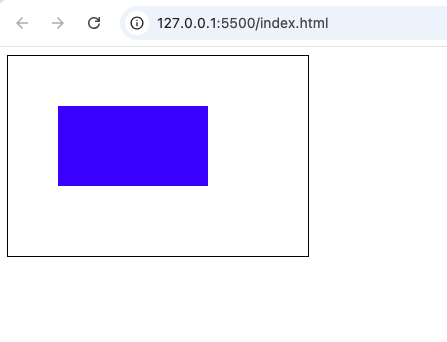
<!DOCTYPE html>
<html>
<head>
    <title>Canvas Example</title>
</head>
<body>

<canvas id="myCanvas" width="300" height="200" style="border:1px solid black;">
</canvas>

<script>
const canvas = document.getElementById("myCanvas");
const ctx = canvas.getContext("2d");

ctx.fillStyle = "blue";
ctx.fillRect(50, 50, 150, 80);
</script>

</body>
</html>