
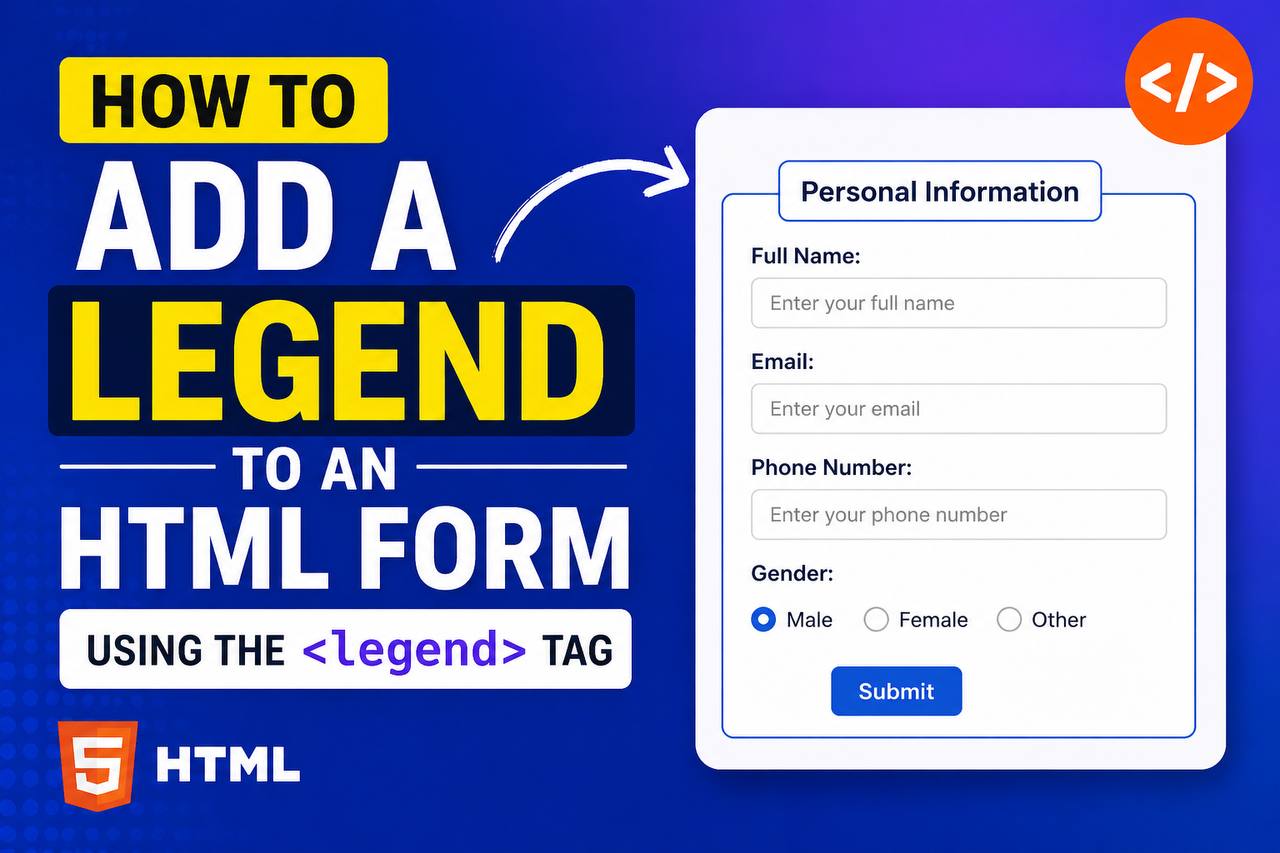
Forms are one of the most important parts of web development. Whether users are signing up for an account, filling out a contact form, submitting feedback, or completing an online application, forms make interaction possible on websites.
When forms become larger and contain multiple sections, organizing them properly becomes essential. This is where the HTML <legend> tag becomes useful. The <legend> element helps provide a title or caption for a group of related form fields, making forms easier to understand and navigate.
Although the <legend> tag is often overlooked by beginners, it plays an important role in improving form structure, accessibility, and user experience. Learning how and when to use it can help you create more professional and user-friendly forms.
In this beginner-friendly guide, you’ll learn what the <legend> tag is, how it works, why it’s important, and how to use it effectively in your HTML forms.
This article focuses on clear explanations and practical understanding rather than large amounts of code.
What Is the HTML <legend> Tag?
The HTML <legend> tag is used to provide a caption or title for a group of form elements that are placed inside a <fieldset> element.
In simple terms, the <legend> element tells users what a particular section of a form is about.
Think of it as a heading for a group of related form fields.
For example, a registration form might have separate sections such as:
- Personal Information
- Contact Details
- Account Settings
- Payment Information
Each section can have its own legend to clearly identify its purpose.
Why the <legend> Tag Exists
As forms become more complex, users need help understanding how information is grouped.
Without clear labels, large forms can become confusing.
The <legend> tag helps by:
- Providing context for grouped fields
- Improving readability
- Making forms easier to complete
- Supporting accessibility tools
Instead of presenting a long list of unrelated inputs, legends create logical sections that users can easily follow.
The Relationship Between <fieldset> and <legend>
The <legend> tag is designed to work with the <fieldset> element.
A <fieldset> groups related form controls together.
The <legend> acts as the title for that group.
Think of it this way:
<fieldset>= the container<legend>= the heading
Together they create a clearly defined section within a form.
Basic Example

A simple structure looks like this:
Basic Example
A simple structure looks like this:In this example:
- The fieldset creates a section.
- The legend gives the section a title.
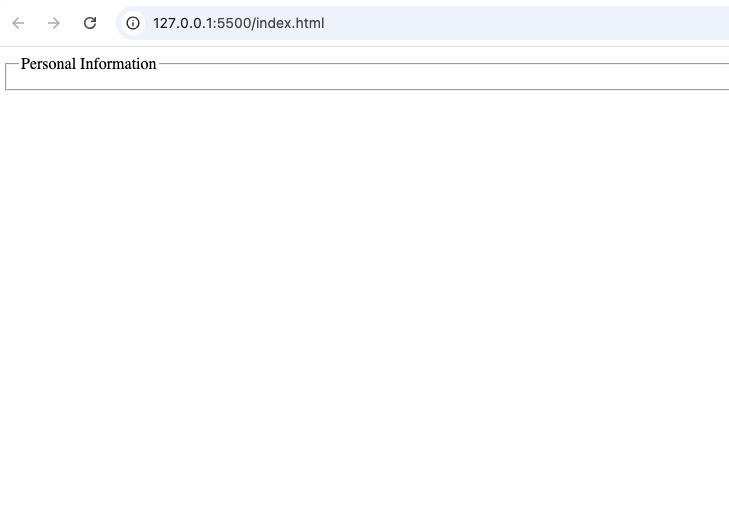
Most browsers display the legend at the top border of the fieldset.
Why Form Organization Matters
Imagine a form containing:
- Name
- Phone number
- Address
- Username
- Password
- Payment details
- Preferences
Without organization, users may feel overwhelmed.
Grouping related information into sections makes the form easier to understand.
The <legend> tag plays a key role in creating that structure.
Benefits of Using the <legend> Tag
The <legend> element offers several important advantages.
1. Improves Form Readability
Users can quickly understand what information belongs in each section.
For example:
- Personal Information
- Billing Details
- Shipping Address
These labels provide immediate clarity.
2. Creates Logical Structure
A well-organized form feels easier to complete.
Grouping related fields together helps users move through the form naturally.
This can improve completion rates and reduce errors.
3. Supports Accessibility
Accessibility is one of the biggest reasons to use legends.
Screen readers rely on form structure to help users understand what information is required.
The <legend> element provides valuable context for users who depend on assistive technologies.
4. Makes Large Forms Less Intimidating
Long forms can appear overwhelming.
Breaking them into sections with legends creates a cleaner and more approachable experience.
Example: Registration Form
Imagine a user registration form.
The form may contain sections such as:
Personal Information
- First Name
- Last Name
- Date of Birth
Contact Information
- Email Address
- Phone Number
Account Information
- Username
- Password
Each section can have its own legend.
This creates a clear structure that users can easily follow.
Example: Online Checkout Form
An online store checkout page often collects different types of information.
Sections may include:
Billing Address
Shipping Address
Payment Information
Using legends helps separate these sections visually and logically.
Example: Survey Forms
Surveys often contain multiple categories of questions.
For example:
Personal Background
Education History
Work Experience
Preferences
Legends help users understand what each group of questions covers.
How Browsers Display Legends
Most browsers display the legend text within the border of the fieldset.
The legend typically appears:
- At the top
- Along the border
- Slightly separated from the form fields
This default appearance helps distinguish one section from another.
Accessibility Benefits of the <legend> Tag
Accessibility should be part of every website design process.
The <legend> tag improves accessibility by providing context for grouped form controls.
For example:
A screen reader user may encounter a group of radio buttons.
Without a legend, the user may not understand what the choices relate to.
With a legend, the purpose becomes clear immediately.
This improves usability and reduces confusion.
Why Accessibility Matters
Accessible forms benefit everyone.
Good accessibility:
- Helps users with disabilities
- Improves navigation
- Enhances user experience
- Supports inclusive design
The <legend> tag is a simple way to make forms more accessible.
Common Use Cases for <legend>
The <legend> element is particularly useful when working with:
Radio Buttons
Radio button groups often represent a single question.
For example:
- Preferred Contact Method
- Payment Type
- Subscription Plan
A legend clearly labels the question being asked.
Checkboxes
Checkbox groups frequently need a shared heading.
Examples:
- Hobbies
- Interests
- Notification Preferences
The legend provides context for the entire group.
Multi-Section Forms
Whenever forms contain multiple categories of information, legends become valuable.
Difference Between <legend> and a Heading
Beginners sometimes wonder whether a heading can replace a legend.
While headings and legends may appear similar visually, they serve different purposes.
Difference Between <legend> and a Heading
Beginners sometimes wonder whether a heading can replace a legend.
While headings and legends may appear similar visually, they serve different purposes.
<legend> | Heading (<h1>–<h6>) |
|---|---|
| Labels a fieldset | Organizes page content |
| Provides form context | Provides content structure |
| Supports accessibility for forms | Supports page hierarchy |
For grouped form fields, a legend is usually the better choice.
Difference Between <legend> and Labels
Another common source of confusion is the difference between legends and labels.
<legend> | <label> |
|---|---|
| Describes a group of fields | Describes a single form field |
| Used inside fieldsets | Used with individual inputs |
| Provides section context | Provides field context |
Both elements are important and often work together.
Styling the <legend> Tag
The <legend> element can be styled using CSS.
Developers often customize:
- Font size
- Font weight
- Color
- Spacing
- Alignment
This allows legends to match the overall design of the website.
A well-designed legend can improve both appearance and usability.
Best Practices for Using Legends
Here are some helpful guidelines.
Use Clear and Descriptive Text
Choose titles that clearly describe the section.
Good examples:
- Personal Information
- Contact Details
- Payment Information
Avoid vague titles such as:
- Section 1
- Group A
- Miscellaneous
Keep Legends Concise
Legends should be informative but brief.
Users should understand the section immediately.
Group Related Fields Together
Only place closely related fields inside the same fieldset.
This helps maintain logical organization.
Consider Accessibility from the Start
Using legends properly improves accessibility automatically.
It is easier to build accessibility into a form than add it later.
Common Beginner Mistakes
Here are some mistakes beginners often make.
1. Using Legends Without Fieldsets
The <legend> tag is intended to be used within a <fieldset>.
Using it alone defeats its purpose.
2. Creating Overly Large Groups
A fieldset should contain related information.
Avoid grouping unrelated fields under one legend.
3. Replacing Legends with Plain Text
Some developers use ordinary text instead of legends.
While this may look similar visually, it loses the accessibility benefits.
4. Ignoring Form Structure
Even simple forms benefit from thoughtful organization.
Adding clear legends can make forms easier to use.
Legends in Modern Web Development
Even with advanced frameworks and design systems, the <legend> element remains relevant.
Modern websites still rely on:
- Accessible forms
- Clear organization
- Semantic HTML
The legend tag continues to support these goals.
Why Semantic HTML Matters
The <legend> tag is part of semantic HTML.
Semantic HTML helps describe the purpose of content rather than simply controlling appearance.
Benefits include:
- Better accessibility
- Improved readability
- Easier maintenance
- More meaningful code
Using semantic elements correctly leads to higher-quality websites.
Practice Project Ideas
To gain experience using legends, try adding them to:
Contact Forms
Create sections for:
- Personal Details
- Message Information
Registration Forms
Group fields into:
- Personal Information
- Account Settings
Survey Forms
Create sections for:
- Demographics
- Preferences
- Feedback
Checkout Forms
Separate:
- Billing Details
- Shipping Information
- Payment Methods
These projects help reinforce good form design habits.
When Should You Use a Legend?
Use a legend whenever:
- Multiple fields belong together
- A section needs a title
- Users need context for grouped inputs
- Accessibility is important
If a group of form controls shares a common purpose, a legend is often the right solution.
The HTML <legend> tag may seem like a small feature, but it plays an important role in creating organized, accessible, and user-friendly forms. By providing a clear title for grouped form fields, legends help users understand what information is being requested and how the form is structured.
Whether you’re building a contact form, registration page, survey, checkout process, or application form, the <legend> element can improve both usability and accessibility. It works hand in hand with the <fieldset> tag to create logical sections that make forms easier to complete.
As you continue learning HTML, remember that great web development isn’t only about making pages look good. It’s also about creating experiences that are clear, organized, and easy for everyone to use. Learning to use the <legend> tag properly is a small step that can make a big difference in the quality of your forms.