
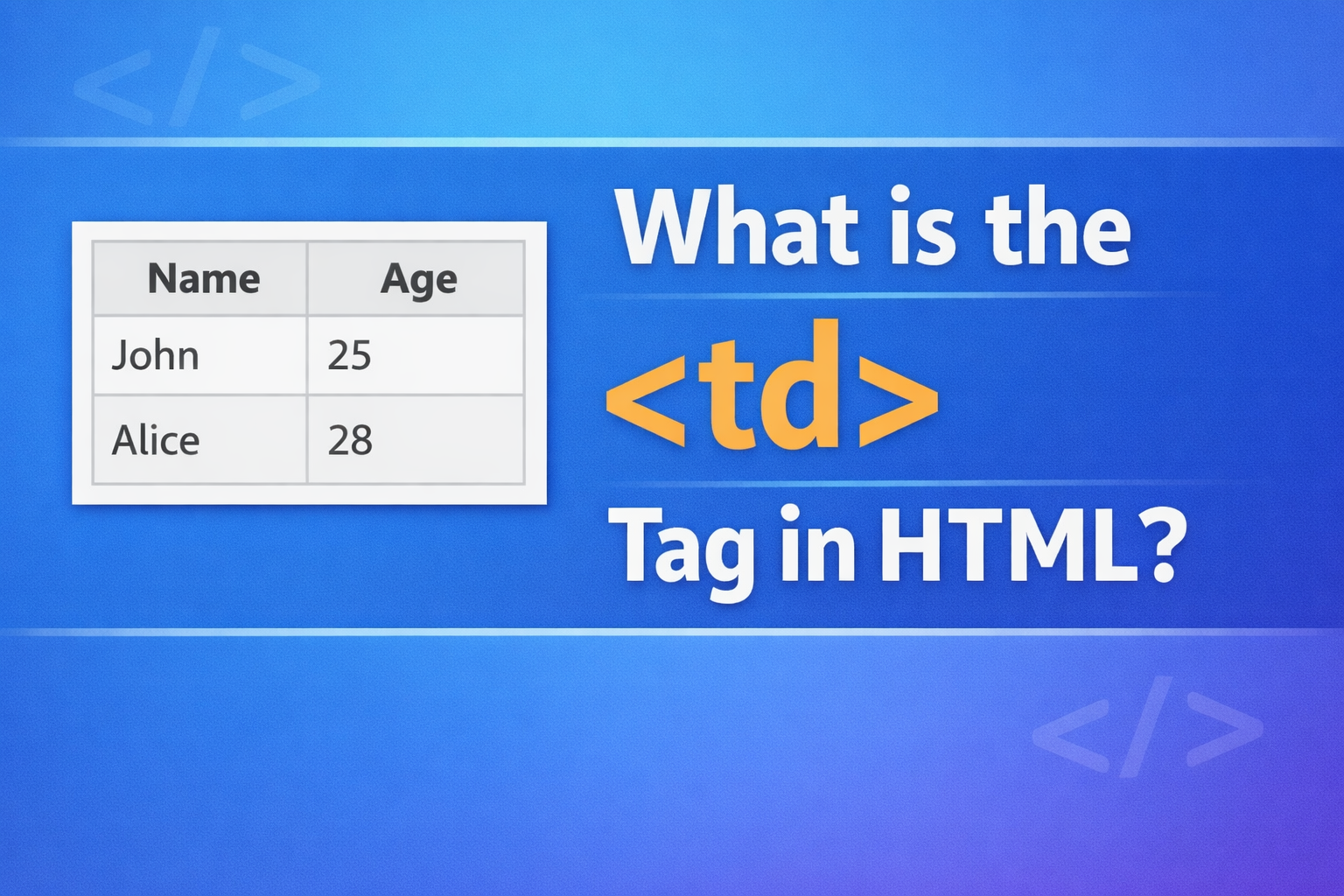
The <td> tag in HTML is used to define a standard data cell inside a table. It stands for table data and is one of the most important tags when working with HTML tables.
Tables in HTML are used to display data in rows and columns, like a spreadsheet. The <td> tag is where the actual content of the table is placed. Without <td>, your table would not have any data to show.
This article explains what the <td> tag is, how it works, how to use it properly, and best practices for beginners.
Basic Idea of HTML Tables
Before understanding <td>, you need to know the basic structure of a table.
A simple HTML table uses these tags:
<table>– defines the table<tr>– defines a row<td>– defines a data cell
Here is a simple example:
<table>
<tr>
<td>Apple</td>
<td>Banana</td>
</tr>
</table>
Explanation:
<table>starts the table<tr>creates one row<td>creates cells inside that row
Each <td> represents one cell in the table.
How <td> Works
The <td> tag is always used inside a <tr> (table row). You cannot use it outside a row.
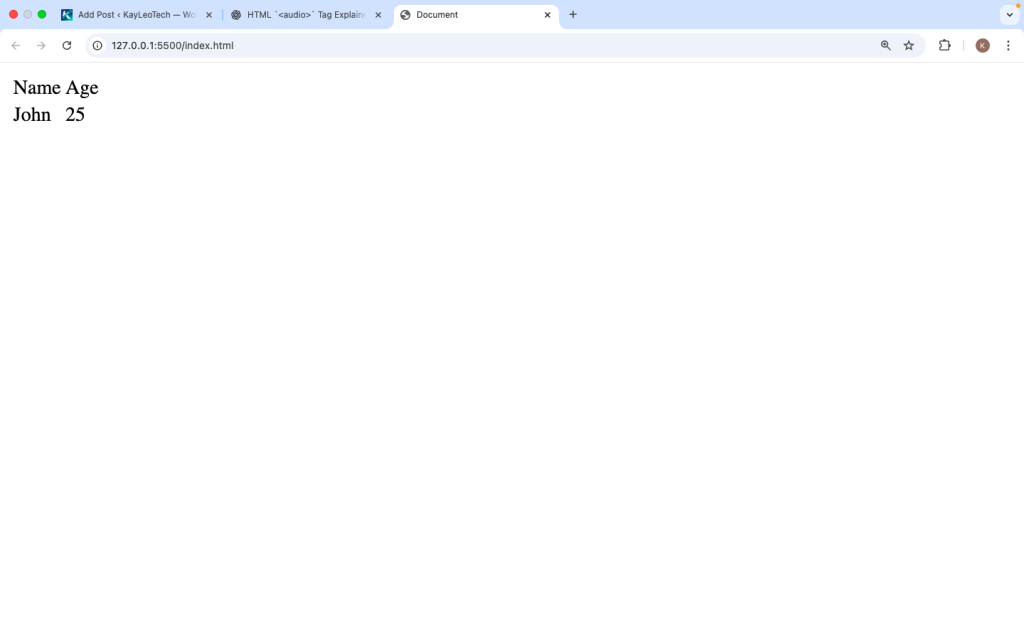
Example:
<table>
<tr>
<td>Name</td>
<td>Age</td>
</tr>
<tr>
<td>John</td>
<td>25</td>
</tr>
</table>
In this example:
- The first row contains labels
- The second row contains actual data
Each <td> holds one piece of information.
Difference Between <td> and <th>
Many beginners confuse <td> with <th>.
Here is the difference:
| Tag | Meaning | Use Case |
|---|---|---|
<td> | Table Data | Regular cell content |
<th> | Table Header | Header titles |
Example:
<table>
  <tr>
    <th>Name</th>
    <th>Age</th>
  </tr>
  <tr>
    <td>Jane</td>
    <td>22</td>
  </tr>
</table>
Key Point:
- Use
<th>for headings - Use
<td>for data
Multiple Rows and Columns
You can create larger tables by adding more <td> elements.
<table border=”1″>
<tr>
<td>Product</td>
<td>Price</td>
<td>Stock</td>
</tr>
<tr>
<td>Laptop</td>
<td>$800</td>
<td>10</td>
</tr>
<tr>
<td>Phone</td>
<td>$500</td>
<td>20</td>
</tr>
</table>
Each row has the same number of <td> elements, which keeps the table aligned.
Common Attributes of <td>
The <td> tag supports several attributes that control its appearance and behavior.
1. colspan
This allows a cell to span across multiple columns.
<table border="1">
  <tr>
    <td colspan="2">Full Width Cell</td>
  </tr>
</table>
This cell takes up two columns.
2. rowspan
This allows a cell to span across multiple rows.
<table border="1">
  <tr>
    <td rowspan="2">Merged Cell</td>
    <td>Row 1</td>
  </tr>
  <tr>
    <td>Row 2</td>
  </tr>
</table>
The first cell covers two rows.
3. style
You can style <td> using CSS.
<td style=”color: blue; text-align: center;”>
Hello
</td>
4. class and id
Used for styling or JavaScript.
<td class="price">500</td>
Styling <td> with CSS
Instead of using inline styles, it is better to use CSS.
Example:
<style>
td {
border: 1px solid black;
padding: 10px;
}
</style>
<table>
<tr>
<td>Item</td>
<td>Cost</td>
</tr>
</table>
This makes your table look clean and readable.
Aligning Content in <td>
You can control alignment using CSS:
<td style="text-align: center;">Center Text</td>
<td style="text-align: right;">Right Text</td>
Vertical alignment:
<td style="vertical-align: middle;">Middle</td>
Adding Images, Links, and More Inside <td>
The <td> tag can hold more than just text.
Image Example:
<td>
<img src=”image.jpg” width=”50″>
</td>
Link Example:
<td>
  <a href="#">Click Here</a>
</td>
Mixed Content:
<td>
  Product Name<br>
  <strong>$100</strong>
</td>
You can place almost any HTML element inside <td>.
Nested Tables
You can even place a table inside a <td>.
<table border=”1″>
<tr>
<td>
<table border=”1″>
<tr>
<td>Inner Table</td>
</tr>
</table>
</td>
</tr>
</table>
This is called a nested table, but use it carefully to avoid complexity.
Best Practices for Using <td>
1. Keep Structure Consistent
Each row should have the same number of <td> elements.
2. Use <th> for Headers
Do not use <td> for headings.
3. Avoid Inline Styles
Use CSS instead of style attributes.
4. Keep Tables Simple
Do not overuse nested tables.
5. Add Borders for Clarity
Use CSS to make tables readable.
Common Mistakes to Avoid
- Using
<td>outside<tr> - Mixing
<td>and<th>incorrectly - Uneven number of cells in rows
- Overusing
rowspanandcolspan - Not styling tables (making them hard to read)
Real-Life Use Cases of <td>
The <td> tag is used in many real-world situations:
- Displaying product tables
- Showing user data
- Creating pricing tables
- Building schedules
- Comparing features
Example: Pricing Table
<table border="1">
  <tr>
    <td>Plan</td>
    <td>Price</td>
  </tr>
  <tr>
    <td>Basic</td>
    <td>$10</td>
  </tr>
  <tr>
    <td>Pro</td>
    <td>$20</td>
  </tr>
</table>
Browser Support
The <td> tag is supported in all browsers:
- Chrome
- Firefox
- Safari
- Edge
It is a standard part of HTML and works everywhere.
<td> vs Modern Layouts
In the past, developers used tables for page layout. Today, this is not recommended.
Use <td> only for data tables, not for designing page layouts.
For layout, use:
- CSS Flexbox
- CSS Grid
Accessibility Tips
To make tables accessible:
- Use
<th>for headers - Add scope attributes when needed
- Keep table structure clear
Example:
<th scope="col">Name</th>
This helps screen readers understand the table.
The <td> tag is a core part of HTML tables. It is used to store and display data inside rows. Every time you create a table, <td> is what holds the actual content.
By understanding how <td> works with <table> and <tr>, you can build structured and readable tables. You can also enhance your tables using attributes like colspan and rowspan, and style them using CSS.
Keep your tables simple, consistent, and easy to read. Use <td> only for data, not layout. When used properly, it helps you present information clearly and professionally on any website.
Learning how to use <td> is an important step for any beginner in web development.
https://shorturl.fm/Opq7p