
The <ul> tag in HTML is used to create an unordered list. An unordered list displays items with bullet points instead of numbers. It is one of the most commonly used HTML elements, especially when you want to group related items without showing any specific order.
If you are learning HTML, understanding the <ul> tag is very important because lists are used everywhere navigation menus, feature lists, product details, and more.
What Does the <ul> Tag Do?
The <ul> tag stands for “unordered list.” It is used to group a collection of items where the order does not matter.
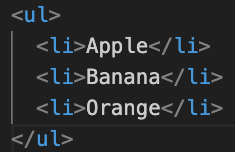
Each item inside a <ul> is written using the <li> (list item) tag.
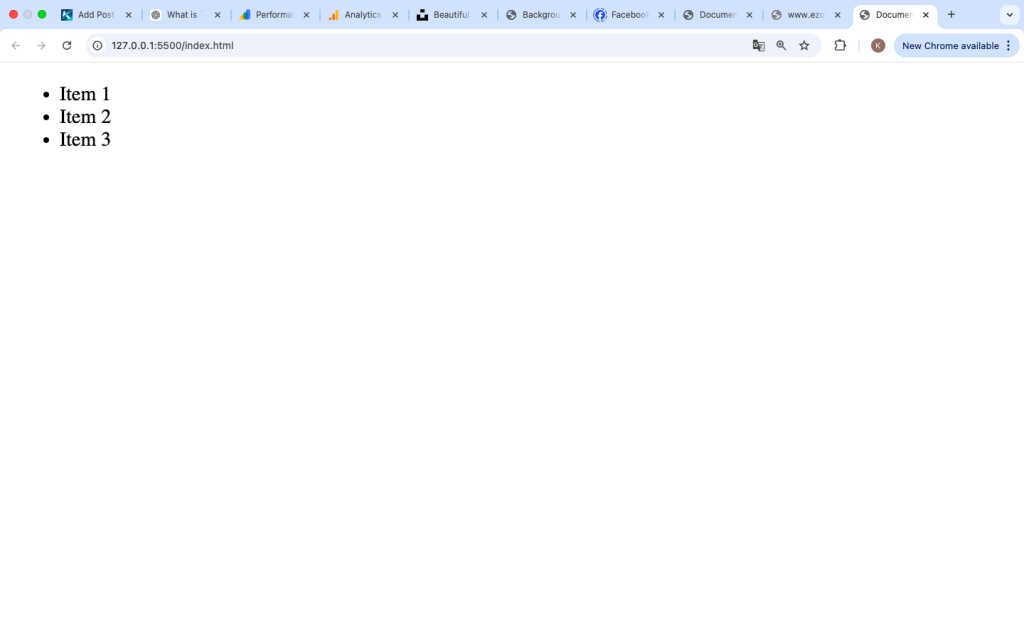
Example:
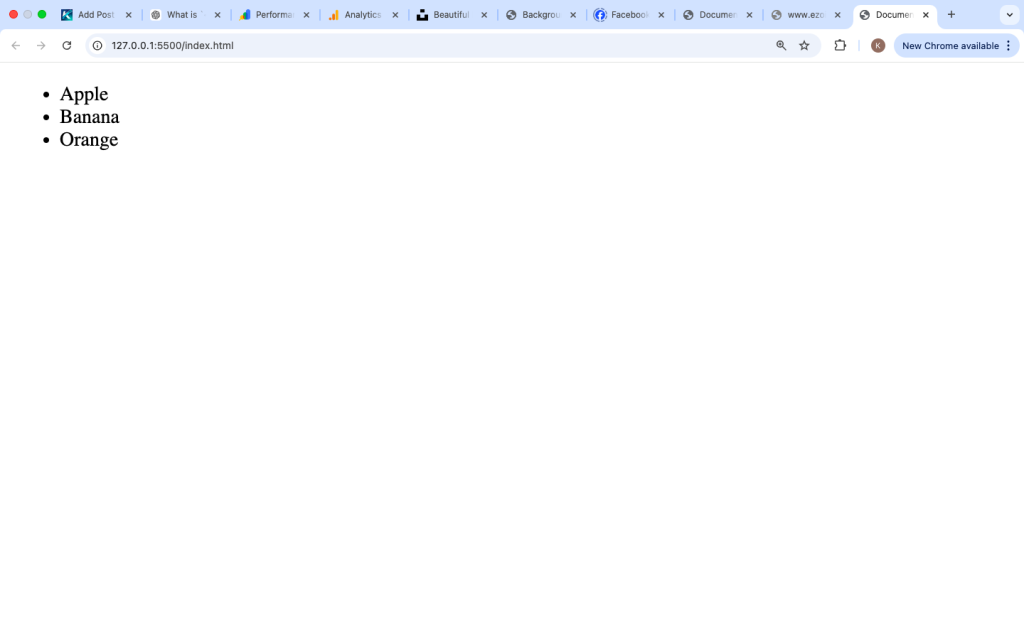
Output:
- Apple
- Banana
- Orange
Basic Structure of <ul>
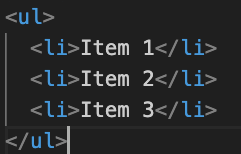
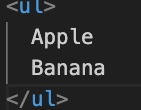
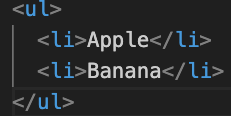
The <ul> tag always works together with <li> tags. Without <li>, your list will not display properly.
Structure:
Key Points:
<ul>= container for the list<li>= each item in the list
Why Use the <ul> Tag?
There are many reasons why developers use unordered lists:
1. Organize Content
Lists make content easier to read and understand.
2. Improve User Experience
Users can quickly scan bullet points instead of reading long paragraphs.
3. Used in Navigation Menus
Many websites use <ul> for menus.
4. Semantic HTML
Using <ul> helps define the structure of your content properly.
<ul> vs <ol>
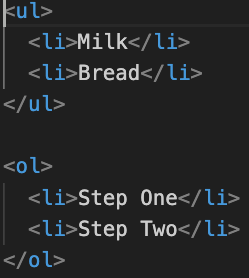
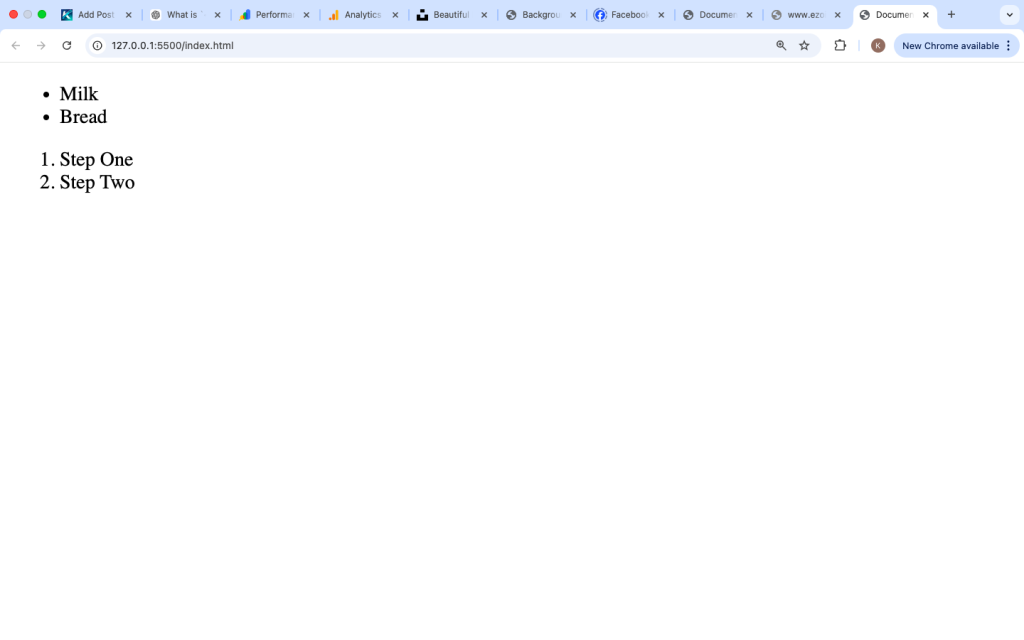
It is important to know the difference between <ul> and <ol>.
| Tag | Meaning | Use Case |
|---|---|---|
<ul> | Unordered list | When order does NOT matter |
<ol> | Ordered list | When order DOES matter |
Example Comparison:
Default Styling of <ul>
Browsers automatically add:
- Bullet points (usually black dots)
- Indentation (padding on the left)
Default Style Example:
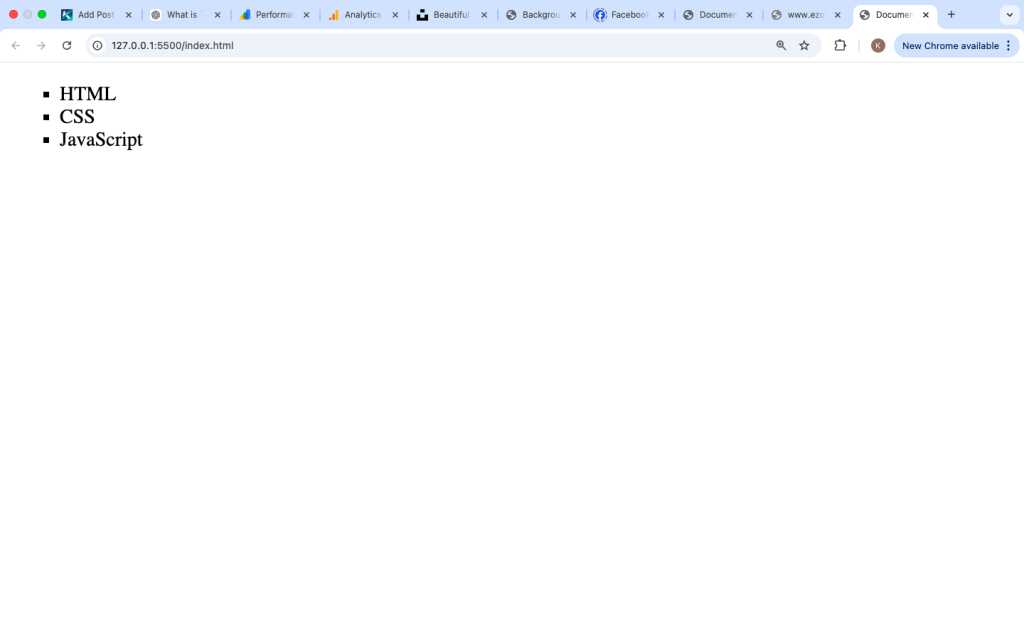
- Disc (●) — default
- Circle (○)
- Square (■)
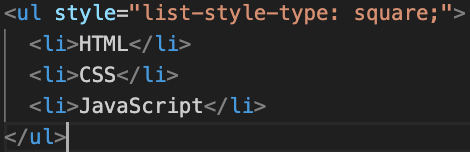
Changing Bullet Styles with CSS
You can customize how your list looks using CSS.
Example:
Other Values:
disccirclesquarenone(removes bullets)
Removing Bullet Points
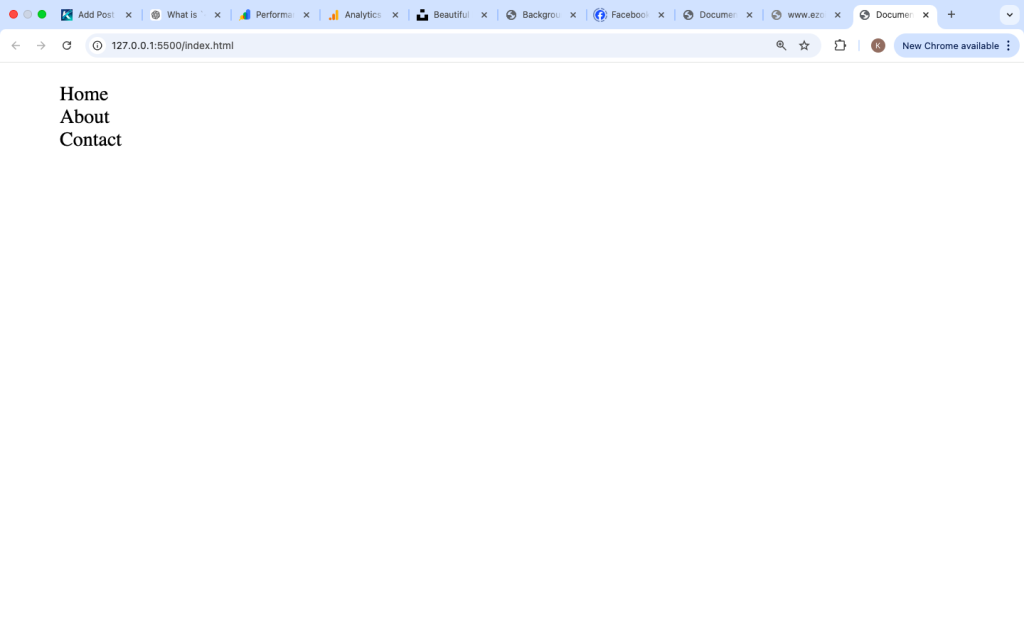
Sometimes you don’t want bullet points, especially for menus.
Example:
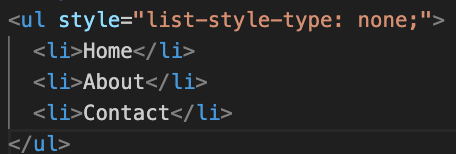
This is commonly used in navigation bars.
Nested <ul> Lists
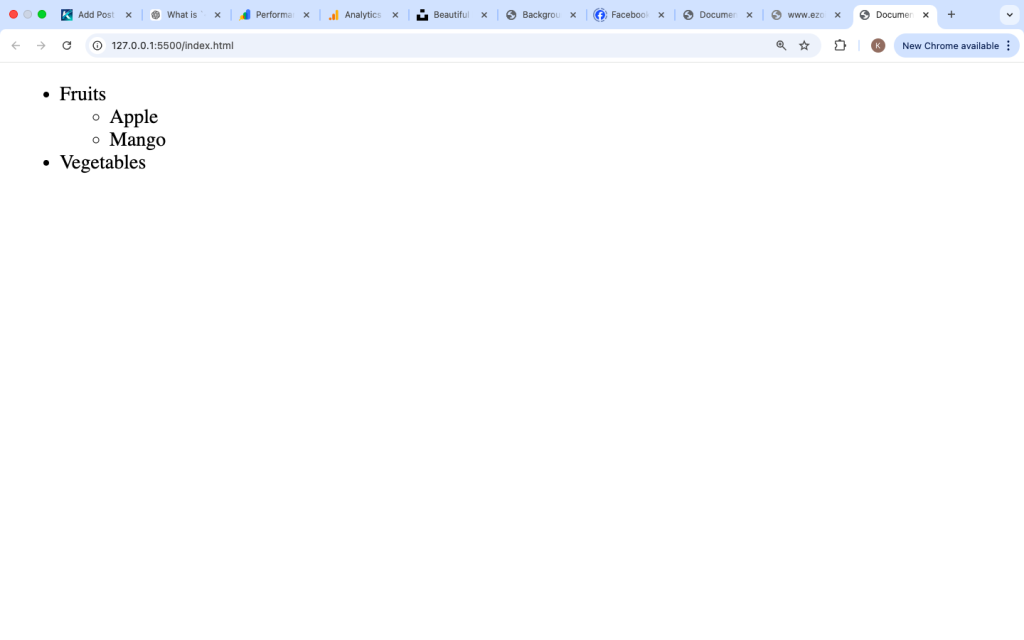
You can create lists inside lists. This is called nesting.
Example:
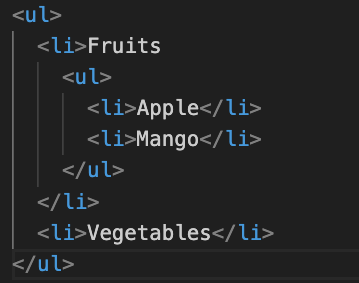
Output:
- Fruits
- Apple
- Mango
- Vegetables
Using <ul> for Navigation Menus
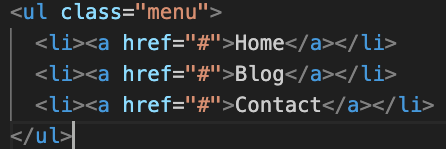
Most website menus are built using <ul> and styled with CSS.
Example:
CSS Example:
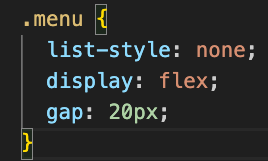
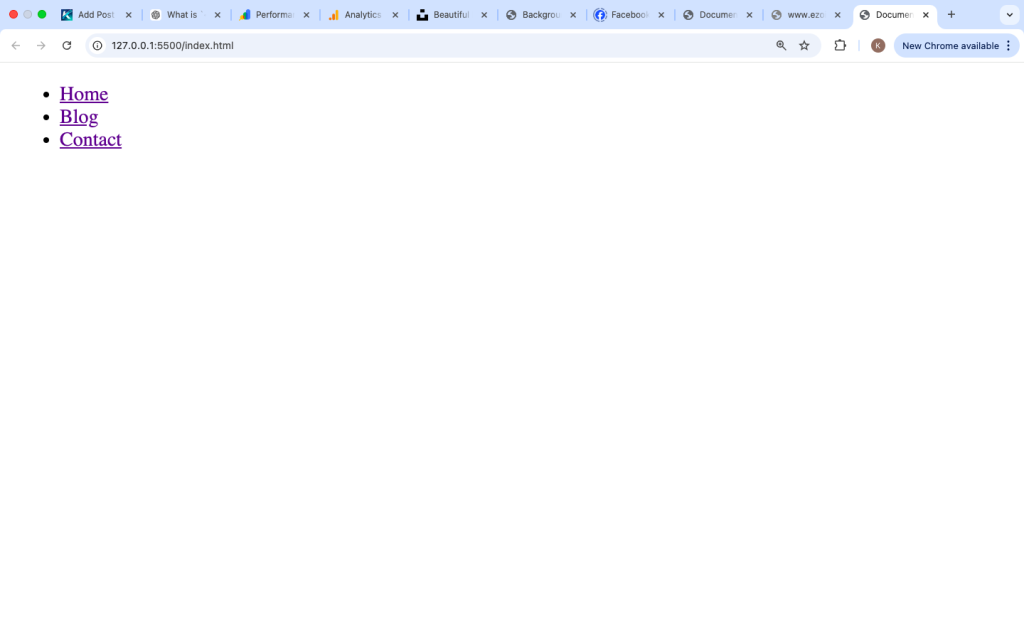
This turns the list into a horizontal menu.
Real-Life Use Cases of <ul>
Here are common places where <ul> is used:
1. Website Menus
2. Feature Lists
3. Product Descriptions
4. Blog Categories
5. FAQs
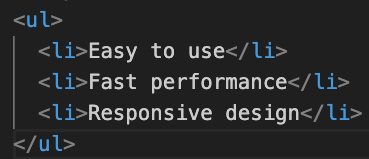
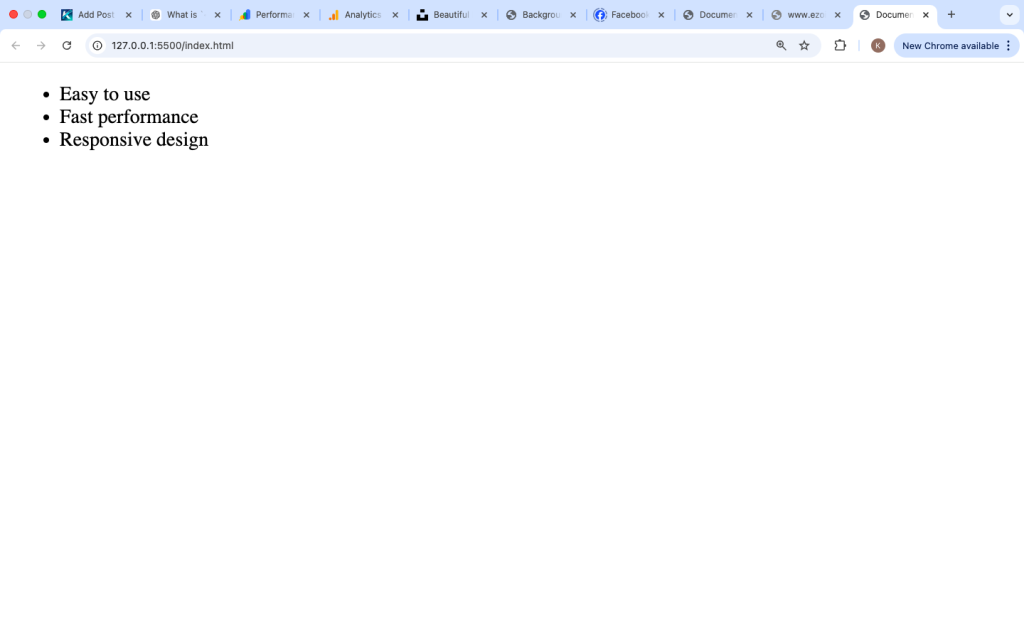
Example:
Accessibility and <ul>
Using <ul> properly helps screen readers understand your content better.
Benefits:
- Clear structure
- Better navigation
- Improved accessibility
Avoid using <div> instead of <ul> when listing items—it reduces meaning.
Common Mistakes to Avoid
1. Forgetting <li>
❌ Wrong
Correct:
2. Using <ul> When Order Matters
If steps must follow a sequence, use <ol> instead.
3. Overusing Inline Styles
Avoid writing styles inside HTML. Use CSS files instead.
Best Practices
- Always use
<li>inside<ul> - Use
<ul>only when order doesn’t matter - Keep lists simple and readable
- Use CSS for styling
- Use semantic HTML for better structure
Combining <ul> with Other Tags
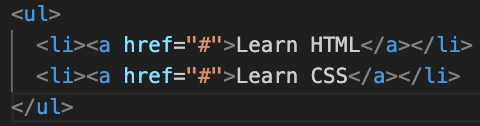
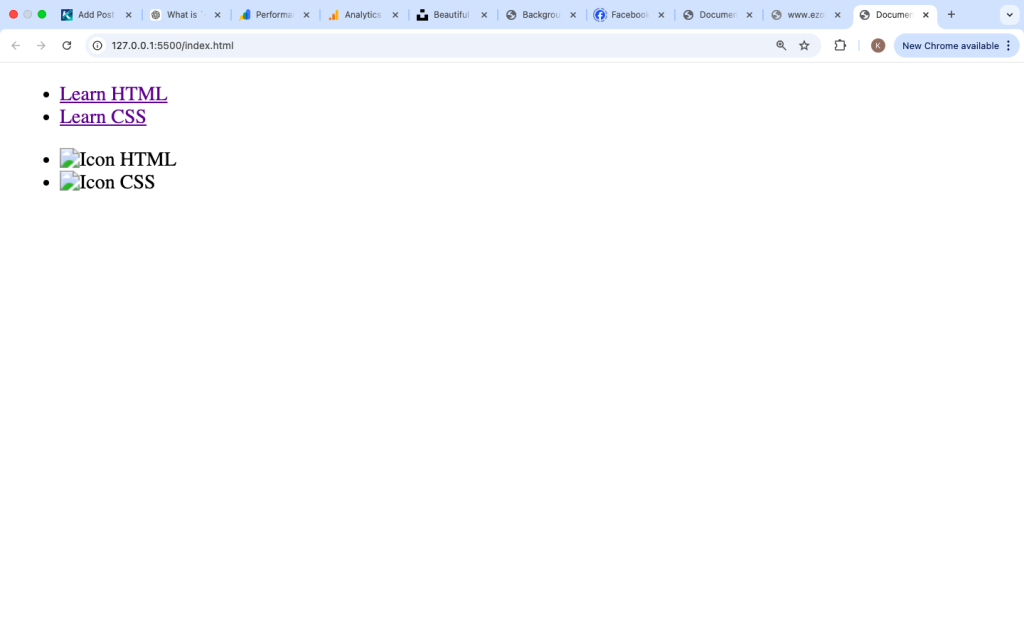
You can combine <ul> with links, images, and more.
Example with Links:
Example with Images:

Advanced Styling Example
You can create modern UI designs using <ul>.
Example:
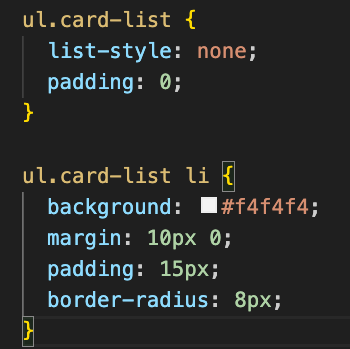
This creates card-style list items.
Practice Example
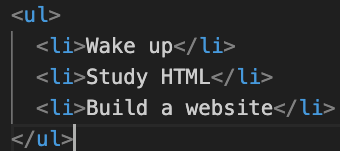
Try this simple exercise:
The <ul> tag is one of the simplest yet most powerful elements in HTML. It helps you organize content clearly using bullet points and improves the readability of your web pages.
Whether you are building a blog, a portfolio, or a full website, you will use <ul> many times—especially for menus and content lists.
Remember:
- Use
<ul>when order doesn’t matter - Always include
<li> - Style with CSS for better design
- Keep your HTML clean and semantic
Once you master the <ul> tag, you will find it much easier to structure your web pages effectively.