
The <ol> tag in HTML is used to create an ordered list. Unlike unordered lists (which use bullet points), an ordered list displays items in a specific sequence, usually numbered.
This tag is very important when the order of items matters—such as steps in a process, instructions, rankings, or procedures.
If you are learning HTML, mastering the <ol> tag will help you structure content clearly and logically.
What Does the <ol> Tag Do?
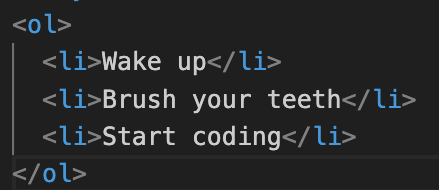
The <ol> tag stands for “ordered list.” It groups a list of items that follow a particular order.
Each item inside the list is defined using the <li> (list item) tag.
Basic Example:
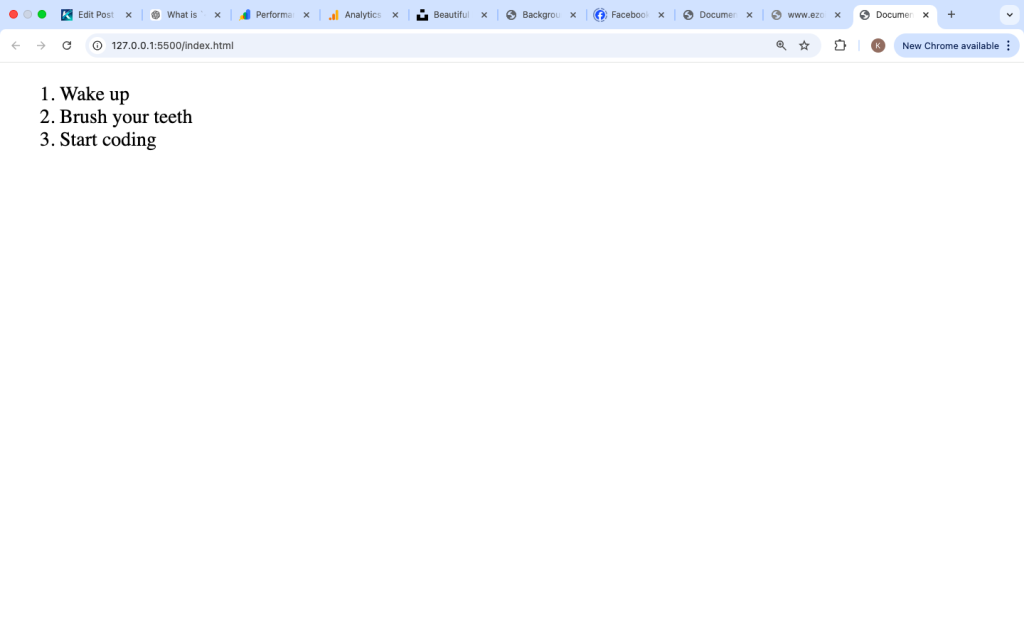
Output:
- Wake up
- Brush your teeth
- Start coding
Structure of the <ol> Tag
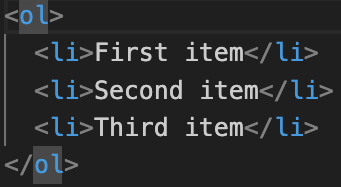
The <ol> tag works together with <li> tags.
Structure:
Key Points:
<ol>= container<li>= list items- Items are automatically numbered
Why Use the <ol> Tag?
Here are some common reasons to use ordered lists:
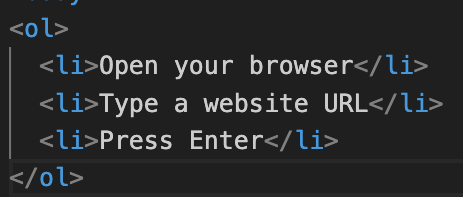
1. Show Steps in a Process
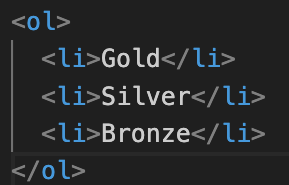
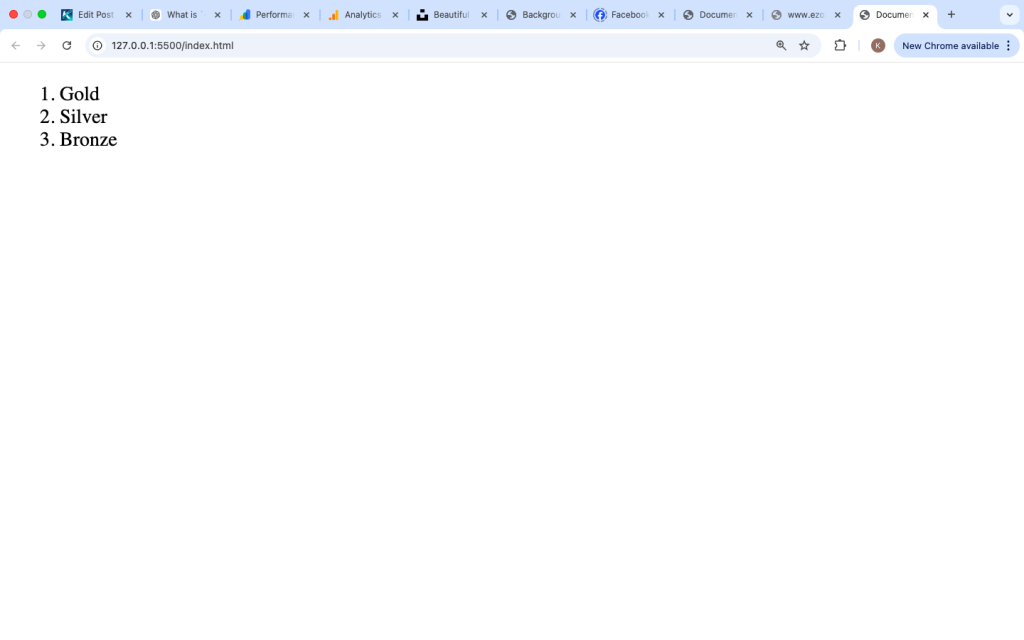
2. Rankings or Priority Lists
3. Instructions or Tutorials
Ordered lists are perfect for guides and how-to articles.
<ol> vs <ul>
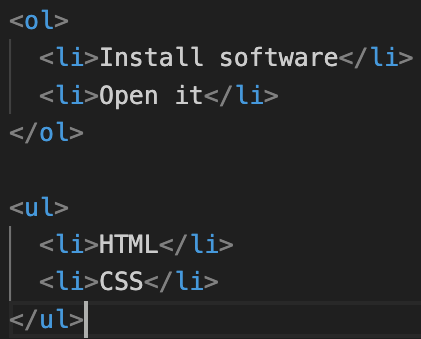
It is important to know the difference between <ol> and <ul>.
| Tag | Meaning | Use Case |
|---|---|---|
<ol> | Ordered list | When order matters |
<ul> | Unordered list | When order doesn’t matter |
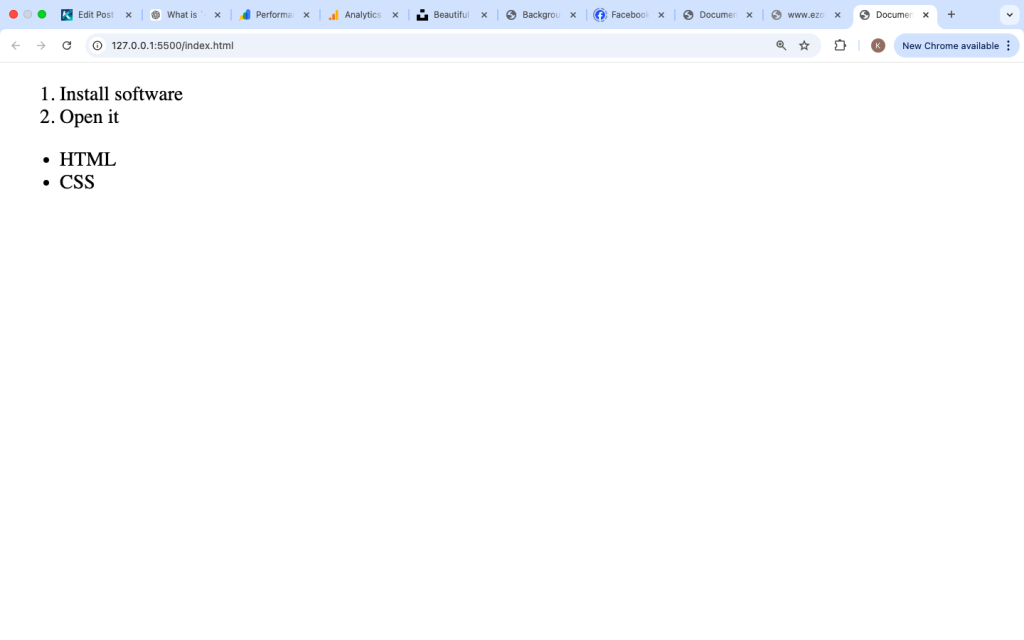
Example:
Default Behavior of <ol>
By default, <ol>:
- Uses numbers (1, 2, 3…)
- Automatically increments numbering
- Adds indentation
Changing Number Types
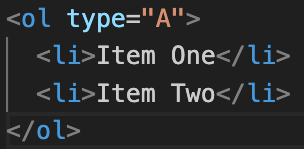
You can change how the numbering appears using the type attribute.
Example:
Output:
A. Item One
B. Item Two
Available type Values:
| Value | Output |
|---|---|
1 | 1, 2, 3 |
A | A, B, C |
a | a, b, c |
I | I, II, III |
i | i, ii, iii |
Starting from a Different Number
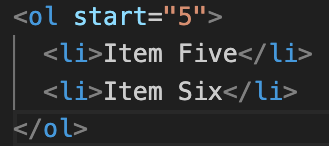
You can start your list from a specific number using the start attribute.
Example:
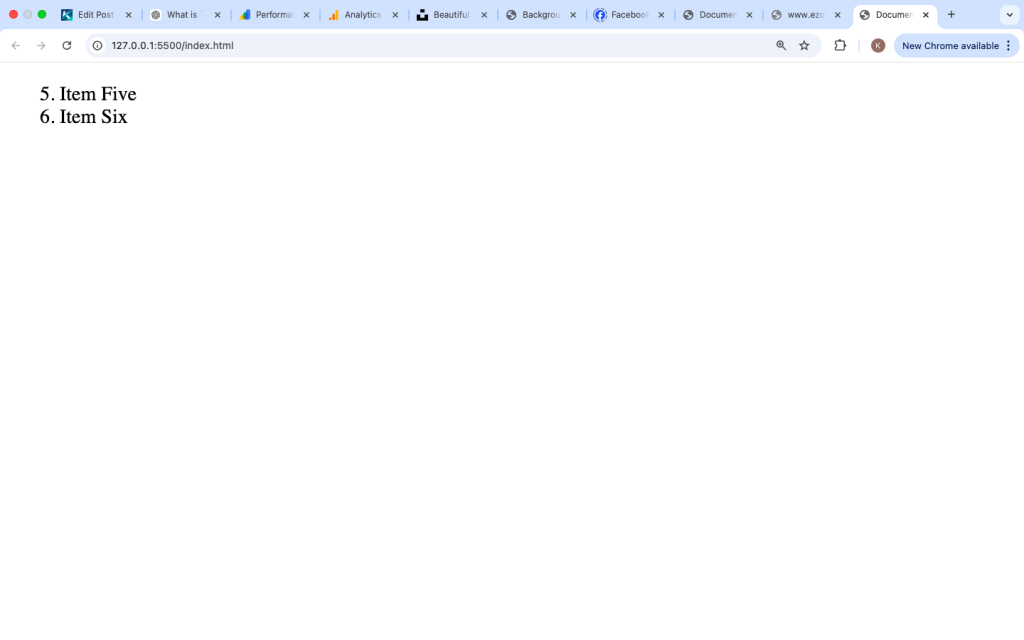
Output:
- Item Five
- Item Six
Reversing the Order
HTML also allows you to reverse the numbering.
Example:
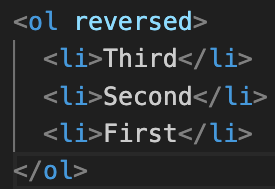
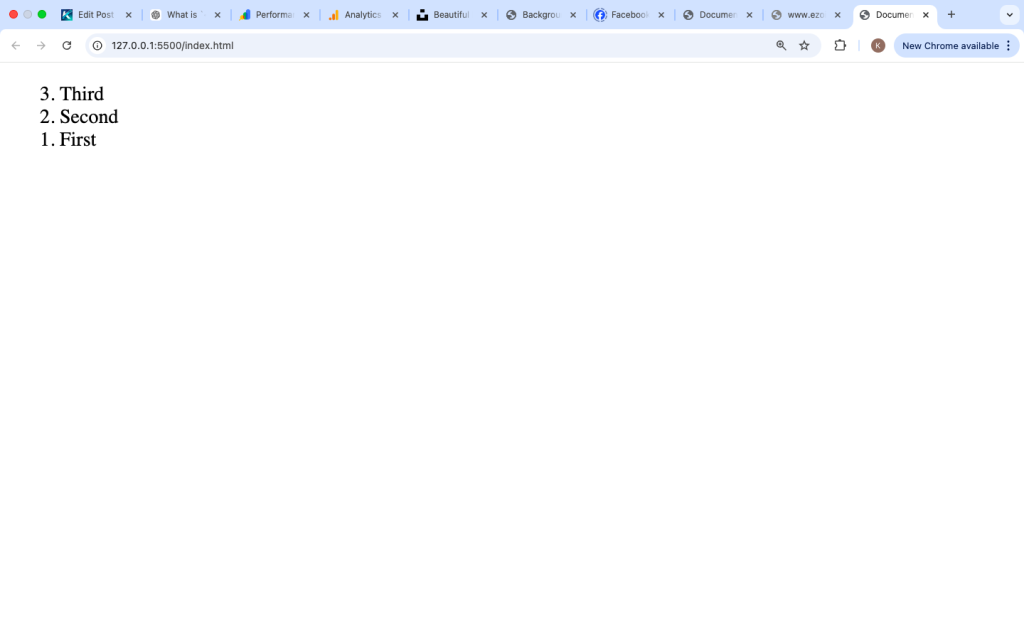
Output:
- Third
- Second
- First
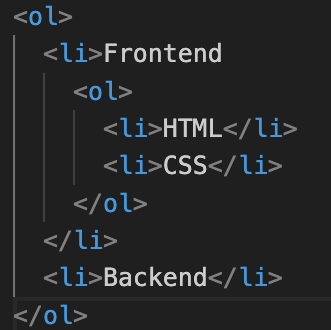
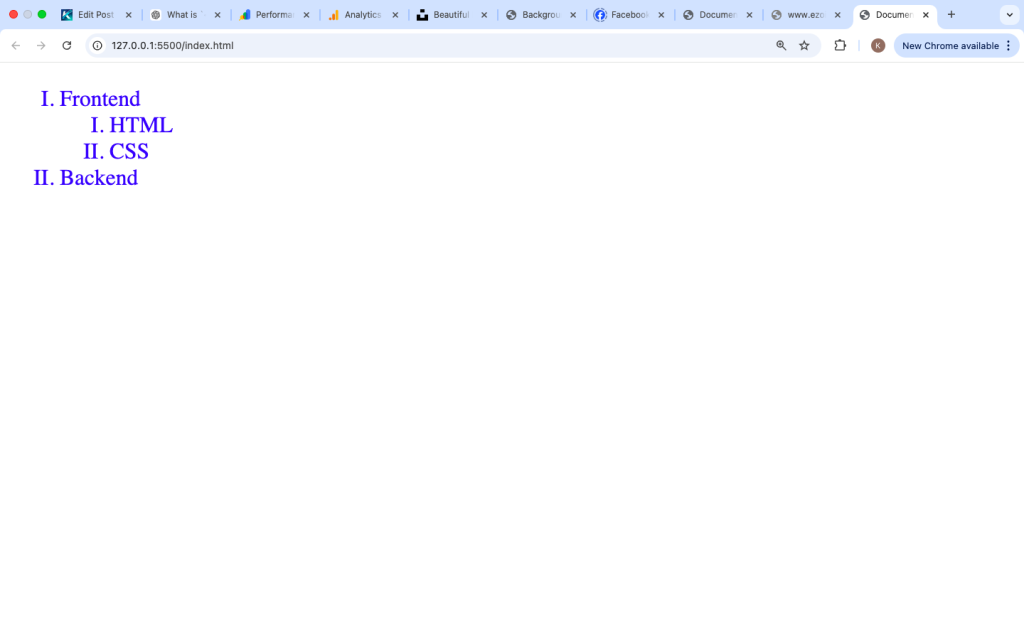
Nested Ordered Lists
You can create lists inside lists.
Example:
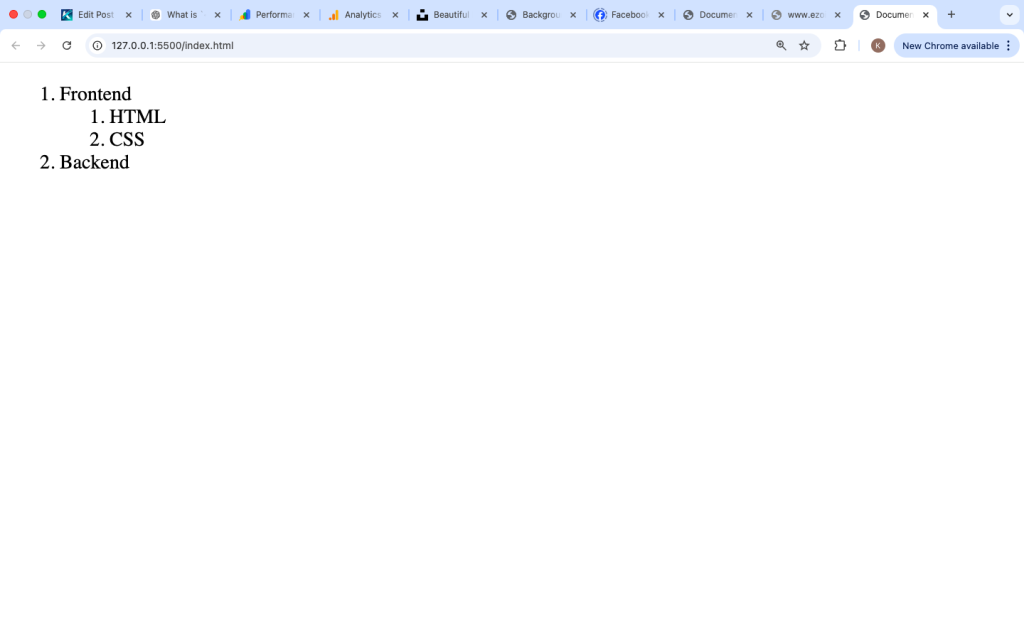
Output:
- Frontend
- HTML
- CSS
- Backend
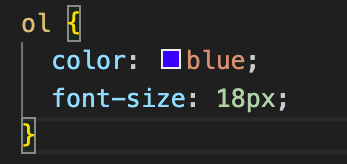
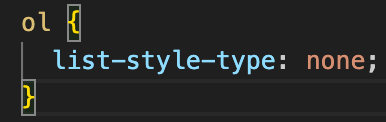
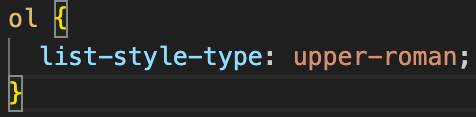
Styling <ol> with CSS
You can customize ordered lists using CSS.
Example:
Removing Numbers
Custom Number Style
Real-Life Use Cases
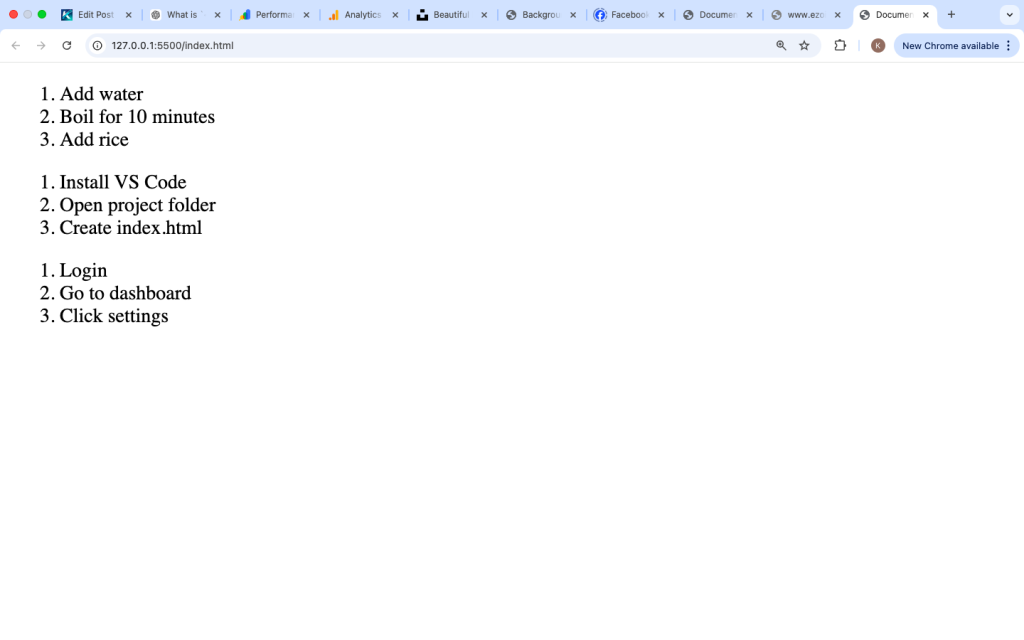
Here are practical uses of <ol>:
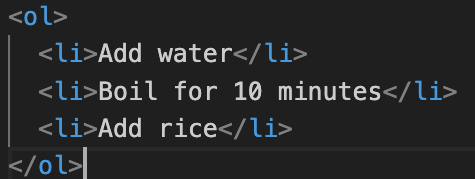
1. Recipes
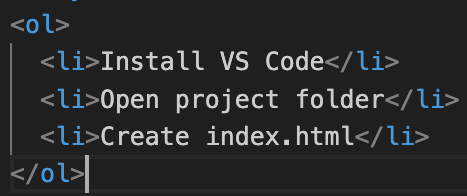
2. Tutorials
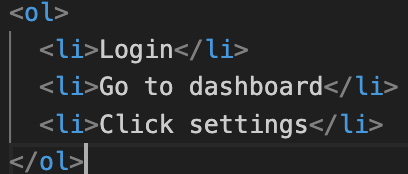
3. Instructions
Accessibility Benefits
Using <ol> improves accessibility:
- Screen readers understand sequence
- Helps visually impaired users follow steps
- Provides logical structure
Avoid using plain <div> for ordered content.
Common Mistakes to Avoid
1. Forgetting <li>
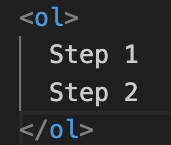
❌ Wrong
Correct:
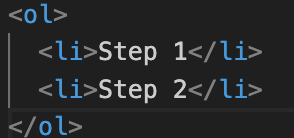
2. Using <ol> When Order Doesn’t Matter
Use <ul> instead if sequence is not important.
3. Overusing Inline Styles
Keep styling in CSS, not inside HTML.
Combining <ol> with Other Elements
You can combine <ol> with links, images, and more.
Example with Links:
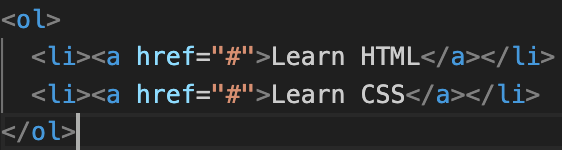
Example with Images:

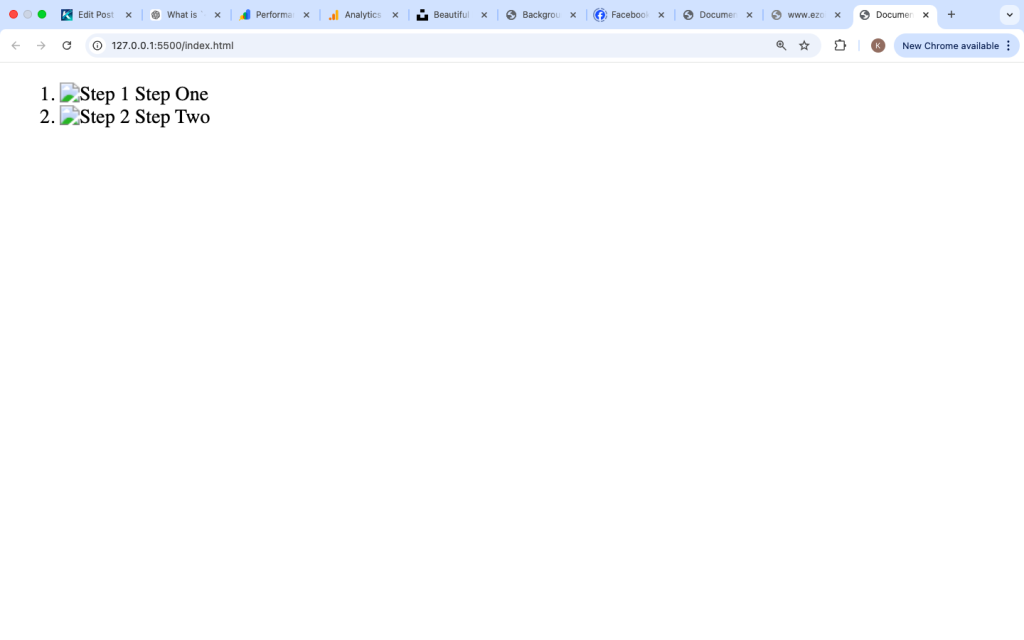
Advanced Styling Example
You can create modern UI components using <ol>.
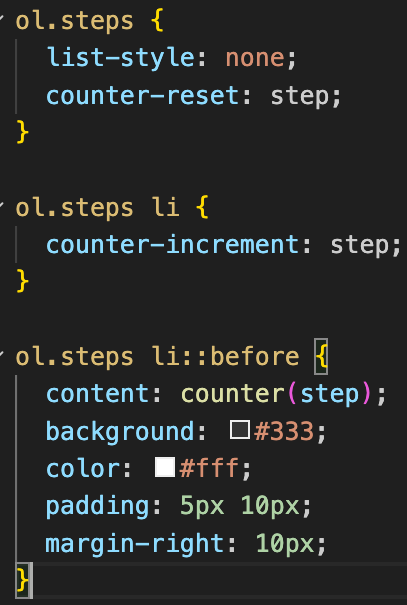
This creates custom numbered steps.
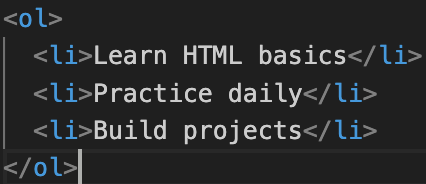
Practice Example
Try this:
The <ol> tag is essential for creating structured and step-based content in HTML. It allows you to present information in a logical sequence, making it easier for users to follow instructions.
Whether you are writing tutorials, guides, or step-by-step processes, <ol> helps improve readability and user experience.
Remember:
- Use
<ol>when order matters - Always include
<li> - Customize with CSS
- Keep your HTML semantic
Once you understand the <ol> tag, you will be able to build clearer and more professional web pages.