
The li tag in HTML is used to define a list item. It is one of the most commonly used tags because it works together with list containers like <ul> (unordered list) and <ol> (ordered list).
If you want to create lists on a webpage whether bullet points or numbered steps you must use the <li> tag. Without it, your lists will not display properly.
This guide explains everything you need to know about the <li> tag in a simple and practical way.
What Does the <li> Tag Do?
The <li> tag stands for “list item.” It represents a single item inside a list.
It is always used inside:
<ul>(unordered list)<ol>(ordered list)<menu>(less common)
Basic Example:
<ul>
<li>HTML</li>
<li>CSS</li>
<li>JAVASCRIPT</li>
</ul>
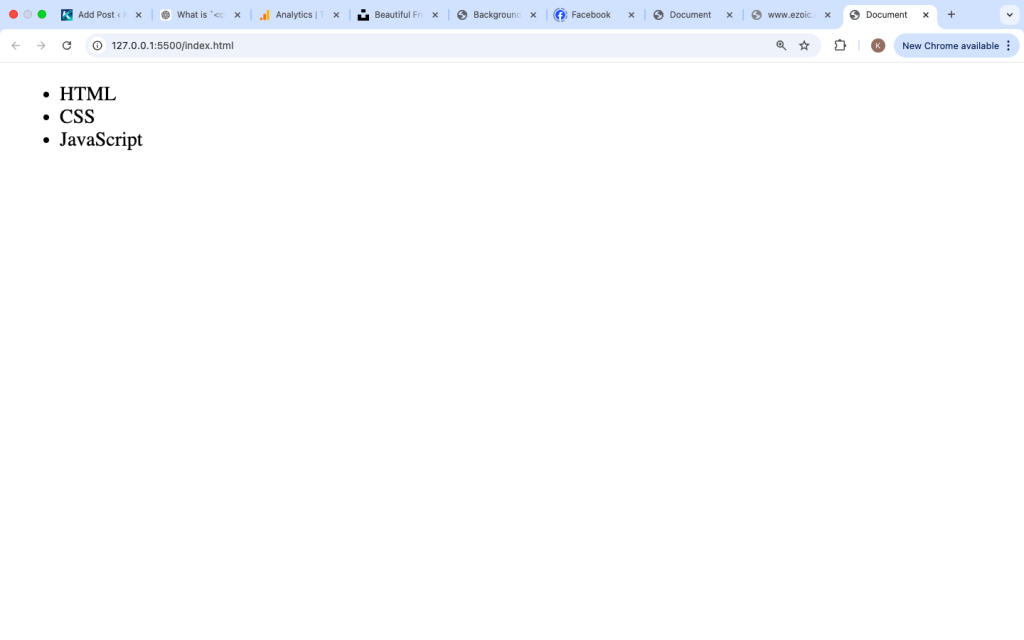
Output:
- HTML
- CSS
- JavaScript
Structure of the <li> Tag
The <li> tag cannot stand alone. It must be inside a list container.
Structure:
<ul>
<li>item One</li>
<li>item Two</li
</ul>
Key Points:
<li>defines each item- Must be inside
<ul>or<ol> - Can contain text, links, images, or other HTML elements
Using <li> in an Ordered List
When used inside <ol>, the <li> items are automatically numbered.
Example:
<ol>
<li>Open Your Laptop</li>
<li>Start Coding</li>
<li>Build a project</li>
</ol>
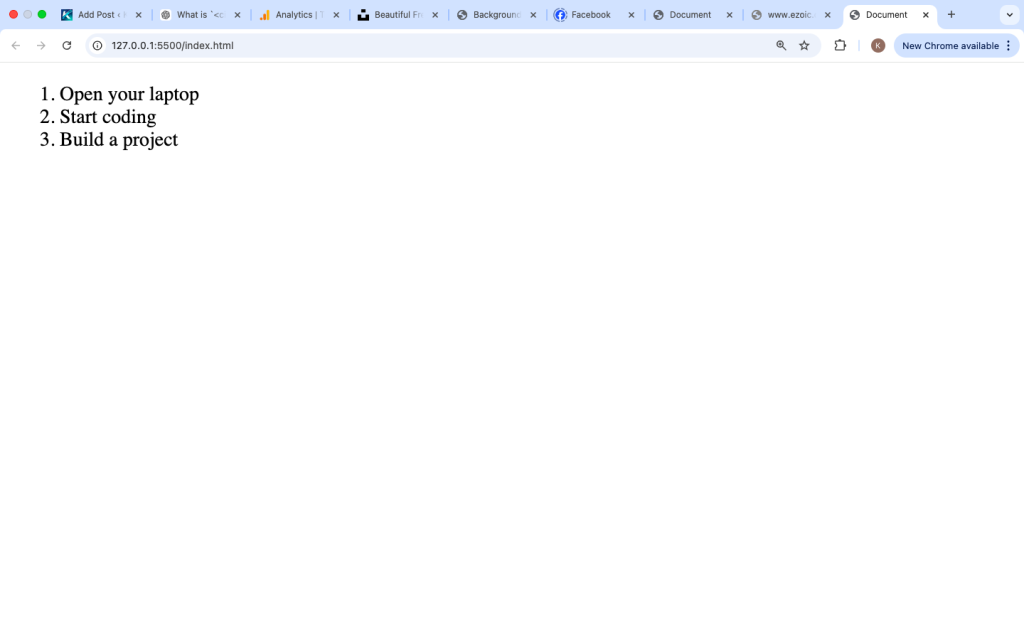
Output:
- Open your laptop
- Start coding
- Build a project
Using <li> in an Unordered List
Inside <ul>, <li> items display with bullet points.
Example:
<ul>
<li>Milk</li>
<li>Bread</li>
<li>Eggs</li>
</ul>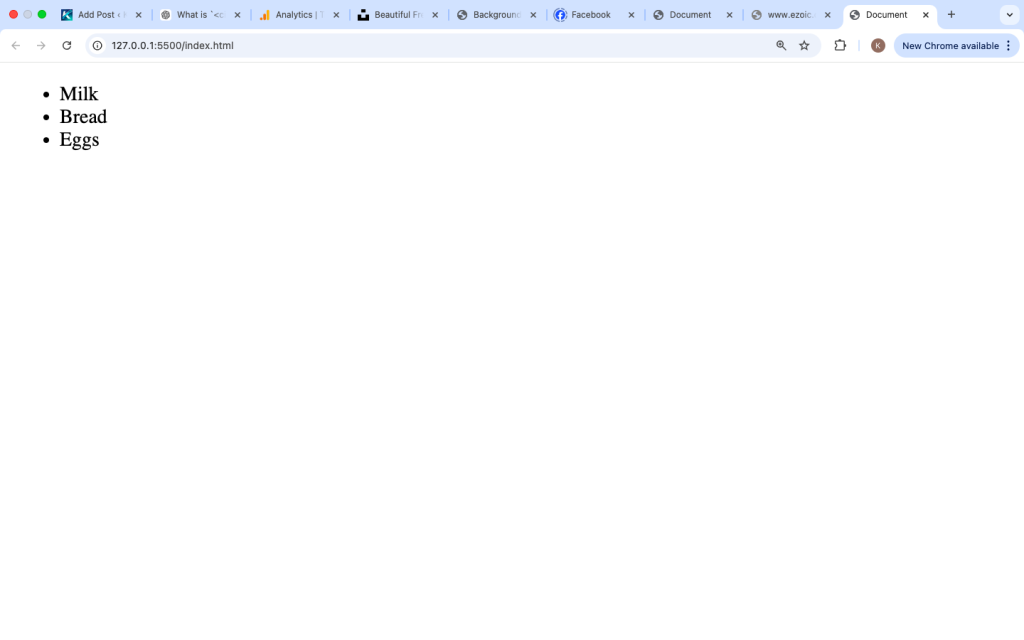
What Can Go Inside <li>?
The <li> tag is very flexible. You can place many types of content inside it.
1. Text
<li>Learn HTML</li>2. Links
<li><a href="#">Visit Website></a></li>3. Images
<li><img src=”image.jpg” alt=”Example”>Image Item</li>
4. Other HTML Elements
<li>
<strong>important:<strong> Practice Daily
</li>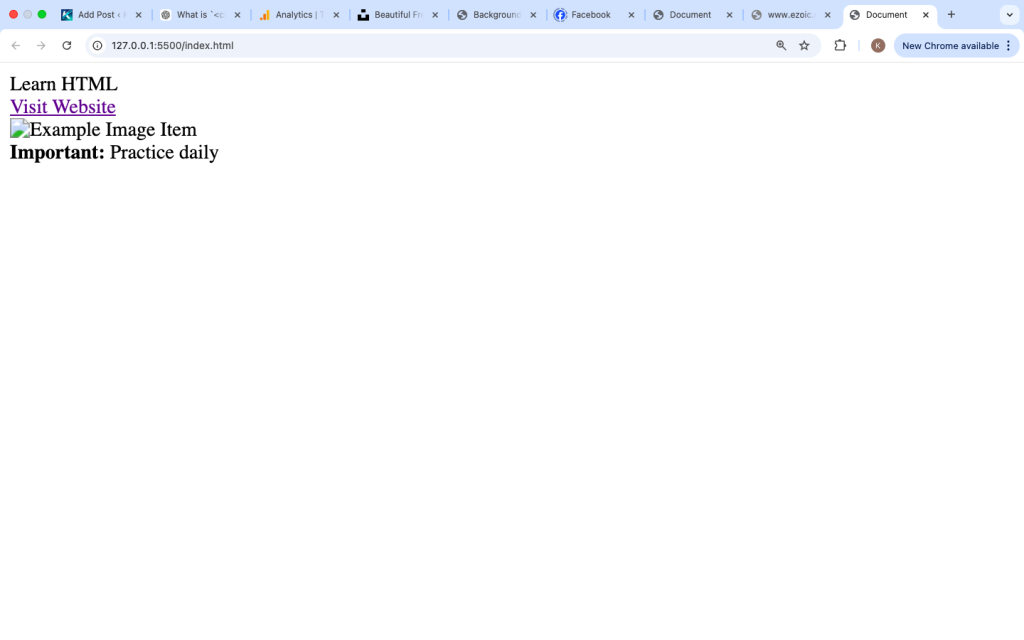
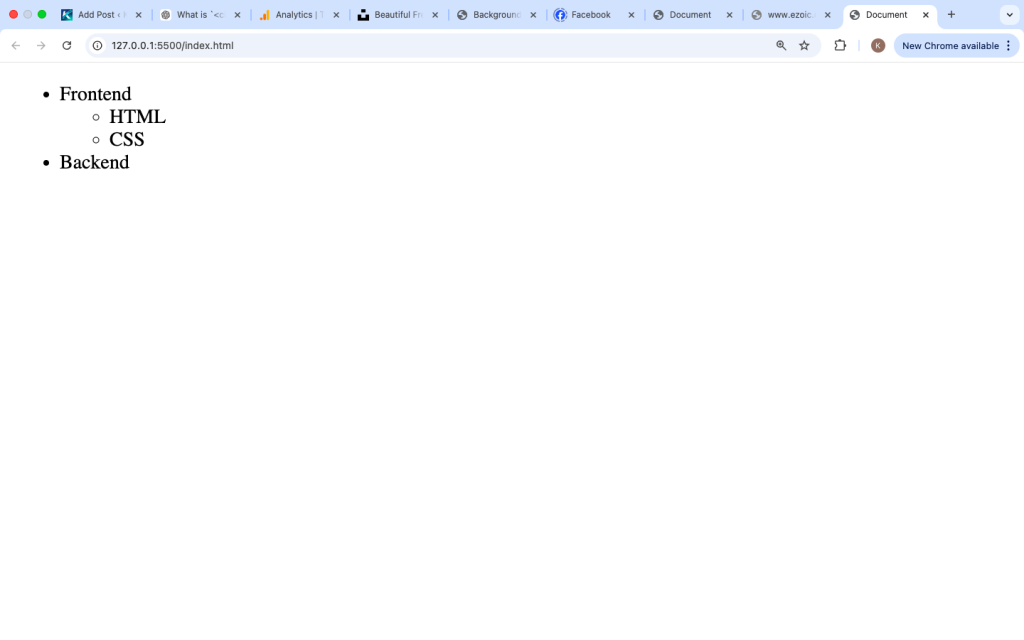
Nested Lists with <li>
You can create lists inside list items. This is called nesting.
Example:
<ul>
<li>Frontend
<ul>
<li>HTML</li>
<li>CSS</li>
</ul>
</li>
<li>Backend</li>
</ul>
Output:
- Frontend
- HTML
- CSS
- Backend
Styling <li> with CSS
You can style list items using CSS to improve appearance.
Example:
li{
color:blue;
font-size:18px;
}
Adding Space Between Items
li{
margin-bottom:10px;
}
Removing Default Bullets
ul{
list-style:none;
}
Using <li> for Navigation Menus
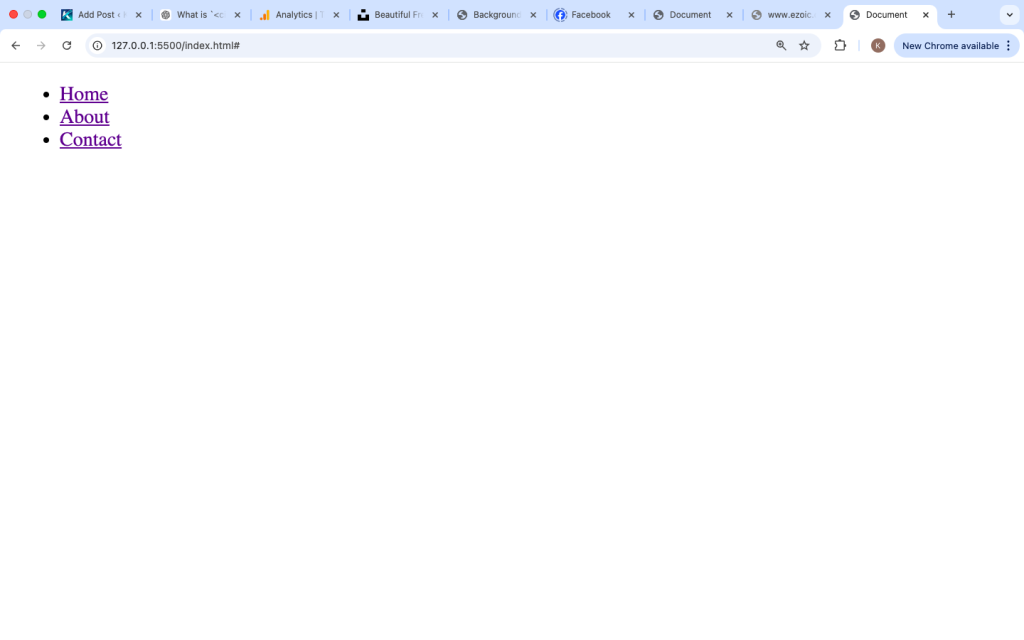
Most website navigation menus are built using <li> inside a <ul>.
Example:
<ul class="menu">
<li><a href="#">HOME</a></li>
<li><a href="#">ABOUT</a></li>
<li><a href="#">CONTACT</a></li>
</ul>
CSS Example:
.menu{
list-style:none;
display:flex;
gap:20px;
}
This creates a horizontal navigation menu.
Real-Life Use Cases of <li>
The <li> tag is used in many real-world scenarios:
1. Navigation Menus
2. Feature Lists
3. Step-by-Step Guides
4. Product Listings
5. FAQs
Example:
<ul>
<li>Fast Loading</li>
<li>User-Friendly</li>
<li>Mobile Responsive</li>
</ul>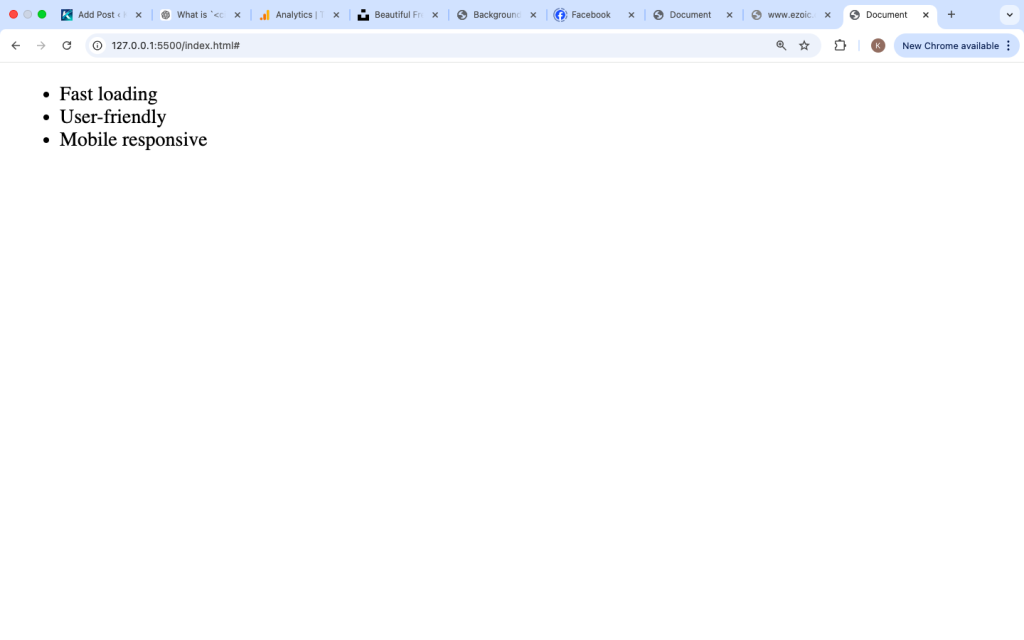
Accessibility Benefits
Using <li> properly improves accessibility:
- Screen readers can read lists clearly
- Helps users understand grouped content
- Improves navigation for assistive tools
Avoid replacing <li> with generic tags like <div> when creating lists.
Common Mistakes to Avoid
1. Using <li> Outside a List
<li>item One</li>❌ Wrong
Correct:
<ul>
<li>Item One</li>
</ul>
2. Forgetting Closing Tags
<li>Item One
<li>Item Two
❌ Wrong
Always close tags properly:
<li>Item One</li>
<li>Item Two</li>
3. Overloading with Content
Keep list items simple and readable. Avoid putting too much content inside a single <li>.
Practice Example
Try this simple exercise:
<ol>
<li>Learn HTML Basics</li>
<li>Prctice Daily</li>
<li>Build Projects<li>
</ol>
Best Practices
- Always use
<li>inside<ul>or<ol> - Keep items short and clear
- Use CSS for styling
- Avoid unnecessary nesting
- Write clean and readable HTML
The <li> tag is a fundamental part of HTML that helps you create structured and organized content. Whether you are building a navigation menu, a list of features, or a step-by-step guide, <li> plays a key role.
It may look simple, but it is powerful when used correctly. Combined with <ul> and <ol>, it allows you to present information clearly and improve user experience.
Remember:
<li>defines list items- Must be inside a list container
- Can hold different types of content
- Works with CSS for styling
Once you understand the <li> tag, you will be able to create clean and professional-looking lists on any webpage.