
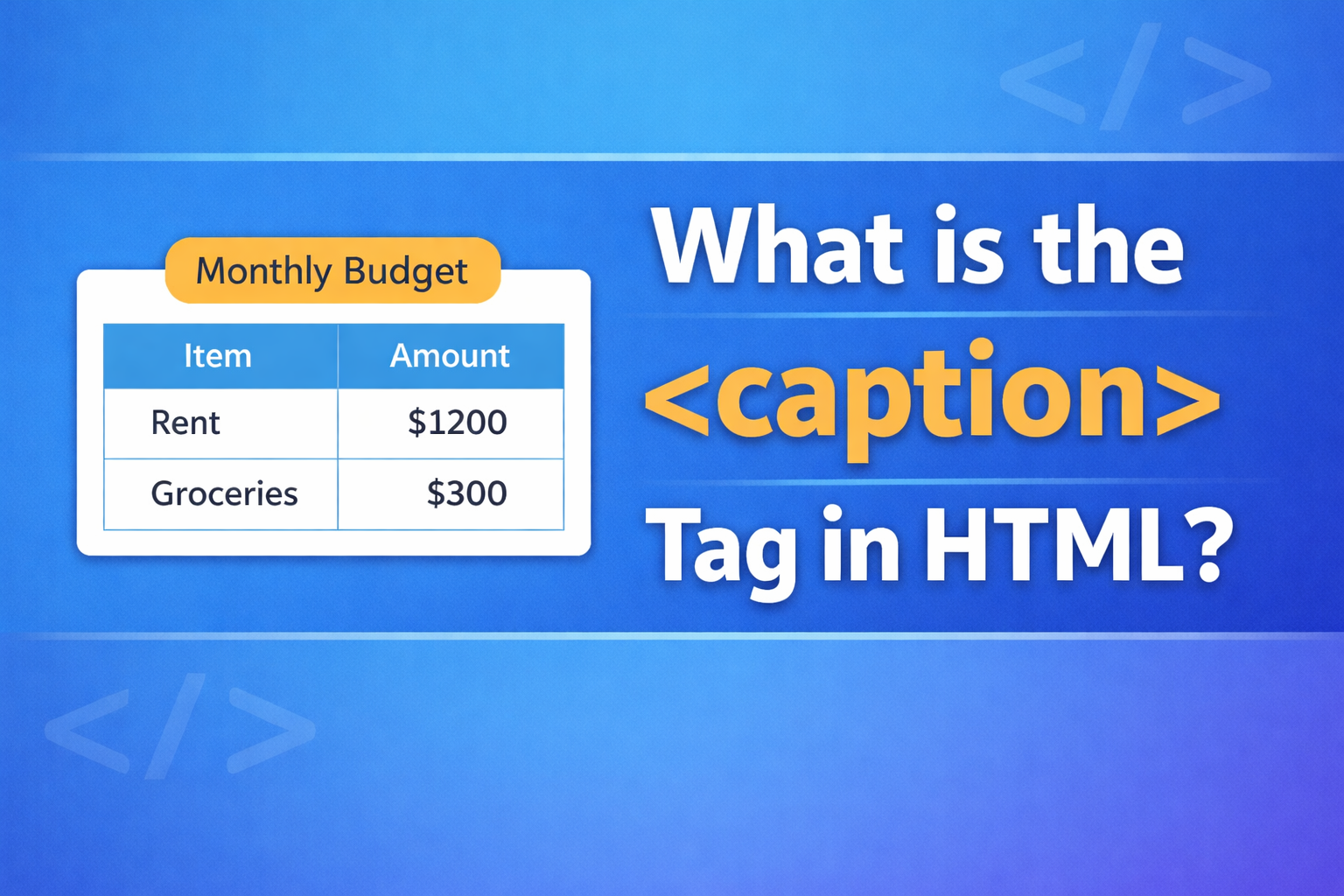
The <caption> tag in HTML is used to add a title or description to a table. It helps users understand what the table is about before they read the data inside it. This tag is simple but very important, especially when you want your tables to be clear and easy to understand.
In web development, tables are often used to display structured data like prices, schedules, statistics, or comparisons. Without a caption, users may not immediately know what the table represents. That’s where the <caption> tag comes in.
This article explains everything you need to know about the <caption> tag, including how it works, how to use it, and best practices.
Basic Idea of the <caption> Tag
The <caption> tag is placed inside a <table> element. It defines a title for that table.
Here is a simple example:
<table>
  <caption>Student Scores</caption>
  <tr>
    <th>Name</th>
    <th>Score</th>
  </tr>
  <tr>
    <td>John</td>
    <td>85</td>
  </tr>
</table>
In this example:
- The caption is “Student Scores”
- It tells users what the table is about before they look at the data
By default, the caption appears at the top of the table.
Why the <caption> Tag is Important
The <caption> tag is not just for design. It improves:
1. Clarity
Users can quickly understand what the table contains.
2. Accessibility
Screen readers use the caption to explain the table to users who cannot see it.
3. Structure
It gives meaning to your content instead of just showing raw data.
Correct Placement of <caption>
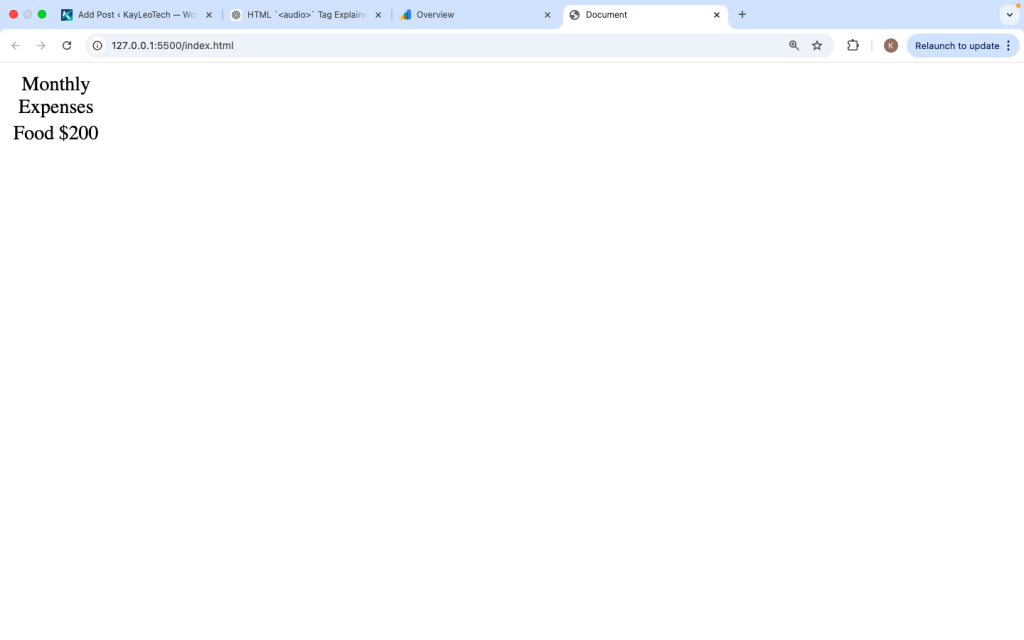
The <caption> tag must always be placed directly after the opening <table> tag.
Correct:
<table>
  <caption>Monthly Expenses</caption>
  <tr>
    <td>Food</td>
    <td>$200</td>
  </tr>
</table>
Wrong:
<table>
  <tr>
    <td>Food</td>
    <td>$200</td>
  </tr>
  <caption>Monthly Expenses</caption>
</table>
If you place it in the wrong position, it may not work properly.
Styling the <caption> Tag with CSS
You can change how the caption looks using CSS.
Example:
<style>
caption {
  font-weight: bold;
  font-size: 18px;
  margin-bottom: 10px;
}
</style>

<table>
  <caption>Product List</caption>
  <tr>
    <td>Phone</td>
    <td>$500</td>
  </tr>
</table>
This makes the caption bigger and bold.
Changing Caption Position
By default, captions appear at the top. You can move it to the bottom using CSS.
<style>
caption {
  caption-side: bottom;
}
</style>
Now the caption will appear below the table.
Example with Full Table
Here is a more complete example:
<table border="1">
  <caption>Weekly Schedule</caption>
  <tr>
    <th>Day</th>
    <th>Activity</th>
  </tr>
  <tr>
    <td>Monday</td>
    <td>Work</td>
  </tr>
  <tr>
    <td>Tuesday</td>
    <td>Gym</td>
  </tr>
</table>
This table has:
- A caption at the top
- Headings for each column
- Data rows
Difference Between <caption> and <title>
| Tag | Purpose |
|---|---|
<caption> | Describes a table |
<title> | Describes the web page |
The <title> tag appears in the browser tab, while <caption> appears inside the page above a table.
<caption> vs Headings (<th>)
The <caption> tag is not the same as table headings.
<caption>describes the whole table<th>describes columns or rows
Example:
<table>
  <caption>Employee Data</caption>
  <tr>
    <th>Name</th>
    <th>Position</th>
  </tr>
</table>
Here:
- “Employee Data” explains the table
- “Name” and “Position” explain the columns
Accessibility Benefits
The <caption> tag plays a big role in accessibility.
Screen readers read the caption before the table content. This helps users understand the context.
For example:
- Without caption: user hears raw data
- With caption: user hears “Sales Report” first, then the data
This makes your website more user-friendly for everyone.
Best Practices for Using <caption>
1. Keep It Short
Use a clear and simple title.
Good:
<caption>Student Grades</caption>Bad:
<caption>This table shows all the grades of students from different classes and subjects</caption>2. Make It Descriptive
Tell users exactly what the table contains.
3. Always Use It for Data Tables
If your table shows important data, include a caption.
4. Avoid Empty Captions
Do not leave the caption blank.
5. Style It Clearly
Make sure it stands out from the table.
Common Mistakes to Avoid
Here are some mistakes beginners make:
1. Placing <caption> Outside <table>
This will not work correctly.
2. Using It for Layout Tables
Do not use captions for tables used only for design.
3. Writing Too Much Text
Captions should be short and clear.
4. Forgetting Accessibility
Skipping captions makes tables harder to understand.
Browser Support
The <caption> tag is supported in all modern browsers, including:
- Chrome
- Firefox
- Safari
- Edge
You can safely use it without worrying about compatibility.
When Should You Use <caption>?
Use the <caption> tag when:
- You are showing data in a table
- The table needs a title
- You want to improve accessibility
- You want to make your content clearer
Do not use it when the table is only for layout or design.
Real-Life Example
Imagine a website showing product prices:
<table border="1">
  <caption>Phone Prices</caption>
  <tr>
    <th>Brand</th>
    <th>Price</th>
  </tr>
  <tr>
    <td>Samsung</td>
    <td>$400</td>
  </tr>
  <tr>
    <td>Apple</td>
    <td>$800</td>
  </tr>
</table>
Without the caption, users may not know what the table is about. With the caption, everything becomes clear.
Combining <caption> with Other Table Tags
The <caption> tag works together with other table elements like:
<table>– main container<tr>– table row<td>– table data<th>– table header
Example:
<table>
  <caption>Course List</caption>
  <tr>
    <th>Course</th>
    <th>Duration</th>
  </tr>
  <tr>
    <td>HTML</td>
    <td>4 Weeks</td>
  </tr>
</table>
The <caption> tag is a simple but powerful part of HTML. It gives a title to your table and helps users understand the content quickly.
Here are the key points:
- It is used inside a
<table> - It appears at the top by default
- It improves clarity and accessibility
- It should be short and descriptive
- It works in all modern browsers
Using the <caption> tag correctly makes your tables more professional and easier to use.
If you are building websites, you should always think about how users will understand your content. Tables can sometimes be confusing, especially when they contain a lot of data. The <caption> tag solves this problem by giving a clear title.
It may look like a small feature, but it has a big impact on usability and accessibility. When used properly, it improves both the look and function of your tables.
So anytime you create a table, ask yourself:
“Does this table need a caption?”
If the answer is yes, use the <caption> tag.
https://shorturl.fm/CC9NP
I appreciate how secure this site feels. My transactions are always processed quickly without any hassle. Big thanks to 666jililogin