

The <a> tag is one of the most important tags in HTML. It is used to create links. Without it, websites would not be connected, and browsing the internet would be very limited.
In this guide, you will learn what the <a> tag is, how it works, and how to use it properly. This is a beginner-friendly and evergreen explanation, so it will stay useful as you grow in web development.
What is the <a> Tag?
The <a> tag stands for anchor. It is used to create hyperlinks that connect one page to another or link to different parts of the same page.
Simple meaning:
The <a> tag = a clickable link
Basic Syntax
Here is the basic structure of the <a> tag:
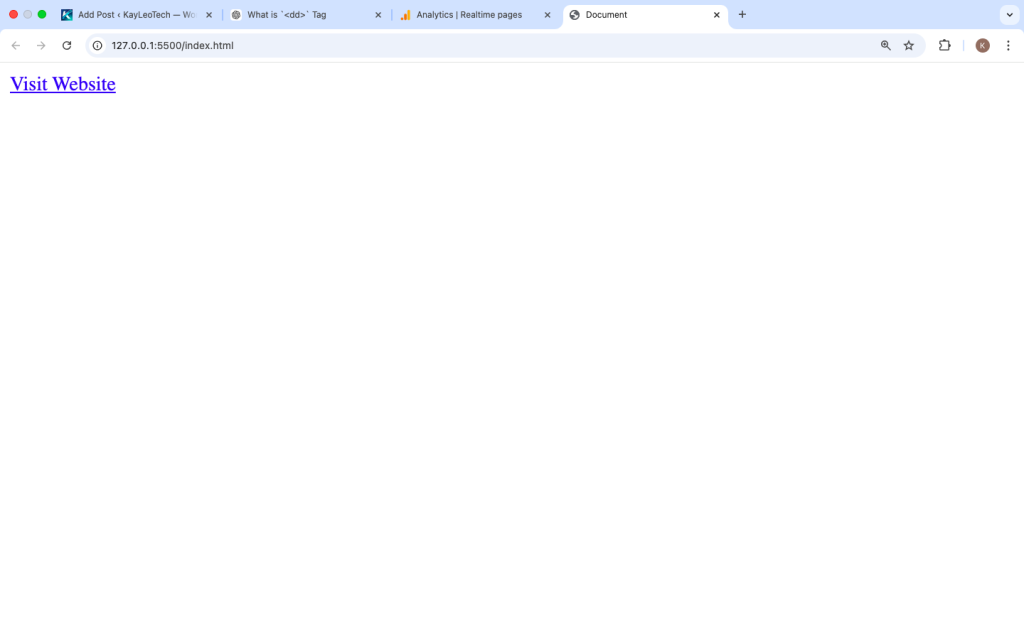
<a href=”https://example.com”>Visit Website</a>
Explanation:
<a>→ opening taghref→ where the link goesVisit Website→ clickable text</a>→ closing tag
How the <a> Tag Works
The <a> tag uses the href (Hypertext Reference) attribute to define the destination of the link.
When a user clicks the link:
- The browser takes them to the URL inside
href
Linking to Another Website
This is the most common use of the <a> tag.
<a href=”https://google.com”>Go to Google</a>
When clicked, it will open Google.
Opening a Link in a New Tab
By default, links open in the same tab. You can change this using the target attribute.
<a href=”https://example.com” target=”_blank”>Open in new tab</a>
Important:
target="_blank"→ opens link in a new tab
Adding Security with rel
When using target="_blank", it’s good practice to add rel.
<a href=”https://example.com” target=”_blank” rel=”noopener noreferrer”>
Safe Link
</a>
This improves security and performance.
Linking to a Page on Your Website
You can link to another page within your own website.
<a href=”about.html”>About Us</a>
This is called an internal link.
Linking to a Section on the Same Page
You can jump to a specific part of a page using IDs.
Step 1: Create a target section
<h2 id=”contact”>Contact Section</h2>
Step 2: Link to it
<a href=”#contact”>Go to Contact</a>
Clicking the link will scroll to that section.
Linking to Email
You can use the <a> tag to open an email app.
<a href=”mailto:example@email.com”>Send Email</a>
Linking to Phone Numbers
Useful for mobile users:
<a href=”tel:+234123456789″>Call Us</a>
Using Images as Links
You can wrap an image inside an <a> tag.
<a href="https://example.com">
  <img src="image.jpg" alt="Example Image">
</a>
Clicking the image works like a link.
Download Links
You can let users download files using the download attribute.
<a href=”file.pdf” download>Download PDF</a>
Styling Links with CSS
You can style <a> tags using CSS.
<style>
a {
color: blue;
text-decoration: none;
}
a:hover {
color: red;
}
</style>
Link States
Links have different states:
- Normal
- Hover
- Active
- Visited
Example:
a:visited {
color: purple;
}
Absolute vs Relative Links
Absolute URL:
<a href="https://example.com">External Site</a>
Relative URL:
<a href="contact.html">Contact Page</a>
Nested Content Inside <a>
The <a> tag can wrap more than text.
<a href=”#”>
<h3>Read More</h3>
<p>Click here to learn more</p>
</a>
Accessibility Tips
To make links accessible:
- Use clear link text
- Avoid “click here”
- Add
aria-labelif needed
Example:
<a href=”about.html” aria-label=”Learn more about our company”>
About Us
</a>
Common Mistakes to Avoid
1. Missing href
❌ Wrong:
<a>Broken Link</a>
✔ Correct:
<a href="#">Working Link</a>
2. Using # Without Purpose
# should be used carefully. It scrolls to top if no ID exists.
3. Not Closing the Tag
Always close your <a> tag.
Real-Life Use Cases
1. Navigation Menu
<nav>
<a href=”index.html”>Home</a>
<a href=”about.html”>About</a>
<a href=”contact.html”>Contact</a>
</nav>
2. Blog Links
<a href="post.html">Read Full Article</a>
3. Buttons with Links
<a href="signup.html" class="btn">Sign Up</a>
SEO Benefits of <a> Tag
Search engines use links to:
- Discover pages
- Understand site structure
- Rank content
Tips:
- Use meaningful anchor text
- Avoid too many links
- Link to relevant content
Advanced Example
<!DOCTYPE html>
<html>
<head>
  <title>Anchor Tag Example</title>
  <style>
    a {
      color: blue;
      text-decoration: none;
    }

    a:hover {
      color: green;
    }
  </style>
</head>
<body>

<h2>Useful Links</h2>

<a href="https://example.com" target="_blank" rel="noopener">
  Visit Example
</a>

<br><br>

<a href="#bottom">Go to Bottom</a>

<div style="margin-top: 500px;" id="bottom">
  <h3>You reached the bottom</h3>
</div>

</body>
</html>
When Should You Use <a>?
Use <a> when:
✔ You want to create a link
✔ You want to connect pages
✔ You want navigation
✔ You want user interaction
Avoid using it when:
✘ You need a button without navigation
✘ You are not linking anywhere
<a> Tag vs Button
<a>→ for navigation<button>→ for actions
Example:
<button onclick="alert('Hello')">Click Me</button>
Browser Support
The <a> tag works in all browsers:
- Chrome
- Firefox
- Safari
- Edge
Best Practices
- Always include
href - Use clear text
- Add
target="_blank"when needed - Use
rel="noopener"for security - Keep links simple and readable
The <a> tag is the backbone of the web. It connects pages, helps users navigate, and allows websites to function as a network.
By learning how to use the <a> tag properly, you can build better websites that are easy to use, accessible, and SEO-friendly.
As you continue your HTML journey, mastering this tag will make a big difference in how your websites work and feel.