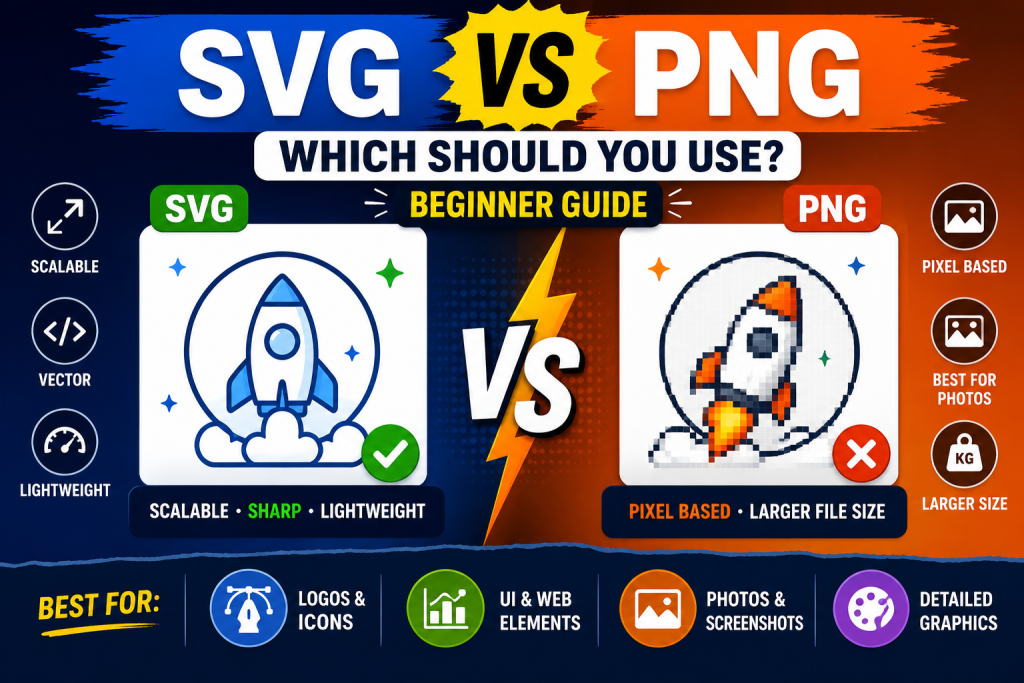
Svg Vs Png….When building a website, one of the most common questions beginners ask is, “Should I use SVG or PNG for my images?” Both formats are widely used on the web, but they serve different purposes. Choosing the right one can improve your website’s appearance, loading speed, and overall user experience.
If you’ve ever downloaded a logo, icon, or screenshot, you’ve probably seen files ending in .svg or .png. Although they may look similar at first glance, they work in very different ways.
Understanding the difference between SVG and PNG is an important skill for anyone learning HTML, CSS, and web development. Knowing when to use each format will help you create faster, sharper, and more professional websites.
In this beginner-friendly guide, you’ll learn what SVG and PNG are, how they differ, their advantages and disadvantages, and which one is best for different types of projects.
This article uses simple explanations with only a few examples, making it easy for beginners to understand.
What is SVG?
SVG stands for Scalable Vector Graphics.
An SVG file is made using mathematical shapes instead of pixels. Because it is based on shapes and paths, it can be resized to almost any size without losing quality.
Whether an SVG image is displayed as a small icon or a large banner, it remains perfectly sharp.
SVG files are commonly used for:
- Website logos
- Icons
- Buttons
- Charts
- Diagrams
- Illustrations
- Infographics
Unlike regular image formats, SVG files can also be edited using code.
What is PNG?
PNG stands for Portable Network Graphics.
A PNG image is made from tiny colored squares called pixels.
Every photograph or screenshot you see is usually pixel-based.
PNG is one of the most popular image formats because it supports:
- High image quality
- Transparent backgrounds
- Millions of colors
- Lossless compression
PNG files are commonly used for:
- Screenshots
- Product images
- UI mockups
- Digital artwork
- Photos with transparent backgrounds
Why Comparing SVG and PNG Matters
Many beginners think one format is always better than the other.
The truth is that each format has strengths.
Choosing the right one depends on what kind of image you are using.
For example:
- A company logo usually works better as SVG.
- A detailed screenshot usually works better as PNG.
Knowing the difference helps you make smarter design decisions.
The Biggest Difference Between SVG and PNG
The main difference is how the images are created.
SVG uses mathematical shapes.
PNG uses pixels.
This single difference affects:
- Image quality
- File size
- Editing options
- Website performance
- Responsiveness
Image Quality
Image quality is one of the biggest differences.
SVG
SVG images remain perfectly sharp no matter how much you resize them.
You can enlarge an SVG logo from 50 pixels to 5,000 pixels without losing clarity.
This makes SVG perfect for responsive websites.
PNG
PNG images lose quality when enlarged beyond their original size.
If you stretch a small PNG image too much, it becomes blurry or pixelated.
This happens because pixels are simply being enlarged.
File Size Comparison
File size affects how quickly your website loads.
SVG
SVG files are usually smaller for simple graphics such as:
- Logos
- Icons
- Buttons
- Illustrations
Smaller files help webpages load faster.
PNG
PNG files can become much larger, especially when:
- Images are high resolution
- Graphics contain many colors
- Screenshots are large
Large PNG files may slow down websites if not optimized.
Transparency Support
Both SVG and PNG support transparent backgrounds.
This makes them useful for:
- Logos
- Product images
- Website icons
- Branding graphics
For example, if you want a logo to appear on different colored backgrounds, both formats work well.
Editing SVG and PNG
Another major difference is how they are edited.
SVG
SVG files can be edited using:
- Text editors
- HTML
- CSS
- JavaScript
- Vector design software
Developers can even change SVG colors directly with CSS.
PNG
PNG files are usually edited using image software such as:
- Photoshop
- GIMP
- Paint.NET
- Canva
Once saved, editing individual shapes inside a PNG is much harder.
Responsiveness
Modern websites must look good on:
- Smartphones
- Tablets
- Laptops
- Desktop monitors
SVG naturally adapts to different screen sizes because it is scalable.
PNG relies on fixed pixel dimensions.
This means SVG is usually better for responsive graphics.
Browser Support
Both SVG and PNG are supported by modern browsers including:
- Google Chrome
- Mozilla Firefox
- Microsoft Edge
- Safari
- Opera
You can confidently use either format in modern web development.
When Should You Use SVG?
SVG is the better choice for graphics that need to stay sharp at any size.
Good examples include:
- Company logos
- Navigation icons
- Social media icons
- Maps
- Flowcharts
- Simple illustrations
- Charts
- Custom buttons
SVG is especially useful for websites that need scalable graphics.
When Should You Use PNG?
PNG works better for detailed images.
Examples include:
- Screenshots
- User interface previews
- Detailed artwork
- Product mockups
- Digital paintings
- Images with complex shading
PNG preserves fine details extremely well.
SVG vs PNG for Logos
One of the most common uses of SVG is company logos.
Imagine a logo displayed:
- On a mobile phone
- On a laptop
- On a large television
- On a printed banner
An SVG version remains sharp everywhere.
A PNG version may become blurry if enlarged too much.
Because of this, most modern brands use SVG logos on their websites.
SVG vs PNG for Icons
Website icons are another area where SVG shines.
Examples include:
- Search icon
- Home icon
- User profile icon
- Shopping cart
- Menu icon
- Settings icon
SVG icons remain crisp regardless of screen resolution.
PNG preserves screenshots much better.
If you’re writing tutorials that include application screenshots, PNG is usually the right choice.
SVG vs PNG for Photography
Photographs contain complex colors, lighting, and textures.
SVG is not intended for photographs.
PNG works much better because it stores detailed pixel information.
For most photos, JPEG is even more common because it produces smaller file sizes than PNG.
SVG vs PNG for Web Performance
Website speed matters.
Visitors expect pages to load quickly.
Search engines also consider page speed when evaluating user experience.
SVG files are often smaller than PNG files for simple graphics, which can improve loading times.
However, for detailed images, PNG may be the more practical option despite the larger size.
Accessibility Benefits
Both SVG and PNG can contribute to accessible websites when used properly.
SVG offers additional flexibility because developers can add descriptive text and labels directly within the graphic.
PNG images rely on meaningful alt text to describe their content to screen readers.
Always remember to include descriptive alt text regardless of the image format you choose.
SEO Considerations
Neither SVG nor PNG automatically improves search rankings.
However, optimized images can improve:
- Page speed
- User experience
- Mobile performance
These factors can indirectly support better SEO.
Using descriptive filenames and alt text is equally important for both formats.
Comparing SVG and PNG
| Feature | SVG | PNG |
|---|---|---|
| Image Type | Vector | Raster (Pixel-based) |
| Resize Quality | Always sharp | Can become blurry |
| Best For | Logos, icons, illustrations | Screenshots, detailed graphics |
| File Size | Small for simple graphics | Larger for detailed images |
| Editable with Code | Yes | No |
| Transparency | Yes | Yes |
| Responsive | Excellent | Limited by resolution |
Advantages of SVG
SVG offers several benefits:
- Infinitely scalable
- Lightweight for simple graphics
- Easy to customize with CSS
- Great for responsive design
- Excellent for logos and icons
These advantages make SVG a favorite among web developers.
Advantages of PNG
PNG also has many strengths.
It provides:
- High image quality
- Excellent detail
- Transparent backgrounds
- Lossless compression
- Wide compatibility
PNG remains one of the most popular image formats online.
Common Beginner Mistakes
Here are a few mistakes beginners often make.
Using PNG for Logos
Large PNG logos can appear blurry on high-resolution displays.
SVG is usually the better option.
Using SVG for Photos
SVG is designed for shapes, not photographs.
Choose PNG or JPEG instead.
Enlarging Small PNG Files
Stretching a low-resolution PNG often results in blurry images.
Always use images with appropriate dimensions.
Ignoring Optimization
Large image files slow websites down.
Always optimize your graphics before uploading them.
Practice Projects
As you build websites, try using both formats in different situations.
Portfolio Website
Use SVG for:
- Personal logo
- Navigation icons
- Social media icons
Use PNG for:
- Project screenshots
- Design previews
Business Website
Use SVG for branding graphics and simple illustrations.
Use PNG for product photos and marketing images.
Tutorial Blog
If you’re writing coding tutorials:
- Use SVG for diagrams and icons.
- Use PNG for software screenshots.
This combination provides the best balance between quality and practicality.
Best Practices
Keep these tips in mind whenever you choose between SVG and PNG.
- Use SVG for graphics made from simple shapes.
- Use PNG for screenshots and detailed artwork.
- Optimize image sizes before uploading them.
- Always include descriptive alt text.
- Test images on different screen sizes.
- Choose the format that best matches the type of content.
Both SVG and PNG are excellent image formats, but they are designed for different purposes. SVG is the ideal choice for scalable graphics such as logos, icons, diagrams, and illustrations because it remains sharp at any size and often produces smaller file sizes.
PNG, on the other hand, excels at displaying detailed pixel-based images such as screenshots, interface designs, and digital artwork while supporting transparent backgrounds and preserving image quality.
Rather than asking which format is “better,” it’s more useful to ask which format is better for your specific project. By understanding the strengths and limitations of each, you’ll be able to create websites that look more professional, load faster, and provide a better experience for your visitors.
As you continue learning HTML, CSS, and web design, mastering the differences between SVG and PNG will help you make smarter decisions whenever you add graphics to your projects.
<!DOCTYPE html>
<html>
<head>
    <title>PNG Example</title>
</head>
<body>

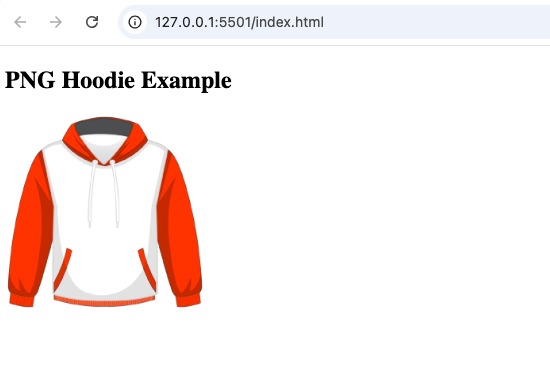
<h2>PNG Hoodie Example</h2>

<img src="Hoodie.png" alt="Website Screenshot" width="500">

</body>
</html>
Explanation
src="Hoodie.png"loads a PNG image.- The
alttext helps search engines and users who rely on screen readers. - PNG is ideal for screenshots and detailed graphics.
- If a small PNG is enlarged too much, it may become blurry because it is made of pixels.
Creating an SVG Graphic Directly in HTML
Unlike PNG, SVG graphics can be written directly inside your HTML document.
<!DOCTYPE html>
<html>
<head>
    <title>Inline SVG Example</title>
</head>
<body>

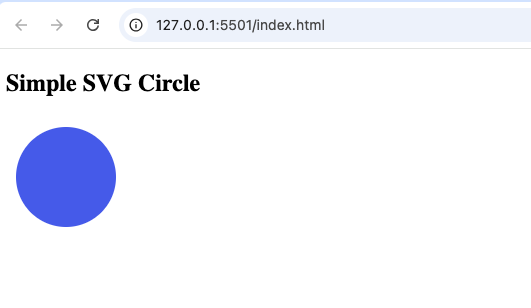
<h2>Simple SVG Circle</h2>

<svg width="120" height="120">
    <circle cx="60" cy="60" r="50" fill="royalblue" />
</svg>

</body>
</html>
Explanation
This example creates a blue circle directly in the browser.
<svg>creates a drawing area.<circle>draws a circle.cxandcydefine the center of the circle.rsets the radius.fillspecifies the color.
One advantage of SVG is that you can create graphics without using an external image file.
Comparing SVG and PNG
| SVG Example | PNG Example |
|---|---|
src="logo.svg" | src="logo.png" |
| Best for logos and icons | Best for screenshots and photos |
| Can be scaled without losing quality | Can become blurry when enlarged |
| Can be edited with HTML, CSS, and JavaScript | Usually edited with image editing software |
| Often has a smaller file size for simple graphics | Usually larger for detailed images |
Try it yourself
Change the code, then run it to see the result.