
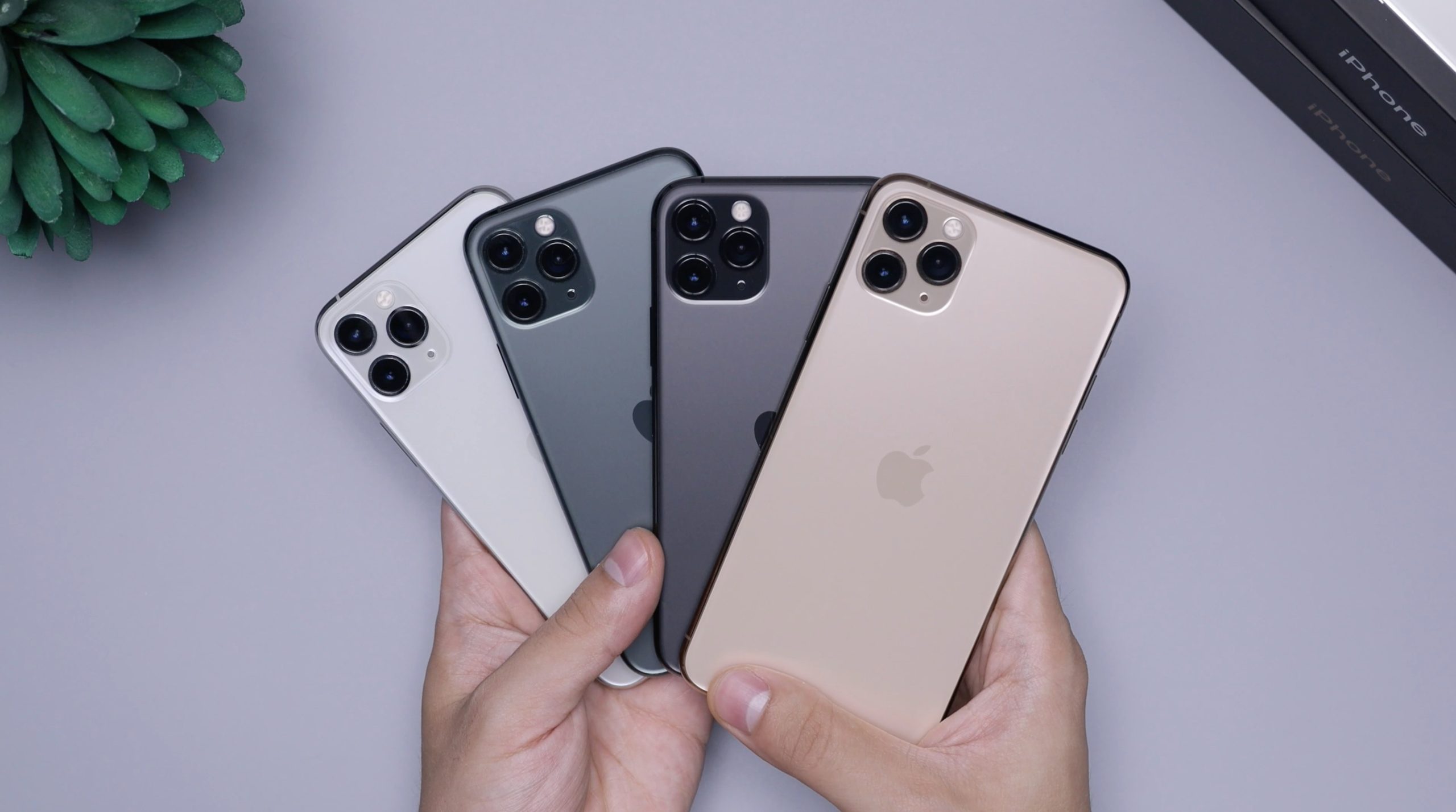
If you are new to the iPhone or recently switched from another smartphone, it can feel overwhelming at first. Apple designs the iPhone to be simple, but many of its most useful features are hidden behind settings, gestures, and menus that beginners may not notice immediately. This guide is written to help first-time iPhone users understand how to use their device confidently, efficiently, and safely.
Instead of focusing on advanced or technical tricks, this article explains practical tips you will actually use every day. Each section also includes suggested places where you can add screenshots to visually guide your readers.
Understanding the iPhone Home Screen and Gestures
When you turn on your iPhone, the first thing you see is the Home Screen. This is where all your apps live. You can swipe left or right to move between pages, and swipe down from the middle of the screen to open Search.
One of the most important things beginners should learn early is gesture navigation. Unlike older phones with physical buttons, modern iPhones rely heavily on gestures.
- Swipe up from the bottom to go back to the Home Screen
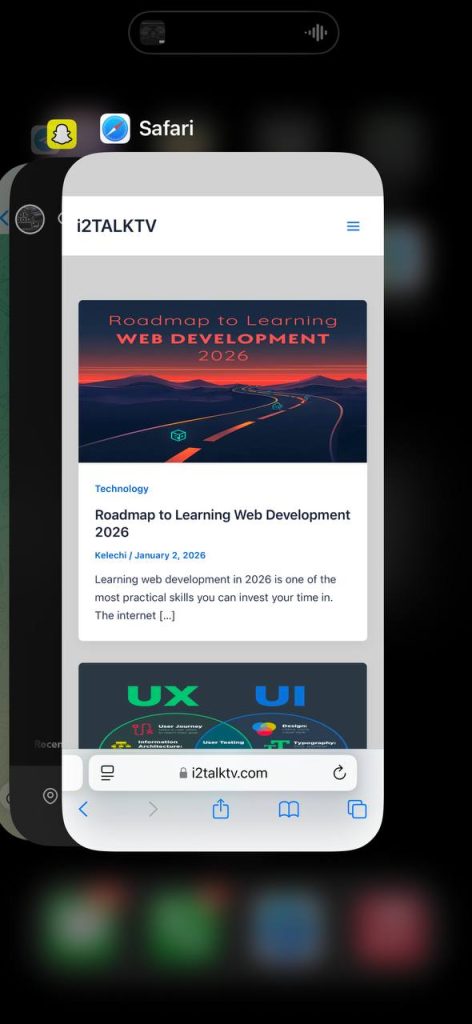
- Swipe up and hold to open the App Switcher
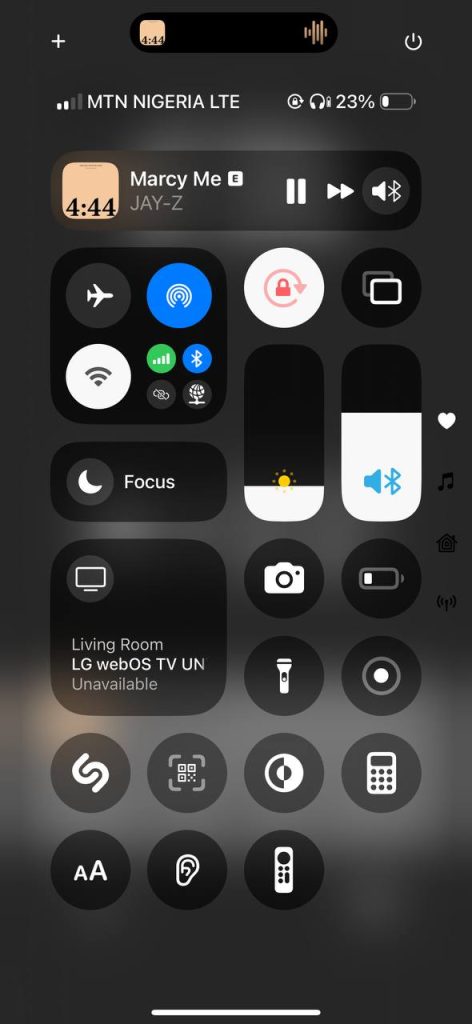
- Swipe down from the top-right corner to open Control Center
- Swipe down from the top to open notifications
These gestures quickly become second nature once you practice them.
Setting Up Face ID and Passcode Properly
Security is one of the strongest advantages of using an iPhone. The first thing you should do is set up Face ID and a strong passcode. Face ID allows you to unlock your phone, approve app logins, and make payments just by looking at your screen.
To enable Face ID:
- Open Settings
- Go to Face ID & Passcode
- Follow the instructions to scan your face
Make sure your passcode is not something easy to guess, like your birth year. A strong passcode protects your data if your phone is lost or stolen.

Using Control Center for Quick Access
Control Center is one of the most useful features for beginners. It gives you fast access to essential settings without opening multiple apps.
From Control Center, you can:
- Turn Wi-Fi and Bluetooth on or off
- Enable Airplane Mode
- Adjust screen brightness and volume
- Turn on Dark Mode
- Access the flashlight, camera, and calculator
You can also customize Control Center to include tools you use often, such as screen recording or low power mode.
Managing Battery Life the Smart Way
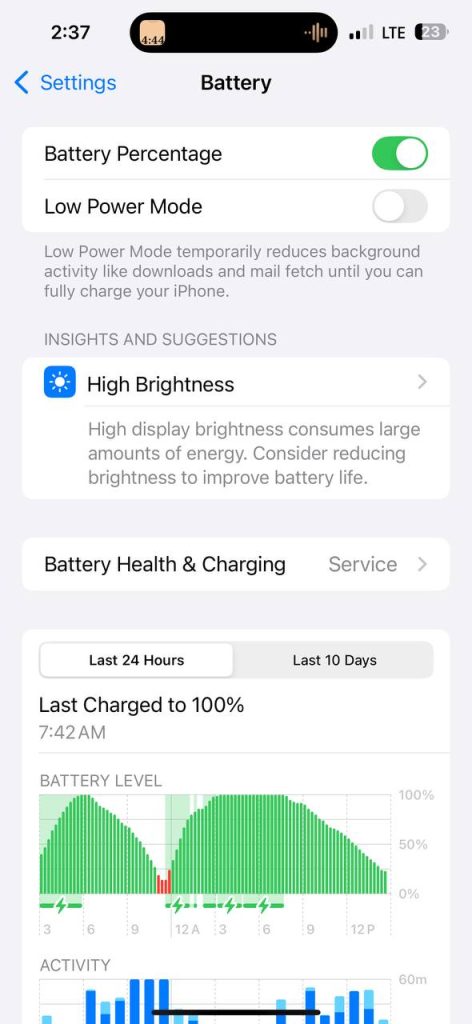
Battery life is a common concern for new iPhone users. While iPhones are well optimized, some habits can drain your battery faster than necessary.
Simple battery-saving tips include:
- Turning on Low Power Mode when battery is low
- Reducing screen brightness
- Limiting background app refresh
- Checking which apps consume the most battery
You can see battery usage by going to Settings > Battery. This helps you understand which apps use the most power and adjust accordingly.
Organizing Apps and Home Screen
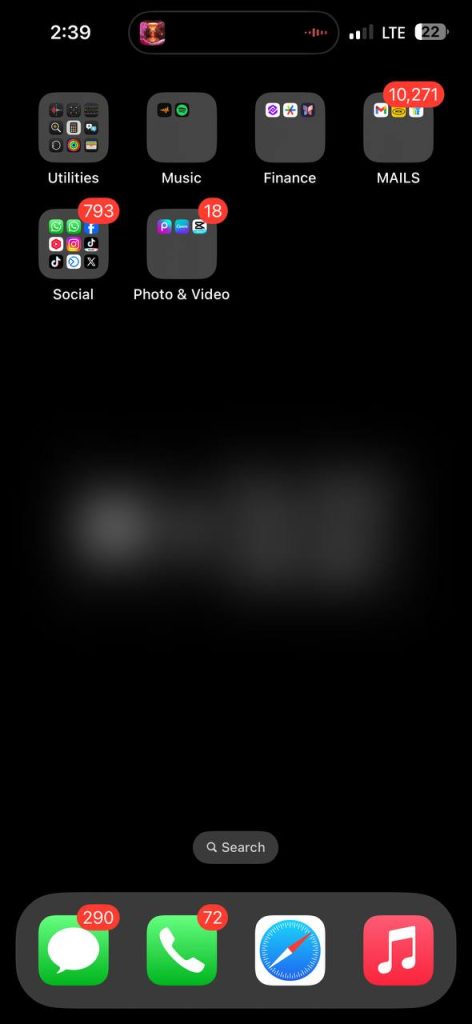
As you install more apps, your Home Screen can become cluttered. iPhone offers simple tools to keep things organized.
You can:
- Create folders by dragging one app onto another
- Remove apps from the Home Screen without deleting them
- Use the App Library to automatically organize apps by category
This helps keep your Home Screen clean while still allowing quick access to everything you need.
Using iCloud for Backup and Storage
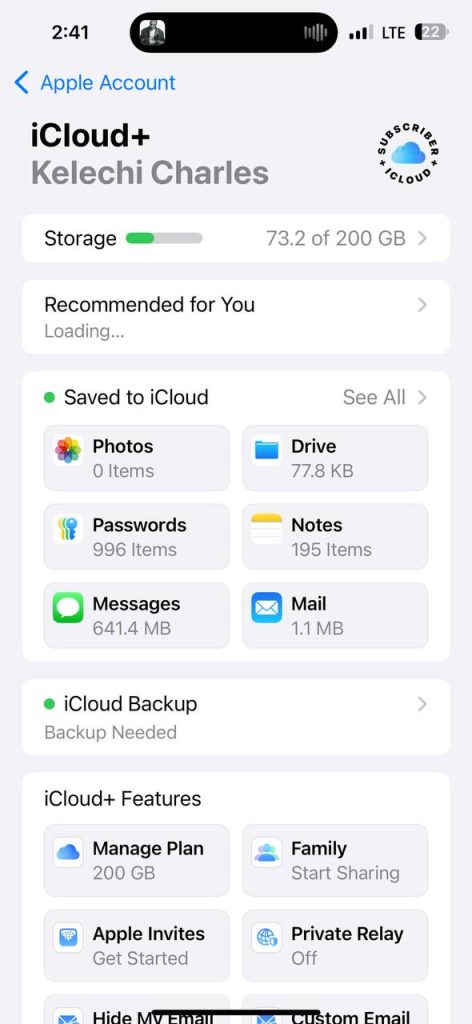
One of the most important tips for beginners is enabling iCloud Backup. iCloud automatically saves your photos, contacts, messages, and settings, so you can restore everything if you change or reset your phone.
To enable iCloud backup:
- Open Settings
- Tap your name at the top
- Select iCloud > iCloud Backup
- Turn it on
This step can save you from losing important data.
Mastering Notifications Without Stress
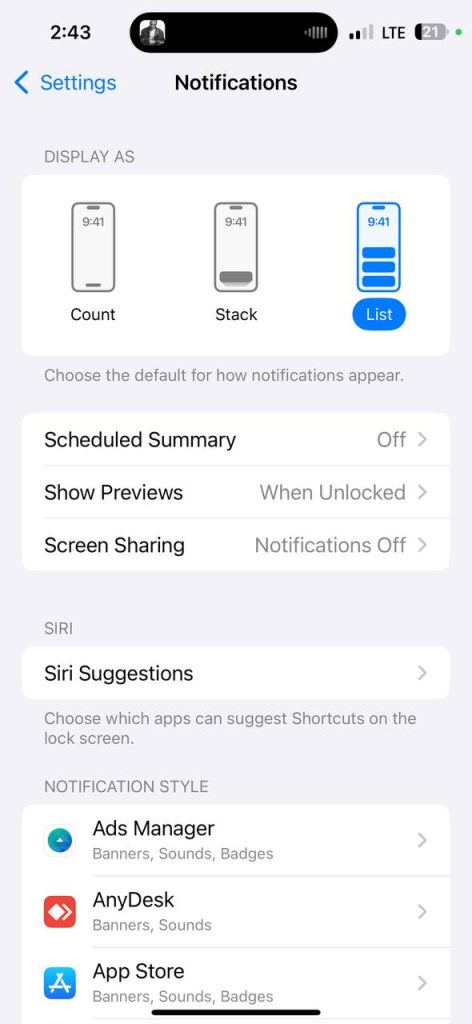
Notifications are useful, but too many can become distracting. iPhone allows you to control notifications on an app-by-app basis.
You can:
- Silence notifications from specific apps
- Schedule Focus modes for work or sleep
- Preview notifications privately on the lock screen
Learning to manage notifications improves productivity and reduces screen fatigue.
Taking Better Photos With iPhone Camera
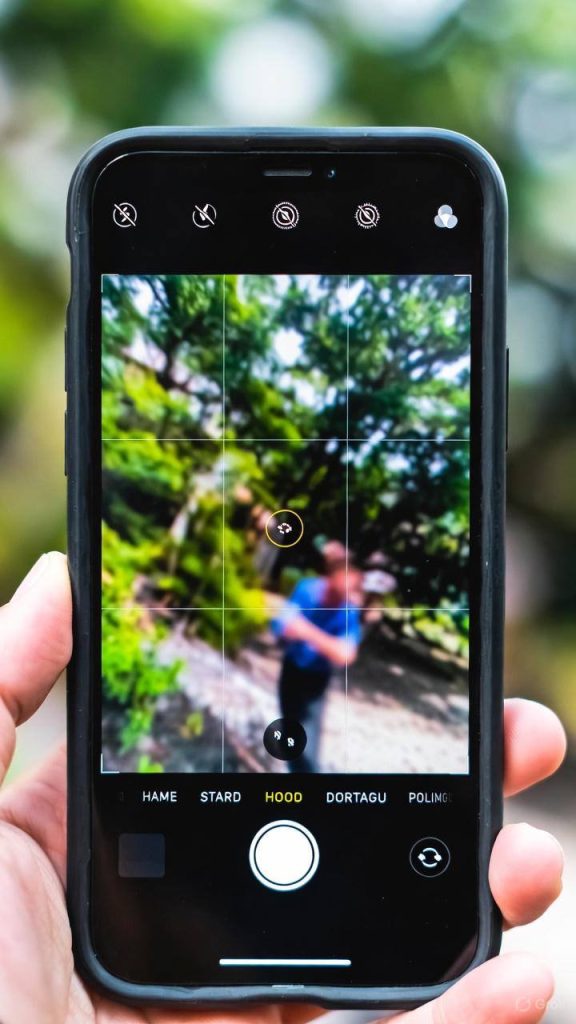
The iPhone camera is powerful, even if you are not a photography expert. Beginners can improve their photos simply by understanding a few basics.
Useful tips include:
- Tap to focus before taking a photo
- Use grid lines for better composition
- Use Portrait mode for people photos
- Adjust exposure by sliding up or down
You don’t need extra apps to take good photos; the built-in camera app is more than enough.
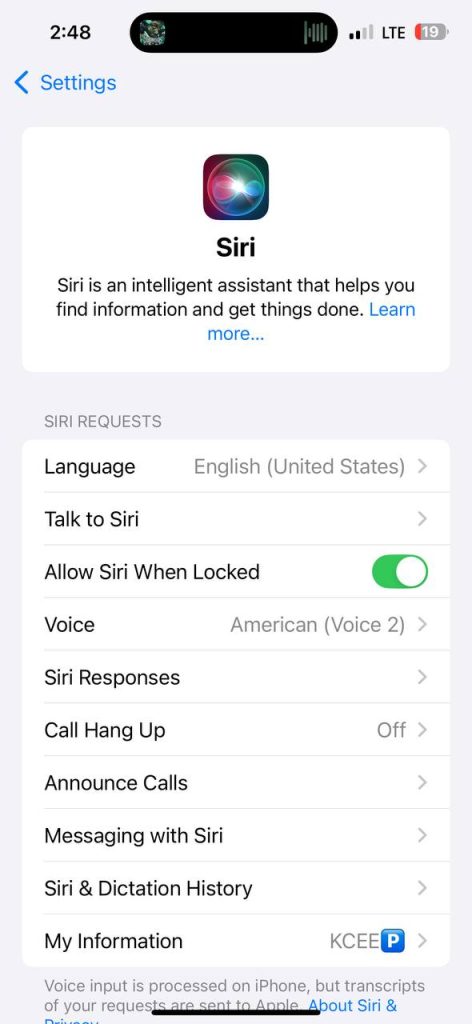
Using Siri and Voice Features
Siri is Apple’s voice assistant, and beginners often overlook how helpful it can be. You can use Siri to:
- Send messages
- Set reminders
- Make calls
- Check weather or time
- Control smart devices
You can activate Siri by saying “Hey Siri” or pressing the side button. It’s especially useful when your hands are busy.
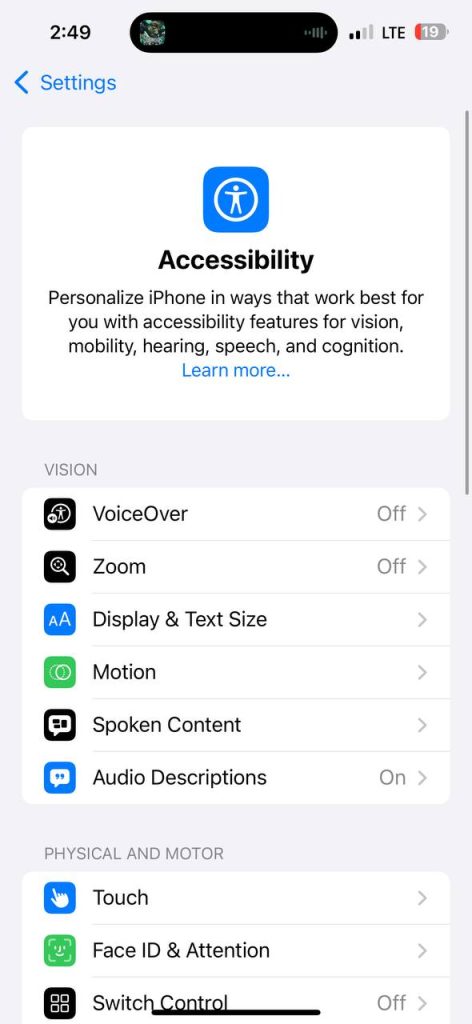
Accessibility Features Everyone Can Use
Accessibility features are not only for people with disabilities. Many of them improve daily usability for everyone.
Helpful accessibility tools include:
- Text size adjustment
- One-handed reachability
- Voice control
- Magnifier
These features make the iPhone more comfortable to use, especially for long periods.
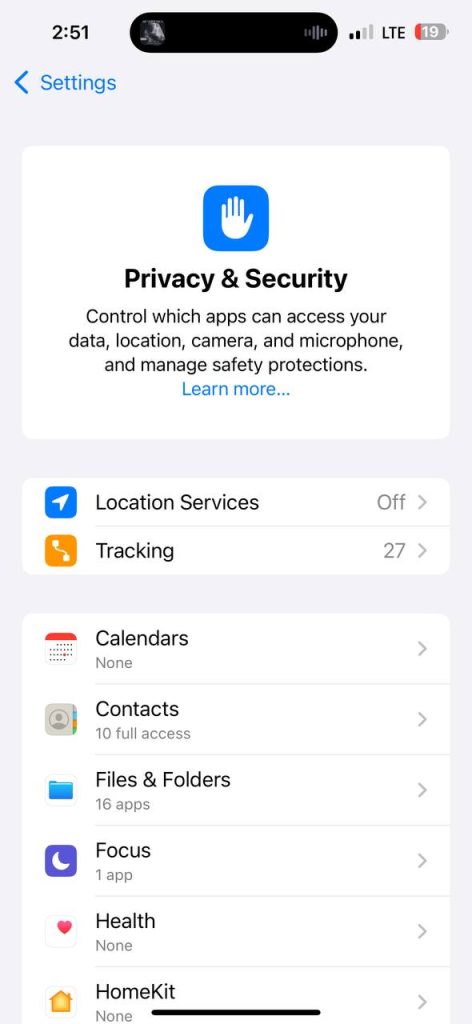
Keeping Your iPhone Secure and Private
Privacy is a major reason people choose iPhones. Beginners should review app permissions regularly.
Important steps include:
- Checking which apps access your location
- Limiting microphone and camera access
- Enabling “Find My iPhone”
- Keeping iOS updated
These steps protect your personal information without affecting usability.
Updating iOS Safely
Apple regularly releases iOS updates that improve performance and security. Beginners should always keep their phone updated.
Before updating:
- Make sure your battery is charged
- Back up your phone
- Use a stable Wi-Fi connection
Updating ensures your iPhone runs smoothly and stays protected from security threats.
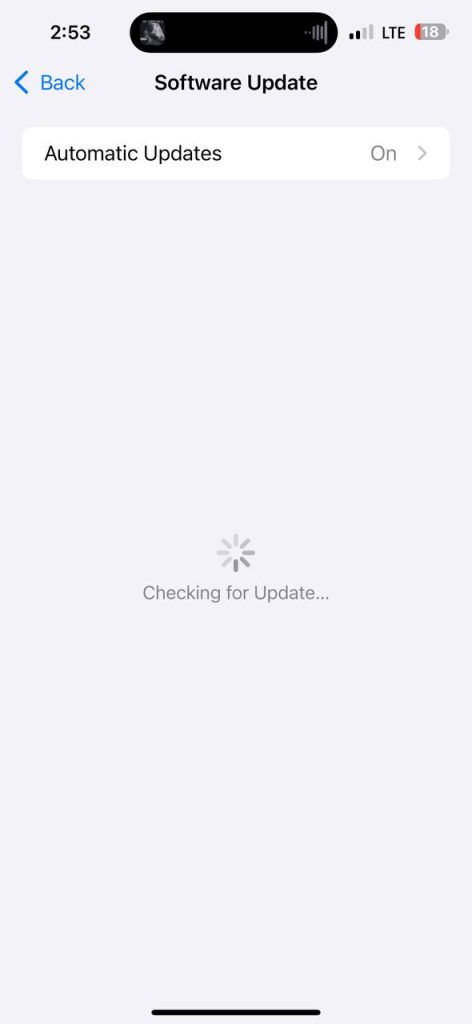
go to Settings—>General—–>Software Update note ensure your battery is charged up before updating your software.
Learning how to use an iPhone does not require technical knowledge or special skills. With a few simple adjustments and an understanding of core features, beginners can enjoy a smooth, secure, and efficient experience.
The iPhone is designed to grow with you. As you become more comfortable, you will naturally discover more features and shortcuts. Start with these basics, practice regularly, and your confidence will improve quickly.