
When building forms with HTML, you will often work with input fields where users are expected to enter information such as their name, email address, phone number, password, or search query.
While working with form inputs, two attributes that can easily confuse beginners are placeholder and value.
At first glance, they may seem to do almost the same thing because both can place text inside an input field. However, they have very different purposes.
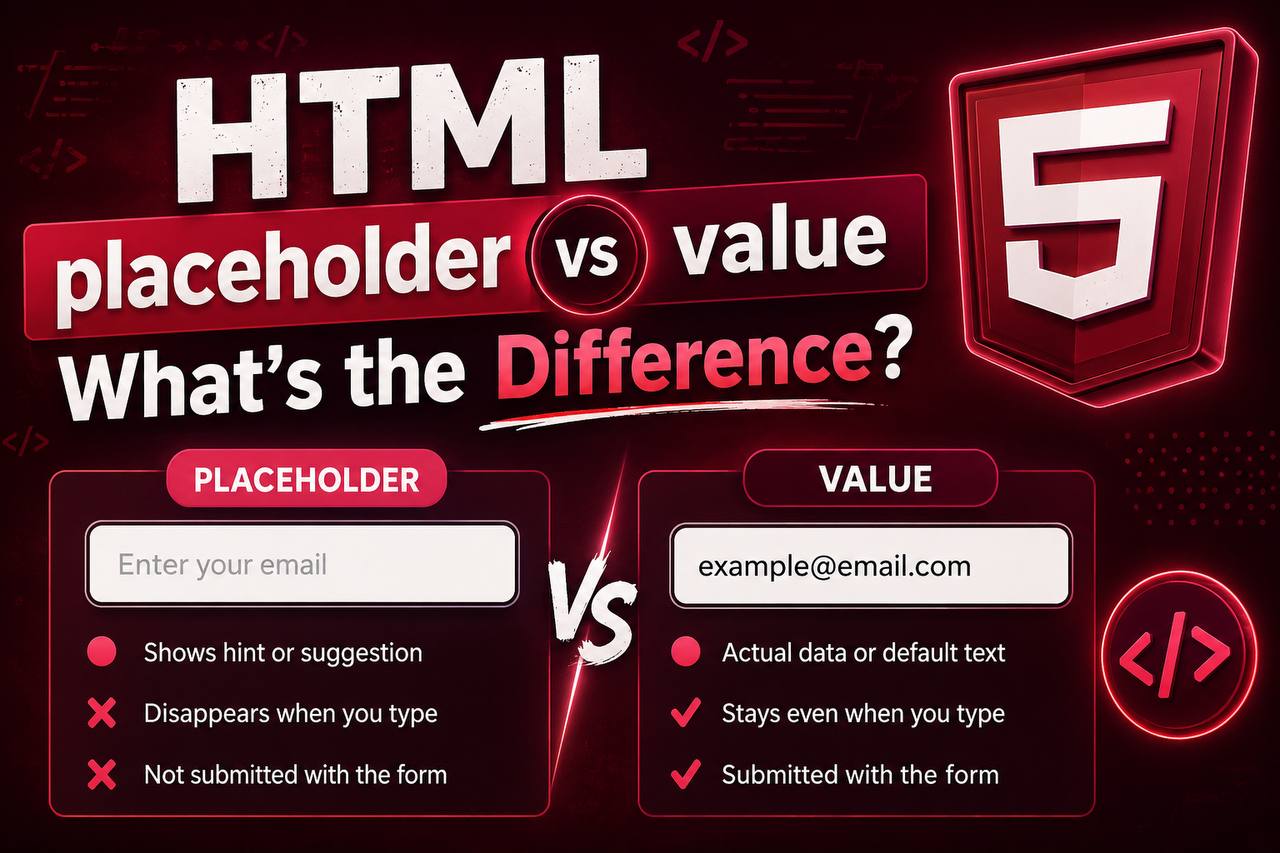
The placeholder attribute provides a temporary hint, while the value attribute provides the actual value of the input.
Understanding this difference is important because using the wrong one can make forms confusing for users and can also affect how your form behaves when it is submitted.
In this guide, we will explain the difference between HTML placeholder and value in simple terms, show where each one should be used, discuss common mistakes, and look at practical examples you can apply to your own projects.
What Is the placeholder Attribute?
The HTML placeholder attribute provides a short hint inside an input field.
The hint tells the user what kind of information they should enter.
For example, imagine you have an input field for an email address.
You might see something like:
Enter your email address
The text appears inside the empty input field.
Once the user starts typing, the placeholder text normally disappears.
A simple example looks like this:
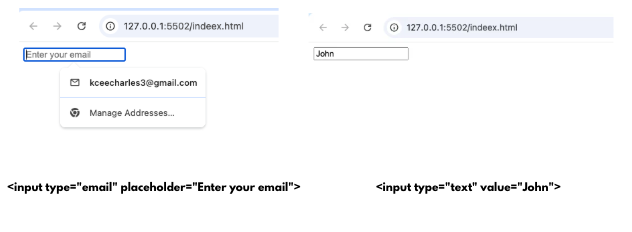
<input type="email" placeholder="Enter your email">
The important thing to understand is that the placeholder is not the user’s actual input.
It is simply a visual instruction.
What Is the value Attribute?
The value attribute represents the actual value of an input.
For example:
<input type="text" value="John">
The input field will initially contain the word John.
Unlike a placeholder, this text is considered the input’s value.
If the form is submitted without the user changing it, the value can be sent as part of the form data.
This is one of the biggest differences between placeholder and value.
The Simplest Way to Remember the Difference
If you are just starting with HTML forms, remember this simple rule:
placeholder tells the user what to type.
value gives the input a value.
For example:
A placeholder might say:
Enter your username
A value might say:
Kelechi
The first one is an instruction.
The second one is actual input data.
How placeholder Looks to the User
When you use a placeholder, the text usually appears lighter than normal input text.
For example, an empty search field might display:
Search for something…
The user can click the field and begin typing.
Once they type something, the placeholder normally disappears.
This makes placeholders useful for giving users a quick indication of what belongs in a particular field.
How value Looks to the User
A value is different because it represents information already placed in the input.
For example, an account settings page may contain a name field that already says:
Charles
The text is not merely a hint.
It is the current value of the field.
The user can leave it as it is or edit it.
placeholder Is Temporary
One of the easiest ways to understand placeholder is to think of it as temporary text.
Imagine an empty form field.
The placeholder might say:
Enter your phone number
The moment the user starts typing a phone number, that instruction disappears.
The placeholder does not become part of the submitted form value.
This makes it useful for guidance.
value Is Actual Input Data
The value attribute represents data contained in the input.
For example, if an input has a value of:
Lagos
then “Lagos” is the input’s current value.
If the form is submitted and the user has not changed it, that value can be included in the submitted form data.
This makes value useful when you want an input to start with existing information.
A Simple Real-World Example
Imagine a registration form.
You have a field asking for a username.
You could use a placeholder such as:
Choose a username
This tells the visitor what they are expected to enter.
But imagine an account editing page where the username is already known.
In that situation, you might display:
Kelechi123
as the current value.
The difference is clear:
- Choose a username = instruction
- Kelechi123 = actual value
Can You Use placeholder and value Together?
Yes, technically you can use both.
However, there is an important behavior to understand.
If the input already contains a value, the placeholder will generally not be visible because there is no empty space for the hint to appear.
For example:
<input type="text" value="John" placeholder="Enter your name">
The user will see John, not the placeholder.
This is because the input already contains a value.
When Should You Use placeholder?
Use a placeholder when the user needs a short hint about what to enter.
Common examples include:
- Enter your name
- Search here
- Enter your email
- Type your username
- Enter a website URL
The placeholder should provide useful guidance without becoming a long explanation.
When Should You Use value?
Use value when you want an input to contain an actual value when the page loads.
This is particularly useful when:
- Editing existing information
- Displaying saved information
- Creating pre-filled forms
- Providing a default value
- Building certain interactive applications
For example, an account profile page might load a user’s existing name into the name field.
Placeholder Does Not Replace a Label
This is an important lesson for beginners.
A placeholder should not normally be used as a replacement for a proper form label.
Consider an input that only says:
Enter your email
inside the field.
When the user starts typing, that text disappears.
The user may then forget what information the field was asking for.
A proper label remains visible and clearly identifies the field.
For example, a form can have:
Email Address
as the label and:
as the placeholder.
The label identifies the field, while the placeholder provides an example or hint.
Why Labels Are Important
Labels are especially important for accessibility.
People using screen readers and other assistive technologies need clear information about what each form field represents.
A placeholder can provide additional guidance, but it should not be relied upon as the only identification for a form field.
A good form therefore usually combines:
- A clear label
- An appropriate input type
- A useful placeholder when needed
This creates a better experience for different types of users.
Placeholder Text Should Be Short
A common mistake is putting too much information inside a placeholder.
For example, instead of writing a long sentence such as:
Please enter your complete first and last name exactly as it appears on your official documents
a shorter placeholder might be:
Enter your full name
The longer explanation can be placed outside the input field if it is necessary.
Placeholder Is Not a Default Value
This is another important distinction.
A placeholder does not mean that the input has a value.
If the field displays:
Enter your email
that does not mean the input’s value is “Enter your email.”
The text is simply a hint.
The actual value remains empty until the user enters something.
Value Can Be Submitted
Input values can be submitted as part of form data when the form is sent.
This is another reason why confusing value with placeholder can cause problems.
If you accidentally put instructional text into a value instead of a placeholder, that text may become actual form data.
For example, using:
<input value="Enter your email">
does not create a hint.
It creates an actual input value containing “Enter your email.”
That is usually not what you want.
A Practical Comparison
Let’s compare the two attributes directly.
| Feature | placeholder | value |
|---|---|---|
| Main purpose | Provides a hint | Provides an input value |
| Appears when field is empty | Yes | Yes, if a value exists |
| Disappears when typing | Usually | No, unless changed |
| Represents actual input data | No | Yes |
| Can be submitted as input data | No | Yes |
| Useful for instructions | Yes | No |
| Useful for pre-filled forms | No | Yes |
The table makes the main difference easy to remember.
Example: Search Box
A search box is a good example of where a placeholder makes sense.
You might display:
Search articles…
The user sees the hint and then enters their search term.
The search term becomes the actual value.
You normally would not want the phrase “Search articles…” to be submitted as the user’s search query.
That is why it belongs in placeholder, not value.
Example: Profile Editing Form
Now imagine a profile page.
The user’s name is already saved as:
John Smith
When the page opens, you want the user to see their current name and have the ability to change it.
This is a situation where value is appropriate.
The name is actual information, not an instruction.
Example: Login Form
A login form might contain an email field.
A placeholder could say:
Enter your email
This provides guidance.
If you are creating an account editing screen where the email is already known, however, the existing email could appear as the value.
The correct choice depends on the purpose of the field.
Example: Form With Both
You can also have a field that uses both attributes.
For example, an account form might start with an existing value while still having a placeholder for situations where the value is removed.
The important thing is understanding that the two attributes serve different purposes.
The value represents the current data.
The placeholder provides a hint when there is no value.
Common Beginner Mistake: Using value for Instructions
One of the most common mistakes is using the value attribute to tell users what they should type.
For example:
<input value="Enter your name">
This is not a placeholder.
The field actually contains the words “Enter your name.”
A better approach is to use the placeholder attribute for the instruction.
Common Beginner Mistake: Expecting Placeholder to Be Submitted
Another mistake is assuming that placeholder text becomes part of the form data.
It does not.
If the user does not type anything into the field, the placeholder remains only a visual hint.
This is important when working with HTML forms and backend applications.
Common Beginner Mistake: Using Placeholder Instead of Labels
Another common mistake is creating forms where every field depends entirely on placeholder text.
This can make forms harder to understand, especially after users start typing.
It can also create accessibility problems.
Use proper labels to identify form fields and use placeholders as optional supporting hints.
How Placeholder and Value Work With Different Input Types
Both attributes can be used with several types of form controls, although their usefulness depends on the input type.
For example, placeholders are commonly used with:
- Text inputs
- Email inputs
- Search inputs
- Telephone inputs
- URL inputs
Values are commonly used when an input needs to start with actual information.
For passwords, placeholders can provide hints such as:
Enter your password
However, developers should avoid placing sensitive information directly into a value.
Should You Use Placeholder Examples?
Yes, a short example can be helpful.
For instance, instead of simply saying:
Name
you could use:
John Smith
as a hint.
For an email address, you might use:
The goal is to show the expected format without pretending that the example is the user’s actual information.
Placeholder vs Value in JavaScript
The difference becomes even more important when you start learning JavaScript.
JavaScript can read and change the value of an input.
For example, when a user types something into a text field, JavaScript can access that current value.
The placeholder is different.
It is simply the hint displayed when the field does not contain a value.
This distinction becomes useful when creating:
- Form validation
- Search applications
- Login systems
- Registration forms
- Interactive dashboards
- Todo applications
Understanding the difference now will make JavaScript form work easier later.
Which One Should Beginners Use?
The answer depends on what you want to accomplish.
If you want to give the user an instruction, use placeholder.
If you want to put actual information inside the field, use value.
For example:
Placeholder:
“Enter your phone number”
Value:
“09038317082”
The first tells the user what to provide.
The second provides actual data.
Best Practices for Using placeholder
When using placeholders, keep these tips in mind:
Keep Them Short
A placeholder should be easy to read quickly.
Make Them Useful
Give users a meaningful hint rather than unnecessary text.
Don’t Use Them as Labels
Always provide clear field labels where appropriate.
Don’t Put Important Instructions Only in Placeholders
Because placeholders disappear when users type, important information should remain visible elsewhere.
Use Examples Carefully
Examples should show the expected format without being confusing.
Best Practices for Using value
When using the value attribute:
Use It for Actual Data
Don’t use it simply to display instructions.
Be Careful With Sensitive Information
Avoid exposing sensitive information unnecessarily in HTML.
Use It for Pre-Filled Forms
Values are particularly useful when users are editing existing information.
Allow Users to Change the Value
If a field is editable, users should be able to update the existing information when appropriate.
A Simple Way to Remember Everything
Imagine an empty notebook.
A placeholder is like a note written in pencil saying:
Write your name here.
It tells you what to do.
A value is like actually writing:
John Smith
The first is an instruction.
The second is information.
This simple comparison makes the difference much easier to remember.
Why This Difference Matters in Real Projects
The distinction between placeholder and value may seem small when you are learning HTML, but it becomes important as your projects become more advanced.
When building a real website, users interact with forms constantly.
Poorly designed forms can lead to:
- Confusion
- Incorrect submissions
- Poor accessibility
- Bad user experience
- Difficult form validation
Using the correct HTML attributes helps prevent these problems.
Practice Project: Create a Simple Registration Form
A good way to practice this concept is by creating a registration form.
Your form could contain:
- Full name
- Email address
- Username
- Password
- Phone number
Use placeholders to give users short hints about what each field expects.
Then experiment with values by creating an editing form that already contains sample information.
For example, your profile editing page could open with a person’s name and email already filled in.
This will help you see the difference between a hint and actual input data.
Practice Project: Create a Profile Editor
Another useful beginner project is a simple profile editor.
Imagine a page where users can update:
- Name
- Phone number
- Website
The existing information can appear as values.
If a user clears a field, a placeholder can provide a hint about what should be entered.
This is a practical situation where understanding both attributes becomes useful.
The difference between HTML placeholder and value is simple once you understand what each one represents.
The placeholder attribute is a hint. It gives users an idea of what they should type into an empty field. It is temporary and normally disappears when the user begins entering information.
The value attribute represents actual input data. It can be used to pre-fill an input with information that users can view, edit, or submit.
The easiest rule to remember is:
Use placeholder for guidance. Use value for data.
As you continue learning HTML, forms will become an important part of your web development skills. Understanding small details like this will help you create forms that are clearer, more accessible, and easier for users to interact with.
Once you understand the difference, try using both attributes in small practice projects. Build a login form, registration page, search box, or profile editor and observe how the input behaves.
These small exercises will help turn the concept from something you have simply read about into something you can confidently use in your own HTML projects.
Finally found a platform that doesn’t lag during peak hours. The user experience is top notch and the support team is very helpful. Give br616bet1 a try.