
When learning HTML, you will come across many attributes that look small but play an important role in how webpages work. One of these is the HTML name attribute.
The name attribute is especially important when working with forms, input fields, buttons, radio buttons, checkboxes, and other elements that need to be identified when information is submitted or handled by JavaScript.
For beginners, the name attribute can be confusing because it is easy to mistake it for the id attribute. Although they can sometimes contain similar values, they serve different purposes.
In this guide, we will explain the HTML name attribute in simple language, look at where it is commonly used, understand how it works with forms, and go through practical examples without filling the article with unnecessary code.
What Is the HTML name Attribute?
The name attribute gives an HTML element a name that can be used to identify it in certain situations.
It is most commonly associated with HTML forms.
For example, imagine a registration form asking a visitor for their:
- Name
- Email address
- Phone number
- Password
When the visitor submits the form, the website needs to know which piece of information belongs to which field.
The name attribute helps provide that identification.
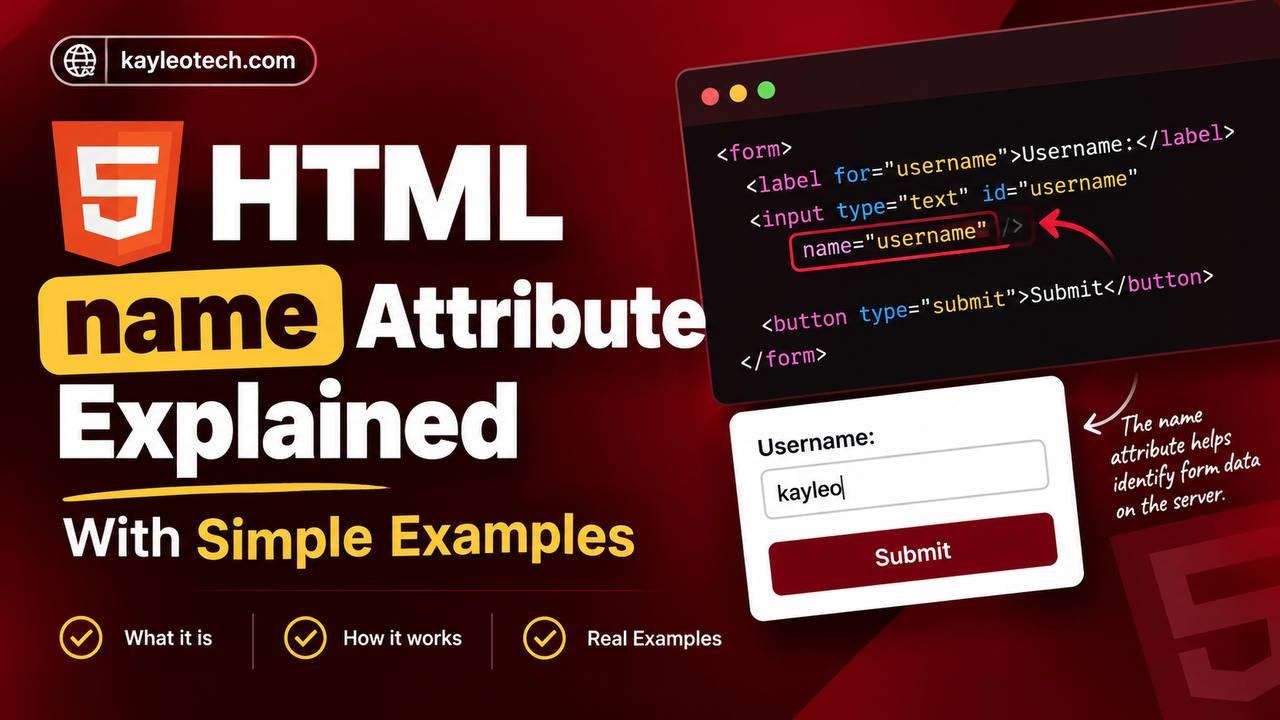
A simple example looks like this:
<input type="text" name="username">
Here, name="username" tells the browser that the value entered into this input belongs to the username field.
The important thing to understand is that the name attribute is not mainly about how an element looks. It is about identifying data or an element for a particular purpose.
Why Is the name Attribute Important?
The name attribute becomes especially important when information needs to be sent from a webpage to a server.
Imagine filling out a contact form.
You type:
Name: Kay
Email: info@kayleotech.com
The browser needs a way to package those values so the receiving system understands what each value represents.
The name attribute provides the field names.
Conceptually, the submitted information could look like:
name=Kay
email=info@kayleotech.com
The actual values come from what the visitor enters, while the names come from the form controls.
Without appropriate name attributes, form data may not be submitted in the way you expect.
Where Is the name Attribute Commonly Used?
The name attribute can appear on several HTML elements, but beginners will most often encounter it when working with forms.
Common examples include:
<input><textarea><select><button><form><iframe><object>
Its exact purpose depends on the element being used.
For beginners, however, the most important use to understand is form controls.
The name Attribute and <input>
The <input> element is probably where you will use the name attribute most often.
Consider a simple text field:
<input type="text" name="username">
The visitor sees a text box, but the browser also knows that the field has the name username.
If the visitor types “Charles”, the form can submit that information as a username value.
This becomes especially useful when a server receives the submitted form.
The name Attribute and Email Fields
An email field can also have a name.
For example:
<input type="email" name="email">
The type tells the browser what kind of input it is.
The name tells the browser what the submitted field is called.
This distinction is important.
The two attributes are doing different jobs.
The name Attribute and Password Fields
Password fields can also use the name attribute.
For example:
<input type="password" name="password">
The browser understands that the field is a password input, while password identifies the field when its value is processed.
In a real application, passwords should always be handled securely on the server.
The name Attribute and <textarea>
The name attribute is not limited to <input> elements.
It is also commonly used with <textarea>.
A textarea is useful when users need to enter longer content, such as:
- Messages
- Comments
- Feedback
- Descriptions
For example:
<textarea name="message"></textarea>
If a visitor types a message and submits the form, the name value helps identify that submitted information as the message.
The name Attribute and <select>
The <select> element creates a dropdown menu.
The name attribute identifies the selected option when the form is submitted.
For example:
<select name="country">
If the user chooses Nigeria, the submitted information can be associated with the country field.
This is why name is important for dropdown forms.
The name Attribute With Radio Buttons
Radio buttons are one of the most important examples for understanding the name attribute.
Suppose a form asks:
What is your preferred language?
The choices might be:
- HTML
- CSS
- JavaScript
You want the visitor to select only one.
The radio buttons should normally share the same name value.
For example:
<input type="radio" name="language" value="html">
<input type="radio" name="language" value="css">
<input type="radio" name="language" value="javascript">
The shared name tells the browser that these radio buttons belong to the same group.
This is an extremely important concept.
Why Radio Buttons Need the Same name
Imagine you create three radio buttons but give each one a different name.
The browser may treat them as separate groups.
That can allow the user to select more than one option, which defeats the purpose of a traditional radio-button group.
By giving related radio buttons the same name, you tell the browser that they represent different choices for the same question.
So remember:
Radio buttons that belong to the same group normally share the same name.
The name Attribute With Checkboxes
Checkboxes work differently from radio buttons.
Checkboxes allow users to select multiple options.
For example, a form could ask:
Which technologies do you know?
A visitor might select:
- HTML
- CSS
- JavaScript
Checkboxes can use a common name when their values belong to the same category.
The important difference is that radio buttons normally allow one selection from a group, while checkboxes can allow several selections.
The name attribute helps identify the submitted data.
name vs id: What Is the Difference?
This is probably the most common question beginners ask.
The name and id attributes may sometimes contain the same word, but they are not the same thing.
For example:
<input type="text" id="username" name="username">
Here, both values happen to be username.
However, they have different purposes.
The id uniquely identifies an element within the webpage.
The name identifies the field when it is used in situations such as form submission.
Think of it this way:
id = identity of the HTML element
name = name associated with the field or data
This distinction becomes much clearer as you begin working with CSS, JavaScript, and forms.
Can id and name Have the Same Value?
Yes.
It is common to see:
<input id="email" name="email">
There is nothing wrong with this.
In fact, using matching values can sometimes make your code easier to understand.
However, remember that the two attributes still serve different purposes.
What Happens If You Don’t Use name?
This depends on the element and what you are trying to accomplish.
For form controls, the biggest issue is that their values may not be included in normal form submission in the way you expect.
For example, you may create an input field that users can type into, but if it has no appropriate name, the server may not receive that value as a named form field.
This is why developers usually give form controls meaningful name values.
The name Attribute Does Not Create a Label
Another common beginner misunderstanding is thinking that the name attribute displays a label.
It does not.
For example:
<input type="text" name="username">
The word username will not automatically appear beside the input box.
If you want users to see a description such as “Username”, you should use a <label>.
The name attribute works behind the scenes.
name vs <label>
These two features work together but serve different purposes.
The <label> explains the field to the user.
The name identifies the field for form processing.
For example:
<label for="email">Email Address</label>
<input type="email" id="email" name="email">
The visitor sees “Email Address”.
The browser and form-processing system can identify the field using name="email".
Choosing Good name Values
When creating forms, choose names that clearly describe the information being collected.
Good examples include:
firstNamelastNameemailphonemessagecountryusername
Avoid confusing names such as:
x1
abc
field2
random
Clear names make your HTML easier to understand and maintain.
The name Attribute Is Case-Sensitive in Practice
When working with form data, consistency is important.
For example:
email
and
Email
should not be casually treated as the same field.
Choose a naming style and use it consistently throughout your project.
Many developers prefer lowercase names or camelCase names because they are easy to read.
The name Attribute and Form Submission
To understand the real purpose of name, imagine a login form.
The user enters:
Username: kayleotech
Password: example-password
The form can send information using names such as:
username=kayleotech
password=example-password
The name values act like labels for the submitted data.
The server can then look for the expected field names and process the values.
This is why the name attribute is so important in traditional HTML forms.
The name Attribute and JavaScript
JavaScript can also interact with form elements using their names.
For example, JavaScript can locate form controls and read their values.
This makes the name attribute useful when building interactive websites.
However, modern JavaScript provides several ways to select elements, including IDs, classes, and other selectors.
So you should not think of name as the only way JavaScript can find a form element.
The name Attribute and <button>
Buttons can also have a name attribute.
This can become useful when a form has multiple buttons that perform different actions.
For example, a form might have:
- Save
- Delete
- Preview
The button’s name and value can help identify which action the user selected when the form is submitted.
This is another example of how name can be connected to form processing.
The <form> Element and name
The <form> element itself can also have a name attribute.
However, beginners should not confuse the form’s name with the names of the individual fields inside the form.
A form can contain many controls, and each control can have its own name.
For example, a registration form might contain:
firstNamelastNameemailpassword
The form acts as the overall container, while the individual fields have their own names.
Common Beginner Mistakes
There are several mistakes worth avoiding.
Using id Instead of name
An input may have an id and still be missing the name needed for normal form submission.
Remember that id and name serve different purposes.
Giving Radio Buttons Different Names
Radio buttons that represent one question should normally share the same name.
Using Meaningless Names
Choose descriptive names so you can understand your form later.
Thinking name Changes Appearance
The name attribute does not automatically change the visual appearance of an element.
CSS controls appearance.
Forgetting the name Attribute in Forms
If you expect a form field’s value to be submitted, make sure the field has an appropriate name.
Best Practices for Using the name Attribute
A few simple habits can make your HTML forms much easier to manage.
Use Descriptive Names
Choose names that explain what information the field contains.
Keep Naming Consistent
Do not use first_name in one place and firstName somewhere else without a reason.
Use the Same Name for Related Radio Buttons
This allows the browser to treat them as one group.
Combine name With id When Appropriate
Using both is common and useful, especially when connecting labels to inputs.
Test Your Forms
Always submit your form and check that the expected information is being received correctly.
A Simple Practice Project
A good way to understand the name attribute is to create a basic contact form.
Your practice project could contain:
- Full name
- Subject
- Message
- Preferred contact method
- Submit button
Give every form field a clear name.
For example:
- Full name →
fullName - Email →
email - Subject →
subject - Message →
message
For preferred contact method, you could use radio buttons that share the same name.
This small project will teach you much more than simply memorizing the definition of the attribute.
How to Practice the name Attribute
Start with a simple form containing two fields.
Then add more fields gradually.
Next, experiment with radio buttons and checkboxes.
After that, create a dropdown menu using <select>.
Finally, connect the form to JavaScript or a server so you can see how the submitted names and values are processed.
This progression makes the concept easier to understand.
The HTML name attribute may look like a small detail, but it plays an important role in web development, especially when working with forms.
It helps identify form fields and allows their values to be associated with meaningful names when information is submitted. It is also important when grouping radio buttons and can be useful when working with JavaScript and buttons.
One of the most important things to remember is that name and id are not the same. An id identifies an HTML element within a document, while name is particularly important for identifying form data and grouping related form controls.
Once you start building registration forms, contact forms, surveys, login pages, and other interactive projects, you will see the name attribute frequently.
The best way to learn it is through practice. Build a small form, give each field a meaningful name, experiment with radio buttons and checkboxes, and then inspect what happens when the form is submitted.
With that practical experience, the purpose of the HTML name attribute will become much easier to understand.