
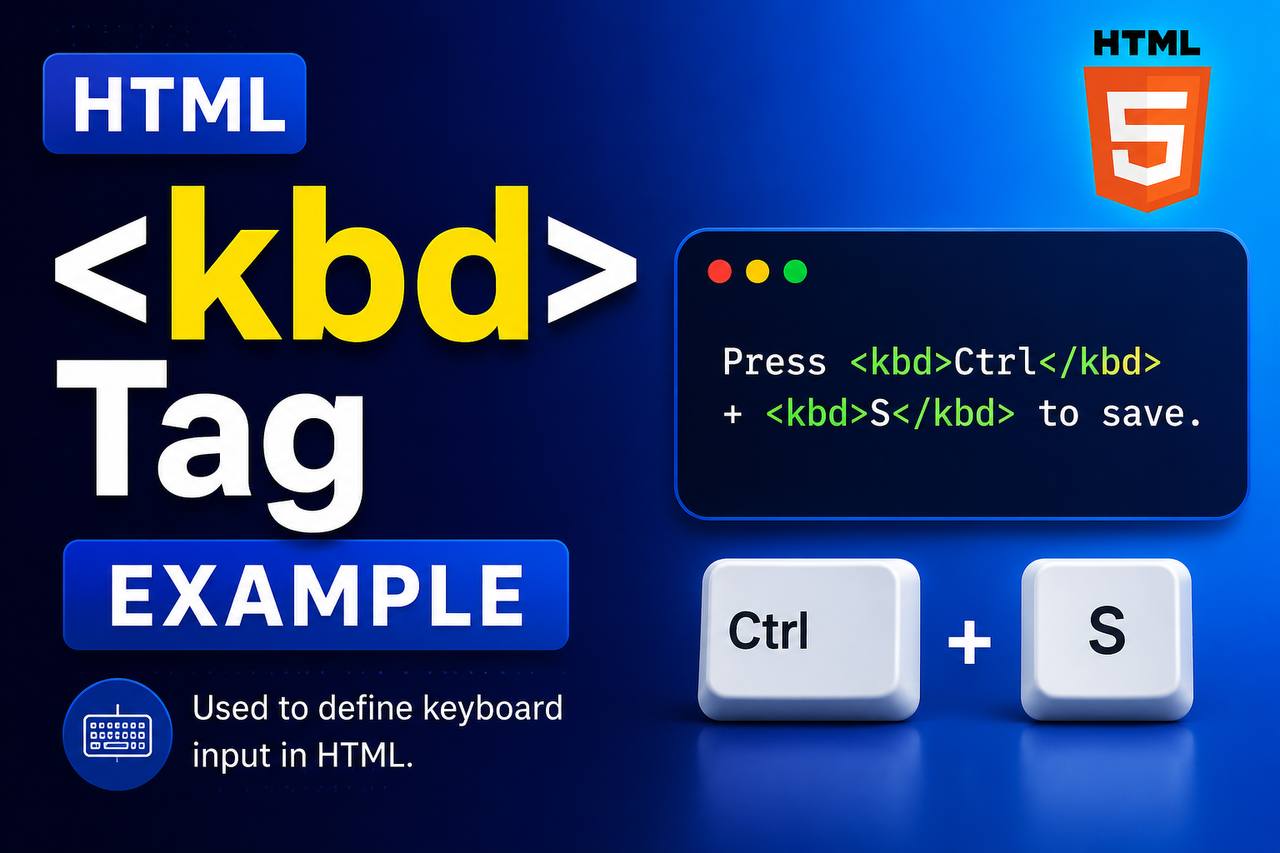
When learning HTML, most beginners focus on common elements like headings, paragraphs, images, links, and forms. However, HTML also includes several specialized tags that help give meaning to content. One of these useful but often overlooked elements is the <kbd> tag.
The <kbd> element is designed to represent keyboard input. Whenever a webpage needs to show a key, keyboard shortcut, or command that a user should type, the <kbd> tag helps identify that information clearly.
You have probably seen keyboard instructions on websites before:
- Press Ctrl + C to copy.
- Press Ctrl + V to paste.
- Press Enter to submit.
- Press Esc to close the dialog.
The <kbd> element is specifically intended for displaying this type of user input.
In this beginner-friendly guide, you’ll learn what the HTML <kbd> tag does, why it exists, how it is used in practice projects, and how it helps improve readability and accessibility.
This article focuses mainly on clear explanations rather than large amounts of code so that beginners can understand the concept easily.
What is the HTML <kbd> Tag?
The <kbd> tag stands for Keyboard Input.
It is a semantic HTML element used to represent text that users should type using a keyboard, touchscreen keyboard, voice command system, or another input method.
In simple terms, whenever a website tells users to press a key or enter a command, that text can be wrapped inside a <kbd> element.
For example:
<kbd>Enter</kbd>
This indicates that the word “Enter” refers to the Enter key on a keyboard.
Why the <kbd> Tag is Important
The <kbd> tag may seem small, but it serves an important purpose.
It helps browsers, developers, and users understand that certain text represents keyboard input rather than ordinary content.
Benefits include:
- Better readability
- Improved accessibility
- More meaningful HTML structure
- Professional documentation
- Clearer user instructions
Semantic HTML elements like <kbd> help make webpages easier to understand.
Basic Syntax of the <kbd> Tag
The syntax is simple:
<kbd>Ctrl</kbd>
Anything placed between the opening and closing tags is treated as keyboard input.
How the <kbd> Tag Works
The <kbd> element does not perform actions by itself.
Instead, it tells the browser:
“This text represents user keyboard input.”
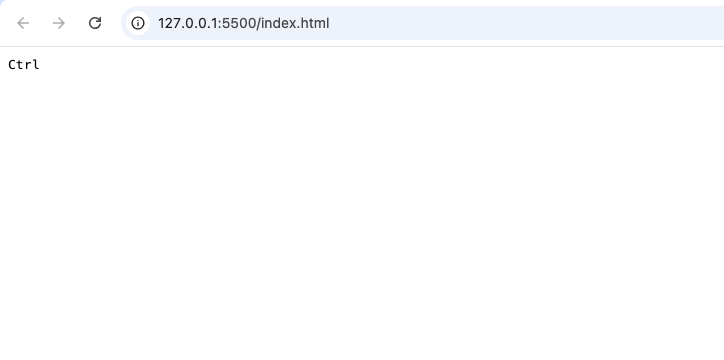
Browsers often display <kbd> content using a special style.
Typically it appears:
- Slightly boxed
- Monospaced
- Similar to a keyboard key
The exact appearance depends on the browser and website styling.
Common Examples of <kbd> Usage
The <kbd> tag is often used in instructions.
Examples include:
Copying Text
<kbd>Ctrl</kbd> + <kbd>C</kbd>
Pasting Text
<kbd>Ctrl</kbd> + <kbd>V</kbd>
Saving a File
<kbd>Ctrl</kbd> + <kbd>S</kbd>
Refreshing a Page
<kbd>F5</kbd>
These examples help users identify exactly which keys to press.
Understanding Keyboard Shortcuts
Keyboard shortcuts are one of the most common uses of the <kbd> tag.
Many websites, software applications, and tutorials include shortcut instructions.
Examples:
| Action | Shortcut |
|---|---|
| Copy | Ctrl + C |
| Paste | Ctrl + V |
| Cut | Ctrl + X |
| Undo | Ctrl + Z |
| Save | Ctrl + S |
Using <kbd> makes these shortcuts easier to recognize.
Real-World Example: Software Tutorials
Imagine creating a tutorial about a text editor.
You might write:
“Press Ctrl + S to save your document.”
Using the <kbd> element helps distinguish the shortcut from the rest of the text.
This improves readability.
Real-World Example: Coding Tutorials
Programming tutorials frequently use keyboard instructions.
Examples:
- Press Enter to run the command.
- Press Tab for indentation.
- Press Esc to exit.
The <kbd> element helps display these instructions clearly.
Real-World Example: Gaming Guides
Gaming websites often provide control instructions.
Examples:
- Press W to move forward.
- Press Space to jump.
- Press Shift to sprint.
The <kbd> tag is useful in these situations because it visually separates controls from normal text.
Difference Between <kbd> and Normal Text
Compare these examples:
Normal text:
Press Enter to continue.
Using <kbd>:
Press <kbd>Enter</kbd> to continue.
The second version clearly identifies the key being referenced.
This improves user understanding.
Difference Between <kbd> and <code>
Beginners sometimes confuse these two elements.
They have different purposes.
<kbd> | <code> |
|---|---|
| Represents user input | Represents computer code |
| Keyboard commands | Programming syntax |
| User actions | Developer instructions |
Example:
<kbd>Enter</kbd>
Means:
User presses the Enter key.
Example:
<code>console.log()</code>
Means:
Programming code.
Difference Between <kbd> and <samp>
Another related tag is <samp>.
Here is the difference:
<kbd> | <samp> |
|---|---|
| User input | Computer output |
| Keys typed by user | Results shown by system |
Example:
User input:
<kbd>dir</kbd>
Computer response:
<samp>Directory listing displayed</samp>
The two elements often work together in technical documentation.
When Should You Use <kbd>?
Use <kbd> whenever content refers to:
- Keyboard keys
- Keyboard shortcuts
- User-entered commands
- Button combinations
- Device input instructions
This makes the purpose of the text clear.
Practice Project Idea #1: Keyboard Shortcut Guide
A beginner-friendly project could be a webpage listing common keyboard shortcuts.
Sections could include:
- Windows shortcuts
- Mac shortcuts
- Browser shortcuts
- Coding shortcuts
The <kbd> element would be used throughout the page.
Practice Project Idea #2: Coding Tutorial Website
If you’re creating coding lessons, you can use <kbd> to show:
- Command-line instructions
- Editor shortcuts
- Navigation shortcuts
This helps make tutorials more professional.
Practice Project Idea #3: Computer Basics Course
A beginner computer course might explain:
- Enter key
- Shift key
- Ctrl key
- Alt key
- Function keys
The <kbd> tag makes these references easier to understand.
Practice Project Idea #4: Gaming Controls Page
Create a webpage explaining game controls.
Examples:
- W = Move forward
- A = Move left
- D = Move right
- Space = Jump
This is another excellent use case.
Accessibility Benefits of <kbd>
Accessibility is one reason semantic HTML matters.
The <kbd> element helps assistive technologies understand the meaning of content.
Instead of appearing as random text, keyboard instructions are clearly identified.
This improves the experience for users who rely on screen readers.
Why Semantic HTML Matters
Semantic HTML gives meaning to content.
Examples include:
<header><footer><article><section><code><kbd>
These tags help browsers and assistive technologies interpret content correctly.
The <kbd> element is part of this semantic system.
Browser Support for <kbd>
The <kbd> tag has excellent browser support.
It works in:
- Chrome
- Firefox
- Safari
- Edge
- Opera
Because it has been part of HTML for many years, compatibility is rarely an issue.
Styling the <kbd> Tag
By default, browsers usually give <kbd> elements a keyboard-like appearance.
Developers can further customize the look using CSS.
Many websites style <kbd> elements to resemble real keyboard keys.
This improves visual clarity.
Common styles include:
- Borders
- Rounded corners
- Light backgrounds
- Shadows
These effects help users recognize keyboard commands instantly.
Common Beginner Mistakes
Here are mistakes beginners often make.
1. Using <kbd> for Code
The <kbd> tag is not intended for programming code.
Use <code> instead.
2. Using Plain Text for Keyboard Instructions
Many beginners write:
“Press Ctrl + C”
without using semantic markup.
Using <kbd> is a better approach.
3. Overusing the Tag
Only use <kbd> when referring to user input.
Do not use it for ordinary text.
4. Ignoring Accessibility
Semantic elements help improve accessibility.
Using the proper tag makes content easier to understand.
Practical Uses in Documentation
Technical documentation often relies heavily on <kbd>.
Examples include:
- Software manuals
- User guides
- Help centers
- Setup instructions
- Training materials
Clear keyboard instructions improve usability.
Practical Uses in Online Learning Platforms
Educational websites frequently teach:
- Computer skills
- Programming
- Design software
- Productivity tools
These lessons often require keyboard instructions.
The <kbd> tag helps present those instructions clearly.
SEO and the <kbd> Element
The <kbd> element does not directly improve search rankings.
However, semantic HTML contributes to:
- Better content structure
- Improved accessibility
- Easier interpretation by browsers
These factors support a better user experience overall.
Combining <kbd> with Other HTML Elements
The <kbd> element works well with:
<code><samp><p><li><article>
This allows developers to build clear and informative technical content.
Best Practices for Using <kbd>
Here are some useful guidelines.
Use It Only for Input
Reserve <kbd> for keyboard and user input instructions.
Keep Instructions Clear
Make shortcuts easy to understand.
Use Consistent Formatting
Apply the same style throughout the page.
Combine with Good Explanations
Do not assume users know every shortcut.
Provide context when necessary.
Why Every HTML Beginner Should Learn <kbd>
The <kbd> tag may not be used as frequently as headings or paragraphs, but it plays an important role in creating professional documentation and tutorials.
Understanding <kbd> helps you:
- Write better instructional content
- Learn semantic HTML
- Improve accessibility
- Create more polished projects
Even if you only use it occasionally, knowing its purpose makes you a more complete web developer.
The HTML <kbd> tag is a simple but valuable semantic element used to represent keyboard input and user commands. Whether you’re creating software tutorials, coding lessons, gaming guides, help pages, or educational content, the <kbd> element helps make instructions clearer and easier to understand.
While it may seem like a small tag, it contributes to better accessibility, improved readability, and more meaningful HTML structure. As you continue learning web development, understanding specialized elements like <kbd> will help you create webpages that are both user-friendly and professionally organized.
The more you practice using semantic HTML correctly, the stronger your foundation in web development will become.