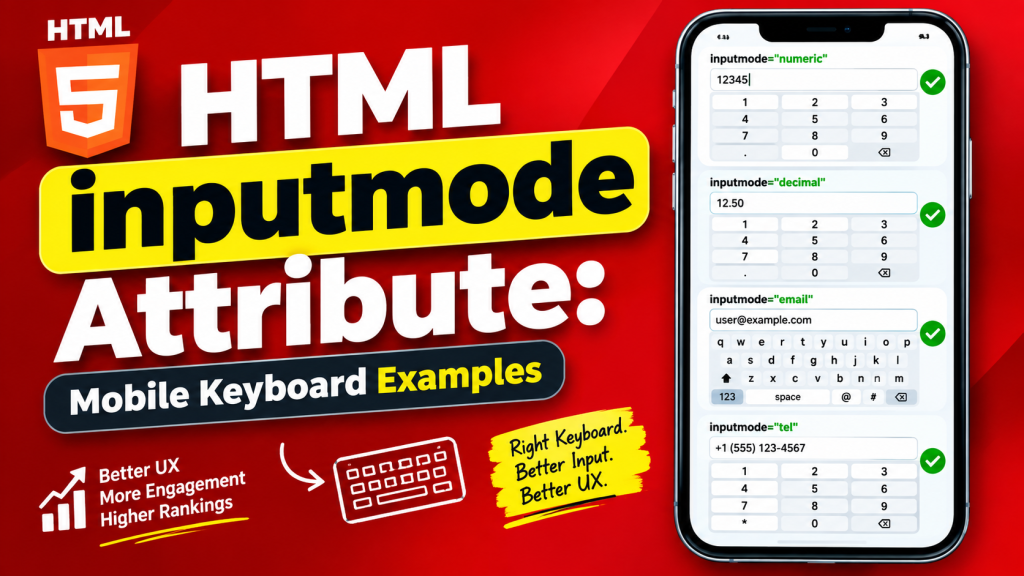
When building forms for websites, most beginners focus on creating text fields, email fields, password fields, and buttons. While these are important, there is another HTML feature that can make forms much easier to use on smartphones and tablets: the inputmode attribute.
The inputmode attribute helps browsers display the most appropriate on-screen keyboard for users based on the type of information they need to enter. Instead of making someone search for numbers or special symbols on a mobile keyboard, you can guide the browser to show the right keyboard from the start.
Although inputmode is a small HTML attribute, it greatly improves the user experience, especially on mobile devices where typing can sometimes be slow or frustrating.
In this beginner-friendly guide, you’ll learn what the inputmode attribute is, why it matters, the different keyboard options it supports, and practical ways to use it in your own HTML practice projects.
This article focuses mainly on easy-to-understand explanations rather than large amounts of code, making it suitable for beginners and evergreen as HTML continues to evolve.
What is the HTML inputmode Attribute?
The inputmode attribute is an HTML global attribute that provides a hint to the browser about which virtual keyboard should appear when a user focuses on an input field.
In simple words, it tells smartphones and tablets:
“Show the keyboard that best matches the type of information this user is about to type.”
Unlike the type attribute, which defines what kind of input is expected, inputmode mainly affects the keyboard layout displayed on touch-screen devices.
Basic Syntax
A simple example looks like this:
<input type="text" inputmode="numeric">
This tells compatible browsers to display a numeric keyboard even though the input itself is still a text field.
Why the inputmode Attribute is Important
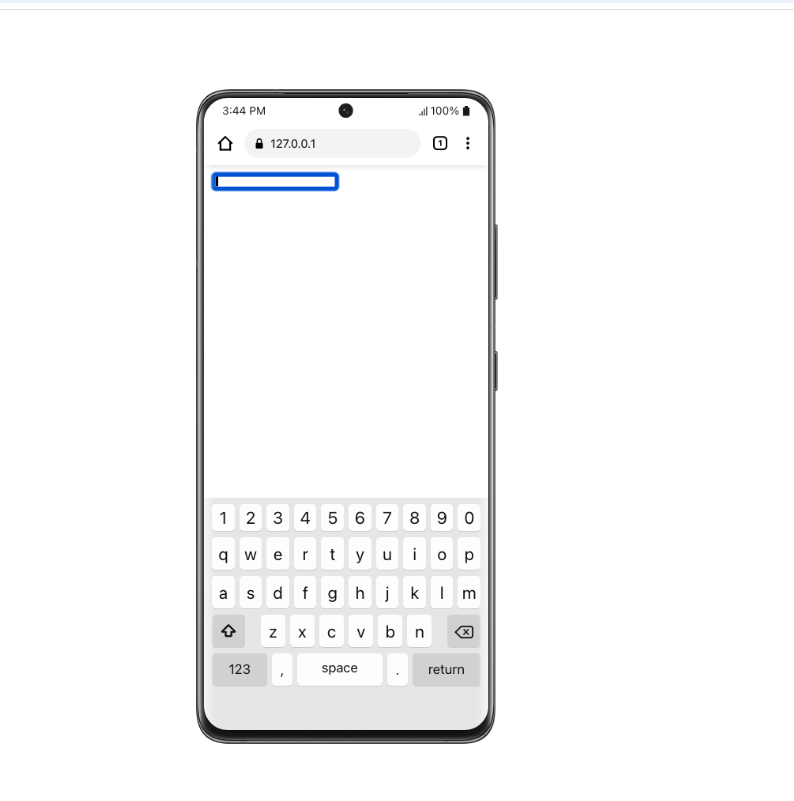
Imagine you’re filling out an online form on your phone.
You tap a field meant for entering a phone number, but a full alphabetical keyboard appears instead. You now have to manually switch to the number keypad.
That extra step may seem small, but when users complete multiple fields, these small inconveniences add up.
The inputmode attribute solves this problem by helping browsers choose a keyboard that matches the expected input.
Benefits include:
- Faster typing
- Better user experience
- Fewer typing mistakes
- More mobile-friendly forms
- Easier data entry
How inputmode Works
The browser reads the value of the inputmode attribute and chooses the most suitable virtual keyboard.
For example:
- A number field can show a numeric keypad.
- An email field can emphasize the @ symbol.
- A search box may display a Search button.
- A URL field may make “.com” or “/” easier to access.
The exact appearance depends on the user’s device and browser, but the overall goal remains the same: make typing easier.
inputmode vs type
Many beginners confuse these two features.
Here is the difference.
type | inputmode |
|---|---|
| Defines the kind of input | Suggests the keyboard layout |
| Controls validation in many cases | Mainly improves mobile typing |
| Affects browser behavior | Affects virtual keyboards |
| Required for many form controls | Optional enhancement |
Think of type as defining what the field is, while inputmode suggests how users should enter the information.
Common inputmode Values
The inputmode attribute supports several useful values.
Each one is designed for a different typing situation.
Let’s explore them one by one.
1. text
This is the default keyboard.
It displays a normal alphabet keyboard suitable for:
- Names
- Addresses
- Comments
- General text
Most ordinary text fields use this mode automatically.
2. numeric
The numeric value displays a number-focused keyboard.
It is useful for entering:
- Ages
- Quantities
- Identification numbers
- PINs
- Student numbers
Instead of showing letters first, users immediately see digits.
This makes data entry much faster.
3. decimal
The decimal keyboard includes numbers and a decimal separator.
It is useful for:
- Prices
- Measurements
- Weights
- Percentages
Users can easily enter values like:
- 19.99
- 7.5
- 3.14
4. tel
The tel value displays a telephone keypad.
This keyboard is ideal for:
- Phone numbers
- Customer support numbers
- Emergency contacts
Many mobile operating systems display large number buttons similar to a phone dialer.
5. email
The email keyboard makes email addresses easier to type.
It usually provides quick access to:
- @
- .
- Common email-related characters
This reduces the effort required to type an email address.
6. url
The url keyboard is designed for website addresses.
It often includes shortcuts for:
- /
- .
- Domain-related characters
This helps users enter website addresses more quickly.
7. search
The search value is useful for search boxes.
Many browsers change the Enter key into a Search button, making the interface feel more natural.
Real-World Examples
Although the code behind inputmode is simple, its real value comes from everyday situations.
Imagine these common forms.
Online Shopping
Customers may enter:
- Phone numbers
- Delivery addresses
- Coupon codes
Using appropriate keyboard layouts speeds up checkout.
Banking Applications
Users often type:
- Account numbers
- PINs
- Transfer amounts
Displaying a numeric keyboard makes these tasks easier.
Contact Forms
Visitors usually enter:
- Names
- Email addresses
- Phone numbers
Each field can provide a more suitable keyboard.
Search Boxes
Instead of a regular Enter key, users see a Search action, making the experience more intuitive.
Why Mobile Users Benefit Most
Desktop users have full keyboards.
Smartphone users rely on virtual keyboards.
Every time users switch between letters, numbers, and symbols, they spend extra time.
The inputmode attribute reduces these unnecessary keyboard changes.
This creates:
- Faster forms
- Happier users
- Better usability
Browser Support
The inputmode attribute is supported in all major modern browsers, including:
- Google Chrome
- Microsoft Edge
- Mozilla Firefox
- Safari
- Opera
Most Android and iOS devices also support it.
Older browsers may ignore it, but doing so does not usually break the form.
Accessibility Benefits
Accessibility means making websites easier for everyone to use.
The inputmode attribute contributes by helping users enter information more efficiently.
People with:
- Limited mobility
- Motor impairments
- Small screens
may find forms easier to complete when the correct keyboard appears automatically.
SEO Benefits
The inputmode attribute does not directly improve search engine rankings.
However, it can improve user experience.
Better usability often leads to:
- Lower frustration
- Higher form completion rates
- Better engagement
These factors contribute to an overall better website experience.
Common Beginner Mistakes
Learning inputmode is straightforward, but beginners sometimes make mistakes.
1. Thinking It Replaces type
It does not.
The type attribute still defines the actual input type.
inputmode only suggests the keyboard.
2. Using the Wrong Keyboard
Avoid assigning a numeric keyboard to fields that require names or sentences.
Always choose the keyboard that matches the expected information.
3. Ignoring Mobile Testing
Different devices may display keyboards differently.
Always test your forms on actual mobile devices when possible.
4. Forgetting User Experience
The goal is not simply to use inputmode.
The goal is to make typing easier.
Always think from the user’s perspective.
Practice Project Ideas
Here are some beginner-friendly projects where you can practice using the inputmode attribute.
Registration Form
Include fields for:
- Name
- Phone number
- Age
Choose an appropriate keyboard for each field.
Online Store Checkout
Practice collecting:
- Shipping address
- Contact number
- Postal code
Notice how different keyboards improve usability.
Login Page
Create fields for:
- Password
The email keyboard helps users enter addresses more quickly.
Feedback Form
Build a simple form containing:
- Name
- Message
Experiment with different keyboard layouts.
Booking Form
Create fields for:
- Contact number
- Number of guests
- Special requests
This project demonstrates how several keyboard types can work together.
Best Practices for Using inputmode
Follow these guidelines when building forms.
Match the Keyboard to the Input
Choose a keyboard that naturally fits the information users will enter.
Combine with Good Labels
Clear labels help users understand what information belongs in each field.
Test on Mobile Devices
Virtual keyboards vary slightly between Android and iPhone.
Testing ensures a smooth experience.
Keep Forms Simple
Avoid asking for unnecessary information.
Shorter forms are easier to complete.
Use Semantic HTML
Combine inputmode with proper HTML form elements for cleaner, more accessible code.
inputmode and Modern Web Development
Today, more people browse the web using smartphones than desktop computers.
Because of this, developers increasingly design with mobile users in mind.
Small improvements like the inputmode attribute may seem minor, but together they create faster, smoother, and more professional websites.
Whether you’re building:
- A personal portfolio
- An online store
- A registration form
- A booking system
- A contact page
the inputmode attribute can make forms easier to use.
Why Every Beginner Should Learn inputmode
Many HTML tutorials focus only on major elements like headings, links, and images.
However, learning smaller features like inputmode helps you build forms that feel polished and user-friendly.
Professional web development isn’t only about making websites look good.
It’s also about making them easy to use.
Understanding inputmode helps you think like a user while writing HTML.
That mindset will improve every project you build.
The HTML inputmode attribute is a simple yet valuable feature that improves the experience of filling out forms on mobile devices. By suggesting the most appropriate virtual keyboard for different types of input, it helps users type faster, reduces mistakes, and creates smoother interactions.
Although it doesn’t replace the type attribute, it works alongside it to create smarter and more user-friendly forms. Whether you’re collecting phone numbers, email addresses, search terms, prices, or website URLs, choosing the right keyboard can make a noticeable difference.
As you continue learning HTML, don’t overlook small features like inputmode. They demonstrate attention to detail and help you build modern, accessible, and mobile-friendly websites that users will appreciate for years to come.
Try it yourself
Change the code, then run it to see the result.