
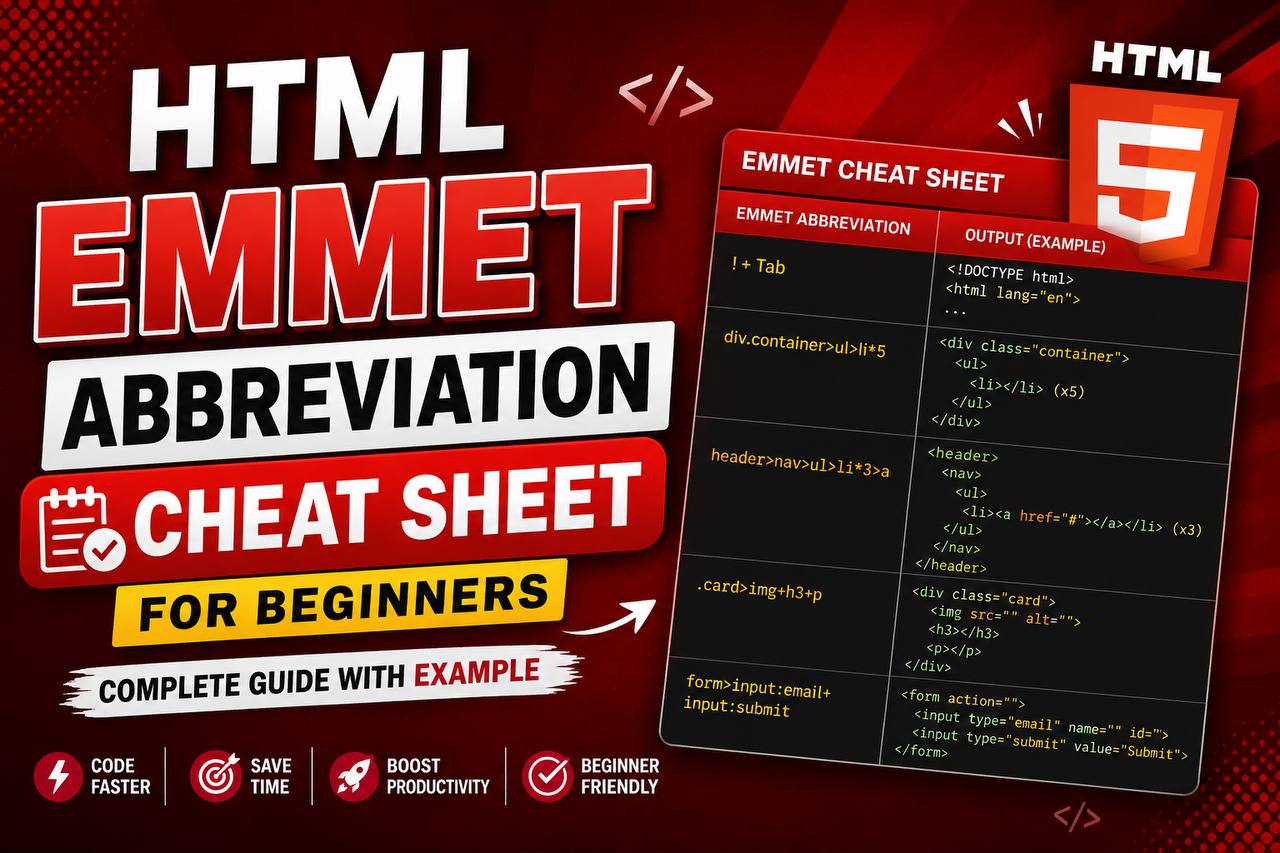
Meta Description: Learn the most useful HTML Emmet abbreviations for beginners. Understand Emmet symbols like >, +, *, ^, {}, [], $, and more with practical examples, generated HTML output, and beginner-friendly explanations.
HTML Emmet Abbreviations Cheat Sheet for Beginners
If you are learning HTML, one of the best ways to speed up your coding is by using Emmet. Instead of typing dozens of HTML tags manually, Emmet lets you generate complete HTML structures using short abbreviations.
For example, instead of writing:
<ul>
    <li></li>
    <li></li>
    <li></li>
</ul>
You only need to type:
ul>li*3
Then press Tab (or Enter depending on your editor), and Emmet automatically expands it into the full HTML code.
This makes web development faster, reduces typing mistakes, and helps beginners learn HTML structure more easily.
What is Emmet?
Emmet is a built-in toolkit available in modern code editors like Visual Studio Code, Sublime Text, WebStorm, and others.
It works by converting short abbreviations into complete HTML or CSS code instantly.
For example:
h1
becomes
<h1></h1>
Likewise,
img
expands into
<img src="" alt="">
Instead of writing repetitive code manually, Emmet generates it in seconds.
Understanding the Symbols Used in Emmet
Before learning the abbreviations, you should understand the special symbols that make Emmet work.
These symbols tell Emmet how elements relate to one another.
1. Greater Than (>)
The greater-than sign creates a child element.
Example
Emmet
div>p
Output
<div>
    <p></p>
</div>
Explanation
The > symbol means:
Put the second element inside the first element.
Since the paragraph is a child of the div, Emmet nests it correctly.
2. Plus Sign (+)
The plus sign creates sibling elements.
Example
Emmet
h1+p
Output
<h1></h1>
<p></p>
Explanation
The + means:
Create another element beside the previous one.
The heading and paragraph are siblings because neither is inside the other.
3. Asterisk (*)
The asterisk repeats an element multiple times.
Example
Emmet
li*5
Output
<li></li>
<li></li>
<li></li>
<li></li>
<li></li>
Explanation
The * symbol tells Emmet:
Repeat this element the specified number of times.
4. Caret (^)
The caret moves one level upward.
Example
Emmet
div>p^h2
Output
<div>
    <p></p>
</div>
<h2></h2>
Explanation
Without the caret, the heading would be inside the div.
The ^ moves back to the parent level before creating the next element.
5. Parentheses (())
Parentheses group elements.
Example
Emmet
div>(header+main+footer)
Output
<div>
    <header></header>
    <main></main>
    <footer></footer>
</div>
Explanation
Parentheses tell Emmet to treat several elements as one grouped section.
6. Curly Braces ({})
Curly braces add text content.
Example
Emmet
h1{Welcome}
Output
<h1>Welcome</h1>
Explanation
Anything inside {} becomes the text inside the HTML element.
7. Square Brackets ([])
Square brackets add attributes.
Example
Emmet
a[href="about.html"]
Output
<a href="about.html"></a>
Explanation
Use square brackets whenever you want to include attributes like href, src, id, title, target, placeholder, or type.
8. Dot (.)
Adds a class.
Example
Emmet
div.container
Output
<div class="container"></div>
Explanation
A period automatically creates a class attribute.
9. Hash (#)
Adds an ID.
Example
Emmet
section#hero
Output
<section id="hero"></section>
Explanation
The hash symbol creates an id attribute.
10. Dollar Sign ($)
Creates automatic numbering.
Example
Emmet
li.item$*5
Output
<li class="item1"></li>
<li class="item2"></li>
<li class="item3"></li>
<li class="item4"></li>
<li class="item5"></li>
Explanation
The dollar sign increases the number automatically every time the element repeats.
HTML Emmet Cheat Sheet With Examples
Below are some of the most useful Emmet abbreviations every beginner should know.
1. Create an Unordered List
Emmet
ul>li*5>a
Output
<ul>
    <li><a href=""></a></li>
    <li><a href=""></a></li>
    <li><a href=""></a></li>
    <li><a href=""></a></li>
    <li><a href=""></a></li>
</ul>
What does this abbreviation mean?
Let’s break it down:
ulcreates an unordered list.>places child elements inside the list.li*5creates five list items.aplaces an anchor tag inside each list item.
This abbreviation is commonly used for navigation menus.
2. Create a Navigation Bar
Emmet
nav>ul>li*4>a{Menu $}
Output
<nav>
    <ul>
        <li><a href="">Menu 1</a></li>
        <li><a href="">Menu 2</a></li>
        <li><a href="">Menu 3</a></li>
        <li><a href="">Menu 4</a></li>
    </ul>
</nav>
Explanation
This builds a complete navigation menu in just one line.
The $ automatically numbers each menu item.
3. Create a Card Layout
Emmet
div.card>img+p+h3
Output
<div class="card">
    <img src="" alt="">
    <p></p>
    <h3></h3>
</div>
Explanation
Creates a card containing an image, paragraph, and heading.
Perfect for blog posts or product cards.
4. Create Multiple Sections
Emmet
section*3
Output
<section></section>
<section></section>
<section></section>
Explanation
Generates three section elements instantly.
5. Create a Complete HTML Page
Emmet
!
Output
<!DOCTYPE html>
<html lang="en">
<head>
    <meta charset="UTF-8">
    <meta name="viewport" content="width=device-width, initial-scale=1.0">
    <title>Document</title>
</head>
<body>

</body>
</html>
Explanation
The exclamation mark is one of the most useful Emmet shortcuts.
It creates a complete HTML5 boilerplate document.
6. Create a Form
Emmet
form>label+input+button{Submit}
Output
<form>
    <label></label>
    <input type="text">
    <button>Submit</button>
</form>
Explanation
This quickly generates a simple HTML form.
7. Create an Article
Emmet
article>h2+p*3
Output
<article>
    <h2></h2>
    <p></p>
    <p></p>
    <p></p>
</article>
Explanation
Useful for creating blog articles or news content with a title and multiple paragraphs.
8. Create a Table
Emmet
table>tr*3>td*4
Output
<table>
    <tr>
        <td></td>
        <td></td>
        <td></td>
        <td></td>
    </tr>
    <tr>
        <td></td>
        <td></td>
        <td></td>
        <td></td>
    </tr>
    <tr>
        <td></td>
        <td></td>
        <td></td>
        <td></td>
    </tr>
</table>
Explanation
Creates a table with three rows and four columns in each row.
9. Create a Hero Section
Emmet
section.hero>h1{Welcome}+p{Your journey starts here}+a.btn{Learn More}
Output
<section class="hero">
    <h1>Welcome</h1>
    <p>Your journey starts here</p>
    <a href="" class="btn">Learn More</a>
</section>
Explanation
Builds a simple hero section for a landing page with a heading, description, and button.
10. Create a Footer
Emmet
footer>p{© 2026 My Website}
Output
<footer>
    <p>© 2026 My Website</p>
</footer>
Explanation
Quickly generates a footer with copyright text.
Why Beginners Should Learn Emmet
Learning Emmet provides several advantages:
- It dramatically reduces typing time.
- It helps you understand HTML nesting and structure.
- It minimizes syntax errors by generating valid HTML.
- It encourages cleaner, more organized code.
- It improves productivity as your projects become larger.
- It is built into many popular code editors, so no extra installation is usually required.
As you become more comfortable with HTML, Emmet becomes an indispensable tool for rapidly prototyping layouts and writing repetitive markup.
Tips for Practicing Emmet
To master Emmet, try these habits:
- Practice one new abbreviation every day.
- Use Visual Studio Code and press Tab after typing an abbreviation.
- Break complex abbreviations into smaller parts to understand how they work.
- Experiment by combining symbols such as
>,+,*,(),{},[],.,#, and$. - Build small projects like navigation bars, cards, forms, tables, and landing pages using only Emmet.
The more you practice, the more natural these abbreviations will become.
Emmet is one of the easiest ways to become more productive when writing HTML. By learning a handful of symbols—such as >, +, *, ^, (), {}, [], ., #, and $—you can generate complex HTML structures in seconds instead of typing every tag manually.
Start with simple abbreviations like ul>li*5>a and gradually move on to more advanced combinations. With consistent practice, you’ll write cleaner HTML faster, reduce repetitive typing, and spend more time focusing on building great websites rather than repeatedly entering the same markup.