
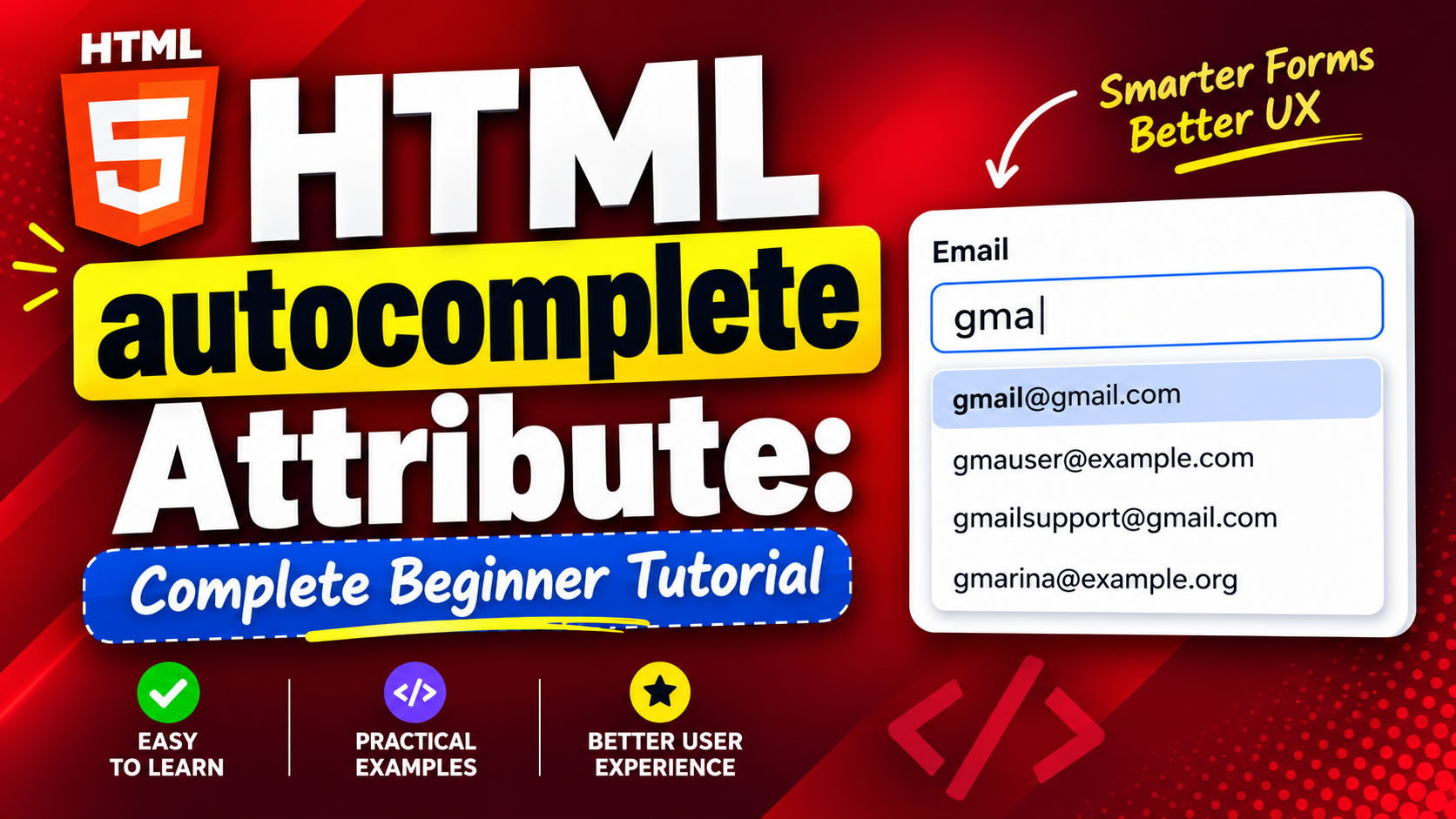
When creating forms in HTML, making them easy and convenient to use is just as important as making them look good. Nobody enjoys typing the same personal information over and over again every time they fill out a form. That’s where the HTML autocomplete attribute becomes useful.
The autocomplete attribute helps browsers remember and automatically suggest information that users have entered before, such as names, email addresses, phone numbers, and shipping details. It saves time, reduces typing errors, and creates a smoother experience for website visitors.
Whether you’re building a contact form, a registration page, a checkout form, or a login page, understanding how the autocomplete attribute works is an essential skill for every beginner web developer.
In this beginner-friendly guide, you’ll learn what the autocomplete attribute is, why it’s important, how it works, where it should be used, and the best practices for using it in real-world HTML projects.
This article explains the concepts in simple language with only a few code examples, making it easy to understand even if you’re just starting your HTML journey.
What Is the HTML autocomplete Attribute?
The autocomplete attribute is used on HTML forms and form fields to tell the browser whether it should automatically fill in information that the user has entered before.
In simple words, it gives the browser permission to help users complete forms faster.
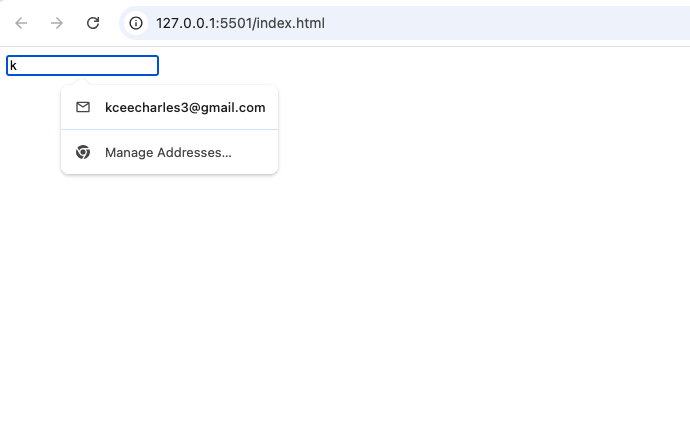
Imagine visiting an online shopping website. When you click inside the “Email Address” field, your browser may immediately suggest your email address. Instead of typing it again, you simply click the suggestion.
That is the autocomplete attribute in action.
Simple Syntax
A basic example looks like this:
<input type="email" autocomplete="email">
Here, the browser understands that the field is meant for an email address and may suggest one that the user has previously saved.
Why the autocomplete Attribute Is Important
The autocomplete attribute offers several benefits for both users and developers.
Some of the biggest advantages include:
- Faster form completion
- Better user experience
- Fewer typing mistakes
- Improved accessibility
- More professional-looking websites
Small improvements like this can make a website feel much more polished and user-friendly.
How Does autocomplete Work?
When a browser recognizes a form field with the correct autocomplete value, it compares that field with information it has previously stored.
If matching information exists, the browser displays suggestions.
For example, if you’ve previously entered your name on several websites, your browser may remember it and offer it as soon as you click into a “Name” field.
The browser not the website stores this information, and users usually have control over whether this feature is enabled.
Common Places Where autocomplete Is Used
You’ll find the autocomplete attribute on many types of websites, including:
- Registration forms
- Login pages
- Contact forms
- Checkout pages
- Shipping forms
- Payment forms
- Job application forms
- Newsletter signup forms
Almost every modern website with forms can benefit from using it properly.
Using autocomplete in Forms
The attribute can be applied to an entire form or to individual input fields.
When added to the form element, it provides a general instruction for all supported fields inside the form.
Developers can also control each field individually for more precise behavior.
This flexibility makes it suitable for both simple and complex forms.
The Two Main Values
The autocomplete attribute has two primary settings.
on
This allows the browser to remember and suggest previously entered information.
Example:
autocomplete="on"
Most public forms use this option because it improves convenience.
off
This tells the browser not to automatically suggest stored information.
Example:
autocomplete="off"
Developers sometimes use this on fields containing temporary or highly sensitive information.
Specific autocomplete Values
Instead of simply using on or off, HTML allows developers to specify exactly what kind of information belongs in a field.
Some common values include:
nameemailusernamecurrent-passwordnew-passwordtelstreet-addresspostal-codecountryorganization
These values help browsers make more accurate suggestions.
Real-World Example: Registration Form
Imagine a registration page asking for:
- Full name
- Email address
- Phone number
- Password
If the form uses appropriate autocomplete values, the browser can automatically suggest the user’s saved details.
The visitor finishes the form much faster and with fewer mistakes.
Real-World Example: Online Shopping
When checking out on an e-commerce website, customers often need to enter:
- Shipping address
- City
- State
- ZIP code
- Country
Using autocomplete allows browsers to fill these fields almost instantly.
This reduces frustration and encourages customers to complete their purchases.
Login Forms and autocomplete
Login pages commonly use the attribute for:
- Username
- Email address
- Current password
This makes signing in much quicker for returning users.
Many password managers also rely on these values to identify the correct login credentials.
Registration Forms and New Passwords
When users create a new account, browsers should know that the password being entered is new.
Using the correct autocomplete value helps browsers generate and store secure passwords.
This improves both convenience and security.
Contact Forms
Simple contact forms usually ask for:
- Name
- Phone number
Using autocomplete allows visitors to submit messages in just a few seconds.
This creates a better first impression.
Benefits for Mobile Users
Typing on smartphones is often slower than typing on a computer.
The autocomplete attribute is especially helpful on mobile devices because it reduces typing significantly.
This is one reason modern websites rely heavily on it.
Improving User Experience
Good web design focuses on removing unnecessary effort.
The autocomplete attribute helps users by:
- Saving time
- Reducing repetitive typing
- Minimizing spelling mistakes
- Making forms less stressful
Small improvements like these contribute to a more enjoyable browsing experience.
Accessibility Benefits
Accessibility means designing websites that everyone can use comfortably.
The autocomplete attribute helps people who:
- Use screen readers
- Have mobility challenges
- Have difficulty typing
- Fill out forms frequently
Browsers can provide smarter assistance, making forms easier to complete.
Browser Support
The autocomplete attribute is supported by all major modern browsers, including:
- Google Chrome
- Mozilla Firefox
- Microsoft Edge
- Safari
- Opera
Because support is widespread, it is safe to use in modern web development.
Does autocomplete Store Information?
A common misunderstanding is that websites store the information.
In reality, browsers usually store the data locally when users allow them to.
The website only provides hints about what type of information belongs in each field.
The user’s browser decides whether suggestions appear.
When Should You Turn autocomplete Off?
Although autocomplete is useful, there are situations where developers may choose to disable it.
Examples include:
- One-time verification codes
- Temporary authentication fields
- Shared public computers
- Certain sensitive administrative forms
However, turning it off unnecessarily may reduce usability.
Common Beginner Mistakes
Learning the autocomplete attribute is straightforward, but beginners often make a few mistakes.
1. Using autocomplete="off" Everywhere
Some beginners disable autocomplete on every form.
This usually creates a worse user experience.
2. Forgetting Specific Values
Instead of using generic settings, it’s better to provide meaningful autocomplete values whenever possible.
This helps browsers make better suggestions.
3. Expecting Every Browser to Behave the Same
Different browsers may display suggestions differently.
This is normal behavior.
4. Assuming It Guarantees Autofill
The browser ultimately decides whether to show suggestions based on the user’s settings and saved information.
The website cannot force autofill.
Best Practice Tips
To get the most out of the autocomplete attribute, follow these recommendations.
Use Appropriate Values
Choose values that accurately describe each field.
Improve User Convenience
Think about how users interact with your forms.
Reducing typing improves satisfaction.
Test in Multiple Browsers
Always check how your forms behave in different browsers.
Combine with Good Labels
Clear labels help both users and browsers understand the purpose of each field.
Keep Forms Simple
Autocomplete works best when forms are well organized and easy to understand.
Practice Project Ideas
You can practice using the autocomplete attribute in several beginner-friendly projects.
1. Contact Form
Create fields for:
- Name
- Phone number
- Message
Use autocomplete where appropriate.
2. Registration Page
Build a signup form with:
- Username
- Password
- Confirm password
Practice assigning suitable autocomplete values.
3. Checkout Form
Design an online shopping checkout page with:
- Shipping address
- City
- State
- Postal code
- Country
This is one of the best projects for learning autocomplete.
4. Employee Information Form
Create a form that collects:
- Full name
- Job title
- Company
- Office phone
- Work email
This project helps you understand how different autocomplete values work together.
Why Every Beginner Should Learn This Attribute
Although the autocomplete attribute is small, it has a significant impact on user experience.
Many beginners focus only on how a webpage looks, but successful websites also prioritize usability.
Learning to build forms that are fast, accessible, and easy to complete is an important step toward becoming a better web developer.
HTML5 and the autocomplete Attribute
The autocomplete attribute became much more useful with HTML5, which introduced many standardized values for different types of personal information.
These improvements helped browsers better understand form fields and provide smarter suggestions.
Today, it is considered a standard part of modern HTML forms.
SEO Considerations
The autocomplete attribute does not directly improve search engine rankings.
However, it can indirectly benefit your website by improving user satisfaction.
Visitors who complete forms quickly are more likely to finish registrations, purchases, or contact requests.
This contributes to a better overall website experience.
The HTML autocomplete attribute is a small feature that makes a big difference in how users interact with forms. By allowing browsers to remember and suggest previously entered information, it saves time, reduces typing errors, and creates a smoother browsing experience.
Whether you’re building a simple contact page, a registration form, or a complete online store, using the autocomplete attribute correctly helps make your website more convenient and professional.
As you continue learning HTML, don’t overlook features like this. They may seem simple, but they play an important role in creating websites that people genuinely enjoy using. Mastering small details such as autocomplete is one of the habits that separates beginner developers from more experienced professionals.