Embedding Google Maps on a website is one of the simplest and most useful features you can add, especially if your site represents a business, organization, event, or physical location. With just an <iframe> tag, you can display an interactive map that users can zoom, drag, and explore without leaving your website.
This guide explains everything you need to know about using <iframe> to embed Google Maps, from basic concepts to customization, responsiveness, performance, and best practices. It is written for beginners but remains valuable as a long-term reference.
What Is an <iframe>?
An <iframe> (Inline Frame) is an HTML element that allows you to embed another webpage inside your current webpage. The embedded content behaves like a window showing content from another source.
Common uses of <iframe> include:
- Embedding Google Maps
- Showing YouTube videos
- Displaying external forms
- Loading dashboards or widgets
In the case of Google Maps, the <iframe> loads a live map directly from Google’s servers and displays it on your page.
Why Use <iframe> to Embed Google Maps?
Using an <iframe> is the easiest and most beginner-friendly method to add Google Maps to a website.
Key Benefits
- No JavaScript required
- No Google Maps API key needed
- Works on almost all browsers
- Easy to copy and paste
- Minimal setup time
For most blogs, business websites, portfolios, and landing pages, the <iframe> method is more than enough.
Where Embedded Google Maps Are Commonly Used
You will often see Google Maps embedded on:
- Business contact pages
- Hotel and restaurant websites
- Event landing pages
- School and office websites
- Real estate listings
- Portfolio or personal sites
Embedding a map helps users quickly understand where you are located and improves trust and usability.
How Google Maps Embedding Works
When you embed Google Maps using an <iframe>, you are essentially:
- Loading a special Google Maps URL
- Displaying it inside a fixed or responsive frame
- Allowing users to interact with the map without leaving your site
Google provides this embed code automatically, which makes the process safe and reliable.
Step-by-Step: How to Embed Google Maps Using <iframe>
Step 1: Open Google Maps
Go to Google Maps in your browser and search for the location you want to embed.
This could be:
- A business name
- A full address
- A landmark
- Coordinates

Step 2: Click the “Share” Button
Once the location is loaded:
- Click on the Share button
- A popup will appear with sharing options

Step 3: Select “Embed a Map”
Inside the Share popup:
- Switch to the Embed a map tab
- You will see an
<iframe>code snippet

Step 4: Copy the <iframe> Code
Copy the entire <iframe> code provided by Google. It will look similar to this:

This code is ready to use immediately.
Step 5: Paste the Code into Your HTML File
Paste the <iframe> code where you want the map to appear in your HTML file.
Example:

Understanding the <iframe> Attributes
Each part of the <iframe> tag serves a purpose. Understanding these attributes helps you customize the map.
src
This is the Google Maps embed URL. It defines:
- Location
- Zoom level
- Map type
You usually should not manually edit this unless you know what you’re doing.
width and height
These control the size of the map.

You can change these values to fit your layout or make them responsive.
style="border:0;"
Removes the default border around the iframe.
allowfullscreen
Allows users to view the map in fullscreen mode.
loading="lazy"
This improves performance by loading the map only when it becomes visible on the screen.
This is highly recommended for SEO and page speed.
referrerpolicy
Controls privacy and security for referrer data. It’s safe to leave the default value.
Making Google Maps Responsive
A fixed width map may not look good on mobile devices. To fix this, you can use CSS to make the iframe responsive.
Responsive Map Example


Customizing the Map View
While <iframe> embedding has limited customization compared to the Google Maps API, you can still control:
- Zoom level (via Google Maps UI)
- Map location
- Satellite or default view
- Language and region (based on user location)
To change the zoom or position:
- Adjust the map in Google Maps
- Generate a new embed code
- Replace the old iframe
Accessibility Considerations
To improve accessibility:
- Place a heading before the map
- Provide a text address below the map
- Add
titleattribute to the iframe
Example:
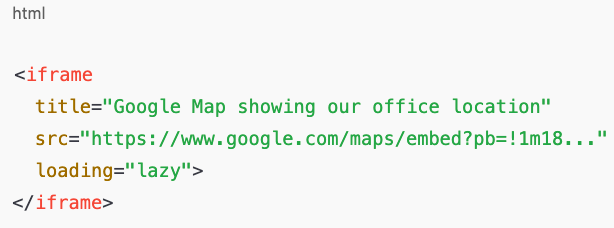
This helps screen readers understand what the embedded content represents.
SEO Impact of Embedded Google Maps
Embedding Google Maps does not directly boost rankings, but it improves user experience, which indirectly helps SEO.
Benefits include:
- Increased time on page
- Lower bounce rate
- Better local trust signals
- Improved local SEO when paired with address text
Always include:
- Business name
- Address
- Contact details near the map
Common Issues and How to Fix Them
Map Not Showing
- Check if the iframe
srcURL is complete - Ensure HTTPS is used
- Make sure iframe is not blocked by CSS
Map Too Small
- Increase width and height
- Use responsive container styles
Page Loads Slowly
- Ensure
loading="lazy"is enabled - Avoid embedding multiple maps on one page
When You Should Avoid Using <iframe>
You may want a different solution if:
- You need custom map styling
- You want advanced interactions
- You need multiple dynamic locations
- You’re building a complex web app
In these cases, the Google Maps JavaScript API is more suitable
Using <iframe> to embed Google Maps is one of the most practical and beginner-friendly ways to improve your website’s usability and credibility. With just a few steps, you can provide visitors with an interactive location experience without writing complex code or managing APIs.
This method is reliable, evergreen, and supported across browsers and platforms. Whether you are building a business website, a portfolio, or a content-driven tech blog, embedding Google Maps using <iframe> remains a simple yet powerful solution that will continue to be relevant for years.
The <iframe> element is necessary on a website because it provides a simple and reliable way to embed external content without rebuilding it from scratch. In modern web development, websites often need to display content that is hosted elsewhere, such as maps, videos, forms, dashboards, or documents. The <iframe> makes this possible by acting as a secure window that loads another webpage inside your own page.
One major reason <iframe> is important is convenience. Instead of writing complex code or integrating APIs, developers can embed ready-made services like Google Maps or YouTube with just a few lines of HTML. This saves time, reduces development cost, and lowers the risk of errors, especially for beginners or small projects.
Another key advantage is isolation and security. Content inside an <iframe> runs separately from the main website. This means embedded content does not directly interfere with your site’s code or styling. If the external service updates or changes, your website continues to function without breaking, as long as the embed link remains valid.
<iframe> also improves user experience. Visitors can interact with maps, watch videos, or view documents without leaving your website. This keeps users engaged, increases time spent on your pages, and reduces bounce rates. For businesses, this is especially valuable because it helps users quickly access important information such as location, tutorials, or product demonstrations.
From a performance perspective, <iframe> supports features like lazy loading, which helps pages load faster by delaying embedded content until it is needed. This contributes to better page speed and overall website performance.
In summary, <iframe> is necessary because it enables easy content integration, improves user experience, maintains security, saves development time, and supports modern website performance needs.