
Creating a download button for files is one of the most useful features you can add to a website. Whether you are offering PDFs, images, videos, software files, templates, or documents, a clear and functional download button improves user experience and makes your content more accessible.
This guide explains what a download button is, why it matters, and multiple ways to create one using HTML, CSS, and JavaScript. You do not need advanced programming skills to follow along. Each method is explained step by step, with real-world use cases and best practices.
What Is a Download Button?
A download button is a clickable element on a website that allows users to download a file directly to their device. Instead of right-clicking and saving a file manually, users simply click the button and the download begins.
Download buttons are commonly used for:
- PDF guides and ebooks
- Images and media files
- ZIP archives
- Software installers
- Course materials
- Website templates
A good download button is:
Easy to see
Clearly labeled
Fast and reliable
Compatible with different devices and browsers
Why Download Buttons Are Important
Adding a proper download button improves both usability and professionalism.
Key Benefits
- Better user experience: Users know exactly where to click
- Higher engagement: Clear calls-to-action increase downloads
- Professional appearance: Makes your site look structured and intentional
- Accessibility: Helps non-technical users download files easily
- SEO and trust: Clear file actions reduce confusion and bounce rates
Understanding How File Downloads Work on the Web
Before creating a download button, it helps to understand how downloads actually work.
When a user clicks a download button:
- The browser requests a file from the server
- The server sends the file back
- The browser saves the file locally or asks the user where to save it
Most downloads are handled using HTML links, optionally enhanced with CSS styling and JavaScript behavior.
Method 1: Create a Simple Download Button Using HTML
This is the most basic and reliable method.
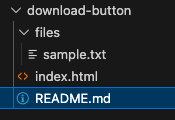
Step 1: Prepare Your File
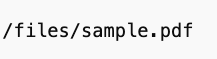
Place the file you want users to download inside your website folder.
Example:
Step 2: Use the HTML Anchor Tag

The download attribute tells the browser to download the file instead of opening it.
Why This Works
- Simple and lightweight
- Supported by modern browsers
- No JavaScript required
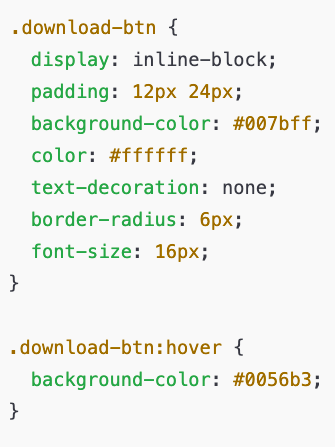
Method 2: Style the Download Link as a Button (HTML + CSS)
Plain links work, but buttons look better and attract attention.
HTML Structure

CSS Styling
Advantages
- Looks professional
- Fully customizable
- Works across devices
Method 3: Download Button Using the <button> Element
Some developers prefer using a button element instead of a link.
HTML Example

When to Use This
- When you want JavaScript control
- When integrating with form actions
- When tracking user clicks
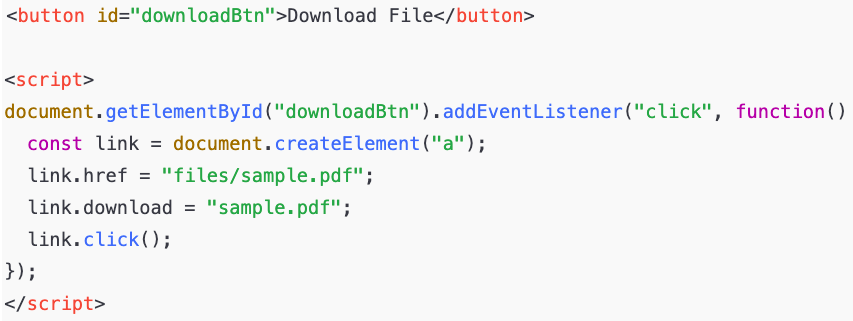
Method 4: Create a Download Button Using JavaScript
JavaScript allows more advanced control, such as dynamically generating downloads.
Example: JavaScript File Download
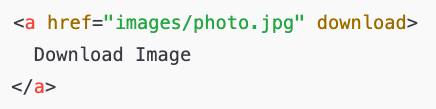
Method 5: Download Button for Images
Images often open in a new tab instead of downloading. You can force download behavior.
HTML Example
Method 6: Download Button for ZIP Files
ZIP files are commonly used for multiple downloads.

ZIP files typically download automatically without extra configuration.
Adding File Size and Format Information
To improve clarity, always tell users what they are downloading.
Example

Best Practices for Download Buttons
1. Use Clear Labels
Avoid vague text like “Click Here.”
Use:
- Download PDF
- Get the File
- Download Template
2. Place Buttons Strategically
- After content explanations
- Near previews
- At the end of articles
3. Make Buttons Stand Out
- Use contrasting colors
- Add padding
- Ensure readable text
4. Avoid Broken Links
Always test your download links before publishing.
Common Problems and How to Fix Them
File Opens Instead of Downloading
- Add the
downloadattribute - Check server configuration
Download Button Not Working
- Verify file path
- Check file permissions
- Confirm JavaScript errors
Mobile Download Issues
- Avoid forced redirects
- Test on real devices
Accessibility Tips for Download Buttons
Accessibility ensures everyone can use your site.
- Use readable text
- Ensure color contrast
- Add aria-labels if needed

SEO Considerations for Download Buttons
Download buttons can indirectly improve SEO by:
- Reducing bounce rate
- Increasing time on page
- Improving user experience
Tips:
- Describe files clearly
- Avoid misleading labels
- Add context around the button
When You Should Not Use Forced Downloads
Avoid forced downloads when:
- Users expect to preview content
- Files are very large
- Legal documents require review
Sometimes opening the file first is better than forcing a download.
Advanced Idea: Tracking Download Clicks
If you want analytics:
- Use JavaScript events
- Track clicks in analytics tools
This helps measure content performance.
Creating a download button for files is a small feature that delivers a big impact. It improves usability, builds trust, and helps users interact with your content effortlessly. Whether you use basic HTML, styled CSS buttons, or JavaScript-powered solutions, the key is clarity and simplicity.
By following the methods in this guide, you can create download buttons that work across devices, remain evergreen, and continue serving your audience long into the future. As your website grows, you can enhance these buttons with better design, analytics, and accessibility features without changing the core structure.
A well implemented download button is not just a feature it’s a bridge between your content and your users.
Here is a 300–400 word concluding section you can use to finish the article. It keeps a human, neutral tone, adds value, and focuses on awareness, trust, and security around downloads.
Why Download Features Are Cool And How to Stay Safe While Using Them
Download features add real value to a website. They make it easier for visitors to access useful resources such as documents, tools, images, templates, and learning materials without unnecessary steps. A well-designed download button saves time, improves user experience, and gives users a sense of control. Instead of searching elsewhere or struggling to copy content manually, users can simply click and get what they need instantly. This convenience is one reason download-enabled websites feel more professional and user-focused.
Downloads also help websites build trust and engagement. When a site provides helpful files, visitors are more likely to return, share the content, and spend more time exploring other pages. For educational, business, and tech websites, downloadable resources can serve as proof of expertise and usefulness, making the site stand out from others that only offer text-based content.
However, while downloads are useful, security awareness is just as important. Malware often spreads through unsafe downloads, especially from untrusted or poorly maintained websites. To prevent malware from compromising your system, always ensure the files you download come from reliable sources. Legitimate websites clearly describe what a file contains, its format, and sometimes even its file size. If a site forces downloads without explanation or uses misleading buttons, that is usually a warning sign.
Another important safety practice is keeping your operating system, browser, and antivirus software up to date. Modern security tools can scan downloaded files automatically and block harmful content before it causes damage. Avoid downloading executable files from unknown sites, and be cautious of compressed files that require passwords, as these are often used to hide malicious content.
Knowing which sites to trust comes down to a few simple checks. Trusted websites use secure connections (HTTPS), have clear contact information, and maintain a clean, professional design. They do not flood users with pop-ups or aggressive ads before allowing downloads. Reviews, recommendations, and consistency in content quality are also strong indicators of credibility.
In the end, downloads are a powerful and “cool” feature when used responsibly. By combining smart website design with safe browsing habits, users can enjoy the benefits of downloadable content without putting their systems at risk.