
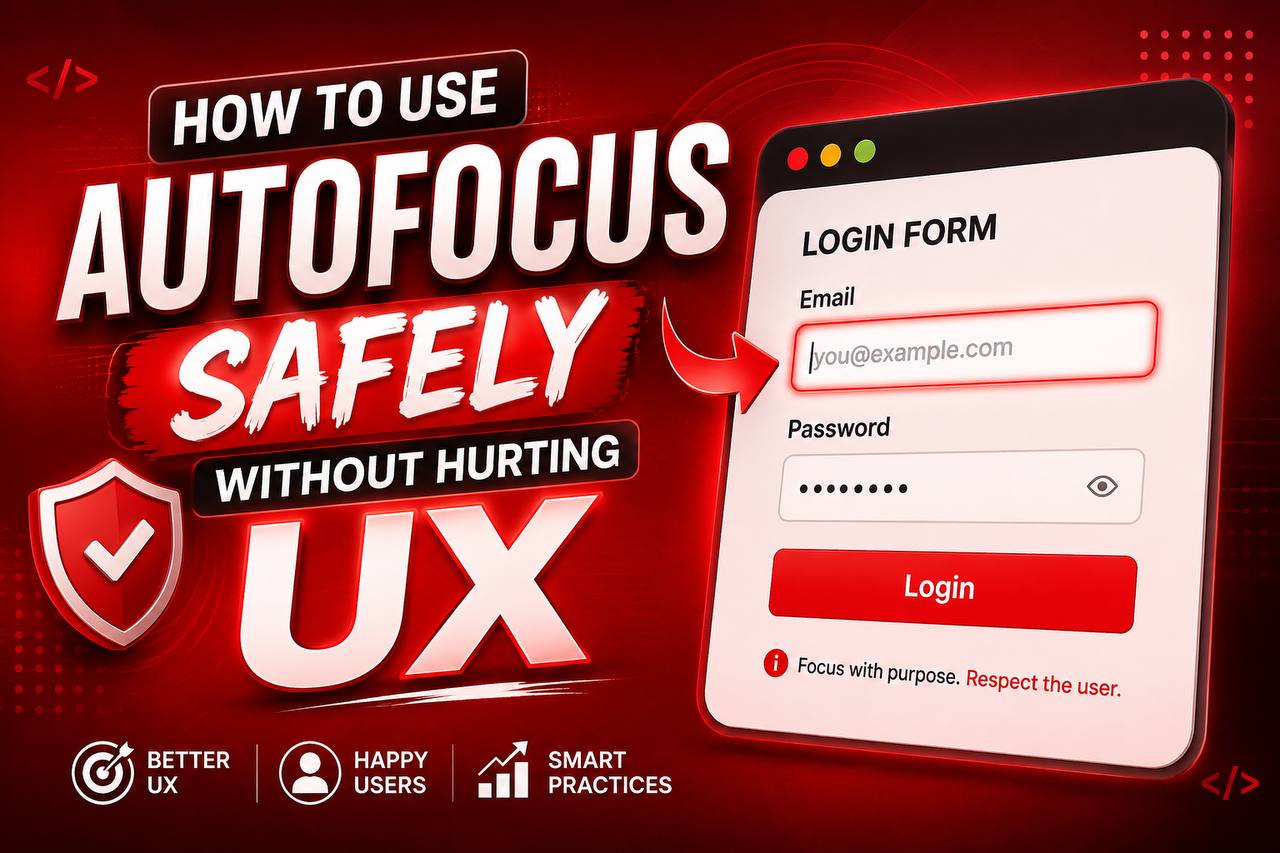
When building web forms, one of the first things you’ll notice is that users often need to click inside an input field before they can start typing. HTML provides a simple feature that can automatically place the cursor inside a form field as soon as the page loads. This feature is called the autofocus attribute.
At first glance, autofocus seems like a perfect solution. It saves users an extra click and can make forms feel faster to use. However, like many web development features, it should be used carefully. If applied in the wrong situation, it can confuse users, interrupt screen readers, and create a frustrating browsing experience.
The key is understanding when autofocus improves usability and when it hurts the user experience (UX).
In this beginner-friendly guide, you’ll learn what the HTML autofocus attribute does, how it works, where it should be used, when to avoid it, and the best practices for creating user-friendly forms.
This article explains the concept in simple language with only a few code examples so that beginners can understand it easily.
What Is the autofocus Attribute?
The autofocus attribute is an HTML attribute that automatically places the keyboard cursor (also called the input focus) inside a form element when a webpage finishes loading.
In simple terms, it tells the browser:
“When this page opens, place the cursor here first.”
This allows users to start typing immediately without clicking inside the field.
The autofocus attribute is commonly used with form elements such as:
- Text input fields
- Search boxes
- Text areas
- Select menus (in some cases)
Simple Syntax
Here’s a basic example:
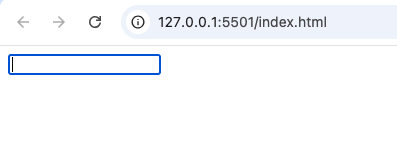
<input type="text" autofocus>
When the page opens, the text field automatically becomes active, allowing the user to type immediately.
Why Was autofocus Added to HTML?
The purpose of autofocus is to reduce unnecessary actions.
Instead of making users click inside the first input field, the browser prepares the field automatically.
This can make forms feel:
- Faster
- More convenient
- Easier to use
For short forms or search pages, this small improvement can save time and create a smoother experience.
How the autofocus Attribute Works
When the browser loads an HTML page, it looks for any element that contains the autofocus attribute.
If it finds one, it automatically places the input focus there.
From the user’s perspective:
- The page opens.
- The cursor is already blinking inside the chosen field.
- The user can begin typing immediately.
No mouse click is required.
Where Can You Use autofocus?
The autofocus attribute works with several HTML form elements.
These include:
<input><textarea><select><button>(less commonly)
The most common use is with text input fields.
Practical Example: Search Page
Imagine a website with a search page.
The entire purpose of the page is to let users search for information.
Automatically placing the cursor inside the search box makes sense because searching is the user’s primary task.
This is one of the best situations for using autofocus.
Practical Example: Login Form
Suppose you have a login page.
You might place autofocus on the username or email field.
When the page loads, users can begin typing their username immediately.
This removes one unnecessary step.
Practical Example: Contact Form
A contact page often contains several fields:
- Name
- Subject
- Message
Using autofocus on the Name field can help users begin filling out the form quickly.
However, this is only beneficial if it doesn’t interfere with accessibility or navigation.
Benefits of Using autofocus
When used correctly, autofocus offers several advantages.
1. Saves Time
Users don’t need to click before typing.
This creates a faster interaction.
2. Improves Efficiency
For frequently used forms, every saved click improves the overall experience.
3. Creates a Smooth Workflow
Users naturally begin with the first field.
Automatically focusing it supports that workflow.
4. Helpful on Search Pages
Search pages are one of the strongest use cases because users usually arrive intending to search immediately.
When You Should Avoid autofocus
Although useful, autofocus is not appropriate for every situation.
Using it carelessly can harm usability.
1. Pages With Lots of Content
Imagine opening a webpage to read an article.
If the page suddenly jumps to a search field because of autofocus, it interrupts the reading experience.
The user’s attention is pulled away from the content.
2. Accessibility Concerns
Screen reader users often expect to begin reading from the top of a page.
Automatically moving focus elsewhere may cause confusion because they miss important headings or instructions.
Accessibility should always be a priority.
3. Mobile Devices
On smartphones and tablets, focusing an input field may automatically open the on-screen keyboard.
This can:
- Cover important content
- Reduce visible screen space
- Surprise users
Because of this, many developers avoid autofocus on mobile pages.
4. Multi-Step Forms
If a form contains several stages, automatic focus may not always guide users correctly.
In these cases, it’s often better to allow users to control navigation themselves.
Only One Element Should Use autofocus
A page should contain only one autofocus attribute.
If multiple elements include it, browsers typically focus only the first one they encounter.
Adding the attribute to several fields creates confusion and should be avoided.
autofocus and User Experience (UX)
Good UX is about helping users achieve their goals without unnecessary obstacles.
autofocus should support users—not surprise them.
Before adding it, ask yourself:
- Is this the first thing users want to do?
- Will automatic focus make the page easier to use?
- Could it interrupt reading or accessibility?
If the answer is unclear, it may be better to leave it out.
Common Beginner Mistakes
Let’s look at mistakes many beginners make.
1. Using autofocus Everywhere
Some new developers think every form should include automatic focus.
This is not true.
Only use it when it genuinely improves usability.
2. Ignoring Mobile Users
A page that feels great on desktop may become frustrating on a phone because the keyboard appears immediately.
Always consider mobile devices.
3. Forgetting Accessibility
Accessibility isn’t optional.
Moving focus automatically can confuse users who rely on assistive technologies.
4. Using Multiple autofocus Attributes
Only one element should receive focus automatically.
Using more than one creates unpredictable behavior.
autofocus vs Placeholder Text
These features serve different purposes.
autofocus | Placeholder |
|---|---|
| Moves cursor into a field | Shows example text |
| Improves workflow | Explains expected input |
| Doesn’t describe the field | Doesn’t move cursor |
They often work together but solve different problems.
autofocus vs required
Another common comparison:
autofocus | required |
|---|---|
| Selects the first input | Requires data before submission |
| Helps users start typing | Helps validate forms |
One improves convenience.
The other improves form validation.
Best Practice: Think About User Intent
The best developers always think about what users want to do first.
If users arrive on a search page to search immediately, autofocus is helpful.
If they arrive to read instructions or browse content, automatic focus may be unnecessary.
Design decisions should always support the user’s goals.
Practice Projects Using autofocus
Here are beginner-friendly projects where you can experiment safely.
Search Engine Homepage
Automatically focus the search field.
Login Form
Place focus on the username field.
Simple Contact Form
Focus the first text input.
Notes Application
Allow users to start typing a new note immediately.
To-Do List
Automatically focus the task input after the page loads.
These projects help you understand when autofocus improves usability.
Browser Support
The autofocus attribute is supported in all modern browsers, including:
- Google Chrome
- Mozilla Firefox
- Microsoft Edge
- Safari
- Opera
Even though browser support is excellent, developers should still consider accessibility and user expectations before using it.
Accessibility Tips
If you decide to use autofocus, keep these recommendations in mind:
- Use it only when it clearly benefits users.
- Avoid interrupting screen readers.
- Test your page with keyboard navigation.
- Consider the experience on both desktop and mobile devices.
Good accessibility improves the experience for everyone.
SEO Considerations
The autofocus attribute does not directly affect search engine rankings.
However, a positive user experience can improve engagement.
Visitors are more likely to stay on a website that feels easy and intuitive to use.
Good UX supports long-term website quality.
Best Practices for Using autofocus
Follow these guidelines whenever you use the attribute:
- Use it on only one element per page.
- Choose the field users are most likely to use first.
- Avoid unnecessary automatic focus.
- Test on desktop and mobile devices.
- Consider accessibility before enabling it.
- Never use it simply because it’s available.
Why Every Beginner Should Learn About autofocus
Although the autofocus attribute is small, it teaches an important lesson about web development:
Good code is not only about making things work it is also about creating a better experience for real people.
Understanding when to use autofocus helps beginners think beyond code and start thinking like designers and usability experts.
This mindset becomes increasingly valuable as your projects become more advanced.
The HTML autofocus attribute is a simple feature that can make forms faster and easier to use by automatically placing the cursor inside a form field. When used thoughtfully, it saves users time and creates a smoother experience, especially on search pages, login forms, and other task-focused interfaces.
However, convenience should never come at the expense of usability. Overusing autofocus or placing it on the wrong pages can interrupt reading, confuse assistive technologies, and create problems on mobile devices.
As you continue learning HTML, remember that the best web developers balance functionality with user experience. By using autofocus carefully and intentionally, you’ll build websites that are not only functional but also welcoming, accessible, and enjoyable for everyone.