
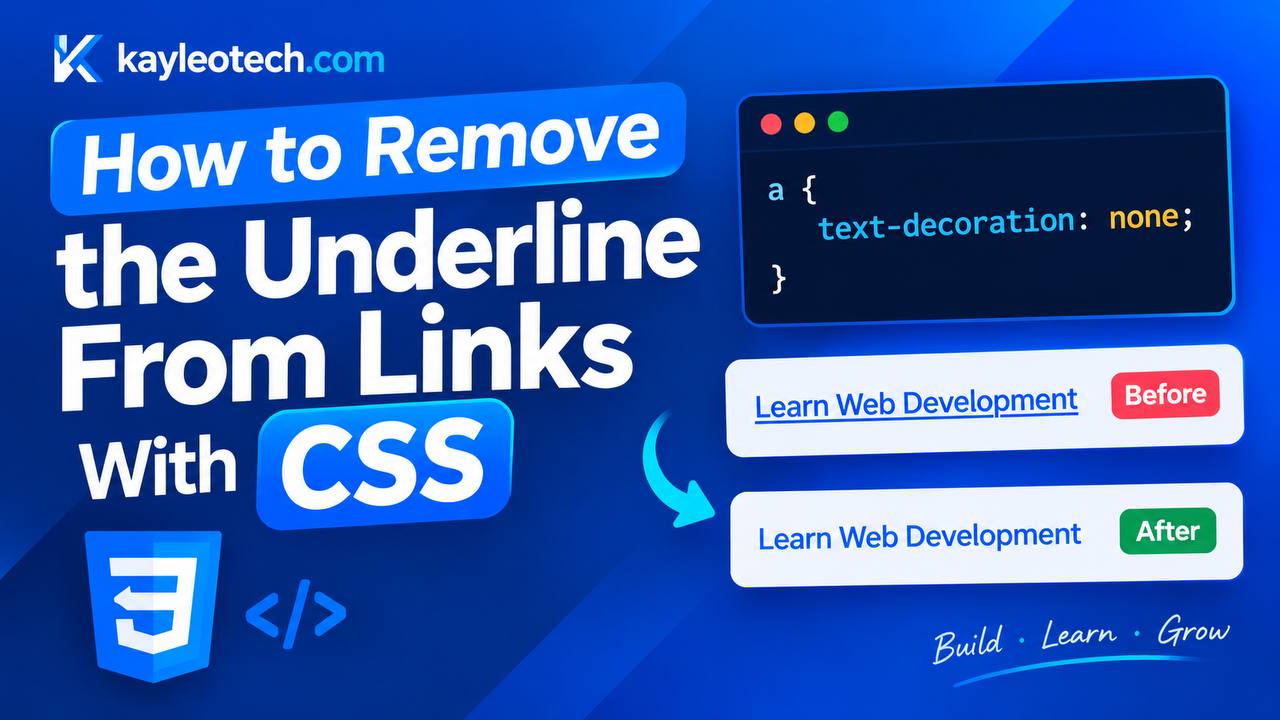
When you create a webpage using HTML, you will notice that links usually appear with an underline. For example, a navigation menu, a button link, or a link inside a paragraph may have a line beneath its text. This is the browser’s default styling for links.
Although underlined links help users recognize clickable text, you may sometimes want to remove the underline to create a cleaner and more modern website design.
The good news is that you can remove the underline from links using just one line of CSS. In this guide, you will learn how to remove underlines from HTML links, understand why the technique works, and apply it to simple projects such as navigation menus, cards, and buttons.
1. Why Do HTML Links Have Underlines?
Before learning how to remove underlines, it is helpful to understand why they appear in the first place.
HTML uses the <a> element to create links. The a stands for anchor, and it allows users to navigate to another webpage, a website, or a particular section of a page.
Here is a simple HTML example:
<a href="https://example.com">Visit Example</a>When you display this code in a browser, the link will usually appear blue and underlined. These are common default browser styles, although the exact appearance can vary depending on the browser and your website’s CSS.
The underline helps users distinguish links from ordinary text. However, if you are building a custom navigation bar or designing a clickable card, you might prefer to control the link’s appearance yourself.
This is where CSS becomes useful.
2. The CSS Property Used to Remove Link Underlines
The CSS property responsible for controlling underlines and other text decorations is text-decoration.
To remove the underline from a link, use the value none.
a {
    text-decoration: none;
}
Let’s understand each part of this code.
ais the CSS selector. It targets HTML anchor elements.text-decorationis the property that controls text decorations, including underlines.nonetells the browser not to apply a text decoration through this declaration.- The curly braces contain the CSS rule.
When this rule is applied, the links targeted by the selector will no longer have the default underline, provided another applicable CSS rule does not override it.
The rule above targets all anchor elements on the page. If you only want to remove underlines from specific links, you can use a class selector instead. You will learn how to do that later.
3. First Example: Remove Underlines From All Links
Let’s start with a simple project that demonstrates how to remove underlines from links using HTML and CSS.
For this example, create two files in your code editor:
index.htmlstyle.css
HTML code
Add the following code to your index.html file:
<!DOCTYPE html>
<html lang="en">
<head>
    <meta charset="UTF-8">
    <meta name="viewport" content="width=device-width, initial-scale=1.0">
    <title>Remove Link Underlines</title>
    <link rel="stylesheet" href="style.css">
</head>
<body>

    <h1>My First Webpage</h1>

    <p>
        Visit <a href="https://example.com">Example Website</a>
        to learn more.
    </p>

    <p>
        You can also visit our
        <a href="https://example.com">learning page</a>.
    </p>

</body>
</html>
The HTML creates a heading and two paragraphs containing links. The <link> element connects the HTML file to the external CSS file.
CSS code
Now open style.css and add the following rule:
a {
    text-decoration: none;
}
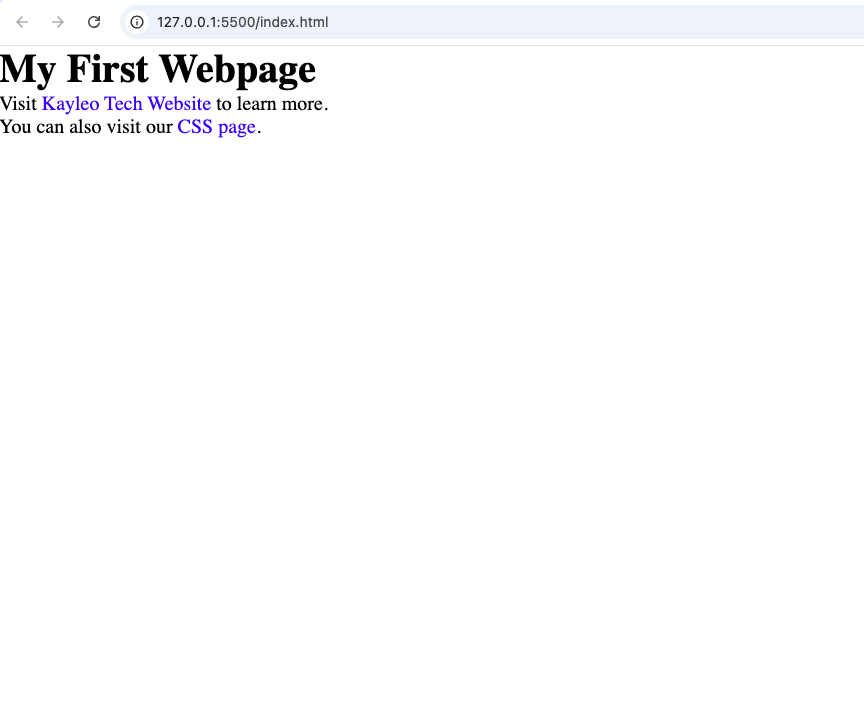
Save both files and open index.html in your browser.
The two links should appear without underlines.
4. Second Example: Remove Underlines From Specific Links
Imagine you are building a webpage that contains a navigation menu and a paragraph.
You want the navigation links to appear without underlines, but you want links inside the paragraph to remain underlined so readers can easily recognize them.
Instead of applying the rule to every link, you can use a CSS class.
HTML code
<!DOCTYPE html>
<html lang="en">
<head>
    <meta charset="UTF-8">
    <meta name="viewport" content="width=device-width, initial-scale=1.0">
    <title>Styled Navigation Links</title>
    <link rel="stylesheet" href="style.css">
</head>
<body>

    <nav class="navigation">
        <a href="#home">Home</a>
        <a href="#about">About</a>
        <a href="#contact">Contact</a>
    </nav>

    <h1>Welcome to My Website</h1>

    <p>
        Read more about our
        <a href="#services">services</a>
        to learn what we offer.
    </p>

</body>
</html>
The navigation links are placed inside a <nav> element with the class navigation. The paragraph link is outside that navigation element.
CSS code
Add this to your style.css file:
.navigation a {
    text-decoration: none;
    margin-right: 15px;
    color: #c62828;
}
Let’s examine the CSS.
.navigation a selects anchor elements inside an element with the class navigation. This means the rule affects the three navigation links without directly targeting the link in the paragraph.
text-decoration: none; removes the underline from the navigation links.
margin-right: 15px; adds space to the right of each navigation link, making the menu easier to read.
color: #c62828; gives the navigation links a red color.
After saving the files and opening the HTML page in your browser, the navigation links should appear red and without underlines. The paragraph link can retain its browser-default underline because the CSS rule does not target it.

5. How to Remove Underlines When Hovering Over Links
Sometimes, a designer removes the underline from links but wants it to appear when a user moves the mouse over them.
This creates a simple interaction that helps users recognize clickable elements.
You can achieve this using the CSS :hover pseudo-class.
For example:
a {
    text-decoration: none;
}

a:hover {
    text-decoration: underline;
}
The first rule removes underlines from links in their normal state.
The second rule applies an underline when the user hovers over a link with a mouse or another pointing device.
This is useful for navigation menus, article links, and website footers. It gives the design a cleaner appearance while still providing a visual signal when a link is being interacted with.
You can also reverse the effect if you prefer links to be underlined normally but not while hovering:
a {
    text-decoration: underline;
}

a:hover {
    text-decoration: none;
}
Choose the behavior that best suits your design and users.
6. How to Remove Underlines From Links Inside Buttons
Many websites use links styled to look like buttons. For example, you might have a “Learn More” link that takes visitors to another page.
You can remove its underline and apply button-like styling with CSS.
HTML
<a href="#learn" class="button-link">Learn More</a>CSS
.button-link {
    display: inline-block;
    padding: 12px 20px;
    background-color: #c62828;
    color: white;
    text-decoration: none;
    border-radius: 6px;
}

.button-link:hover {
    background-color: #a51f1f;
}
Here is what the properties do:
display: inline-block;allows the link to accept padding and dimensions while remaining inline with surrounding content.paddingcreates space inside the link.background-colorgives the link a red background.color: white;makes the text white.text-decoration: none;removes the underline.border-radiusrounds the corners.:hoverchanges the background color when the user hovers over the link.
Although this link looks like a button, it remains an HTML link. Use an <a> element for navigation and a <button> element for actions such as submitting a form or opening an interactive control.
7. Why Is the Underline Still Showing?
Sometimes you add text-decoration: none; and the underline still appears. Here are a few common reasons and how to troubleshoot them.
Another CSS rule is overriding your style
Your stylesheet may contain another rule that applies an underline to the same link.
For example:
a {
    text-decoration: underline;
}

.navigation a {
    text-decoration: none;
}
In this example, the second selector is more specific than the first, so navigation links should normally remain without underlines, assuming no other competing rule takes precedence.
If another rule with higher priority applies an underline, inspect the element using your browser’s developer tools to see which declaration is winning.
Your CSS file is not connected
Check that your HTML file contains the correct stylesheet reference:
<link rel="stylesheet" href="style.css">The filename and path must match the location of your CSS file. If the stylesheet is inside a folder named css, for example, you may need:
<link rel="stylesheet" href="css/style.css">Your browser is showing an older version
Save your files and refresh the browser. If necessary, perform a hard refresh to reload cached resources.
You are targeting the wrong element
If your link uses a class, make sure your CSS selector matches the class name.
For example:
<a href="#home" class="menu-link">Home</a>The matching CSS is:
.menu-link {
    text-decoration: none;
}
Remember that class selectors begin with a period (.), while element selectors such as a do not.
Avoid using !important as your first solution. It can force a declaration to take priority over many ordinary declarations, but it also makes your stylesheet harder to maintain.
8. Is It Good Practice to Remove Link Underlines?
Removing underlines can make a website look cleaner, especially in navigation menus, buttons, and clickable cards. However, underlines also help users distinguish links from ordinary text.
If you remove them everywhere, make sure links remain recognizable through other visual signals.
For example, you can use a different text color, a clear hover effect, or an underline that appears when the link receives keyboard focus.
A useful accessibility improvement is:
a {
    text-decoration: none;
}

a:hover,
a:focus-visible {
    text-decoration: underline;
}
This brings back the underline when users hover over a link or navigate to it using a keyboard. The :focus-visible selector is especially useful for people who navigate websites without a mouse.
Do not rely on color alone to communicate that text is clickable. Consider your site’s background, text contrast, keyboard focus indicators, and the needs of visitors with visual or motor impairments.
For content-heavy pages, such as tutorials and articles, underlined links can be helpful because they make links easier to distinguish from the surrounding text. For navigation menus, removing underlines may be appropriate if the links are still clearly identifiable.
Removing underlines from HTML links with CSS is simple. The main property you need is text-decoration, and the value none removes the text decoration applied by that rule.
The basic code is:
a {
    text-decoration: none;
}
Use this rule when you want to remove underlines from all matching links. If you only want to change specific links, use a class selector or target links inside a particular element, such as .navigation a.
You can also combine the technique with colors, spacing, hover effects, and button-like styling to create more polished website designs.
Most importantly, consider usability and accessibility before removing underlines from every link. A clean design should still make it easy for visitors to recognize links, navigate your website, and understand which elements are clickable.
Once you understand this technique, you can apply it to your own HTML and CSS projects, including navigation bars, landing pages, article cards, and simple portfolio websites.