
Images are an important part of web design. They help make websites more attractive, explain ideas visually, and give users a better experience. However, the way an image is displayed can affect the overall appearance of a webpage. For example, a square image may look suitable for a blog post, while a rounded image may look better in a profile card, team member section, or modern portfolio.
CSS makes it easy to change the shape of an image without editing the original image file. One of the simplest ways to do this is by using the border-radius property.
In this tutorial, you will learn how to make an image rounded with CSS, how to create circular images, how to control the amount of rounding, and how to avoid common mistakes when styling images.
By the end of this guide, you will be able to apply rounded image styles to your own HTML and CSS projects.
1. What Does It Mean to Make an Image Rounded With CSS?
Making an image rounded means changing its corners or overall shape using CSS.
By default, an image usually appears with straight edges and square corners. However, you can use CSS to give it rounded corners or turn it into a circle.
For example, a normal image might look like a rectangle with sharp corners. After applying a small amount of rounding, the corners become curved. If you apply a large enough border radius to a square image, it can become circular.
Rounded images are commonly used for:
- Profile pictures on websites.
- Author images in blog posts.
- Team member photographs.
- Product cards and portfolio layouts.
- User avatars in dashboards and applications.
The CSS property responsible for this effect is called border-radius.
2. Understanding the CSS border-radius Property
The border-radius property controls how rounded the corners of an element appear.
It works with many HTML elements, including images, buttons, cards, and containers.
Here is the basic syntax:
img {
  border-radius: 15px;
}
In this example, the border-radius property is applied to every <img> element selected by the CSS rule. The value 15px makes the image’s corners rounded.
The larger the value, the more curved the corners become. However, the final shape also depends on the image’s width and height.
Let’s understand the parts of this rule:
imgis the CSS selector targeting image elements.border-radiusis the property that controls corner rounding.15pxis the value that determines the rounding amount.
You do not need to change the original image or use an image editor. The effect is applied directly in the browser through CSS.
3. Create a Simple HTML Image
Before adding rounded corners, you need an image in your HTML document.
Create a file named index.html and add the following code:
<!DOCTYPE html>
<html lang="en">
<head>
  <meta charset="UTF-8">
  <meta name="viewport" content="width=device-width, initial-scale=1.0">
  <title>Rounded Image Example</title>
</head>
<body>

  <h1>My Image</h1>

  <img src="profile.jpg" alt="A profile photograph">

</body>
</html>
The important part is this line:
<img src="profile.jpg" alt="A profile photograph">The <img> element displays an image on the webpage.
The src attribute specifies the image file, while the alt attribute provides alternative text describing the image.
In this example, profile.jpg is a placeholder filename. Replace it with the name or path of an image you actually have. If the image is stored in the same folder as index.html, the filename is enough.
At this point, the image will display using its normal shape unless additional styling is applied.
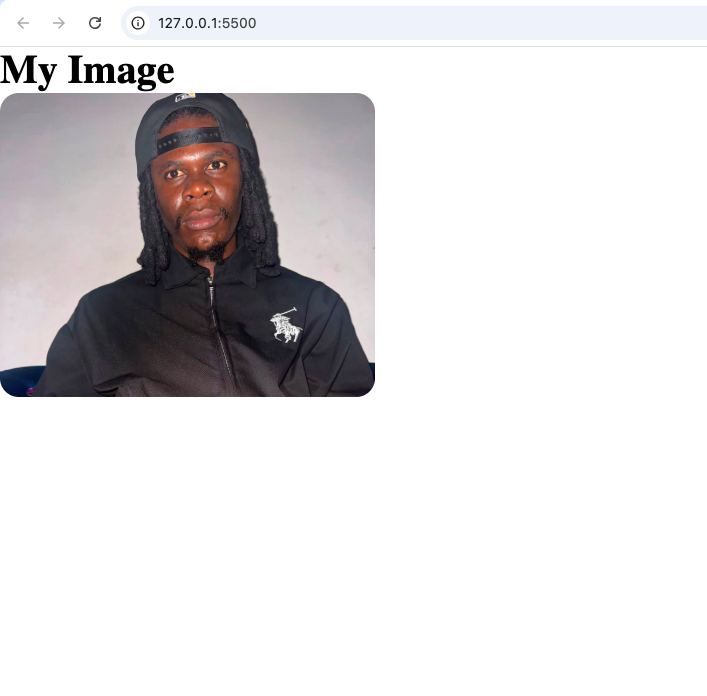
4. How to Make an Image Have Rounded Corners With CSS
Now let’s apply CSS to make the image’s corners rounded.
You can add a <style> element inside the HTML document’s <head> section, or place the CSS in a separate stylesheet. In this tutorial, the CSS is shown separately so that it is easier to understand.
Create a file named style.css and add:
img {
  width: 300px;
  border-radius: 15px;
}
Let’s break down the code.
The width: 300px; declaration sets the image width to 300 pixels. The image’s height will normally adjust proportionally to preserve its original aspect ratio.
The border-radius: 15px; declaration rounds the image’s corners.
To connect the stylesheet to your HTML file, add the following line inside the <head> section of index.html:
<link rel="stylesheet" href="style.css">Your files should now look like this:
index.htmlstyle.cssprofile.jpg
Make sure the image filename and stylesheet path match the files in your project.
5. How to Make an Image Completely Circular With CSS
Rounded corners and circular images are slightly different.
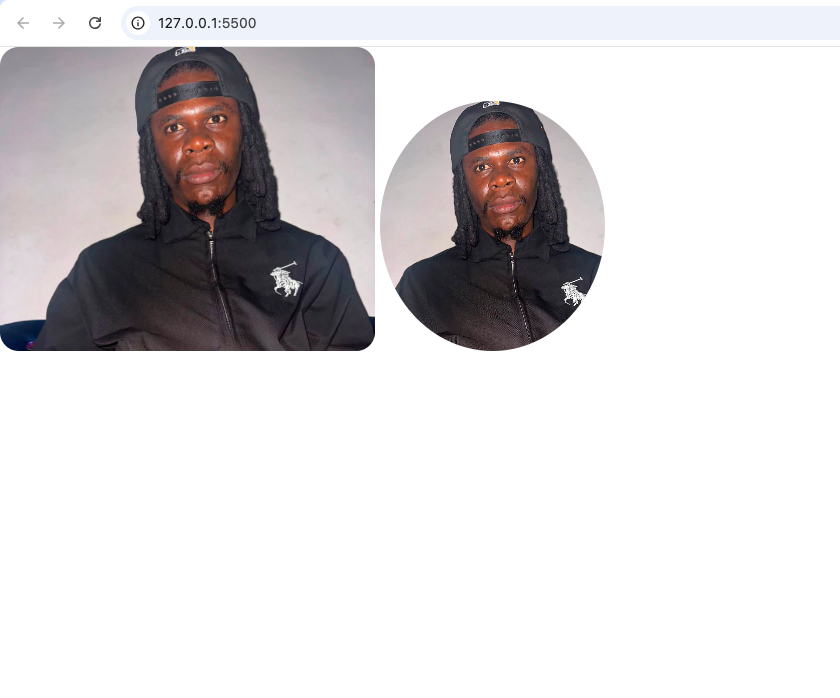
A rounded-corner image still looks like a rectangle, but its corners are curved. A circular image has a completely round outline.
Circular images are popular for profile pictures, author portraits, and team member photographs.
To create a circle, you can use border-radius: 50%.
Here is the CSS:
img {
  width: 200px;
  height: 200px;
  border-radius: 50%;
  object-fit: cover;
}
Let’s examine the important declarations.
width: 200px;
This sets the image width to 200 pixels.
height: 200px;
This sets the image height to 200 pixels. Using equal width and height makes it easier to create a perfect circle.
border-radius: 50%;
This rounds the image into a circle when its displayed box is square.
object-fit: cover;
This helps the image fill the square area without stretching or distorting its proportions. Parts of the original image may be cropped if necessary.
Without object-fit: cover, an image with different proportions may appear stretched if you force it into a square.
Remember that border-radius: 50% does not automatically guarantee a circle for every image. If the element is rectangular, the result will generally be an oval instead.
6. How to Make Only Specific Images Rounded
Suppose your website contains ten images, but you only want to round two of them. Applying CSS directly to the img selector would affect all images matched by that rule.
A better approach is to use a CSS class.
First, add a class to the image in your HTML:
<img
  class="rounded-image"
  src="profile.jpg"
  alt="A profile photograph"
>
Next, target that class in your CSS:
.rounded-image {
  width: 300px;
  border-radius: 20px;
}
Notice the dot (.) before rounded-image in the CSS selector. A dot tells CSS that you are selecting a class.
This allows you to control exactly which images receive the rounded style.
You can also create separate classes for different image shapes:
.rounded-image {
  border-radius: 15px;
}

.circle-image {
  width: 200px;
  height: 200px;
  border-radius: 50%;
  object-fit: cover;
}
Then apply the appropriate class to each image.
<img
  class="rounded-image"
  src="landscape.jpg"
  alt="A landscape"
>

<img
  class="circle-image"
  src="profile.jpg"
  alt="A person's profile photograph"
>
This method is useful for larger websites because it makes your CSS more organized and reusable.
7. How to Control the Amount of Image Rounding
You do not have to use the same border-radius value for every image. You can choose a value that suits your design.
Here are a few examples:
.small-rounding {
  border-radius: 5px;
}

.medium-rounding {
  border-radius: 15px;
}

.large-rounding {
  border-radius: 30px;
}

.circle-image {
  border-radius: 50%;
}
A value of 5px creates a subtle curve. A value of 15px produces more noticeable rounded corners, while 30px creates a softer appearance.
The 50% value is different because it uses a percentage of the element’s dimensions rather than a fixed pixel amount.
The best value depends on your design. Small rounded corners may suit article thumbnails, while circular images may work better for profile sections.
You can experiment with different values and observe how each change affects the browser output.
8. How to Make Rounded Images Responsive
A fixed image width may look good on a desktop screen but could cause layout problems on a smaller mobile device.
To make an image more flexible, you can use max-width: 100%.
For example:
.rounded-image {
  width: 300px;
  max-width: 100%;
  height: auto;
  border-radius: 15px;
}
Here is what each declaration does:
width: 300px;sets the preferred image width.max-width: 100%;prevents the image from becoming wider than its containing element.height: auto;preserves the image’s proportions.border-radius: 15px;keeps the corners rounded.
This is a useful combination for blog posts, tutorials, and content pages where images should fit different screen sizes.
For a circular profile image, you may want to keep the width and height equal. You can also use a flexible size:
.circle-image {
  width: 180px;
  max-width: 100%;
  aspect-ratio: 1 / 1;
  border-radius: 50%;
  object-fit: cover;
}
The aspect-ratio: 1 / 1 declaration helps maintain a square shape, which supports the circular appearance.
9. Common Mistakes When Making Images Rounded
Even though border-radius is simple to use, a few mistakes can prevent you from getting the expected result.
Mistake 1: Using the Wrong CSS Selector
You might write:
rounded-image {
  border-radius: 20px;
}
This selector targets an HTML element named rounded-image, not an element with that class.
The correct CSS is:
.rounded-image {
  border-radius: 20px;
}
Remember to use the dot when targeting a class.
Mistake 2: Forgetting to Link the CSS File
If you put your CSS in a separate file but forget to link it, the browser will not apply those styles through that stylesheet.
Check that your HTML includes:
<link rel="stylesheet" href="style.css">Also make sure the filename and file location are correct.
Mistake 3: Expecting Every Image to Become a Circle
Applying border-radius: 50% to a wide rectangular image may produce an oval rather than a perfect circle.
Use equal width and height for a square image box, and add object-fit: cover if you want the image to fill that box without distortion.
Mistake 4: Using an Image That Does Not Load
If the image filename or path is incorrect, you may see a broken image instead of the intended result.
Confirm that the file exists and that the src attribute points to the correct location.
Mistake 5: Applying the Style to Every Image Accidentally
A rule such as img { border-radius: 20px; } affects every image matched by that selector.
If you only want specific images rounded, use a class such as .rounded-image instead.
10. Can You Use border-radius Without Editing the Image File?
Yes. CSS applies the rounded appearance when the browser displays the image. It does not permanently modify the original file.
For example, an image stored as a JPEG or PNG can appear circular on your webpage even though its original file is still rectangular.
This makes CSS a convenient way to control image presentation. You can change the rounding value, remove the effect, or reuse the same image in different layouts without creating separate copies of the image.
However, the rounded appearance is part of the webpage’s display, not a permanent change to the original image file. If you download the original image separately, it will generally retain its original shape.
Making an image rounded with CSS is a simple but useful technique for improving the appearance of a webpage.
The border-radius property is the main tool you need. A value such as 15px creates rounded corners, while 50% can create a circular image when the image element has a square shape.
You also learned how to use CSS classes to style selected images, preserve image proportions with object-fit: cover, and make images responsive with max-width: 100%.
As you continue learning HTML and CSS, try these techniques in a small profile card, author section, portfolio, or personal website. Experiment with different border-radius values and observe how the results change.
With a little practice, you will be able to choose the right image shape for different parts of your web projects and create cleaner, more professional layouts.
Try it yourself
Change the code, then run it to see the result.