
A navigation bar is one of the most important parts of a website. It helps visitors move from one page to another without struggling to find the information they need. For example, when you visit a website, you may see links such as Home, About, Services, Blog, and Contact arranged across the top of the page. That section is called a navigation bar.
HTML provides the structure for a navigation bar, while CSS controls how it looks. With CSS, you can arrange links horizontally, add background colors, adjust spacing, change text styles, and create hover effects when users move their mouse over a link.
In this beginner-friendly guide, you will learn how to create a simple navigation bar using HTML and CSS. We will start with a basic example, improve its appearance, and make it more suitable for a real website.
What Is a Navigation Bar in CSS?
A navigation bar, often called a navbar, is a section of a website that contains links to important pages or sections.
Although people often say they are creating a navigation bar with CSS, HTML and CSS work together to build it. HTML creates the links and their structure, while CSS controls their appearance and layout.
For example, a simple navigation bar might contain these links:
- Home
- About
- Services
- Blog
- Contact
CSS can arrange these links in a single horizontal row, give them a dark background, change their colors, and add a visual effect when a visitor hovers over them.
What You Need Before Starting
To follow this tutorial, you need a basic understanding of HTML elements and CSS properties. You should also have a code editor, such as Visual Studio Code, and a web browser.
Create a project folder named navbar-project. Inside it, create two files:
index.html— contains the HTML structure.style.css— contains the CSS styles.
Keeping HTML and CSS in separate files makes your project easier to understand and maintain.
Step 1: Create the HTML Structure
First, open your index.html file and add the following code.
<!DOCTYPE html>
<html lang="en">
<head>
    <meta charset="UTF-8">
    <meta name="viewport" content="width=device-width, initial-scale=1.0">
    <title>My Navigation Bar</title>
    <link rel="stylesheet" href="style.css">
</head>
<body>

    <nav class="navbar">
        <a href="#" class="logo">MyWebsite</a>

        <ul class="nav-links">
            <li><a href="#">Home</a></li>
            <li><a href="#">About</a></li>
            <li><a href="#">Services</a></li>
            <li><a href="#">Blog</a></li>
            <li><a href="#">Contact</a></li>
        </ul>
    </nav>

</body>
</html>
This code creates the basic structure of your navigation bar. At this stage, the links may appear as a simple list because you have not added the CSS styling yet.
Understanding the HTML code
The <nav> element
The <nav> element identifies a section containing navigation links. It helps browsers and assistive technologies understand that the links are used to navigate a website.
The class="navbar" attribute
The navbar class gives us a way to select the navigation section in CSS. We will use this class to control its background, spacing, and layout.
The logo link
<a href="#" class="logo">MyWebsite</a>
This creates a clickable text logo. The href="#" value is a placeholder. On a real website, you would normally replace it with the homepage URL.
The <ul> and <li> elements
The <ul> element creates an unordered list, while each <li> represents one list item. In this example, each list item contains a navigation link.
The stylesheet link
<link rel="stylesheet" href="style.css">
This connects your HTML file to the external CSS file. Without the correct file path, the browser will not apply the styles from style.css.
Step 2: Add CSS to Style the Navigation Bar
Now open your style.css file and add the following code.
/* Remove default browser spacing */
* {
    margin: 0;
    padding: 0;
    box-sizing: border-box;
}

/* Navigation bar */
.navbar {
    display: flex;
    justify-content: space-between;
    align-items: center;
    background-color: #181818;
    padding: 18px 8%;
}

/* Website logo */
.logo {
    color: white;
    font-size: 24px;
    font-weight: bold;
    text-decoration: none;
}

/* Navigation links container */
.nav-links {
    display: flex;
    list-style: none;
    gap: 25px;
}

/* Individual navigation links */
.nav-links a {
    color: white;
    text-decoration: none;
    font-size: 16px;
    transition: color 0.3s ease;
}

/* Hover effect */
.nav-links a:hover {
    color: #ff4d4d;
}
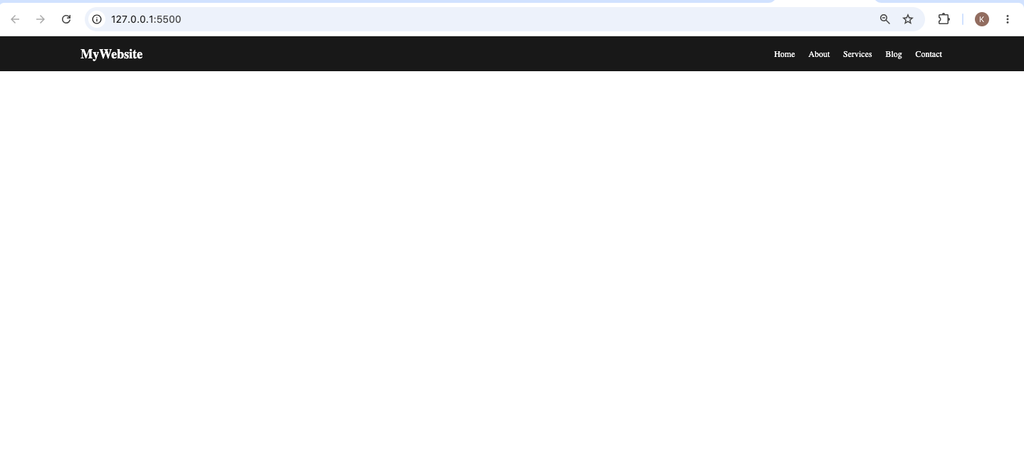
Save both files and open index.html in your browser. You should now see a dark navigation bar with the website name on the left and the navigation links arranged horizontally on the right.
Step 3: Understand the Important CSS Properties
Let’s examine the CSS properties that make the navigation bar work.
1. display: flex
.navbar {
    display: flex;
}
The display: flex property turns the navigation container into a flex container. It allows its direct children, in this case the logo and the list of links, to sit beside each other instead of stacking vertically.
Flexbox is particularly useful when creating navigation bars because it makes it easier to align and distribute elements.
2. justify-content: space-between
justify-content: space-between;
This property places available space between the logo and the navigation links. As a result, the logo stays toward the left side while the links move toward the right.
You could also use justify-content: center to center the content or justify-content: flex-start to align it toward the beginning of the container.
3. align-items: center
align-items: center;
This property vertically aligns the logo and navigation links along the center of the navigation bar. Without it, the items might not line up as neatly.
4. background-color
background-color: #181818;
This property sets the background color of the navigation bar. The example uses a dark shade, but you can change it to another color that matches your website design.
For instance, #ffffff creates a white background, while #b5121b creates a deep red background.
5. padding
padding: 18px 8%;
Padding adds space inside an element. Here, 18px adds vertical space above and below the navigation content, while 8% adds horizontal space on the left and right.
Adjusting the padding can make your navigation bar feel more spacious or compact.
6. list-style: none
list-style: none;
Browsers normally display bullet points beside items in an unordered list. This property removes those bullet points, giving the navigation links a cleaner appearance.
7. gap
gap: 25px;
The gap property adds space between the navigation links. It makes the links easier to distinguish and prevents them from appearing crowded together.
8. text-decoration: none
text-decoration: none;
Links normally have an underline. This property removes the underline so the navigation bar has a cleaner appearance.
9. The :hover pseudo-class
.nav-links a:hover {
    color: #ff4d4d;
}
The :hover pseudo-class applies a style when a pointer hovers over a link. In this example, the link changes to a light red color.
The transition property makes the color change happen smoothly rather than instantly.
Step 4: Make the Navigation Bar Responsive
Your navigation bar looks good on a desktop screen, but what happens when someone visits your website using a mobile phone?
Because mobile screens are narrower, five navigation links may not fit comfortably in a single row. A simple improvement is to allow the navigation links to wrap onto another line when necessary.
Add the following CSS to the bottom of your style.css file:
@media (max-width: 600px) {
    .navbar {
        flex-direction: column;
        gap: 18px;
        padding: 20px;
    }

    .nav-links {
        flex-wrap: wrap;
        justify-content: center;
        gap: 15px;
    }
}
How the responsive CSS works
The @media (max-width: 600px) rule applies these styles when the viewport width is 600 pixels or less.
The flex-direction: column property stacks the logo and navigation links vertically. This gives them more room on a small screen.
The flex-wrap: wrap property allows the links to move onto another line if they cannot fit on one line. Meanwhile, justify-content: center keeps the links centered.
This is a simple responsive solution. For a larger website with many navigation links, you may eventually want a mobile menu button that opens and closes the navigation links. That behavior requires JavaScript in addition to HTML and CSS.
Step 5: Add a Visual Improvement to the Links
You can make the navigation bar more polished by adding a background effect to each link when a visitor hovers over it.
Replace your existing .nav-links a:hover rule with this code:
.nav-links a {
    color: white;
    text-decoration: none;
    font-size: 16px;
    padding: 8px 12px;
    border-radius: 5px;
    transition: background-color 0.3s ease,
                color 0.3s ease;
}

.nav-links a:hover {
    color: white;
    background-color: #b5121b;
}
The padding gives each link a larger clickable area. The border-radius property slightly rounds the corners, while the transition creates a smooth effect when the background color changes.
Because the links now have padding, hovering over them should feel more comfortable than hovering over text alone.
Common Mistakes to Avoid
When building your first navigation bar, you may encounter a few problems. Here are some common issues and how to solve them.
1. The CSS is not working
Check that your stylesheet is named style.css and is located in the same folder as index.html. Also confirm that the stylesheet link in your HTML uses the correct filename and path.
2. The links appear vertically
Make sure that display: flex is applied to .nav-links. If the links are still arranged vertically, check that the CSS selector matches the class name in your HTML.
3. Bullet points appear beside the links
Add list-style: none to .nav-links to remove the default bullets.
4. The links have underlines
Add text-decoration: none to .nav-links a.
5. The navigation bar looks crowded on mobile
Reduce the gap between links, allow them to wrap, or create a collapsible mobile menu. Always test the page at different screen widths.
6. Clicking a link does not open the correct page
The href="#" values in this tutorial are placeholders. Replace them with real page URLs or section IDs, such as href="about.html" or href="#services", depending on your website structure.
Creating a navigation bar with CSS becomes much easier when you understand how HTML and CSS work together. HTML provides the navigation structure, while CSS controls the layout, colors, spacing, alignment, and hover effects.
In this tutorial, you learned how to build a horizontal navigation bar using Flexbox, remove list bullets and link underlines, add a hover effect, and make the layout more suitable for mobile screens.
As you gain experience, you can extend this project by adding a logo image, a dropdown menu, an active-page indicator, or a mobile menu button.
Practice task: Change the navigation bar’s background color, adjust the spacing between links, and choose a different hover color. Then add a new link named “Tutorials” and make sure it fits neatly into your design.
Practicing these small changes will help you understand CSS layout properties and prepare you to build more advanced website headers.