
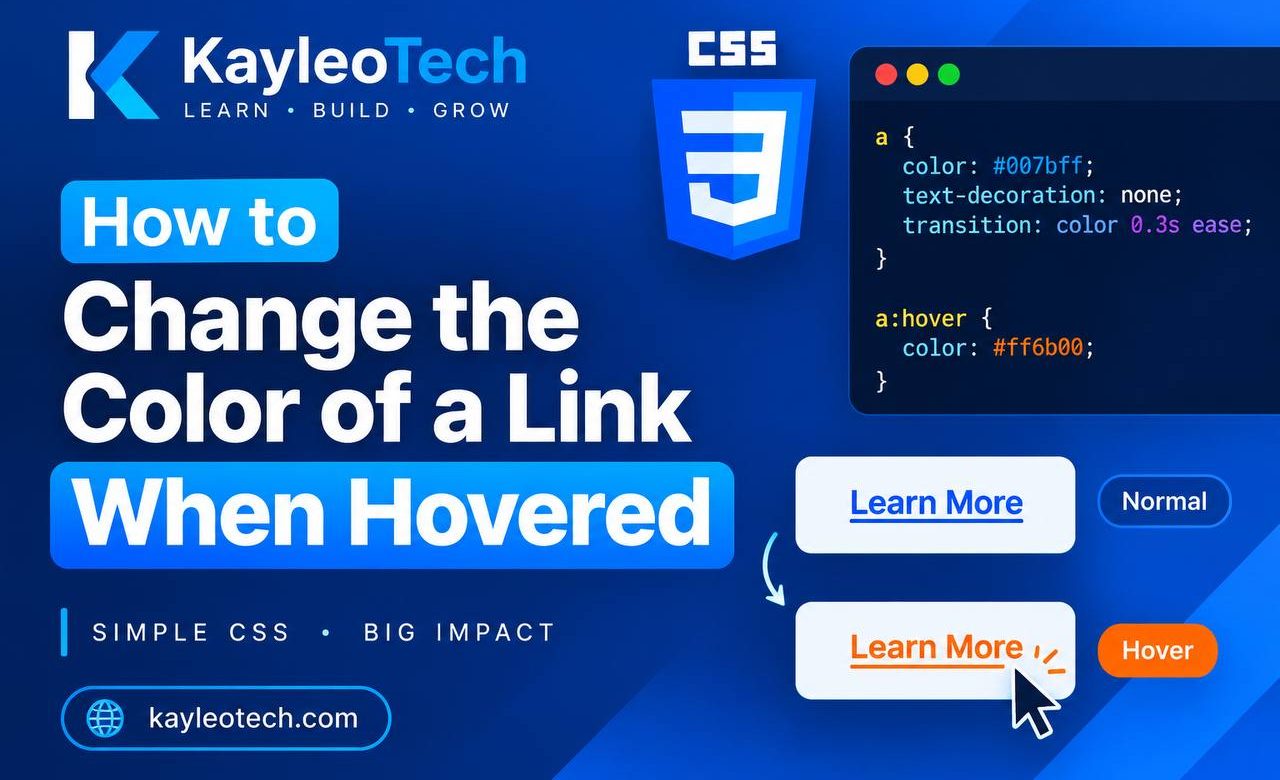
Changing the color of a link when a user moves their mouse over it is a simple way to make a website more interactive. It helps visitors recognize that a link is clickable and gives your webpage a more professional appearance.
With CSS, you can change a link’s color when someone hovers over it using the :hover pseudo-class. You do not need JavaScript or any external library to achieve this effect.
In this beginner-friendly guide, you will learn how link hover effects work, how to change a link’s color, how to apply different colors to multiple links, and how to avoid common mistakes. You will also build a simple example and see where to capture screenshots of the result in your browser.
What Does It Mean to Change a Link Color on Hover?
A hover effect happens when a user moves their mouse pointer over an element on a webpage.
For example, imagine a link that appears blue by default. When a visitor moves the mouse pointer over it, the link changes to red. When the pointer moves away, the link returns to its original blue color.
This small interaction is created using CSS.
Here is what the effect looks like conceptually:
- Normal state: The link is blue.
- Hover state: The link changes to red when the mouse pointer moves over it.
- After hovering: The link returns to blue when the pointer moves away.
You can use this effect on navigation menus, blog article links, buttons styled as links, footer links, and other clickable elements.
1. Understanding the CSS :hover Pseudo-Class
Before writing the code, it is important to understand the :hover pseudo-class.
The :hover pseudo-class allows you to apply styles to an element when the user points to it with a mouse or another pointing device.
For example:
a:hover {
    color: red;
}
Let’s break down this code.
aselects HTML anchor elements, which are commonly used to create links.:hovertargets a link while it is being hovered over.color: red;changes the link’s text color to red.- The curly braces contain the CSS declaration that will apply during the hover state.
The result is that any link matching this selector changes to red when hovered over.
Notice that :hover begins with a colon. It is a pseudo-class, not an HTML attribute, and it does not need to be added directly to your HTML.
2. Create a Simple HTML Link
First, you need a link to work with. HTML uses the <a> element to create links.
Here is a simple example:
<!DOCTYPE html>
<html lang="en">
<head>
    <meta charset="UTF-8">
    <meta name="viewport" content="width=device-width, initial-scale=1.0">
    <title>Link Hover Effect</title>
</head>
<body>

    <a href="https://kayleotech.com/">
        Visit Kayleotech
    </a>

</body>
</html>
In this example, the <a> element creates a clickable link with the text “Visit Kayleotech.”
The href attribute specifies where the link should take the visitor when clicked.
At this point, the link has no custom hover color. Its appearance will depend on the browser’s default styling and any other styles applied to it.
To control the hover color, you need to add CSS.
3. Change the Link Color When Hovered Using CSS
Now, let’s add a hover effect to the link.
You can place the following CSS inside a <style> element in the HTML document’s <head> section.
<style>
    a {
        color: blue;
        text-decoration: none;
    }

    a:hover {
        color: red;
    }
</style>
Here is what each part does.
The a selector applies styles to the link in its normal state.
a {
    color: blue;
    text-decoration: none;
}
The color: blue; declaration makes the link blue. The text-decoration: none; declaration removes the browser’s default underline.
Next, the hover selector controls what happens when the pointer moves over the link.
a:hover {
    color: red;
}
When the user hovers over the link, its text changes from blue to red.
When the pointer moves away, the link returns to its normal blue color.
Important: Removing the underline is optional. Underlines help visitors identify links, so consider keeping them or providing another clear visual indicator that the text is clickable.

4. Build a Complete Example You Can Test
Let’s combine the HTML and CSS into one complete example. You can copy the code into a file named index.html, save it, and open it in your browser.
<!DOCTYPE html>
<html lang="en">
<head>
    <meta charset="UTF-8">
    <meta name="viewport" content="width=device-width, initial-scale=1.0">

    <title>CSS Link Hover Example</title>

    <style>
        body {
            font-family: Arial, sans-serif;
            padding: 40px;
            background-color: #f5f5f5;
        }

        a {
            color: blue;
            font-size: 20px;
            text-decoration: none;
        }

        a:hover {
            color: red;
        }
    </style>
</head>
<body>

    <h1>My First Hover Effect</h1>

    <p>
        Visit
        <a href="https://kayleotech.com/">
            Kayleotech
        </a>
        to explore technology guides.
    </p>

</body>
</html>
Understanding the complete example
The <style> element contains all the CSS needed for the demonstration.
The body selector adds spacing around the content, changes the font, and gives the page a light background. These styles make the example easier to view.
The a selector sets the link’s normal color to blue and increases its font size to 20 pixels.
Finally, a:hover changes the text color to red when the pointer moves over the link.
You do not need to install any software or connect to a server to test this example. A basic text editor and a web browser are enough.
5. Change the Hover Color to Any Color You Want
You are not limited to blue and red. CSS allows you to use color names, hexadecimal values, RGB values, and other valid CSS color formats.
For example, you can change the hover color to green:
a:hover {
    color: green;
}
Or use a hexadecimal color:
a:hover {
    color: #e63946;
}
You can also use RGB values:
a:hover {
    color: rgb(230, 57, 70);
}
All three examples change the link’s text color when hovered over. They simply specify the color in different ways.
Here are some colors you can try:
| Color | CSS value |
|---|---|
| Red | red |
| Green | green |
| Purple | purple |
| Orange | orange |
| Dark blue | #123c8c |
| Bright red | #e63946 |
| Teal | #008080 |
Choose colors that fit your website’s design and remain readable against the background.
6. Apply Different Hover Colors to Different Links
What if you have several links on your webpage and want each one to change to a different color?
You can give each link a class and use that class in your CSS.
For example, your HTML could look like this:
<p>
    <a class="home-link" href="#">Home</a>
    <a class="about-link" href="#">About</a>
    <a class="contact-link" href="#">Contact</a>
</p>
Now add the CSS:
.home-link:hover {
    color: red;
}

.about-link:hover {
    color: green;
}

.contact-link:hover {
    color: purple;
}
In this example, each link has a different class.
.home-link:hoverchanges the Home link to red..about-link:hoverchanges the About link to green..contact-link:hoverchanges the Contact link to purple.
The dot (.) before each class name tells CSS that you are selecting an element by its class.
The :hover pseudo-class then applies the color only while that particular link is hovered over.
This approach is useful when designing navigation menus, website headers, and footers where different links may need different styling.
7. Add a Smooth Color Transition
You can make the hover effect feel smoother by adding the CSS transition property.
Without a transition, the color usually changes immediately. A transition allows the color change to happen gradually over a short period.
Here is an example:
a {
    color: blue;
    transition: color 0.3s ease;
}

a:hover {
    color: red;
}
Let’s understand the transition declaration:
transitiontells the browser to animate a change in a CSS property.colorspecifies that the color change should be animated.0.3smeans the transition takes 0.3 seconds.easecontrols how the transition accelerates and slows down.
When the pointer moves over the link, the color gradually changes from blue to red. When the pointer leaves, it gradually returns to blue.
You can make the transition faster or slower by changing the duration.
For example:
transition: color 0.5s ease;This makes the transition take half a second.
Keep hover transitions subtle. Very slow or distracting effects can make navigation feel less responsive.
8. Change the Link Background Color on Hover
Sometimes, you may want to change more than the link’s text color. You can also change its background color when hovered over.
For example:
a {
    color: blue;
    padding: 8px;
    transition: 0.3s ease;
}

a:hover {
    color: white;
    background-color: blue;
}
In this example, the link’s text becomes white, while its background becomes blue when hovered over.
The padding declaration adds space around the text, making the background effect more visible.
This style is useful for navigation links or links that look like buttons. However, if you want a link to behave visually like a button, make sure its design and interaction remain clear to visitors.
9. Common Mistakes to Avoid
Although link hover effects are straightforward, a few mistakes can prevent them from working as expected.
Mistake 1: Forgetting the colon
Incorrect:
a hover {
    color: red;
}
Correct:
a:hover {
    color: red;
}
The colon is required because :hover is a CSS pseudo-class.
Mistake 2: Writing the CSS selector incorrectly
If you write:
a:hover {
    color: red;
}
the rule applies to anchor elements while they are hovered over.
However, if you write:
.link:hover {
    color: red;
}
the rule applies only to elements that have the link class.
For example:
<a class="link" href="#">Read more</a>If the HTML element does not have that class, the class-based rule will not target it.
Mistake 3: Using the wrong CSS property
To change the text color, use:
color: red;The background-color property changes the background instead of the text.
Mistake 4: Another CSS rule overrides the hover color
Sometimes, another selector or a more specific CSS rule may override your hover style.
For example, if your stylesheet contains conflicting rules, inspect the element using your browser’s developer tools to see which declaration is taking effect. Avoid using !important as the first solution; fixing the conflicting selector is usually better.
Mistake 5: Forgetting keyboard users
The :hover pseudo-class is primarily associated with pointer interaction. Visitors who navigate with a keyboard should also be able to identify which link is focused.
You can add a focus style:
a:hover,
a:focus-visible {
    color: red;
}
This makes the link red when hovered over and when it receives visible keyboard focus. You can also add an underline or outline to make the focus state easier to recognize.
10. Test Your Link Hover Effect
Once you have written your code, test it in a browser to confirm that everything works.
Follow these steps:
- Open your text editor and create a file named
index.html. - Paste the complete HTML and CSS example into the file.
- Save the file.
- Open the file in Chrome, Firefox, Edge, or another modern browser.
- Move your mouse pointer over the link.
- Check that the link changes from blue to red.
- Move the pointer away and confirm that the link returns to blue.
- If you added a transition, observe whether the color changes smoothly.
If the effect does not work, check that your CSS is inside the <style> element or correctly linked from an external stylesheet. Also check for missing colons, misspelled selectors, and conflicting styles.

Changing the color of a link when hovered over is one of the simplest ways to make a webpage more interactive with CSS.
The main technique is to use the :hover pseudo-class with the color property:
a:hover {
    color: red;
}
You can customize this effect by choosing different colors, targeting individual links with classes, adding smooth transitions, or changing the link’s background color.
Remember to test your styles in a browser and make sure your links remain easy to identify. You should also consider keyboard focus so that visitors who do not use a mouse can navigate your website comfortably.
Once you understand :hover, you can apply the same idea to other elements, including buttons, navigation menus, and cards, as you continue learning HTML and CSS.
No more login issues for me. This portal is stable and gets me straight into the action every time. Cheers to jili999login