
Centering text horizontally with CSS is usually easy. You can use text-align: center and the text moves to the center from left to right.
But what happens when you want to move text vertically to the middle of a box, section, card, button, or page?
This is where many beginners get confused.
CSS does not have one single property called vertical-align-text-center that works everywhere. Instead, there are several ways to center content vertically, and the best method depends on the layout you are creating.
In this guide, you will learn simple and practical ways to center text vertically with CSS. We will look at Flexbox, Grid, padding, line-height, and other techniques you may come across when working on real websites.
What Does Vertical Text Centering Mean?
Vertical centering means placing text in the middle of a container from top to bottom.
For example, imagine you have a box that is 300px tall.
If your text is at the top:
+----------------------+
| Hello World          |
|                      |
|                      |
|                      |
+----------------------+
The text is not vertically centered.
When it is vertically centered:
+----------------------+
|                      |
|                      |
|    Hello World       |
|                      |
|                      |
+----------------------+
The text sits approximately in the middle of the container.
This is useful when creating navigation bars, buttons, cards, hero sections, banners, login boxes, landing pages, and many other interfaces.
Method 1: Use CSS Flexbox
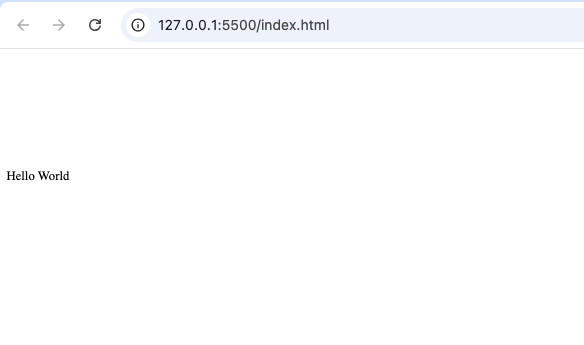
One of the easiest and most useful ways to center text vertically is with Flexbox.
Flexbox is a CSS layout system designed to make it easier to arrange and align elements.
Here is a simple example:
<div class="box">
    <p>Hello World</p>
</div>
You can then use CSS:
.box {
    height: 300px;
    display: flex;
    align-items: center;
}
The important property here is:
align-items: center;
When the container uses display: flex, align-items: center centers the content along the cross axis.
For a normal horizontal Flexbox layout, this means the text is centered vertically.
Centering Text Both Horizontally and Vertically
You can also center text in both directions.
For example:
.box {
    height: 300px;
    display: flex;
    justify-content: center;
    align-items: center;
}
Now there are two important properties:
justify-content: center;
and:
align-items: center;
justify-content: center centers the content horizontally.
align-items: center centers the content vertically.
The result is a box with the text directly in the middle.
+----------------------------+
|                            |
|                            |
|       Hello World          |
|                            |
|                            |
+----------------------------+
This technique is especially useful for hero sections, cards, login pages, buttons, and empty states.
Method 2: Use CSS Grid
Another simple method is CSS Grid.
CSS Grid is another powerful layout system that can center content vertically and horizontally.
For example:
.box {
    height: 300px;
    display: grid;
    place-items: center;
}
The property:
place-items: center;
is a convenient way to center the content in both directions.
You could use it with:
<div class="box">
    <p>Hello World</p>
</div>
The text will appear in the center of the box.
This method is very short and useful when you simply want one or more elements centered inside a container.
Method 3: Use Padding
You can also create vertical space around text using CSS padding.
For example:
.box {
    padding: 50px 0;
}
This adds 50 pixels of space above and below the content.
However, padding is slightly different from true vertical centering.
For example, if you have a box with content that changes size, fixed padding may not always keep the text exactly in the center.
It can still be useful for simple designs where you only need more space around the text.
For example:
<div class="banner">
    Welcome to Kayleotech
</div>
CSS:
.banner {
    padding: 40px 20px;
}
This creates space around the text and makes the banner taller.
Padding is commonly used in buttons, banners, navigation items, and content sections.
Method 4: Use Line-Height for Single-Line Text
Another technique you may see is using line-height.
For example:
.button {
    height: 50px;
    line-height: 50px;
}
This can vertically center single-line text inside a fixed-height element.
If the button is 50px tall and the line height is also 50px, the text can appear centered vertically.
For example:
<button class="button">Click Me</button>
CSS:
.button {
    height: 50px;
    line-height: 50px;
}
This technique was more common before Flexbox became widely used.
It can still work for simple single-line situations, but it is not usually the best choice for modern layouts.
Why?
Because it becomes difficult when your text wraps onto multiple lines.
For example, imagine a button containing:
Click here to learn
more about HTML
A fixed line-height designed for one line may not give you the result you expect.
For modern projects, Flexbox is usually a better choice.
Method 5: Using vertical-align
You may also come across the CSS property:
vertical-align
This property can be confusing because it does not work like Flexbox’s align-items.
For example:
vertical-align: middle;
does not automatically center any element vertically inside any container.
vertical-align is mainly useful with inline-level elements, inline-block elements, and table-cell layouts.
For example:
.icon {
    vertical-align: middle;
}
This can help align an icon with nearby text.
It is important to understand that this is different from:
align-items: center;
With Flexbox, align-items: center is often the easier solution when your goal is to center content inside a container.
Why text-align: center Does Not Center Text Vertically
A common beginner mistake is using:
text-align: center;
and expecting the text to move vertically.
The text-align property mainly controls horizontal alignment of inline content.
For example:
.box {
    text-align: center;
}
This can make the text move from the left side toward the horizontal center.
But it does not automatically move the text from the top to the bottom center.
To center content vertically, you need a layout technique such as Flexbox or Grid.
For example:
.box {
    height: 300px;
    display: flex;
    align-items: center;
    text-align: center;
}
Here, the two properties have different jobs.
align-items: center handles the vertical alignment.
text-align: center handles the horizontal alignment of the text inside its available space.
A Practical Example: Center Text Inside a Card
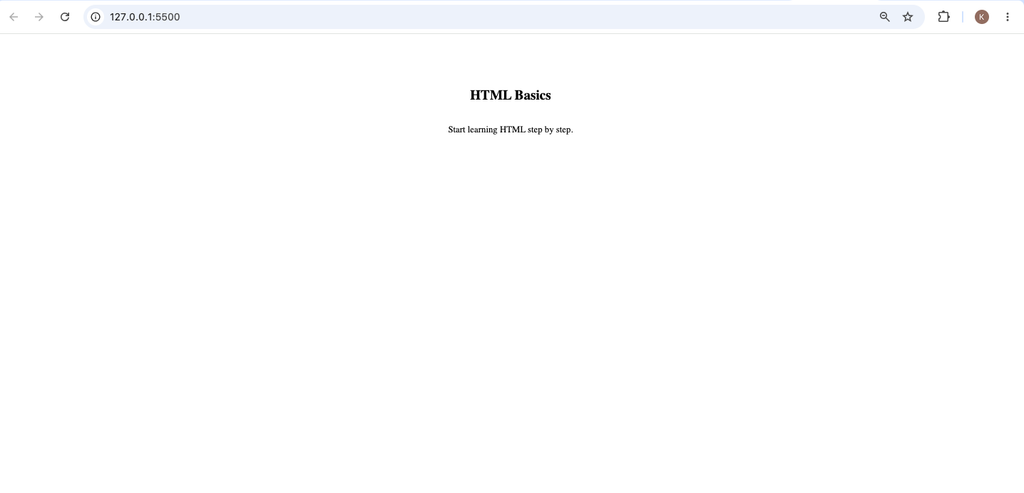
Let’s create a simple card.
HTML:
<div class="card">
    <h2>HTML Basics</h2>
    <p>Start learning HTML step by step.</p>
</div>
CSS:
.card {
    height: 250px;
    display: flex;
    flex-direction: column;
    justify-content: center;
    align-items: center;
}
There is something new here:
flex-direction: column;
This changes the Flexbox direction so the heading and paragraph are arranged vertically.
Then:
justify-content: center;
centers the group vertically.
And:
align-items: center;
centers the content horizontally.
The result is a card where the heading and paragraph sit around the center.
What If the Text Has Multiple Lines?
This is one reason Flexbox is useful.
Suppose you have:
<div class="box">
    <p>
        Learn HTML, CSS, and web development
        with simple beginner-friendly lessons.
    </p>
</div>
The text may occupy multiple lines.
Using Flexbox:
.box {
    min-height: 250px;
    display: flex;
    align-items: center;
}
the entire paragraph can remain vertically centered inside the container.
You do not need to calculate how many lines the text contains.
This makes Flexbox much more flexible for responsive websites.
Vertical Centering in a Full Page
You can also use Flexbox to center content in the middle of the screen.
For example:
body {
    min-height: 100vh;
    display: flex;
    justify-content: center;
    align-items: center;
}
Here:
min-height: 100vh;
makes the body at least as tall as the browser window.
Then:
justify-content: center;
centers the content horizontally.
And:
align-items: center;
centers the content vertically.
This technique is useful for login pages, signup pages, loading screens, welcome screens, and simple landing pages.
Which Method Should You Use?
For most modern projects, Flexbox is the best starting point when you want to vertically center content.
Here is a simple comparison:
| Method | Best Use |
|---|---|
| Flexbox | Modern layouts and responsive designs |
| CSS Grid | Centering content in both directions |
| Padding | Adding space around content |
| Line-height | Simple single-line text |
vertical-align | Inline/table-cell alignment |
If you are building a modern website, learning Flexbox should be one of your priorities.
Common Mistakes Beginners Make
1. Using Only text-align
This:
text-align: center;
does not vertically center your content.
It mainly controls horizontal text alignment.
2. Forgetting display: flex
This will not work as expected:
.box {
    align-items: center;
}
You normally need:
.box {
    display: flex;
    align-items: center;
}
The display: flex property turns the element into a Flexbox container.
3. Using Fixed Padding for Everything
Padding can create space, but it is not always true vertical centering.
If your content changes size or your website needs to work across different screen sizes, Flexbox or Grid will usually be more reliable.
4. Using Line-Height for Large Layouts
line-height can be useful for simple single-line elements, but it is not the best general solution for vertically centering larger blocks of content.
Use Flexbox when you have more complex content.
The Easiest Solution to Remember
If you are a beginner and want one simple pattern to remember, start with this:
.container {
    display: flex;
    align-items: center;
}
This centers the content vertically in a normal horizontal Flexbox layout.
If you also want horizontal centering:
.container {
    display: flex;
    justify-content: center;
    align-items: center;
}
This is one of the most useful CSS patterns you can learn.
Final Example
Let’s put everything together.
HTML:
<div class="hero">
    <h1>Welcome to Kayleotech</h1>
</div>
CSS:
.hero {
    height: 300px;
    display: flex;
    justify-content: center;
    align-items: center;
    text-align: center;
}
The height creates the available vertical space.
display: flex activates Flexbox.
justify-content: center centers the content horizontally.
align-items: center centers the content vertically.
text-align: center makes the text itself align toward the center.
This simple combination can be used for many different website sections.
Centering text vertically with CSS becomes much easier once you understand how CSS layout works.
There are several techniques available, including padding, line-height, vertical-align, Flexbox, and Grid. However, Flexbox is one of the most practical solutions for modern websites because it works well with different screen sizes and different amounts of content.
For simple vertical centering, remember:
display: flex;
align-items: center;
For both vertical and horizontal centering:
display: flex;
justify-content: center;
align-items: center;
And when you need to center content in both directions using CSS Grid, you can use:
display: grid;
place-items: center;
Once you understand these patterns, you can use them to build cleaner cards, buttons, navigation areas, hero sections, login pages, and responsive layouts without relying on complicated positioning tricks.
The key is not to memorize every CSS property. Instead, understand what the container is doing and how the content is being aligned inside it. That understanding will make many other CSS layout problems much easier to solve.