
Centering text is one of the most common tasks when building a website with HTML and CSS. Whether you are creating a homepage, a login page, a navigation menu, a contact section, or a simple landing page, you will often need to position text neatly in the middle of its container.
The good news is that CSS makes this easy. You do not need complicated code or advanced web development skills to center text. With the text-align property, you can align text to the center using just one line of CSS.
In this guide, you will learn how to center text in CSS, where to write the code, how to apply it to different HTML elements, and how to fix common problems beginners may encounter.
What Does Centering Text in CSS Mean?
Centering text means positioning text horizontally in the middle of its available space.
For example, imagine you have a heading that says “Welcome to My Website.” By default, the heading usually starts from the left side of its container. If you want the heading to appear in the middle, you can use CSS to change its horizontal alignment.
CSS provides a property called text-align that controls how inline content, including text, is aligned inside a block-level element.
The most common values are:
left— aligns text to the left.right— aligns text to the right.center— aligns text to the center.justify— spreads text across the available width.
For most beginner projects, text-align: center; is the property you need.
1. How to Center Text Using CSS
The simplest way to center text is to use the text-align property.
Here is a basic example:
<!DOCTYPE html>
<html lang="en">
<head>
  <meta charset="UTF-8">
  <meta name="viewport" content="width=device-width, initial-scale=1.0">
  <title>Center Text with CSS</title>

  <style>
    h1 {
      text-align: center;
    }
  </style>
</head>
<body>

  <h1>Welcome to My Website</h1>

</body>
</html>
Understanding the code
Let’s explain the important parts in simple terms.
<h1>: This is an HTML heading element. It displays the main heading on the webpage.
<style>: This element allows you to write CSS directly inside your HTML document.
h1: This is the CSS selector. It tells the browser that the styling should apply to the HTML heading elements selected by h1.
text-align: center;: This tells the browser to align the heading’s text horizontally in the center of its available space.
</style>: This closes the CSS section.
When you open the HTML file in your browser, the heading will appear centered horizontally rather than aligned to the left.
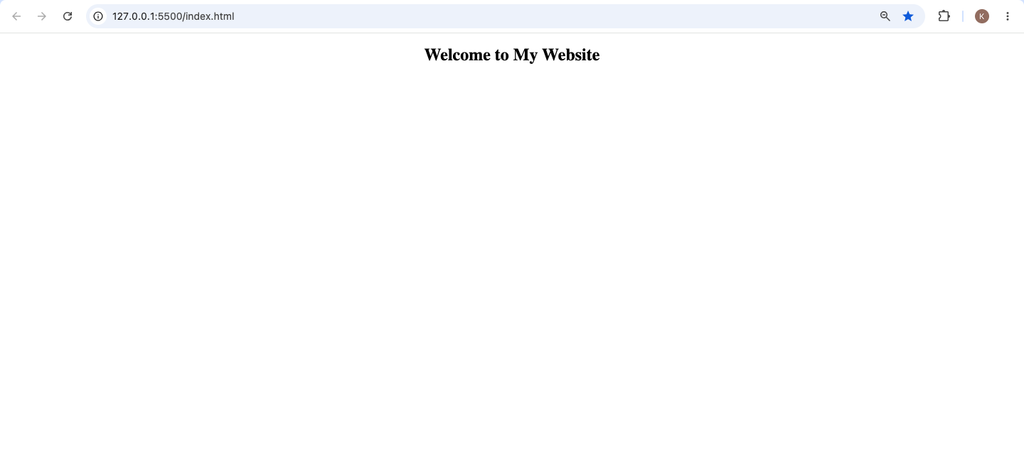
This example demonstrates the basic principle of CSS text alignment. You can use the same property for headings, paragraphs, buttons containing text, and other suitable elements.
2. How to Center Both Headings and Paragraphs
Sometimes, you may want more than just a heading in the center. You might want the heading and the paragraph below it to be centered together.
You can do this by applying text-align: center; to a parent container.
Consider this example:
<!DOCTYPE html>
<html lang="en">
<head>
  <meta charset="UTF-8">
  <meta name="viewport" content="width=device-width, initial-scale=1.0">
  <title>Centered Text Section</title>

  <style>
    .intro {
      text-align: center;
    }
  </style>
</head>
<body>

  <div class="intro">
    <h1>Learn Web Development</h1>
    <p>Start building your first website with HTML and CSS.</p>
  </div>

</body>
</html>
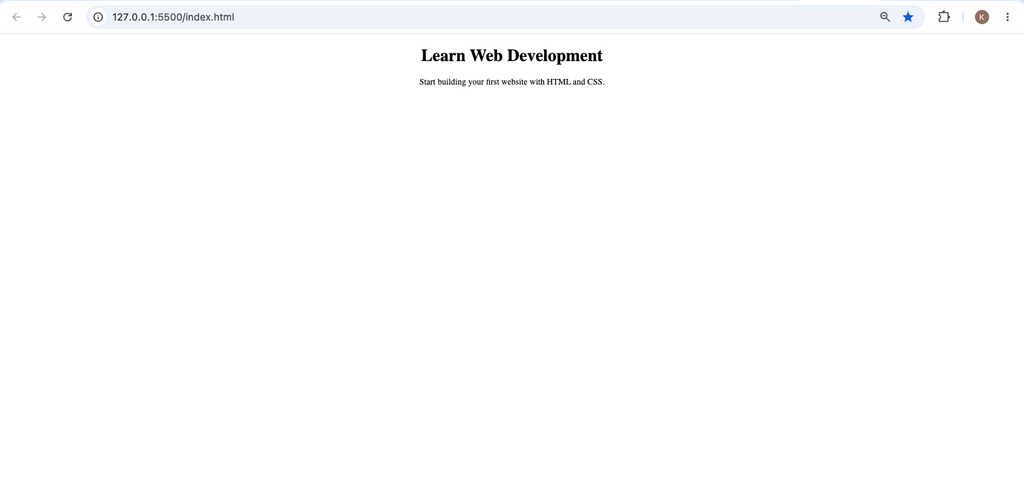
In this example, both the heading and the paragraph appear centered because they are inside the same container.
What does the class attribute do here?
The HTML class attribute gives an element a name that CSS can use to select it.
In this example:
<div class="intro">
The intro class identifies the container holding the heading and paragraph.
In CSS, the dot before intro selects elements with that class:
.intro {
  text-align: center;
}
Because the heading and paragraph are inside the container, they normally inherit the text alignment from it.
This approach is useful when building website sections. Instead of writing the same CSS rule for several individual elements, you can style their shared parent.
3. How to Center Text Using an External CSS File
So far, the examples have used CSS inside the HTML document. This is called internal CSS.
For a larger project, however, you may prefer to keep your HTML and CSS in separate files. This makes your code easier to maintain, especially when a website contains several pages.
Suppose you have two files:
index.htmlstyle.css
Step 1: Write your HTML
Inside index.html, add the following code:
<!DOCTYPE html>
<html lang="en">
<head>
  <meta charset="UTF-8">
  <meta name="viewport" content="width=device-width, initial-scale=1.0">
  <title>Centered Text</title>
  <link rel="stylesheet" href="style.css">
</head>
<body>

  <h1>Welcome to Kayleotech</h1>
  <p>Learn practical technology skills.</p>

</body>
</html>
The important line is:
<link rel="stylesheet" href="style.css">
This connects the HTML document to the external CSS file named style.css.
Step 2: Write your CSS
Open style.css and add:
h1,
p {
  text-align: center;
}
The comma allows you to select multiple elements with the same rule. In this case, the rule applies to both h1 and p.
Save both files, then open index.html in your browser. The heading and paragraph should appear centered.
Remember that both files must be in the correct location relative to the path in your <link> element. If the browser cannot find style.css, the styling will not be applied.
4. How to Center Text Inside a Specific Section
You may not want every heading or paragraph on your website to be centered. For example, your website might have a centered hero section at the top and left-aligned articles below it.
You can center only the text inside a particular section by using a class.
<section class="hero">
  <h1>Build Your First Website</h1>
  <p>Explore simple HTML and CSS lessons.</p>
  <button>Start Learning</button>
</section>
Add the following CSS:
.hero {
  text-align: center;
  background-color: #f2f2f2;
  padding: 40px 20px;
}

.hero h1 {
  color: #222;
}

.hero p {
  color: #555;
}
The .hero selector applies the alignment, background color, and spacing to the section. The heading and paragraph are centered because their parent section has centered text alignment.
The padding property adds space inside the section, while background-color gives the section a light gray background.
Notice that the CSS does not center every element on the entire webpage. It targets only the section with the hero class. This is helpful when building professional layouts with different sections.
5. What Is the Difference Between text-align: center and Flexbox?
Beginners sometimes confuse centering text with centering an entire element or layout.
The text-align: center; property centers text horizontally inside its container. It does not automatically move the container itself to the middle of the page, nor does it vertically center content.
For example:
p {
  text-align: center;
}
This centers the text inside the paragraph’s available width.
Flexbox is different. It is a layout system that helps you position elements inside a container.
For example:
.container {
  display: flex;
  justify-content: center;
  align-items: center;
}
Here:
display: flex;activates Flexbox.justify-content: center;centers flex items along the main axis.align-items: center;aligns flex items along the cross axis.
With the default flex-direction: row, justify-content centers items horizontally and align-items aligns them vertically. If the flex direction changes to column, those axes change.
If you simply want a heading or paragraph to have centered text, use text-align: center;. If you need to position an entire element or arrange several elements, Flexbox may be the better tool.
6. Common Mistakes When Centering Text in CSS
Although centering text is simple, beginners sometimes make mistakes that prevent the expected result.
Mistake 1: Forgetting the semicolon
Incorrect:
h1 {
  text-align: center
}
This example may still work because the final declaration does not require a semicolon to be parsed correctly. However, using semicolons consistently is a good habit, especially when you add more CSS properties.
Correct:
h1 {
  text-align: center;
}
Mistake 2: Using the wrong selector
Suppose your HTML looks like this:
<h1 class="title">Welcome</h1>
But your CSS says:
.heading {
  text-align: center;
}
The rule will not match the heading because the HTML uses title, not heading.
Use the matching class:
.title {
  text-align: center;
}
Class names must match exactly, including spelling.
Mistake 3: Expecting vertical centering
This CSS:
h1 {
  text-align: center;
}
centers the text horizontally, not vertically.
If you want the heading in the middle of a section both horizontally and vertically, you can use Flexbox:
.hero {
  min-height: 300px;
  display: flex;
  flex-direction: column;
  justify-content: center;
  align-items: center;
  text-align: center;
}
This creates a section at least 300 pixels tall and centers its child elements along both axes. The text-align property also centers the text within those elements.
Mistake 4: Applying the rule to the wrong container
If the paragraph is outside the element you styled, it may not be centered by that rule.
Check your HTML structure and make sure the text is inside the intended container. You can also apply text-align: center; directly to the paragraph or its correct parent.
Mistake 5: Expecting the whole element to shrink to the center
A block-level element such as a div often occupies the available width by default. Centering its text does not make the div itself narrower.
If you need to center a container with a limited width, you can use:
.container {
  max-width: 600px;
  margin: 0 auto;
}
The max-width limits the container’s width, while margin: 0 auto; centers that block horizontally when there is extra space available.
You can combine it with text-align: center; if you also want the text inside the container centered.
7. When Should You Use Centered Text?
Centered text can be useful in several parts of a website, including:
- Hero sections: Center the main heading and introductory sentence.
- Landing pages: Center a short message and call-to-action.
- Login pages: Center a page title or brief instruction.
- Cards: Center a heading or short label inside a card.
- Empty states: Center messages such as “No results found.”
- Simple project pages: Center a heading above a small demonstration.
However, avoid centering every paragraph on a long article. Left-aligned text is usually easier to read when paragraphs contain several lines. Use centered text where it supports the layout and helps visitors understand the page.
Centering text in CSS is easy once you understand the text-align property. To center a heading or paragraph horizontally, write:
text-align: center;
You can apply this rule directly to an HTML element, use it on a class, or apply it to a parent container to center several text elements together.
For more complex layouts, Flexbox can help position elements horizontally and vertically. If you want to center the entire container itself, margin: 0 auto; may be useful when the container has a defined or maximum width.
The best way to learn is to test these examples in your browser. Change center to left or right, save the file, and observe how the text moves. Small experiments like these will help you understand CSS more confidently as you build your own projects.