
When building a website, you will often place two or more buttons next to each other. These buttons might be used for actions such as Login, Sign Up, Buy Now, Learn More, or Contact Us.
However, when buttons are placed directly beside each other, they can sometimes look crowded. Adding a little space between them makes the design cleaner, easier to read, and more comfortable to use.
CSS gives you several simple ways to create this space. The method you choose depends on how your buttons are arranged and how you want your layout to behave.
In this tutorial, you will learn how to add space between buttons using CSS. We will look at margin, the gap property, and a simple Flexbox layout. You will also see examples that you can copy and test in your own project.
Why Do Buttons Need Space Between Them?
Imagine you have two buttons like this:
<button>Login</button>
<button>Sign Up</button>
By default, the buttons may appear very close together.
When buttons are too close, they can make the interface look unfinished. On mobile devices, the problem can be even more noticeable because users need enough space to comfortably tap each button.
Adding space between buttons provides:
- A cleaner appearance
- Better visual organization
- Easier clicking and tapping
- Better separation between different actions
- A more professional user interface
CSS makes this easy.
Method 1: Use the margin Property
One of the simplest ways to add space between buttons is by using the CSS margin property.
For example:
<button>Login</button>
<button>Sign Up</button>
You can select the buttons with CSS and add a right margin:
button {
    margin-right: 10px;
}
The margin-right property creates space on the right side of each button.
The result will look roughly like:
Login Sign Up
Instead of:
Login****Sign Up
This is one of the easiest methods for beginners.
A Complete Example
Here is a simple example you can try:
<!DOCTYPE html>
<html>
<head>
    <style>
        button {
            padding: 10px 20px;
            margin-right: 10px;
        }
    </style>
</head>
<body>

    <button>Login</button>
    <button>Sign Up</button>

</body>
</html>
The padding makes the buttons larger, while margin-right creates space between them.
What Does margin-right: 10px Mean?
The value 10px tells the browser to create 10 pixels of space on the right side of the button.
You can increase or decrease this value.
For example:
margin-right: 5px;
creates a small amount of space.
margin-right: 20px;
creates more space.
margin-right: 30px;
creates even more space.
The correct value depends on the design of your website.
Method 2: Use the gap Property
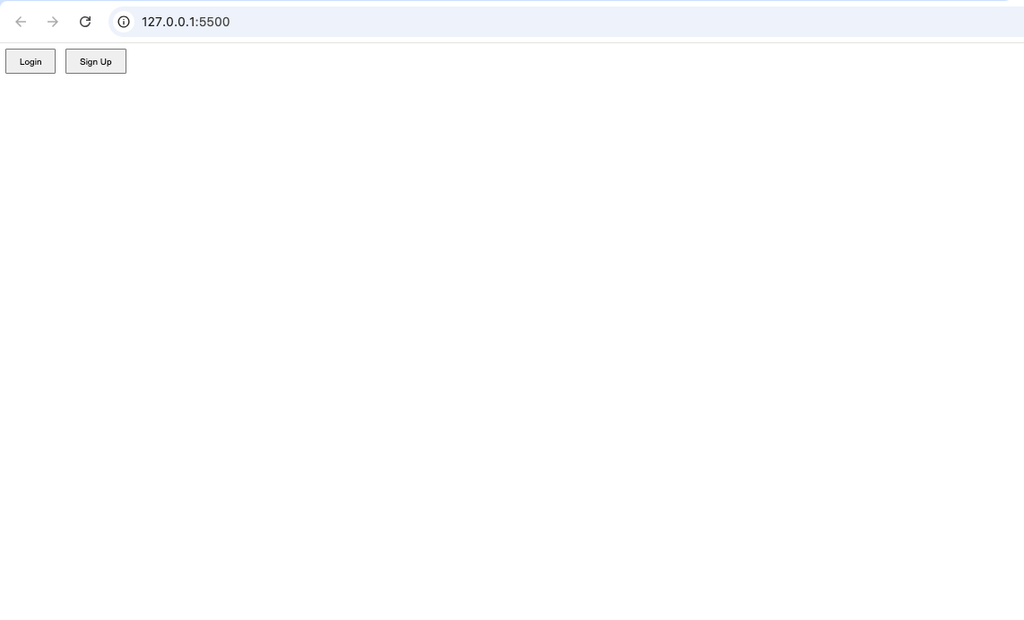
Another modern and convenient way to add space between buttons is the CSS gap property.
This method is especially useful when you are using Flexbox.
For example:
<div class="button-container">
    <button>Login</button>
    <button>Sign Up</button>
</div>
Now add CSS:
.button-container {
    display: flex;
    gap: 10px;
}
The gap property creates space between the buttons.
Unlike margin-right, you do not have to add spacing to each individual button.
Understanding display: flex
You might be wondering why we used:
display: flex;
The display: flex property turns the container into a Flexbox container.
This allows the elements inside the container to be arranged easily.
In our example:
<div class="button-container">
    <button>Login</button>
    <button>Sign Up</button>
</div>
the <div> is the parent container, while the two <button> elements are its children.
When we write:
.button-container {
    display: flex;
}
the buttons can be arranged next to each other.
We can then use:
gap: 10px;
to control the space between them.
A Complete Flexbox Example
Here is a complete example:
<!DOCTYPE html>
<html>
<head>
    <style>
        .button-container {
            display: flex;
            gap: 15px;
        }

        button {
            padding: 10px 20px;
            border: none;
            cursor: pointer;
        }
    </style>
</head>
<body>

    <div class="button-container">
        <button>Login</button>
        <button>Sign Up</button>
    </div>

</body>
</html>
Here, the buttons have 15 pixels of space between them.
You can change the value:
gap: 5px;
for a smaller space.
Or:
gap: 20px;
for a larger space.
You can even use:
gap: 30px;
if you want the buttons to be widely separated.
Why gap Can Be Better Than margin
Both margin and gap are useful, but they work differently.
With margin, you might write:
button {
    margin-right: 10px;
}
This puts a margin on the buttons themselves.
With Flexbox, you can write:
.button-container {
    display: flex;
    gap: 10px;
}
The container controls the spacing between its children.
This can make your CSS easier to manage, especially when you have several buttons.
For example:
<div class="button-container">
    <button>Home</button>
    <button>About</button>
    <button>Contact</button>
</div>
With:
.button-container {
    display: flex;
    gap: 12px;
}
the same amount of space is automatically created between the buttons.
You do not need to give each button its own margin.
Method 3: Use margin on Specific Buttons
Sometimes you may not want every button on your website to have the same spacing.
In that situation, you can create a class specifically for your buttons.
For example:
<button class="login-btn">Login</button>
<button class="signup-btn">Sign Up</button>
Then:
.login-btn {
    margin-right: 15px;
}
Only the Login button receives the right margin.
This is useful when you want more control over individual elements.
You could also create a general class:
<button class="action-btn">Login</button>
<button class="action-btn">Sign Up</button>
Then:
.action-btn {
    margin-right: 10px;
}
This allows you to reuse the same styling.
Horizontal Space vs Vertical Space
It is important to understand that buttons may need space in different directions.
If your buttons are next to each other horizontally, you may want to use:
margin-right: 10px;
or:
gap: 10px;
But if your buttons are stacked vertically, you may need vertical spacing.
For example:
<div class="buttons">
    <button>Login</button>
    <button>Sign Up</button>
</div>
You could use:
.buttons {
    display: flex;
    flex-direction: column;
    gap: 10px;
}
Now the buttons will appear one below another with 10 pixels of space between them.
The important part is:
flex-direction: column;
It changes the direction of the buttons from horizontal to vertical.
Using gap for Both Rows and Columns
The gap property becomes even more useful when you have several elements arranged in rows and columns.
For example:
.button-container {
    display: flex;
    gap: 20px;
}
creates a 20px gap between the buttons.
You can also use separate row and column values with:
gap: 10px 20px;
The first value controls the row gap, while the second controls the column gap.
For simple button layouts, however, one value is usually enough.
Which Method Should Beginners Use?
If you are just starting with CSS, both methods are worth learning.
Use margin when you need to add spacing around a particular element.
For example:
button {
    margin-right: 10px;
}
Use gap when you have a parent container controlling several elements.
For example:
.button-container {
    display: flex;
    gap: 10px;
}
For modern layouts, gap is often a very convenient choice because the spacing is controlled from the container.
A More Realistic Button Example
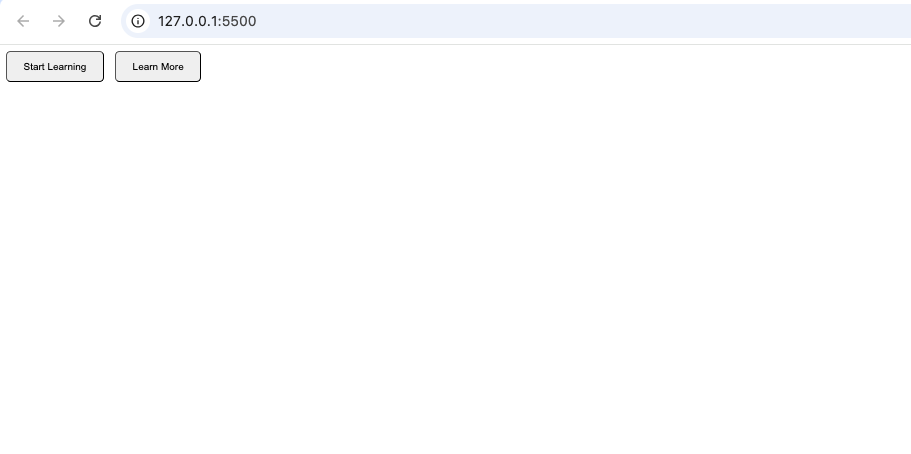
Let’s create a simple pair of buttons that could appear on a website.
<div class="button-container">
    <button class="primary">Start Learning</button>
    <button class="secondary">Learn More</button>
</div>
CSS:
.button-container {
    display: flex;
    gap: 15px;
}

button {
    padding: 12px 22px;
    border-radius: 6px;
    cursor: pointer;
}
The important part for the spacing is:
gap: 15px;
The other properties simply make the buttons more comfortable and visually appealing.
Common Mistakes When Adding Space Between Buttons
1. Putting gap Directly on the Button
This will not work as expected:
button {
    gap: 10px;
}
The gap property is normally used on a layout container such as a Flexbox or Grid container.
Instead, use:
.button-container {
    display: flex;
    gap: 10px;
}
2. Confusing padding With margin
This is another common beginner mistake.
padding controls the space inside an element.
For example:
button {
    padding: 10px 20px;
}
This makes the button’s content have more room inside the button.
margin controls the space outside the element.
For example:
button {
    margin-right: 10px;
}
This creates space between the button and another element.
So, if your goal is specifically to separate two buttons, margin or gap is usually what you need.
3. Adding Too Much Space
There is no need to use extremely large values such as:
gap: 100px;
unless your design specifically requires it.
Too much space can make related buttons appear disconnected.
A small value such as:
gap: 10px;
or:
gap: 15px;
is often a good starting point.S
Make Your Buttons Mobile-Friendly
Your buttons should also work well on smaller screens.
A simple Flexbox layout can be adjusted for mobile devices.
For example:
.button-container {
    display: flex;
    gap: 10px;
    flex-wrap: wrap;
}
The flex-wrap property allows buttons to move onto another line when there is not enough horizontal space.
This can prevent your buttons from becoming cramped on smaller screens.
For example:
flex-wrap: wrap;
means the buttons can wrap when necessary instead of forcing everything onto one line.
Final Example
Here is a simple version you can keep as a reference:
<div class="button-container">
    <button>Login</button>
    <button>Sign Up</button>
</div>
.button-container {
    display: flex;
    gap: 15px;
    flex-wrap: wrap;
}

button {
    padding: 10px 20px;
    cursor: pointer;
}
The main CSS responsible for the spacing is:
gap: 15px;
If you want more space, increase the value.
gap: 25px;
If you want less space:
gap: 5px;
Adding space between buttons is a small CSS technique, but it can make a significant difference to the appearance and usability of a webpage.
The two main approaches covered in this tutorial are margin and gap.
For a simple situation, you can use:
button {
    margin-right: 10px;
}
For a group of buttons inside a Flexbox container, you can use:
.button-container {
    display: flex;
    gap: 10px;
}
The gap method is particularly useful when you have several buttons because the parent container controls the spacing between them.
As you continue learning CSS, you will discover that spacing is an important part of creating clean and professional websites. Properties such as margin, padding, and gap give you control over how elements are positioned and separated.
Start with small values, test them in your browser, and adjust the spacing until the buttons look comfortable and balanced.