HTML gives a webpage its structure, but structure alone does not make a website look very attractive. If you create a page using only HTML, you may have headings, paragraphs, buttons, images, and links, but the page can look very plain.
This is where CSS comes in.
CSS stands for Cascading Style Sheets. It is the language used to control the appearance and presentation of HTML elements. With CSS, you can change colors, fonts, spacing, sizes, borders, backgrounds, layouts, and much more.
If you are learning web development, one of the first things you should understand is how CSS is connected to HTML.
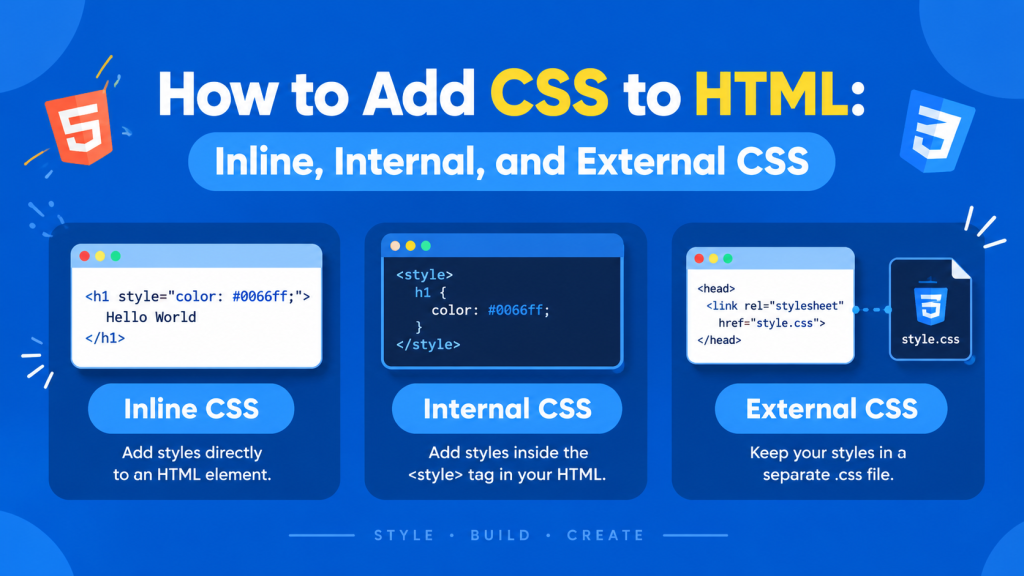
There are three common ways to add CSS to an HTML page:
- Inline CSS
- Internal CSS
- External CSS
All three methods can style HTML, but they are used in different situations.
In this guide, we will look at each method step by step, see a simple example of each one, understand the advantages and disadvantages, and learn which method is generally best for real-world projects.
What Is the Relationship Between HTML and CSS?
Before looking at the three methods, it is important to understand what HTML and CSS actually do.
Think of a webpage like a house.
HTML is the structure of the house.
It determines where the rooms, doors, windows, and other parts are located.
CSS is the appearance and decoration.
It determines things such as the wall colors, sizes, spacing, furniture arrangement, and overall visual appearance.
For example, HTML can tell the browser:
“This is a heading.”
CSS can then tell the browser:
“Make this heading larger, dark, centered, and give it some spacing.”
HTML and CSS work together, but they have different responsibilities.
What Does “Adding CSS to HTML” Mean?
When you add CSS to HTML, you are connecting styling rules to HTML elements.
A CSS rule usually tells the browser three basic things:
- Which HTML element should be styled
- Which property should change
- What value the property should have
For example, you might want all paragraphs to have a certain text color.
The important thing to understand is that you do not need to memorize hundreds of CSS properties before you start.
Start with simple properties such as:
colorbackground-colorfont-sizefont-familymarginpaddingborderwidthheight
Once you understand how CSS connects to HTML, learning additional properties becomes much easier.
1. How to Add Inline CSS to HTML
Inline CSS is CSS written directly inside an HTML element using the style attribute.
This means the styling is placed on the exact element you want to change.
For example:
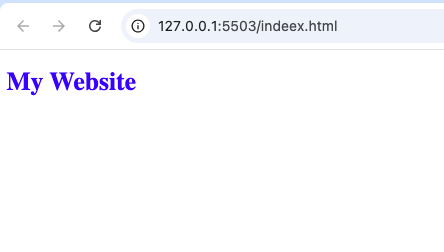
<h1 style="color: blue;">My Website</h1>
Here, the style attribute contains the CSS.
The heading will appear blue.
This is called inline CSS because the styling is written directly inside the HTML element.
Understanding the Inline Example
Look at the example again:
<h1 style="color: blue;">My Website</h1>
There are two different parts working together.
The <h1> element is HTML.
The style="color: blue;" part is CSS.
The HTML creates the heading, while the CSS changes its appearance.
You can also apply more than one CSS property to the same element.
For example, you could change the text color and font size at the same time.
<h1 style="color: blue; font-size: 40px;">My Website</h1>
The important thing is not to focus on memorizing the code. Instead, understand the relationship:
HTML element → style attribute → CSS properties
When Should You Use Inline CSS?
Inline CSS can be useful when you need to make a very small and specific change to one HTML element.
For example, imagine you have a paragraph where only one word needs a different color.
Inline CSS can handle that type of small change.
It can also be useful when experimenting with CSS while learning.
For beginners, inline CSS is sometimes convenient because everything is visible in one place.
However, convenience does not mean it is always the best approach.
Problems With Inline CSS
The biggest problem with inline CSS is that it can make your HTML difficult to maintain.
Imagine a webpage with 50 paragraphs.
If you add styling directly to each paragraph, your HTML can quickly become filled with CSS.
That makes the document harder to read.
Another problem occurs when you want to change the same style later.
You might have to edit many individual elements instead of changing one central rule.
For this reason, inline CSS is generally better for small, specific situations rather than large websites.
Inline CSS Example for Practice
A simple practice project could be a personal profile page.
You might have a heading, paragraph, and button.
You could temporarily use inline CSS to experiment with different colors and sizes.
For example:
<button style="background-color: black; color: white;">
  Click Me
</button>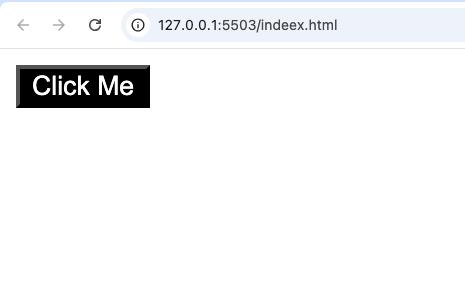
This is a useful way to see how CSS immediately affects an HTML element.
However, once your project starts growing, you will usually want to move your styling into a more organized method.
2. How to Add Internal CSS to HTML
Internal CSS is CSS written inside the <style> element in the HTML document.
Instead of placing CSS directly on individual elements, you create a dedicated CSS section inside the HTML <head>.
A simple example looks like this:
<head>
  <style>
    h1 {
      color: blue;
    }
  </style>
</head>
Now the CSS is separated from the individual HTML elements.
You can have several headings on the page, and the rule can apply to all of them.
For example:
<h1>Home</h1>
<h1>About</h1>
<h1>Contact</h1>
The CSS rule can style all three headings.
This is already more organized than adding a separate style attribute to every heading.
How Internal CSS Works
The <style> element tells the browser:
“The information inside this section contains CSS.”
The browser then reads the CSS rules and applies them to matching HTML elements.
You can create rules for:
- Headings
- Paragraphs
- Buttons
- Links
- Images
- Sections
- Classes
- IDs
This gives you much more control over an entire page.
Internal CSS Example for Practice
Suppose you are building a simple landing page.
You might want all paragraphs to have the same font size and color.
Instead of styling every paragraph separately, you can create one CSS rule.
<style>
  p {
    color: gray;
    font-size: 18px;
  }
</style>
Now the same styling can be applied to paragraphs throughout that HTML page.
This makes the HTML cleaner and reduces repeated styling.
When Should You Use Internal CSS?
Internal CSS is useful when you are working on a single-page project.
For example, imagine you are practicing HTML and CSS by creating:
- A simple portfolio
- A landing page
- A contact page
- A small practice project
- A single HTML exercise
Internal CSS can be perfectly reasonable for these situations.
You can keep your HTML and CSS in one file while still maintaining a reasonable separation between structure and styling.
Advantages of Internal CSS
Internal CSS has several advantages.
First, it keeps your CSS in one dedicated section instead of spreading styles throughout the HTML.
Second, it makes it easier to style multiple elements.
Third, you do not need to create a separate CSS file for a very small project.
For beginners, this can make experimentation easier.
Disadvantages of Internal CSS
The biggest disadvantage is that the CSS only belongs to that particular HTML document.
Imagine that your website has:
- Home page
- About page
- Contact page
- Blog page
If every page contains its own CSS, you may end up repeating the same styling.
That is where external CSS becomes much more useful.
3. How to Add External CSS to HTML
External CSS means placing your CSS in a separate .css file and connecting that file to your HTML document.
For example, you might have:
index.html
style.css
The HTML file contains your webpage structure.
The CSS file contains your styling rules.
You then connect the CSS file to the HTML using the <link> element.
A simple example is:
<link rel="stylesheet" href="style.css">
This is normally placed inside the <head> of the HTML document.
Understanding the External CSS Example
The HTML file might contain your heading:
<h1>My Website</h1>
The CSS file can contain the styling:
h1 {
  color: blue;
}
The <link> element connects the two files.
So the relationship becomes:
HTML → link element → CSS file → styling
This separation is one of the most important concepts to understand when learning frontend development.
Why External CSS Is So Popular
External CSS is widely used because it makes larger projects easier to organize.
Imagine you have a website with ten different HTML pages.
You might want all pages to use:
- The same font
- The same button design
- The same colors
- The same navigation
- The same spacing
Instead of writing the same CSS repeatedly inside every HTML file, you can place the common styling in one CSS file.
All the pages can then use that stylesheet.
External CSS Example for a Website
Imagine your website has these files:
index.html
about.html
contact.html
style.css
Each HTML page can connect to style.css.
The CSS file can contain the common styles for the entire website.
If you later decide that all your headings should have a different color, you can change the rule once in style.css.
The change can then be reflected across the pages using that stylesheet.
This is one of the biggest advantages of external CSS.
Inline vs Internal vs External CSS
Now that you understand all three methods, let’s compare them.
| Method | Where CSS is written | Best for |
|---|---|---|
| Inline | Inside the HTML element | Small, specific changes |
| Internal | Inside <style> in HTML | Single-page projects |
| External | Separate .css file | Multi-page and larger projects |
The three methods are not competing technologies. They are simply different ways of applying CSS.
Which CSS Method Should Beginners Learn First?
You should understand all three, but you should become most comfortable with external CSS.
Why?
Because external CSS encourages a clean separation between your HTML and CSS.
Your HTML focuses on structure.
Your CSS focuses on appearance.
This becomes especially useful as your projects become larger.
If you are practicing a very small HTML exercise, internal CSS is also fine.
Inline CSS should generally be used sparingly.
A Simple Practice Project
A great way to understand the three methods is to build the same small webpage three times.
Create a simple page containing:
- A heading
- A paragraph
- A button
First, style the elements using inline CSS.
Then create another version using internal CSS.
Finally, create an external style.css file and connect it to your HTML.
You will quickly notice how the appearance can be controlled using all three methods while the organization of the project changes.
This is a much better way to learn than simply memorizing definitions.
What Happens When Multiple CSS Methods Are Used?
Sometimes a webpage can contain more than one type of CSS.
For example, you could have an external stylesheet while also having an inline style on one particular element.
This is where CSS’s cascade becomes important.
The browser has rules for deciding which styling should take priority when different rules affect the same element.
Inline styles can have strong priority in many normal cases, while selectors, specificity, and source order also influence which rule wins.
You do not need to master the entire cascade on your first day.
For now, understand that CSS has a system for resolving conflicting styles.
As you continue learning CSS, the cascade will become an important concept.
Common Beginner Mistakes
There are a few mistakes beginners often make when adding CSS to HTML.
Forgetting the <link> Element
When using external CSS, your HTML needs to connect to the stylesheet.
If the connection is missing or the file path is incorrect, your styles may not appear.
Putting the CSS File in the Wrong Location
The href value must point to the correct CSS file.
If your file is inside another folder, the path needs to reflect that structure.
Forgetting the <style> Element
Internal CSS must be placed inside a <style> element.
Without it, the browser may interpret the CSS incorrectly.
Using Too Much Inline CSS
Inline CSS works, but using it everywhere can make HTML difficult to maintain.
Confusing HTML With CSS
Remember:
HTML creates and organizes content.
CSS controls how that content looks.
How to Choose the Right Method
A simple rule can help you decide.
Use Inline CSS when:
You need a very small style change on one specific element.
Use Internal CSS when:
You are building a small single-page project and want to keep the CSS inside the HTML file.
Use External CSS when:
You are building a proper website or a project with multiple pages and want your styling organized separately.
For most serious projects, external CSS is usually the preferred approach.
Why Separating HTML and CSS Is a Good Habit
As a beginner, it can be tempting to put everything into one HTML file.
That may work for small experiments.
But as your projects grow, separation becomes more valuable.
When HTML and CSS are separated:
- Your HTML is easier to read.
- Your CSS is easier to find.
- Styles can be reused.
- Changes become easier.
- Multiple pages can share the same stylesheet.
These habits will become even more useful when you eventually start learning JavaScript and building larger applications.
Adding CSS to HTML is one of the first major steps toward creating professional-looking websites.
The three main methods are inline CSS, internal CSS, and external CSS.
Inline CSS places styling directly on an HTML element. It is simple and useful for small, specific changes, but it can make a page difficult to maintain when used too much.
Internal CSS places styles inside a <style> element in the HTML document. It is a convenient option for small, single-page projects because the HTML and CSS remain in the same file.
External CSS takes the styling into a separate .css file. This approach provides better organization and allows multiple HTML pages to share the same stylesheet.
If you are just starting, practice all three methods so you understand how they work. However, make external CSS a major part of your learning because it teaches you how real projects can separate structure from presentation.
The most important thing is not simply memorizing the three definitions. Build small projects, change colors, adjust spacing, resize headings, style buttons, and experiment with different CSS properties.
Once you understand how HTML connects to CSS, you have a strong foundation for moving into layouts, responsive design, animations, and eventually JavaScript-powered websites.
Try it yourself
Change the code, then run it to see the result.