

A contact form is one of the most important parts of any website. Whether you are building a personal blog, a portfolio, or a business website, a contact form allows visitors to reach you without exposing your email address publicly. Because every website needs communication, learning how to create a contact form using HTML is a skill that stays relevant for years.
In this guide, you’ll learn how a contact form works, how to structure it using HTML, and how to make it user-friendly. Even if you are completely new to web development, you’ll be able to follow along step by step.
Why Contact Forms Are Important on Websites
Before writing any code, it’s important to understand why contact forms matter.
A contact form:
- Makes it easy for visitors to send messages
- Looks more professional than listing an email address
- Helps reduce spam emails
- Works well on both desktop and mobile devices
- Builds trust with users
From an SEO(search engine optimization) and user-experience perspective, contact forms help increase engagement and reduce bounce rates. Many visitors expect to see a contact form, especially on blogs, service websites, and portfolios.

Step 1: Creating the HTML Form Container
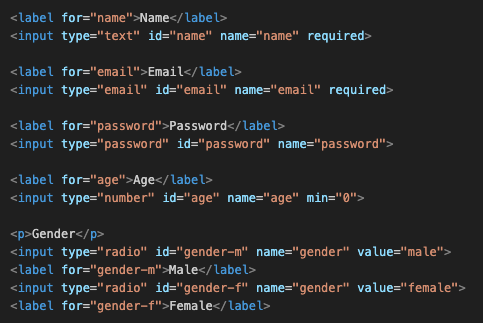
The <form> tag is the foundation of your contact form. It usually contains attributes like action and method.
actiondefines where the form data will be sentmethoddefines how the data is sent (usuallyPOST)
For beginners, you can leave the action empty or use a placeholder until you connect a backend later.
Step 2: Adding Labels for Better Usability
Labels are often overlooked, but they are extremely important. A <label> describes what an input field is for and improves accessibility.
Benefits of using labels:
- Helps screen readers
- Improves form clarity
- Makes forms easier to use on mobile
- Boosts accessibility compliance
Every input field should have a corresponding label. This is a best practice that never goes out of style.

Step 3: Creating Input Fields for User Information
Most contact forms collect basic information such as:
- Name
- Email address
- Subject (optional)
- Message
HTML provides different input types for different data:
type="text"for namestype="email"for email addressestype="tel"for phone numberstype="submit"for buttons
Using the correct input type helps browsers validate data automatically and improves the user experience.
Step 4: Adding a Message Field with Textarea
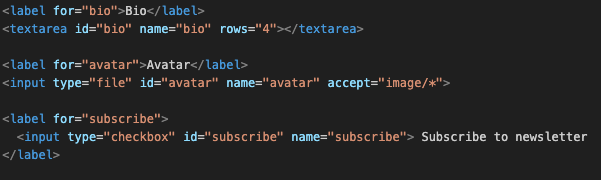
Short messages can fit into input fields, but longer messages need more space. That’s where the <textarea> element comes in.
Textarea allows users to:
- Write longer messages
- See multiple lines at once
- Feel more comfortable expressing details
This is a standard element that has been part of HTML for decades and will continue to be used.
Step 5: Adding a Submit Button
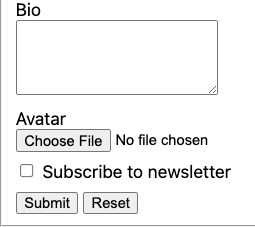
The submit button allows users to send their information. Without it, the form cannot be submitted.
Best practices for submit buttons:
- Use clear text like “Send Message” or “Contact Me”
- Avoid vague labels like “Submit”
- Make the button easy to click on mobile
Clear buttons improve conversions and usability.
Step 6: Using Required Attributes for Basic Validation
HTML provides simple validation features that help ensure users fill out important fields.
The required attribute:
- Prevents empty submissions
- Works without JavaScript
- Improves form quality
For example, you can require the name, email, and message fields. This keeps your form clean and useful.
Step 7: Structuring the Form for Readability
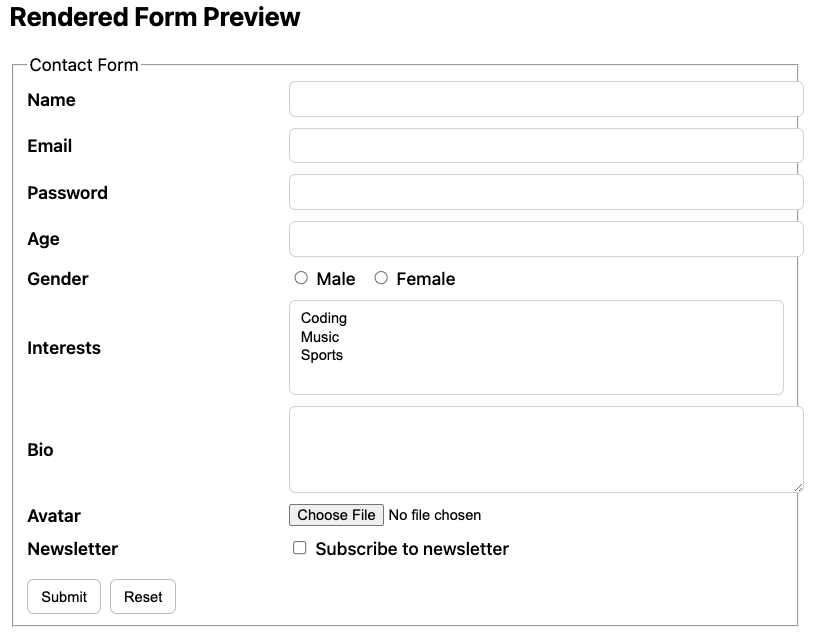
A well-structured form is easier to use. Even without CSS, proper spacing and logical order matter.
Good structure includes:
- One field per line
- Clear labels above or beside inputs
- Logical flow from name → email → message → submit
This structure works well across devices and screen sizes.
Common Mistakes Beginners Make with Contact Forms
Some common errors include:
- Missing labels
- Using incorrect input types
- Not adding required attributes
- Overloading the form with too many fields
- Forgetting accessibility considerations
Keeping forms simple improves completion rates and user satisfaction.
Where This Contact Form Can Be Used
Once you understand how to create a contact form using HTML, you can use it in many projects:
- Personal blogs
- Portfolio websites
- Business landing pages
- School projects
- Client websites
This makes it a foundational skill worth mastering early.
Next Steps After HTML (Optional Growth Path)
While HTML handles structure, you can enhance your contact form by:
- Styling it with CSS
- Adding JavaScript validation
- Connecting it to email or a database
- Using third-party form handlers
Learning how to create a contact form using HTML is one of the best beginner projects in web development. It teaches structure, accessibility, user interaction, and best practices all using simple, cool concepts.
By mastering this skill, you’re not just building a form. You’re learning how real websites communicate with users.
If you build this once and understand it properly, you’ll use it again and again across different projects for years to come.