
Centering an image inside a <div> is one of the most common tasks when learning HTML and CSS. You may want an image to appear in the middle of a card, a profile section, a hero area, a product box, or another part of a webpage.
At first, centering an image can seem confusing because there are several CSS properties that can be used depending on the situation.
The good news is that you do not need complicated CSS to center an image. Once you understand how the <div>, <img>, and CSS layout work together, you can center images easily in your projects.
In this guide, we will look at simple methods for centering an image inside a <div>, starting with one of the easiest methods for beginners.
What Does It Mean to Center an Image?
When we say we want to center an image inside a <div>, we usually mean that the image should appear in the middle of the available space.
For example, imagine you have a box like this:
+--------------------------------+
|                                |
|             IMAGE              |
|                                |
+--------------------------------+
The image is centered horizontally and vertically inside the box.
However, there are actually two different types of centering:
- Horizontal centering — moving the image to the center from left to right.
- Vertical centering — moving the image to the center from top to bottom.
You can center an image horizontally, vertically, or both at the same time.
Basic HTML Structure
Before adding CSS, let’s create a simple HTML structure.
<div class="image-container">
    <img src="image.jpg" alt="A sample image">
</div>
Here, the <div> is the container holding the image.
The image itself is created using the <img> element.
The class="image-container" gives us a way to select the <div> with CSS.
We can then create a CSS rule for that container.
.image-container {
    text-align: center;
}
The text-align: center property is one of the simplest ways to horizontally center an image inside a <div>.
Method 1: Using text-align: center
For a simple image that only needs to be centered horizontally, text-align: center is a good starting point.
Here is the complete example:
<!DOCTYPE html>
<html>
<head>
    <style>
        .image-container {
            text-align: center;
        }
    </style>
</head>
<body>

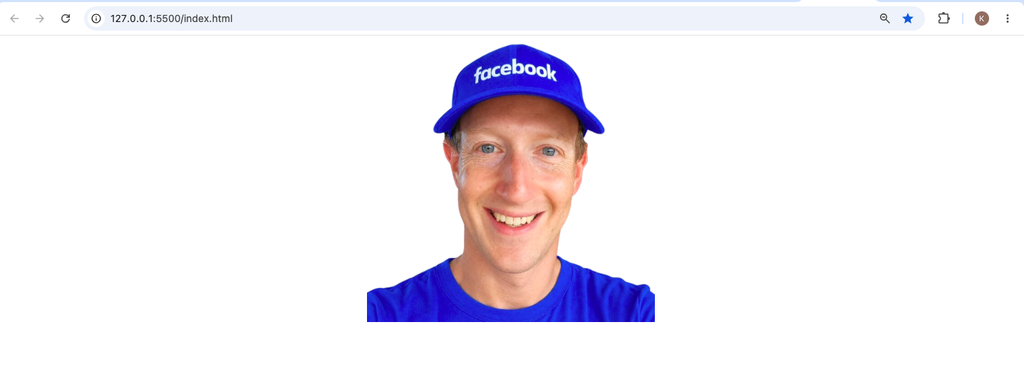
    <div class="image-container">
        <img src="zucks.png" alt="Sample image">
    </div>

</body>
</html>
The important part is:
.image-container {
    text-align: center;
}
This tells the browser to center inline content inside the container.
An <img> element behaves like an inline-level element by default, so this method can work well for basic image-centering situations.
Method 2: Using margin: auto
Another popular way to center an image horizontally is by using margin: auto.
For this method, we normally change the image’s display behavior to block.
.image-container img {
    display: block;
    margin: auto;
}
The complete example looks like this:
<!DOCTYPE html>
<html>
<head>
    <style>
        .image-container img {
            display: block;
            margin: auto;
        }
    </style>
</head>
<body>

    <div class="image-container">
        <img src="image.jpg" alt="Sample image">
    </div>

</body>
</html>
There are two important lines here:
display: block;
and
margin: auto;
The first line changes the image into a block-level element.
The second tells the browser to automatically distribute the available horizontal space around the image.
For example, if the image is 300 pixels wide and the container is 600 pixels wide, the browser can place equal space on both sides of the image.
The result is a centered image.
Why Does margin: auto Work?
You may wonder why this works.
Suppose your container is 800 pixels wide and your image is 300 pixels wide.
There is extra horizontal space around the image.
When you use:
margin: auto;
the browser automatically calculates the available space and distributes it between the left and right margins.
The result looks approximately like this:
| 250px | IMAGE | 250px |
This places the image in the middle.
However, remember that margin: auto is primarily useful for horizontal centering when the element has a defined width or an intrinsic width that the browser can work with.
Method 3: Using Flexbox
If you want to center the image both horizontally and vertically, Flexbox is one of the easiest modern CSS solutions.
Start with this HTML:
<div class="image-container">
    <img src="image.jpg" alt="Sample image">
</div>
Then add:
.image-container {
    display: flex;
    justify-content: center;
    align-items: center;
}
Here is what each property does.
display: flex
display: flex;
This turns the <div> into a flex container.
Once the container becomes a flex container, you can control how its child elements are positioned.
justify-content: center
justify-content: center;
This centers the image along the main axis.
In the default horizontal Flexbox direction, this means the image is centered from left to right.
align-items: center
align-items: center;
This centers the image along the cross axis.
Together, these properties can center the image horizontally and vertically.
Complete Flexbox Example
Here is a complete example you can try:
<!DOCTYPE html>
<html>
<head>
    <style>
        .image-container {
            width: 500px;
            height: 300px;
            display: flex;
            justify-content: center;
            align-items: center;
            border: 2px solid #333;
        }

        .image-container img {
            width: 200px;
        }
    </style>
</head>
<body>

    <div class="image-container">
        <img src="image.jpg" alt="Sample image">
    </div>

</body>
</html>
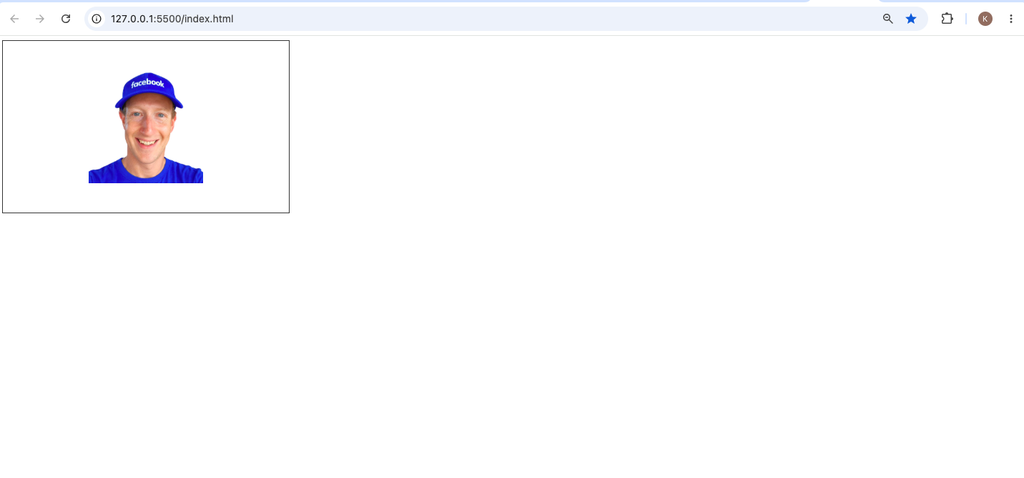
The <div> has a width of 500px and a height of 300px.
The image is given a width of 200px.
Flexbox then places the image in the center of the available space.
What Is the Best Method to Use?
There is no single method that is best for every situation.
The method you choose depends on what you are trying to achieve.
Use text-align: center when:
You only need a simple horizontal alignment.
.image-container {
    text-align: center;
}
This is easy to understand and works well for simple layouts.
Use margin: auto when:
You want to center a block-level image horizontally.
img {
    display: block;
    margin: auto;
}
This is also a clean and commonly used solution.
Use Flexbox when:
You need more control over the layout or want to center the image both horizontally and vertically.
.image-container {
    display: flex;
    justify-content: center;
    align-items: center;
}
For modern layouts, Flexbox is often the most flexible choice.
Making the Image Responsive
When working on real websites, you should also make sure your image does not overflow its container on smaller screens.
A common CSS rule is:
img {
    max-width: 100%;
    height: auto;
}
The max-width: 100% prevents the image from becoming wider than its container.
The height: auto keeps the image’s original proportions.
For example:
.image-container img {
    max-width: 100%;
    height: auto;
}
This is particularly useful when your website needs to work on phones, tablets, and desktop computers.
A Practical Example
Let’s combine the ideas into a small profile card.
<div class="profile-card">

    <img src="profile.jpg" alt="Profile photo">

    <h2>John Smith</h2>

    <p>Frontend Developer</p>

</div>
You could use:
.profile-card {
    width: 300px;
    padding: 20px;
    text-align: center;
    border: 1px solid #ddd;
}

.profile-card img {
    width: 120px;
    height: 120px;
    object-fit: cover;
    border-radius: 50%;
}
Here, text-align: center centers not only the image but also the heading and paragraph.
This is a practical example of how image centering can be used in an actual webpage.
Common Mistakes Beginners Make
1. Using margin: auto Without Understanding the Layout
A beginner may write:
img {
    margin: auto;
}
and expect the image to center automatically.
Depending on the image’s display behavior and layout, this may not produce the expected result.
A safer basic approach is:
img {
    display: block;
    margin: auto;
}
2. Confusing Horizontal and Vertical Centering
Centering horizontally does not automatically mean the image is vertically centered.
For example:
text-align: center;
mainly handles horizontal text and inline content alignment.
If you need both horizontal and vertical centering, Flexbox is usually easier:
.container {
    display: flex;
    justify-content: center;
    align-items: center;
}
3. Forgetting the Container’s Height
If you want to see obvious vertical centering, the container needs some available height.
For example:
.container {
    height: 300px;
    display: flex;
    justify-content: center;
    align-items: center;
}
Without enough vertical space, there may not be much visible difference between normal positioning and vertical centering.
Final Example to Remember
If you are just starting with CSS and want one simple solution that you can remember, try Flexbox:
.container {
    display: flex;
    justify-content: center;
    align-items: center;
}
With:
<div class="container">
    <img src="image.jpg" alt="Sample image">
</div>
This gives you a simple way to center the image horizontally and vertically.
Centering an image inside a <div> is a small CSS skill, but it is extremely useful when building websites.
For simple horizontal centering, you can use:
text-align: center;
You can also use:
img {
    display: block;
    margin: auto;
}
When you need to center an image horizontally and vertically, Flexbox provides a clean solution:
.container {
    display: flex;
    justify-content: center;
    align-items: center;
}
The important thing is not to memorize every CSS property immediately. Instead, understand what each property is doing.
justify-content controls alignment along the main axis, while align-items controls alignment along the cross axis. Once you understand that relationship, centering elements becomes much easier.
As you continue learning CSS, these techniques will become useful when creating cards, profile sections, navigation areas, galleries, landing pages, and responsive layouts.
Start with the simplest method that solves your problem, and move to Flexbox when you need more control over the layout.